
Video Eraser: Remove Objects from Video with AI
Remove objects from video online: paint over a person, sign, logo or any unwanted object on one frame, and AI erases it through the clip and rebuilds the background behind it.
Click to upload or drag and drop
MP4, MOV, AVI, WebM (max 100MB, 600s)
What Is a Video Eraser?
A video eraser is an AI tool that removes unwanted objects from video footage. You paint over the object on a single frame, and the AI applies that mask through the clip, filling the erased area with plausible background. It's the fastest way to remove an object from a video without Premiere or After Effects. There is no timeline, no keyframing and no frame-by-frame rotoscoping: upload the clip, paint the area you want gone, and the AI handles the reconstruction. The cleanest results come from objects with clear edges and enough surrounding background, such as a person walking past a wall or a sign on a building. Need to remove objects from a photo instead? Try iMideo's AI Object Remover for photos. Need the whole background removed? Use AI Video Background Remover.
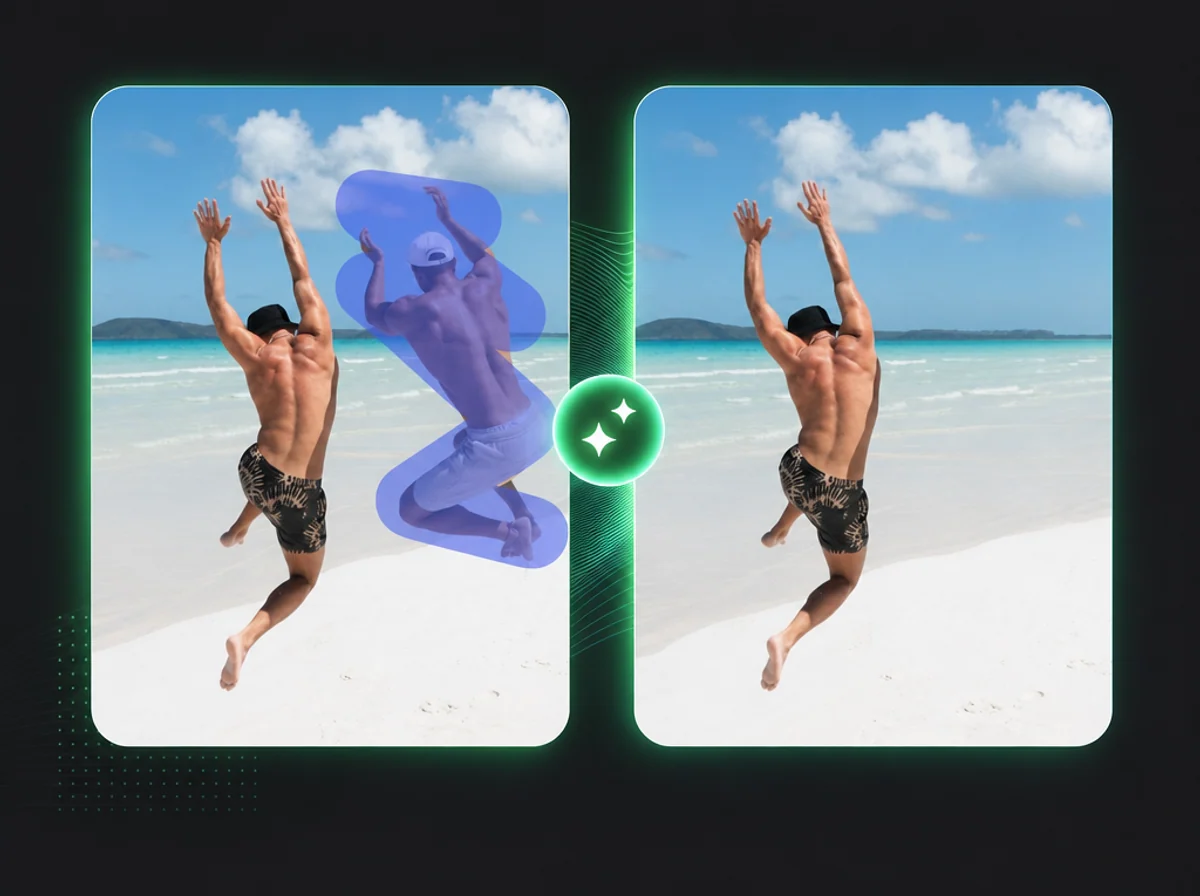
How to Remove Objects from Video in 3 Steps
Upload, paint, download online — no editing experience or software needed.
Upload Your Video
Click to upload or drag and drop your video file. Supports MP4, MOV, AVI, and WebM formats up to 100MB and 10 minutes in length. The tool will extract the first frame as your editing canvas.
Paint Over the Object to Erase
Use the brush tool to paint over the object, person, text, or logo you want to remove. Cover the entire target area generously — the painted region becomes the removal mask the AI uses during video processing.
Download Your Clean Video
Submit the task and track progress in the task manager. Once complete, review and download your cleaned video. Processing time varies by clip length.
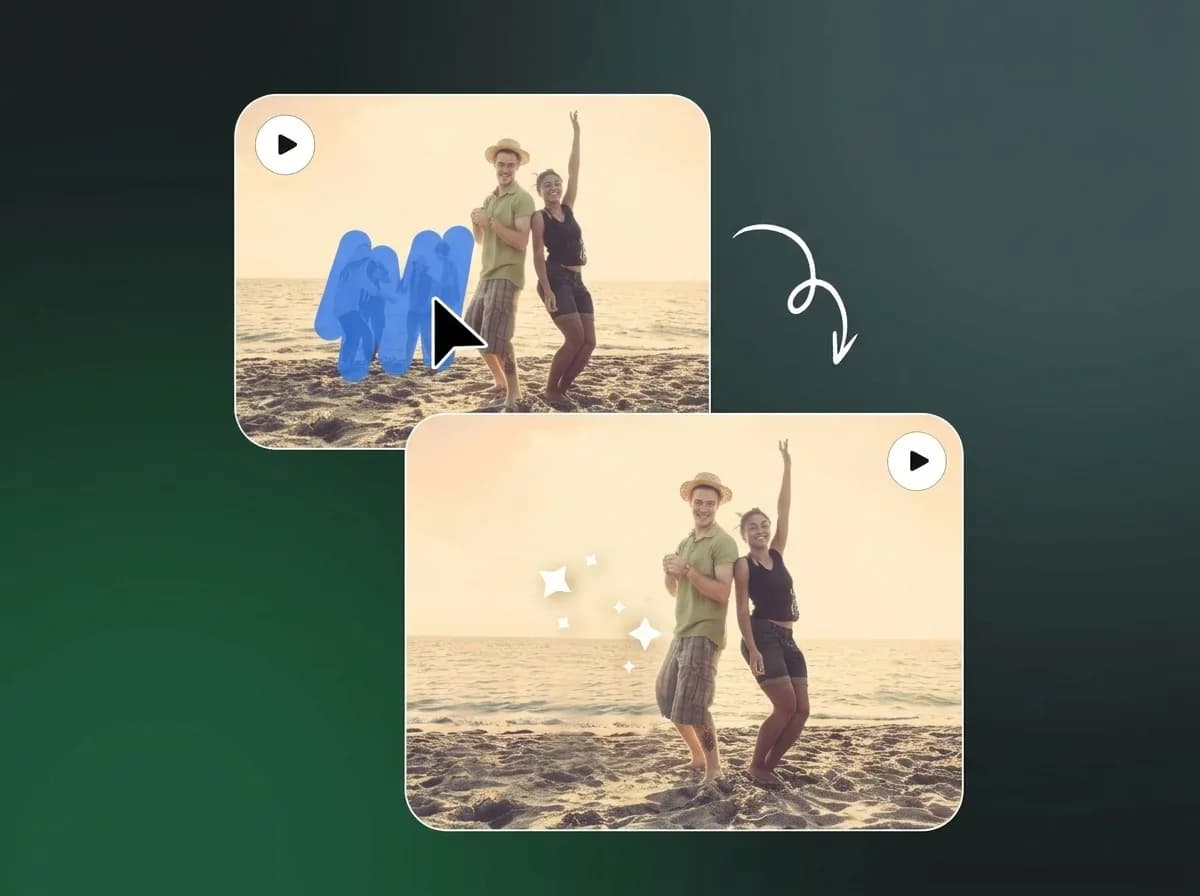
Paint Once. AI Applies the Mask Through the Clip.
With iMideo's video eraser, you don't edit frame by frame. Paint the object on a single frame — one brush pass over the area you want gone — and the AI applies the removal mask through the clip. The model looks at surrounding background context and fills in what should plausibly be there. Simple backgrounds, open sky, walls, and flat surfaces usually produce the cleanest results.
Remove People Who Walked Into Your Shot
You planned the shot. Someone walked through it anyway. With a video object remover, you may avoid a reshoot — paint over the person, and the AI fills in the background behind them through the clip. Results are strongest when the person stays inside the painted region or crosses a predictable area of the frame.

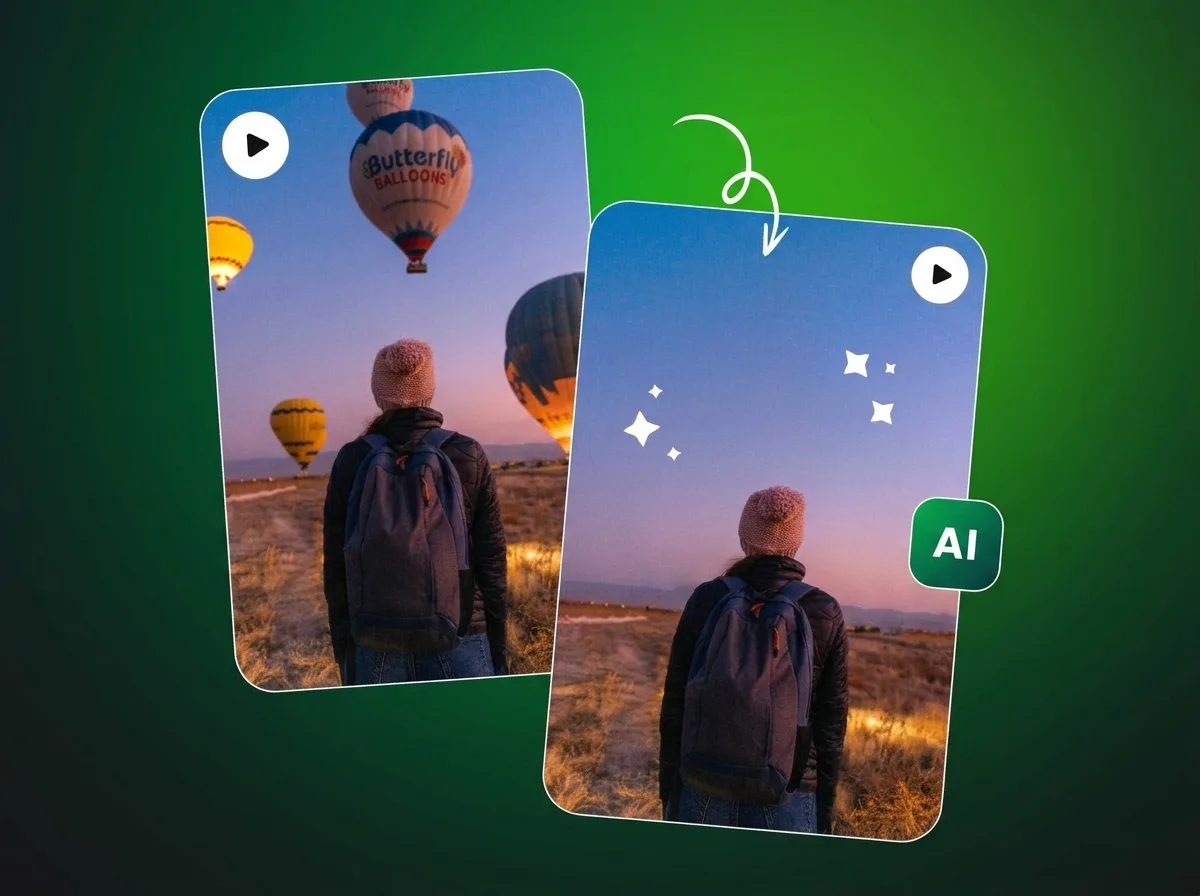
Erase Text, Logos, and Watermarks from Videos
Burned-in captions, old logos, timestamps stuck in the corner — the video eraser can help clean them up. Paint over the text or logo on the first frame, and the AI applies the removal through the clip. Consistent backgrounds usually fill more cleanly than complex patterns or fast-moving scenes.
Remove Unwanted Objects from Video Without a Reshoot
Most video cleanup used to mean reshooting or manual rotoscoping. With an AI video eraser, the common fixes take minutes: a stranger in the background of a travel clip, a microphone or cable crossing the frame, a parked car in a real estate walkthrough, or a sticker on a product shot. Paint the object, and the AI fills in what should be behind it. Need to remove an entire background instead of a specific object? Try our AI Video Background Remover.
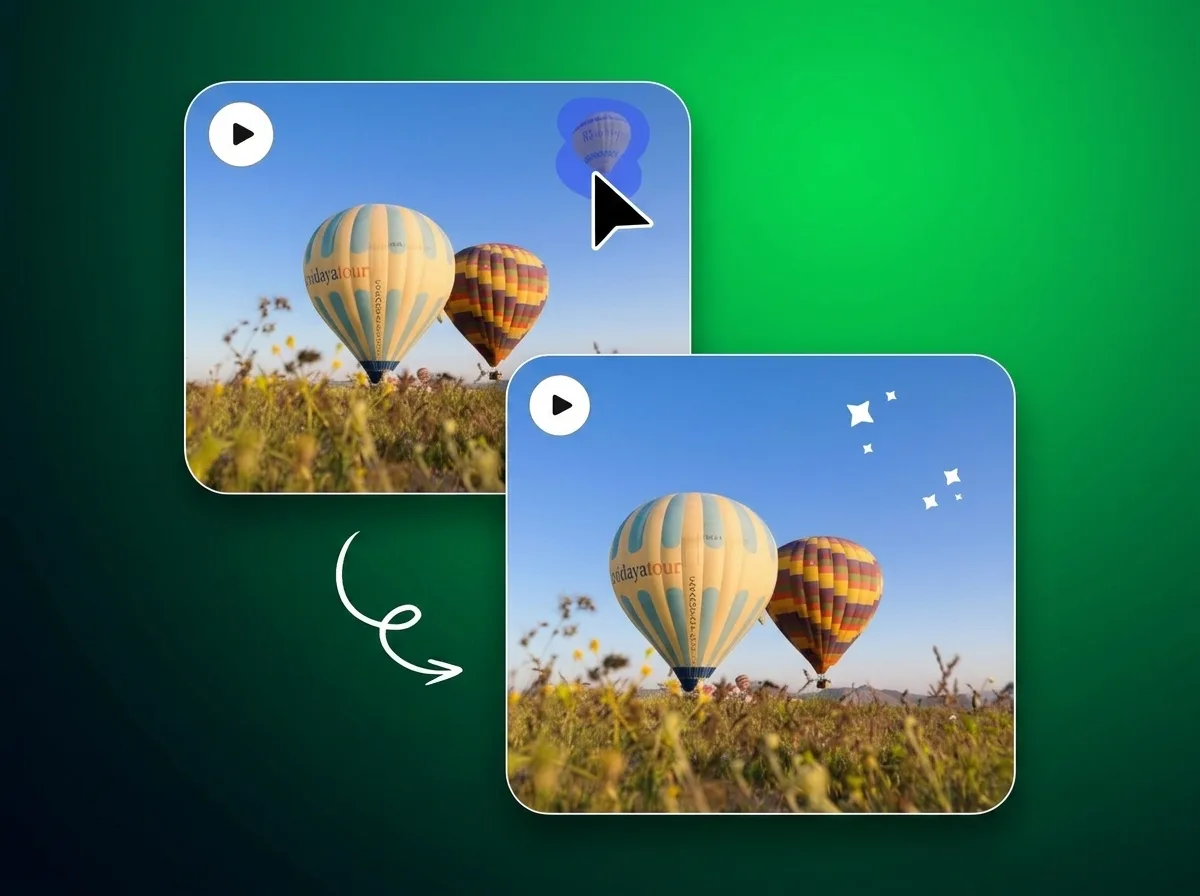
Why Use iMideo's Video Eraser
Brush Mask Control
Adjust brush size to cover large areas or fine details. The painted region tells the AI which area to remove, giving you more control than automatic detection alone.
Natural Background Reconstruction
The AI fills in the missing area by analyzing surrounding pixels — matching color, texture, and lighting. The result is a plausible fill, not a blur or a crop.
Up to 10 Minutes of Footage
Remove objects from clips up to 600 seconds long. Credits are calculated by duration — pay only for what you actually process.
Multiple Format Support
Upload MP4, MOV, AVI, or WebM files up to 100MB. The output video is available for download once the AI processing task completes.
Secure and Private
Your uploaded videos are processed securely, stored temporarily for processing, and not used for model training or shared with third parties.
Pay Only for What You Process
No monthly subscription. Credits are calculated by video duration. Short clips cost fewer credits — buy in bundles from your dashboard.
What Our Users Say
Marcus L.
Travel Filmmaker
I shot a two-minute clip at a market and a vendor's cart was visible throughout the shot. Painted it out quickly, and the AI reconstructed the background tiles well enough for my edit.
Sofia R.
Content Creator
Had a brand logo on a stock clip I wanted to repurpose. Painted the logo, submitted, and downloaded a cleaner version without opening After Effects.
Tom W.
Real Estate Videographer
Extension cords and charging cables show up in nearly every interior walkthrough. This tool removes them without me having to re-stage and reshoot. Saves me at least an hour per property.
Priya A.
E-commerce Video Producer
We had a product demo with a price tag visible in the corner. It would have been a reshoot, but the video eraser gave us a cleaner version in minutes.
Kevin D.
Wedding Videographer
A photographer's flash stand was visible in the corner of a ceremony shot the couple loved. Removing it made the final clip feel much cleaner.
Lena M.
Social Media Manager
We repurpose a lot of footage across different campaigns. Being able to remove old captions and logos from existing clips saves us from constantly shooting new content.
James C.
Documentary Editor
Archive footage often has timestamps and channel bugs burned in. This handles simple overlays well, especially when the background behind them is stable.
Nina S.
Yoga Instructor
I film tutorial videos in my home studio and often miss something in the background: a water bottle, a bag, a piece of equipment. This tool makes my setup look cleaner without extra prep.
Frequently Asked Questions
1How do I remove an object from a video?
Upload your clip, paint over the object you want to remove on the first frame, and submit. The AI turns your brush strokes into a mask, removes the object through the clip, and fills the area with background estimated from the surrounding pixels. You don't need editing software or keyframes, and you can download the cleaned video as soon as the task finishes.
2What is a video eraser?
A video eraser is an AI tool that erases specific objects from video footage while leaving the rest of the frame untouched. iMideo's video eraser works from a single painted mask, so you mark the object once instead of editing every frame.
3What kinds of objects can the video eraser remove?
The video eraser can remove a wide range of objects including people, signs, props, cables and wires, text overlays, logos, watermarks, timestamps, and other unwanted items in the frame. Performance is strongest when the object occupies a clear, bounded area and when there is enough background visible around it for the AI to reconstruct from.
4Does it work on moving people in the video?
The removal mask is painted on the first frame and applied to the entire video. If the person or object you painted remains in roughly the same region of the frame throughout the clip, results are typically clean. Objects that move significantly or leave the painted region may not be fully removed from later frames. For best results on people, use a slightly generous brush area that covers where they appear throughout the clip.
5What video formats are supported?
iMideo's video eraser accepts MP4, MOV, AVI, and WebM files. The file size limit is 100MB, and the video duration limit is 10 minutes (600 seconds). Higher-resolution source videos tend to produce cleaner background fills because the AI has more detail to work with.
6How long does video object removal take?
Processing time depends on video length and complexity. After you submit the task, you can track progress in the task manager panel. Shorter clips generally complete faster. You'll be notified when your cleaned video is ready to download.
7How are credits calculated for the video eraser?
Credits are based on video duration. Short clips of 5 seconds or under require a minimum of 7 credits. Clips longer than 5 seconds are calculated at approximately 14 credits per 10 seconds of footage. You can see the exact credit requirement before submitting. Credits can be purchased in bundles from your dashboard. Check our pricing page for current rates.
8What's the difference between video eraser and video background remover?
Video eraser lets you selectively remove specific objects by painting over them, while the rest of the video remains intact. Video background remover removes the entire background from every frame, isolating the foreground subject. Use video eraser to clean up a specific distraction — a person, a prop, a logo. Use AI Video Background Remover when you want to isolate a subject entirely against a transparent or replaced background.
9Will the background fill look natural after the object is removed?
For most common removal scenarios — people against open backgrounds, props on flat surfaces, text over consistent backgrounds — the fill looks convincing. Complex or highly patterned backgrounds like tiled floors or dense foliage can sometimes show minor inconsistencies. Higher-resolution source videos and objects with clear surrounding context produce the most natural fills.
10Are my videos stored or used for AI training?
Your uploaded videos are used to generate your removal result, stored temporarily for processing, and deleted according to the product retention policy. They are not used for AI model training or shared with third parties.
11What tips produce the best object removal results?
Cover the full area of the object with your brush, including a small border around the edges. Avoid painting partially — incomplete masking often leaves visible artifacts. Use a larger brush for wide objects and reduce size for narrow or detailed targets. If the first result has artifacts, try resubmitting with a slightly wider or tighter paint area.
Other Video Tools
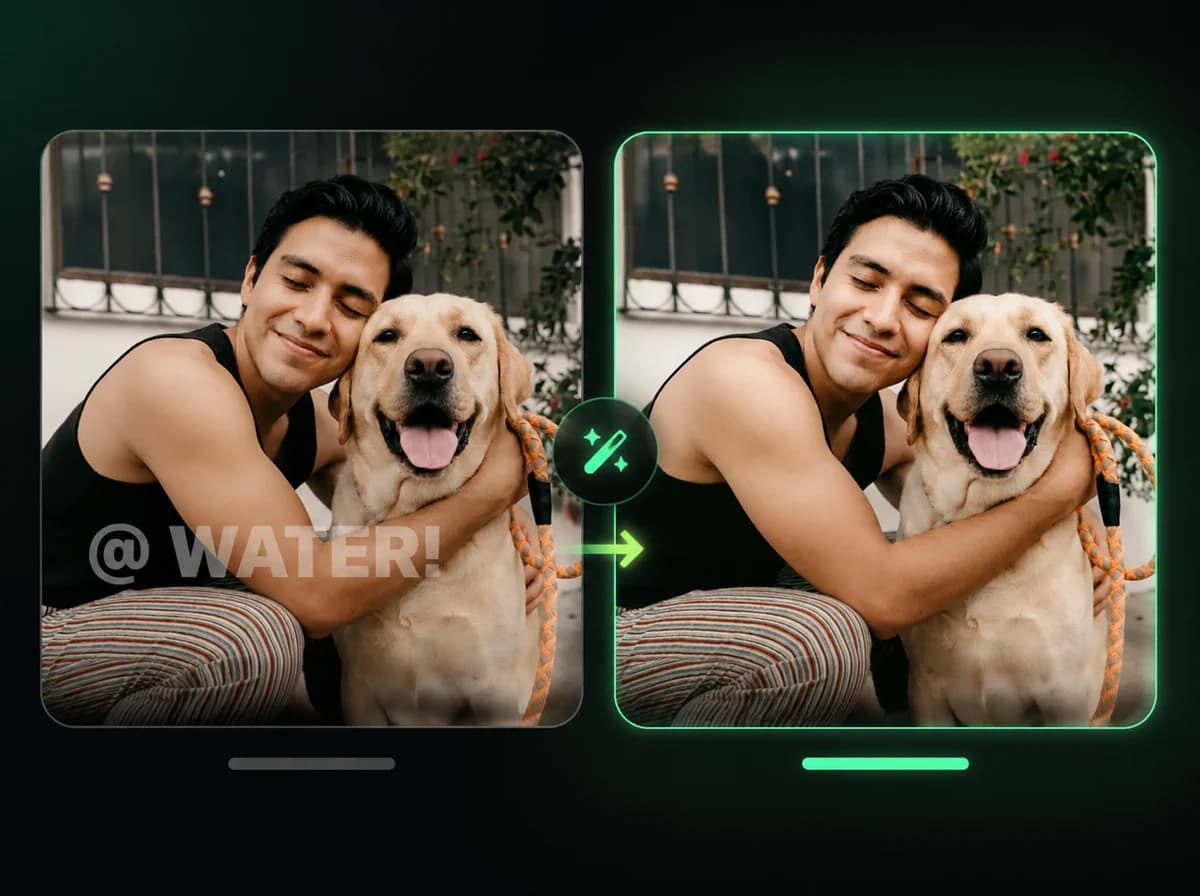
AI Watermark Remover
Remove logos and watermarks instantly while maintaining quality.
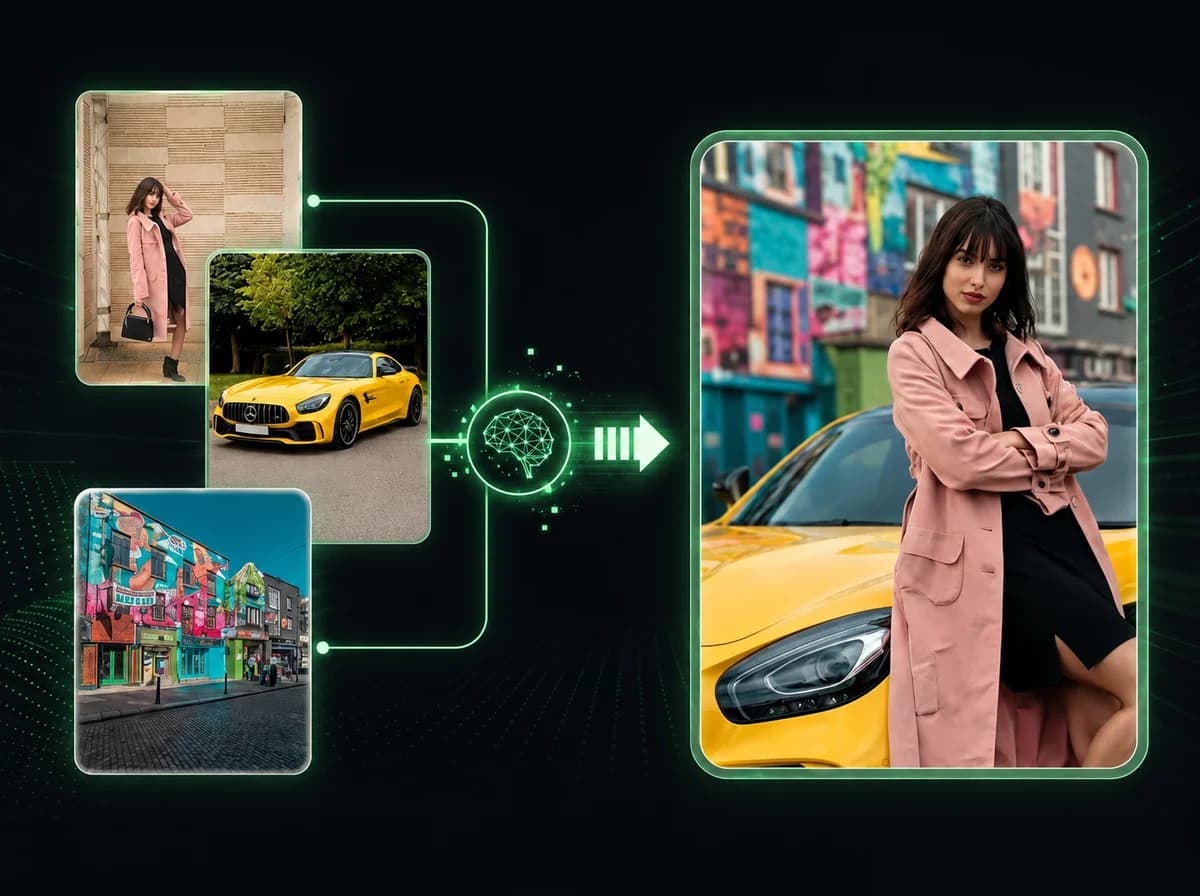
Reference to Video AI
Blend multiple images into one cohesive video in 2-3 minutes.
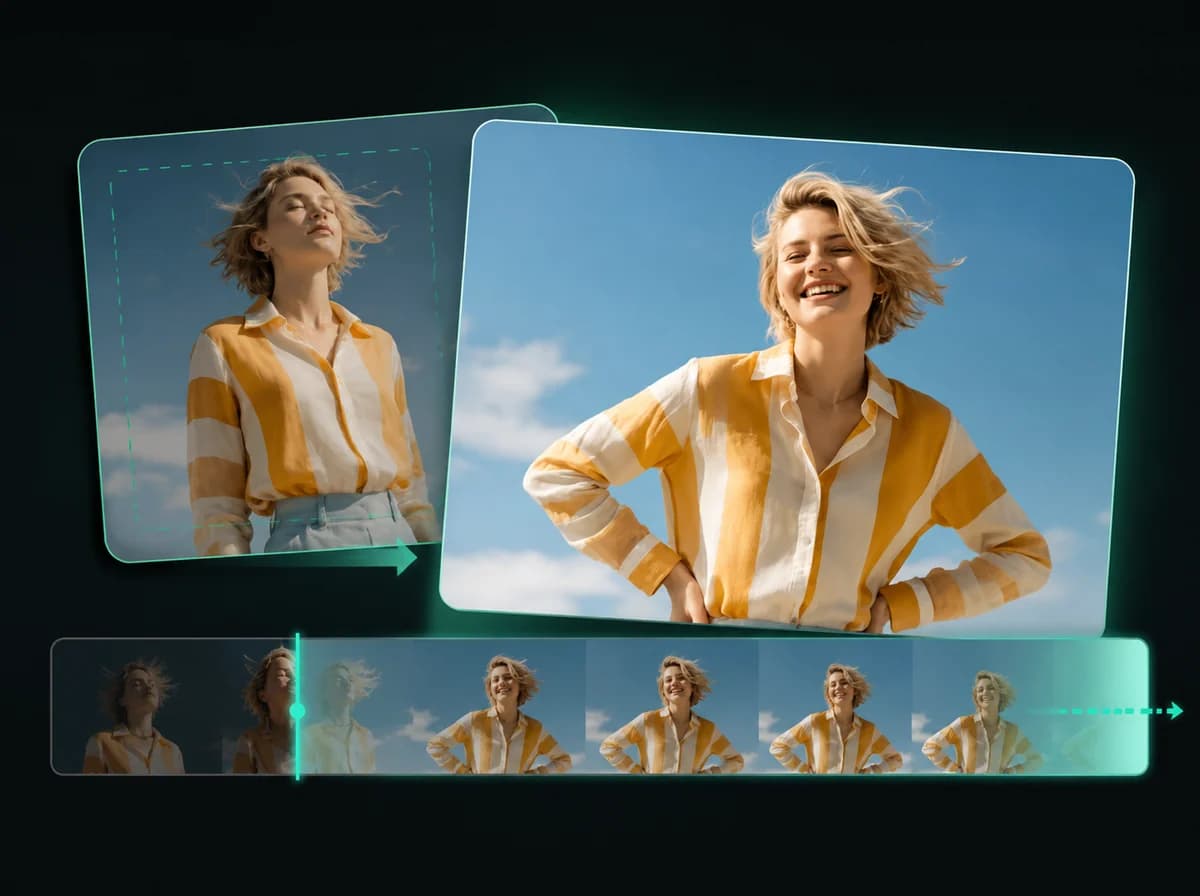
AI Video Extender
Extend video duration with AI-powered frame generation.
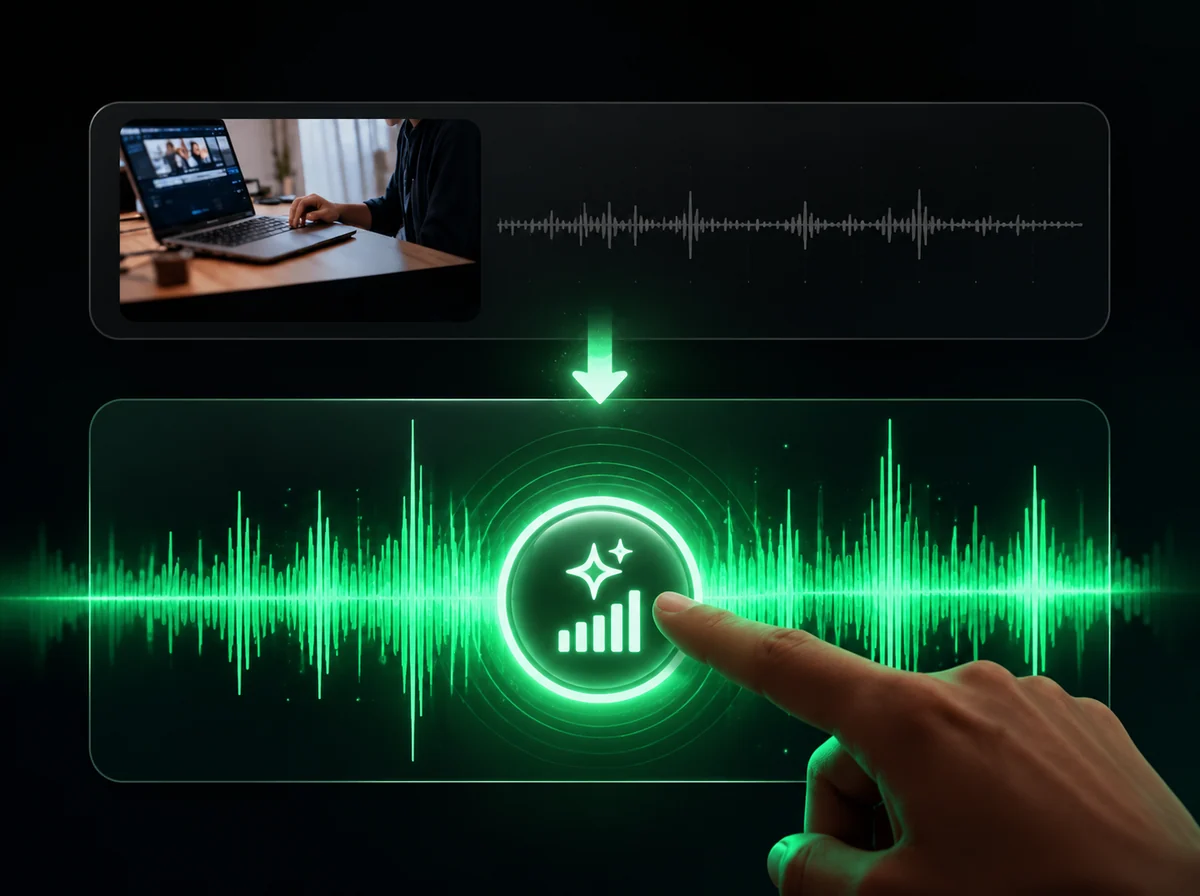
AI Sound Effects Generator
Add cinematic sound effects to any video instantly with AI.

AI Video Upscaler
Upscale videos to crisp 4K instantly with AI.

Auto Subtitle Generator
Generate accurate subtitles in 100+ languages with 95% AI accuracy.
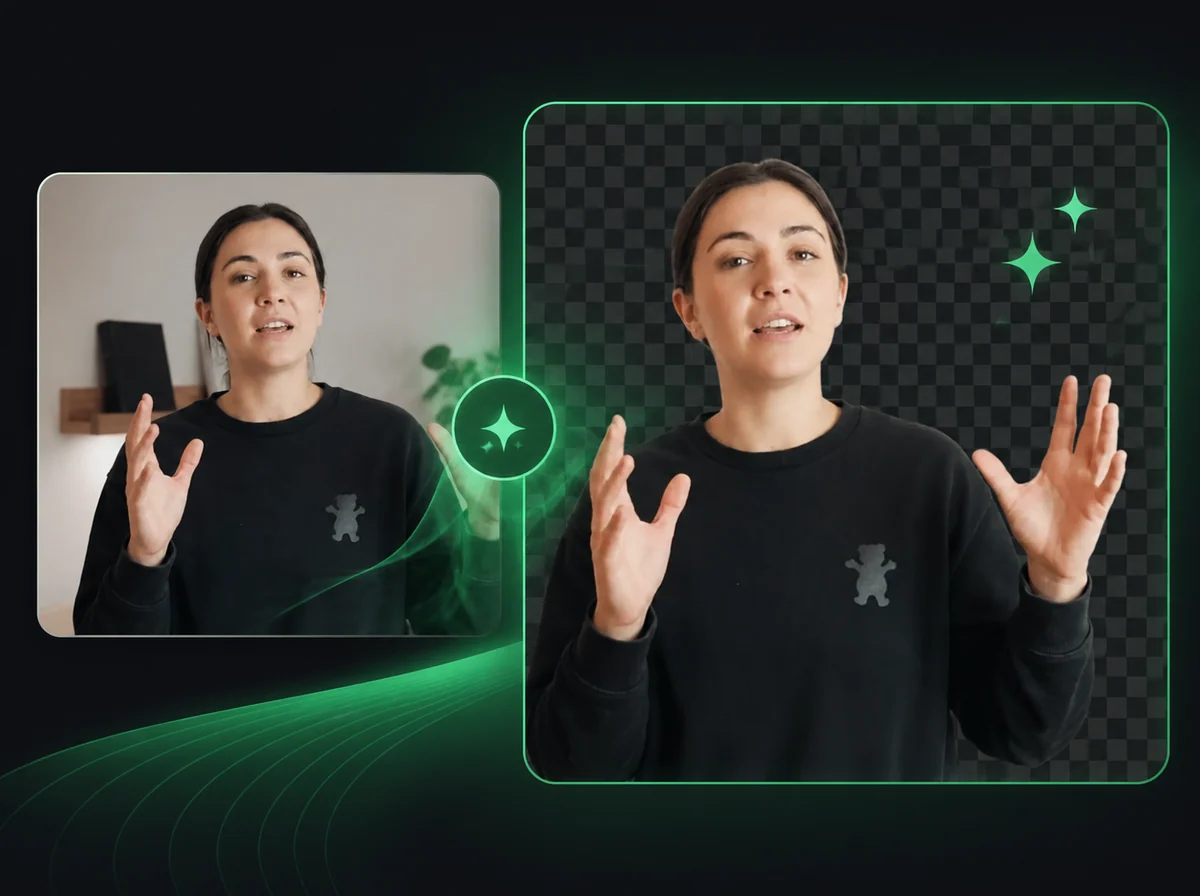
Video Background Remover
Remove or replace video backgrounds automatically with AI precision.

AI Product Video Generator
Turn a product photo and an optional scene into a 3–15 second video with editable camera direction.
Remove Objects from Your Videos — No Reshoot Needed
Paint over the distraction, let AI apply the removal through the clip, then download a cleaner video with no watermark.