
Reference to Video AI: Blend Multiple Images into One Video
Upload 2-3 images and use AI to merge products, people, and locations into one dynamic video scene.
What is Reference to Video AI?
Reference to video AI generates dynamic videos by blending 2-3 separate images into one cohesive scene. Unlike manual compositing, it uses the uploaded references to estimate spatial relationships, lighting, and perspective so multiple elements can appear in the same shot. This reduces the need for expensive photoshoots and complex 3D rendering. Upload a product image, model photo, and background location, then guide the AI with a prompt to create marketing footage, social clips, or creative concept drafts. Powered by Veo 3.1 Fast, it supports rapid iteration for product campaigns, social content, and creative concepts.
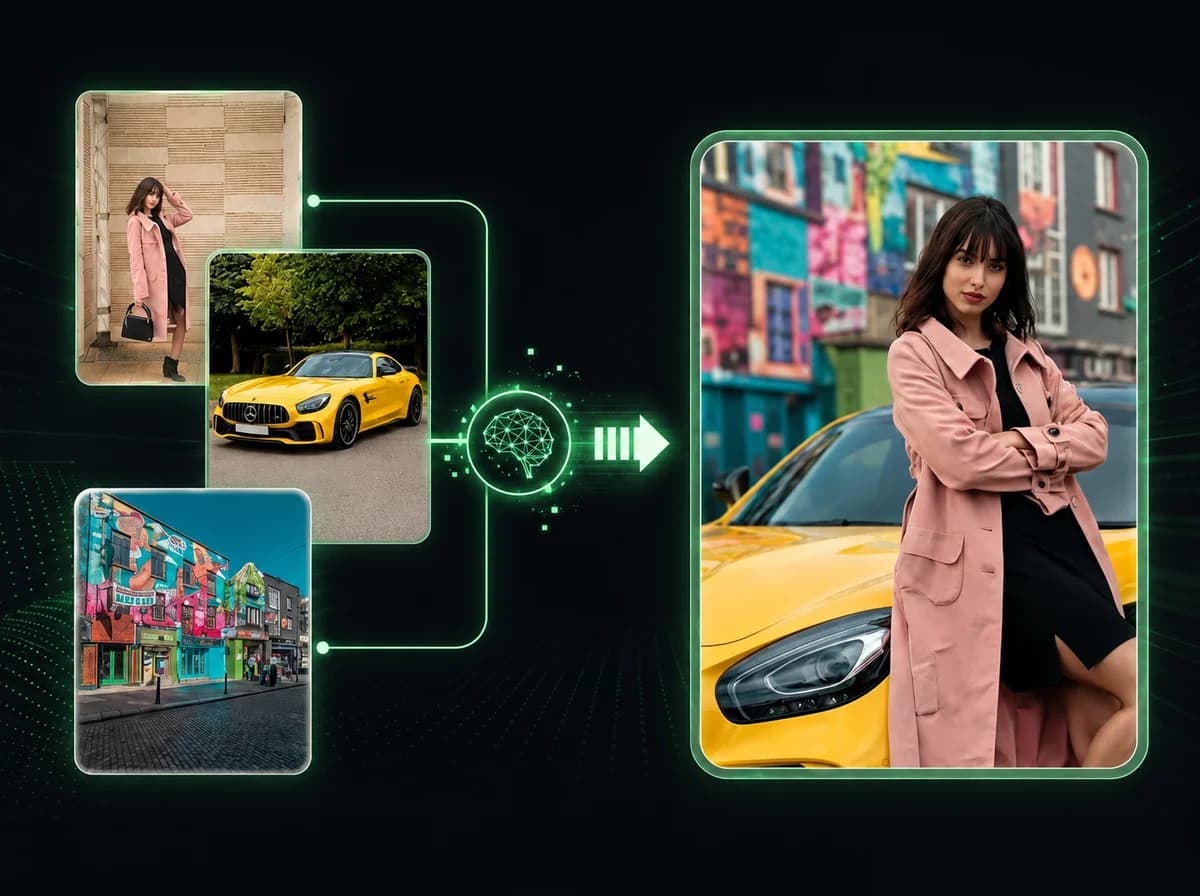
Create Multi-Element Videos in 4 Simple Steps
AI-powered scene composition from separate images
Upload Different Elements
Select 2-3 images with different subjects—a product, person, background, or any combination you want to merge.
Describe Your Scene
Write a prompt explaining how these elements interact. For example: 'Woman holding handbag on a beach at sunset.'
AI Fusion
Veo 3.1 Fast blends all elements into one cohesive video with natural lighting and depth. Most jobs complete in a few minutes, depending on queue and prompt complexity.
Download & Share
Preview your composed video and download in high quality without watermarks. Ready for marketing or social media.

Multi-Element Scene Composition
Upload 2-3 different images and AI combines them into a single coherent scene. Useful for product demos, marketing videos, and creative storytelling.
Fast Video Generation with Veo 3.1
Powered by Veo 3.1 Fast, this workflow produces composed video drafts in minutes. Use it for quick previews and rapid creative iterations.


High-Resolution Composite Output
Generate polished composite videos with coordinated depth, lighting, and motion. Output quality depends on the clarity and compatibility of the uploaded reference images.
Prompt-Driven Fusion Control
Guide how elements combine with detailed prompts. The AI uses your description to arrange subjects, products, and backgrounds naturally in the scene.

What Creators Say About Reference to Video AI

Jake H.
E-commerce Manager
I upload a product shot, a model photo, and a background and get a quick lifestyle ad draft. No photoshoot needed. Sales pages look way more professional now.

Sophia R.
Music Video Director
Combine my singer’s portrait with concept art and location refs. Useful for visualizing scenes before the actual shoot and saving pre-production time.

Marcus V.
Brand Strategist
Client wants to see their product in different settings? Reference video makes the concept test much faster. No need to book photographers for every location test.

Emily T.
Content Creator
Mix my face with outfit inspo and a cool backdrop. Creates unique content that stands out. Way better than generic stock footage.

David L.
Indie Game Developer
Blend character art, environment sketches, and lighting references into gameplay previews. Helps pitch ideas to investors without building the full game first.

Rachel K.
Fashion Designer
Take my clothing designs, model shots, and runway backgrounds and turn them into fashion show footage drafts. Clients see the vision before we go into production.

Chris P.
Advertising Creative
We test product placements by combining product images with scene references. Faster iteration means better campaign results. Client approvals went smoother.
Frequently Asked Questions
Everything you need to know about Reference to Video AI generation
1What is Reference to Video AI generation?
Reference to Video AI is a multi-image video generator that lets you upload 2-3 separate images—like a product, person, and location—and blend them into one cohesive video. Use it for marketing content, product demos, or creative storytelling where multiple elements need to appear together naturally.
2How many images can I upload?
Upload 2-3 images with different subjects. For example: a handbag, a model, and a beach background. The AI will intelligently merge them based on your prompt description.
3How long does generation take?
Most videos complete in a few minutes, depending on queue, resolution, and prompt complexity. You'll see progress updates and can preview your composed video when processing finishes.
4Can I use these videos commercially?
Yes, generated videos can be used commercially when you own or have permission to use the uploaded images, people, products, and brand assets shown. iMideo does not add a per-use license fee on top of the generation cost.
5What type of images work best?
Use clear, high-resolution images with good lighting. Images should have clean backgrounds or distinct subjects for best blending results. Avoid heavily filtered or blurry images.
6How do I control how elements are combined?
Use detailed prompts to describe how elements should interact. For example: 'Woman holding red handbag while walking on beach at sunset.' The more specific your prompt, the easier it is for the model to place the references correctly.
7What's the difference between reference to video and text to video?
Text to video generates videos from text descriptions alone, while reference to video uses actual images as visual guides. Reference to video gives you more control over specific elements like product appearance, a person's face, or a chosen background. If you only have one still image to animate, use image to video instead.
8Can I use different aspect ratios?
Yes. You can choose 16:9 (landscape), 9:16 (vertical for TikTok/Reels), 1:1 (square for Instagram), 4:3, 3:4, 21:9 or 9:21. Pick the ratio in the generation settings.
9What AI model powers this feature?
Reference to video is powered by Google's Veo 3.1 Fast model, specifically optimized for multi-image fusion and rapid generation. Veo 3.1 excels at understanding spatial relationships and creating natural interactions between separate elements.
10How do I get the best results?
For optimal results: (1) Use high-resolution images (at least 1024px), (2) Choose images with clear subjects and good lighting, (3) Write detailed prompts describing how elements should interact, (4) Ensure images have compatible lighting styles, (5) Avoid heavily compressed or blurry source images.
Ready to Blend Multiple Images into One
Compose multi-element videos with AI from your reference images.