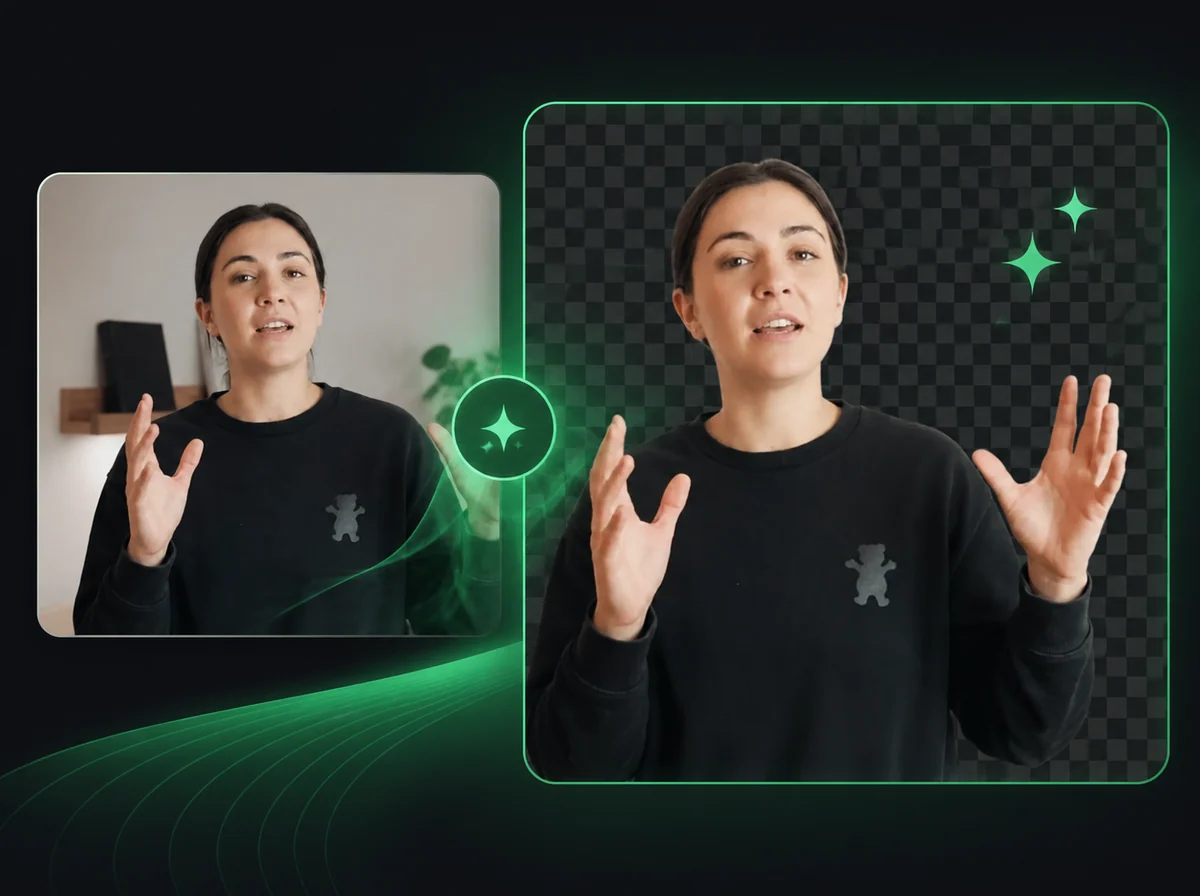
AI Product Video Generator: Motion Without a Reshoot
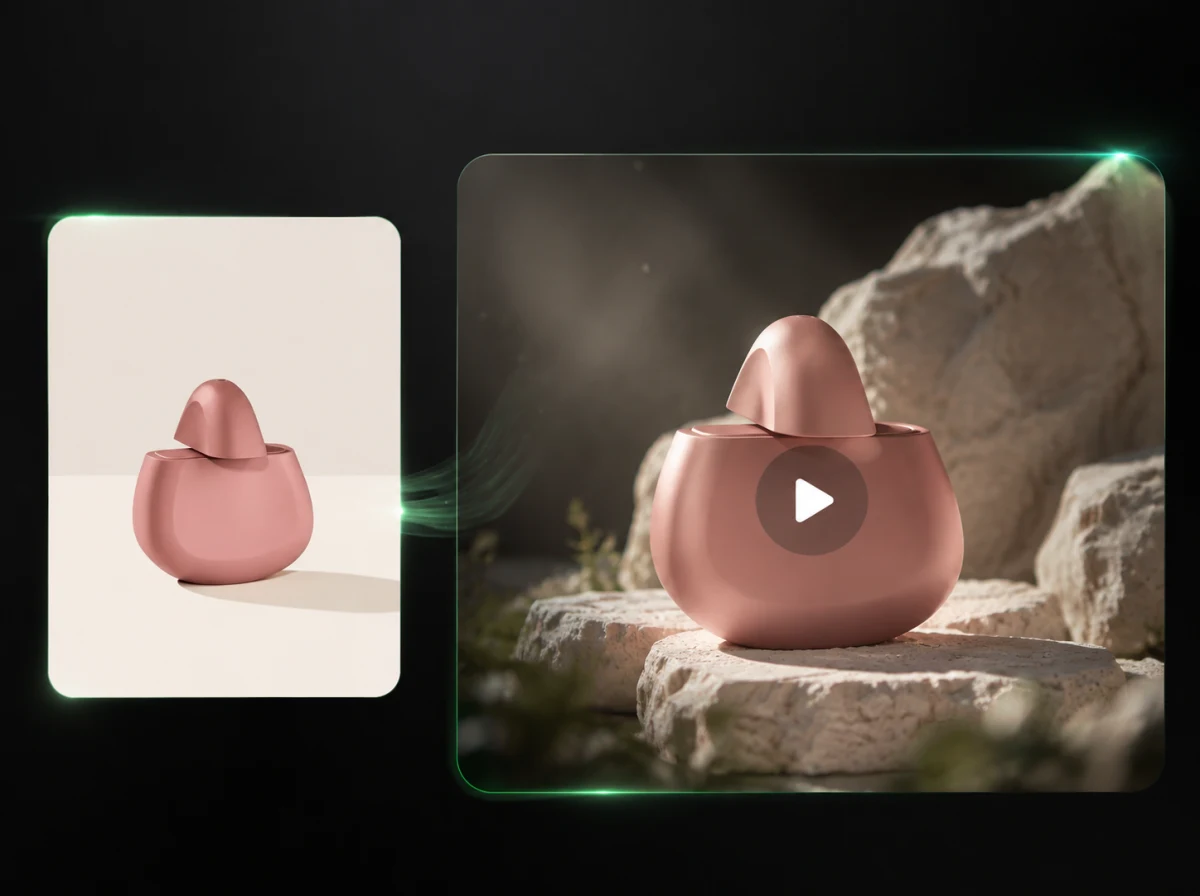
Upload a product photo, add an optional scene, and direct a 3–15 second product video with editable motion and framing.
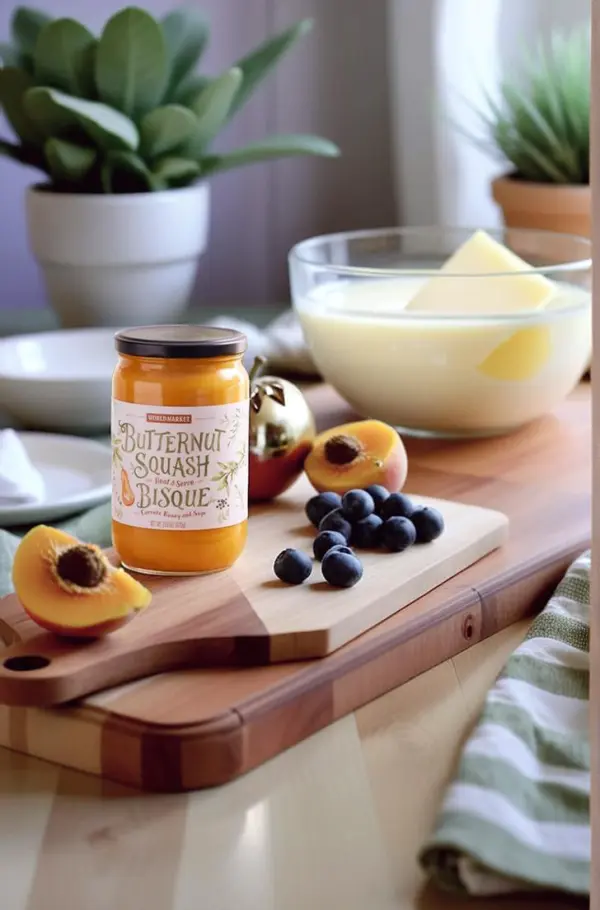
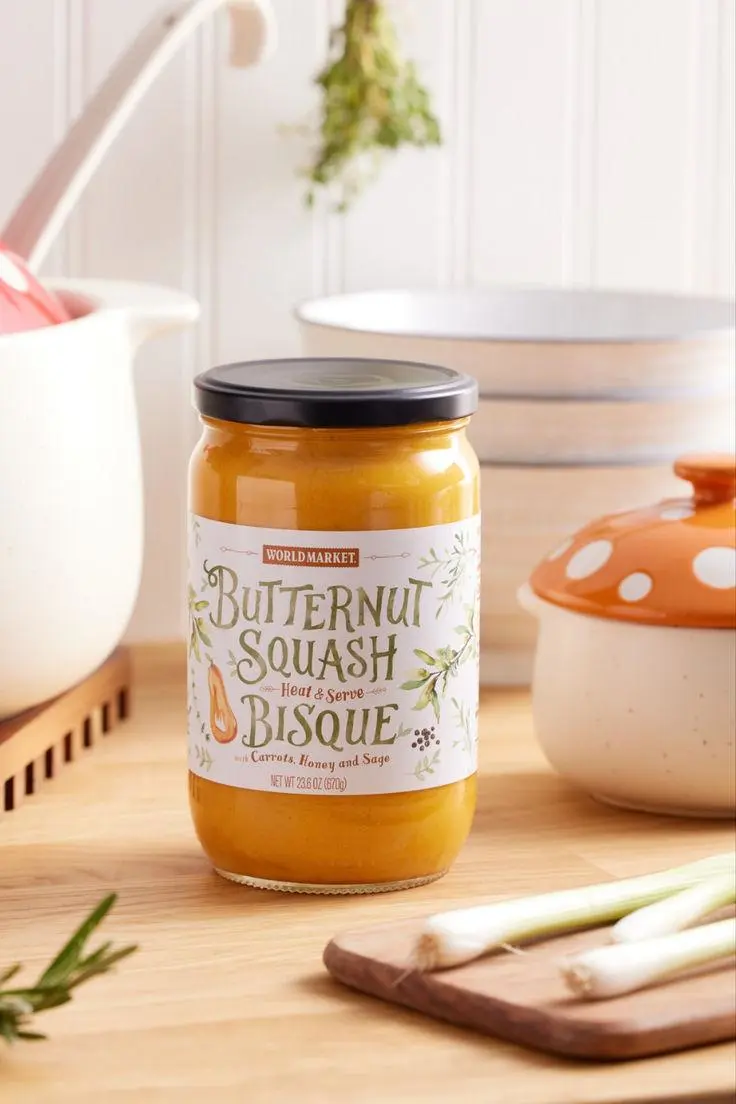
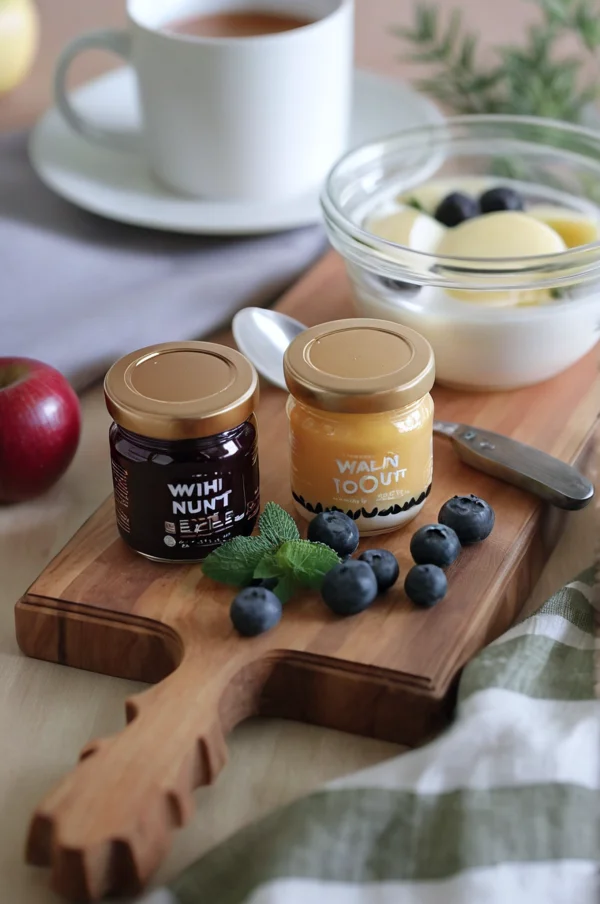
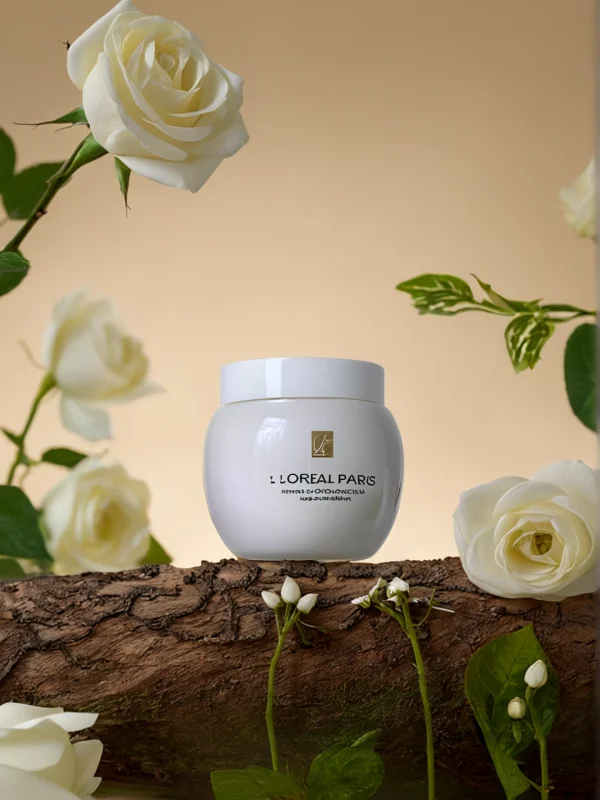
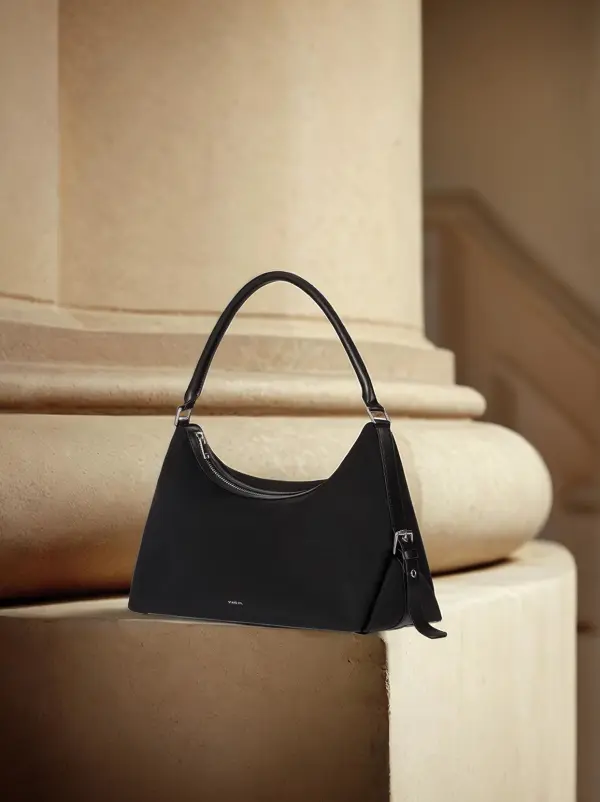
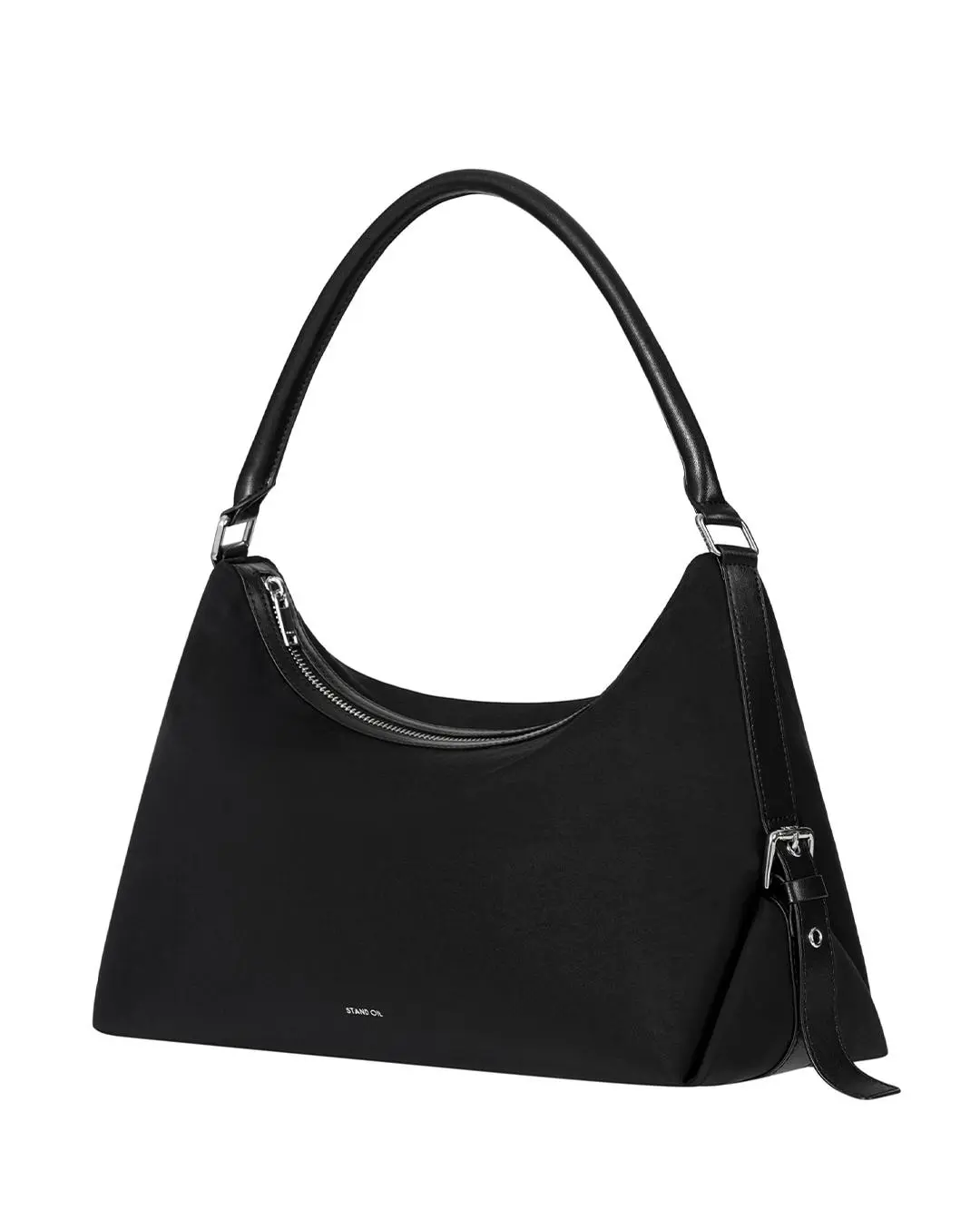
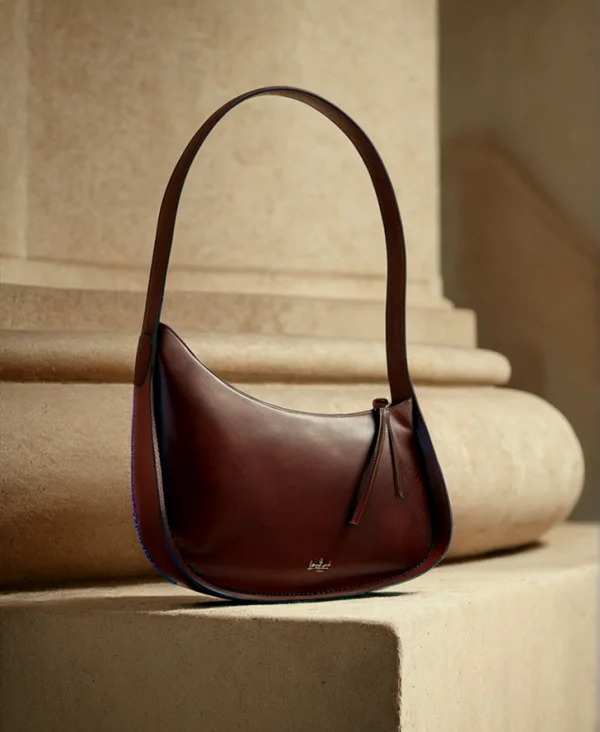
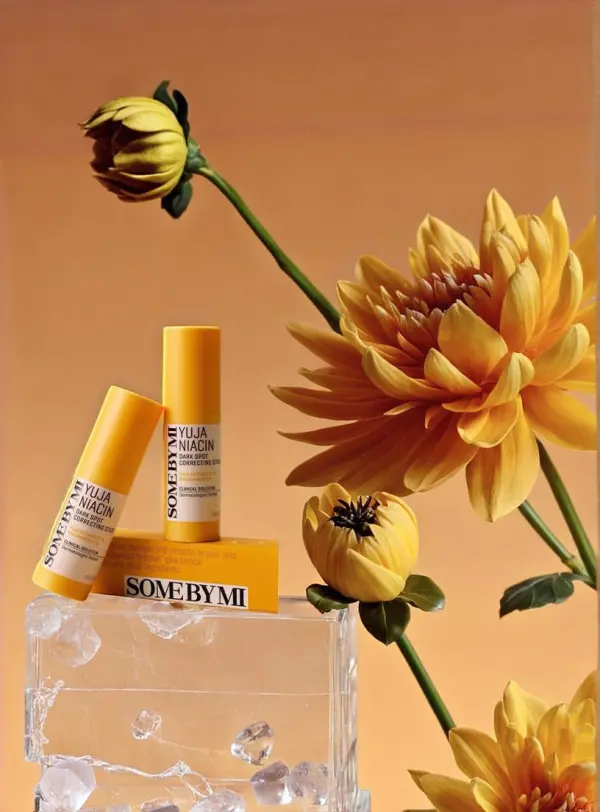
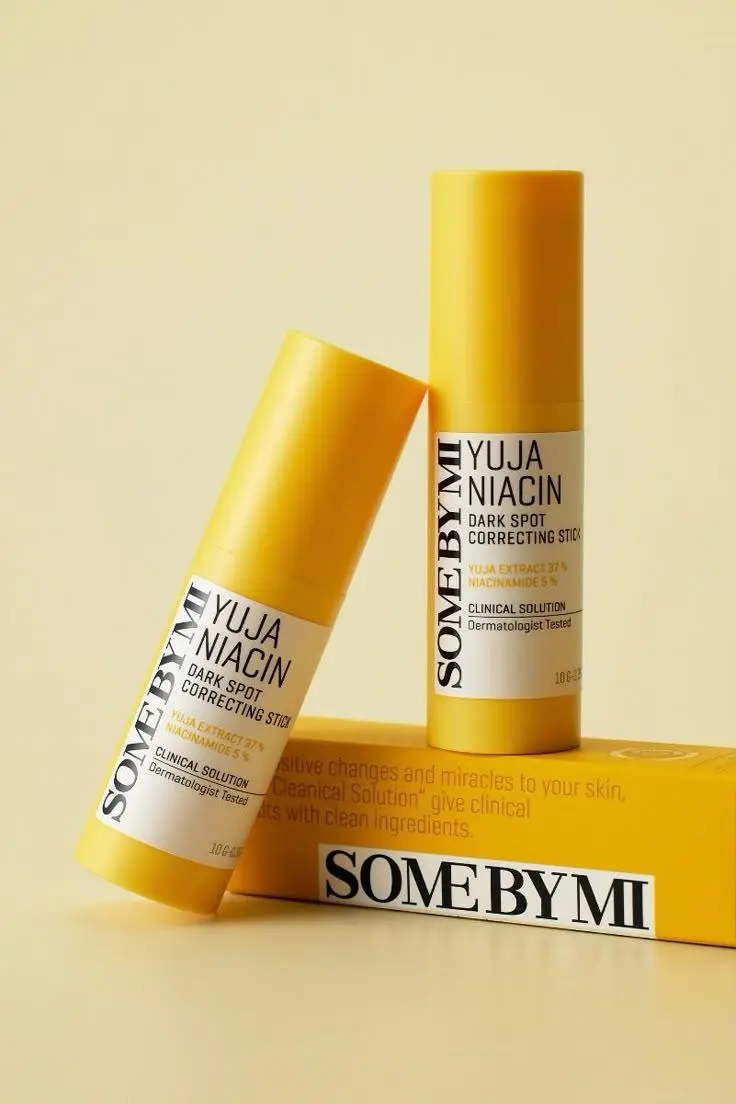
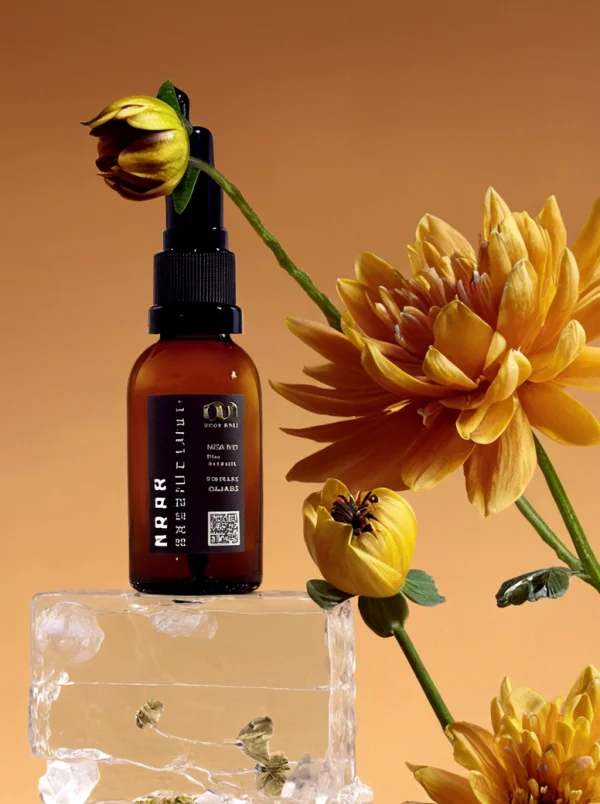
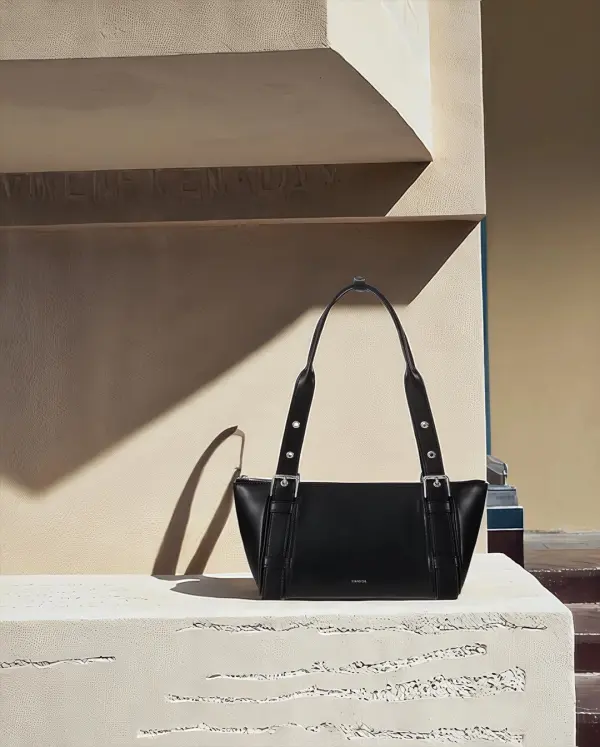
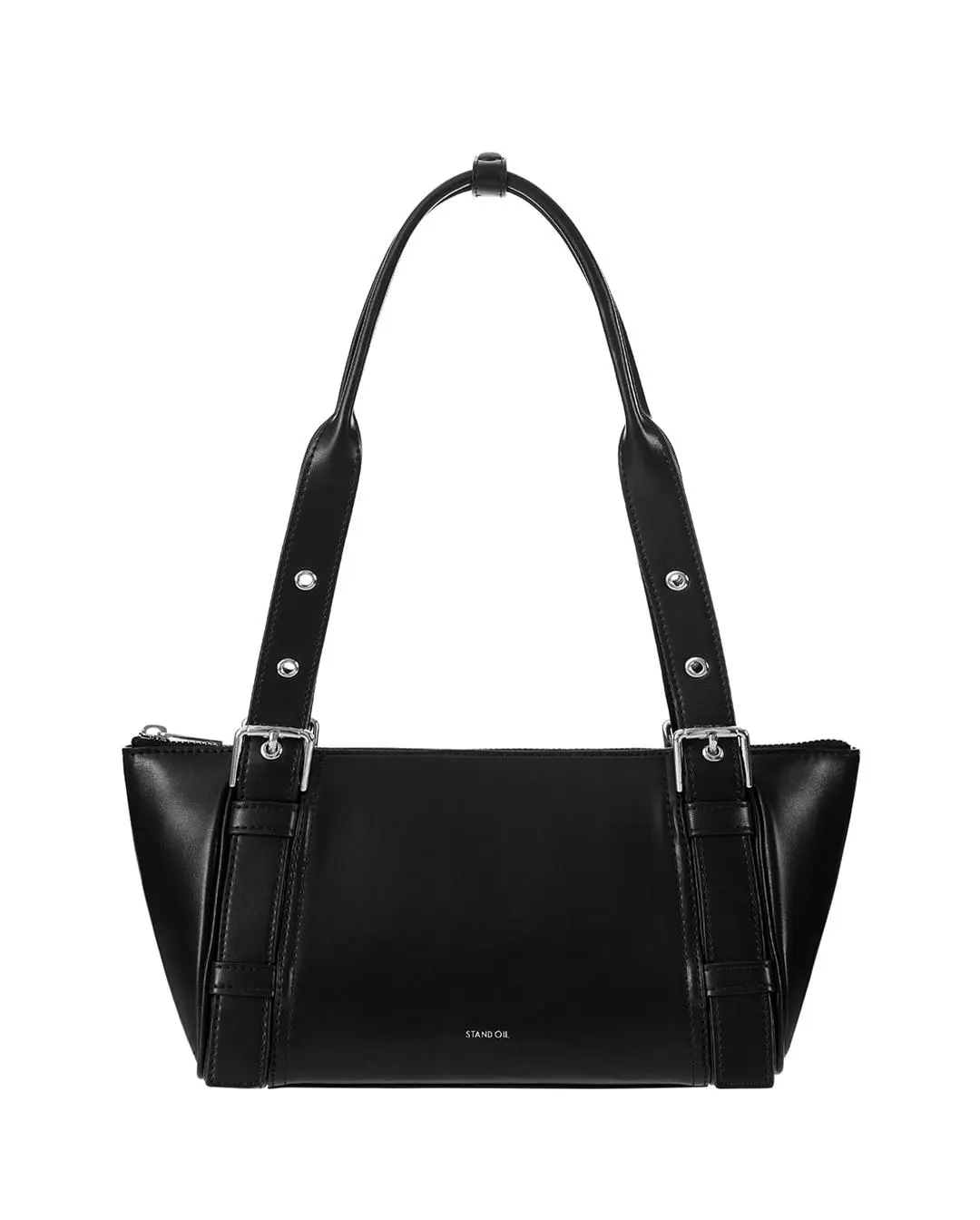
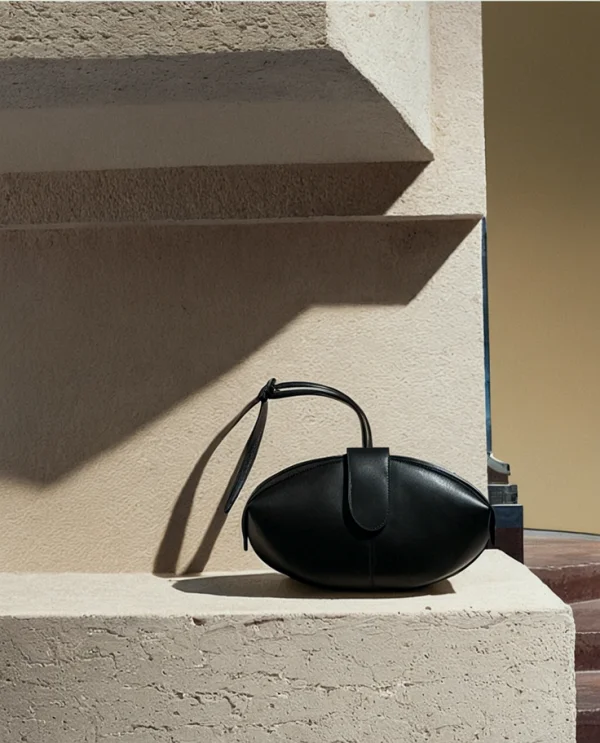
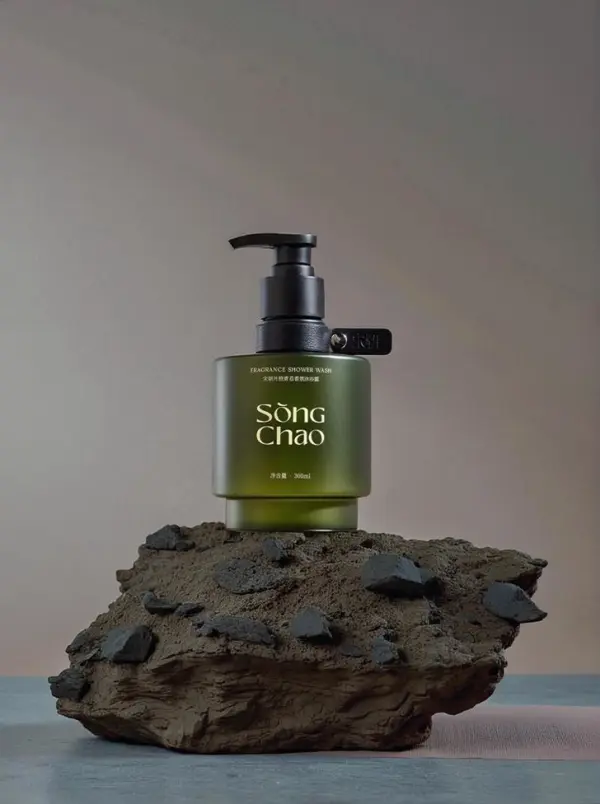
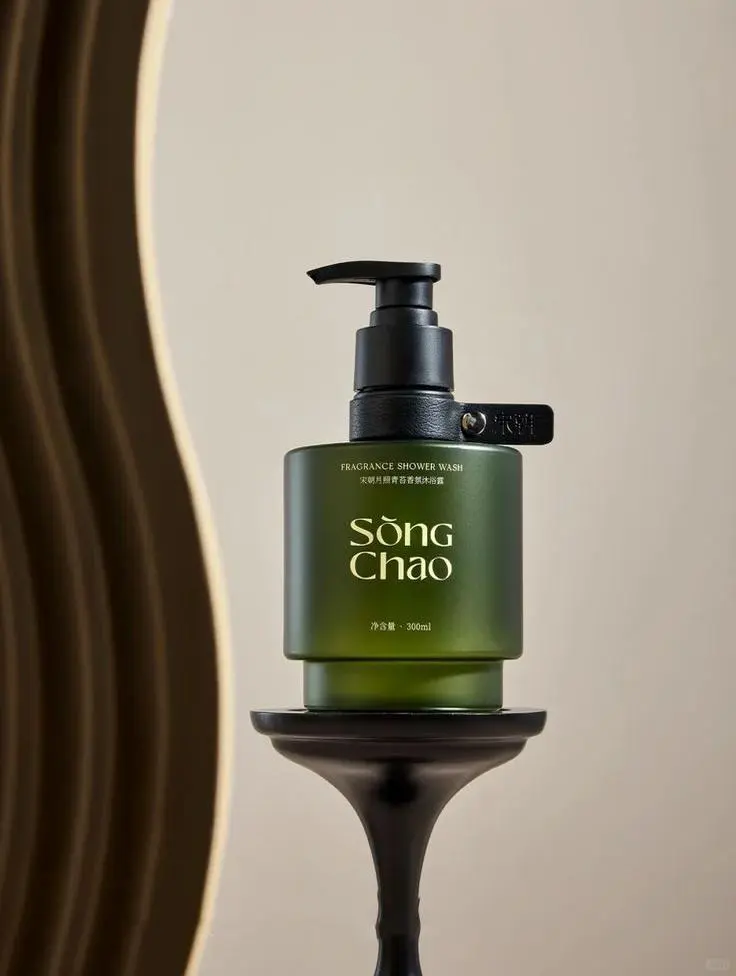
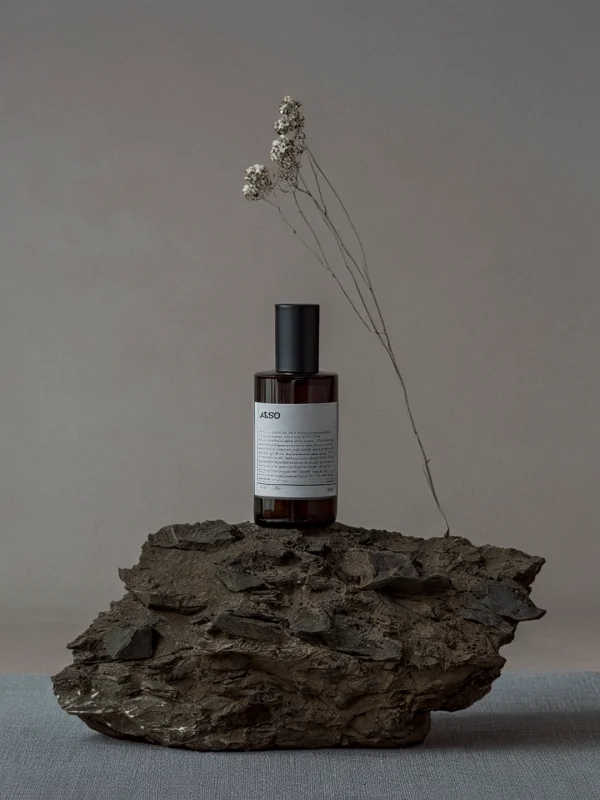
How to make a product video from a photo
Upload the product, set the scene and movement, then review the generated clip.
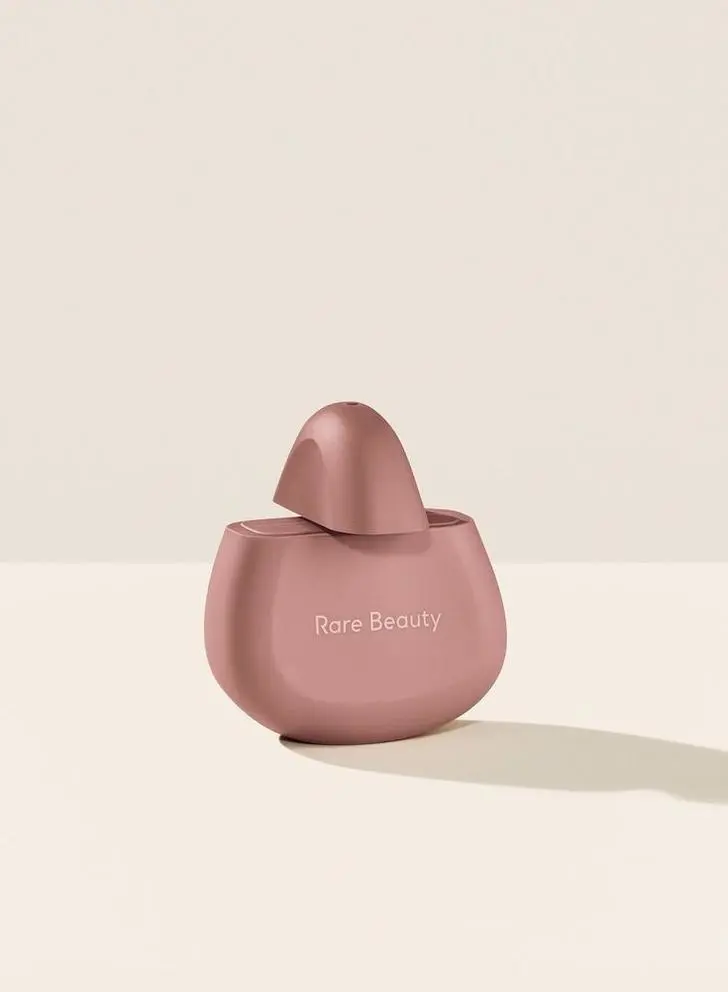
Upload the product photo
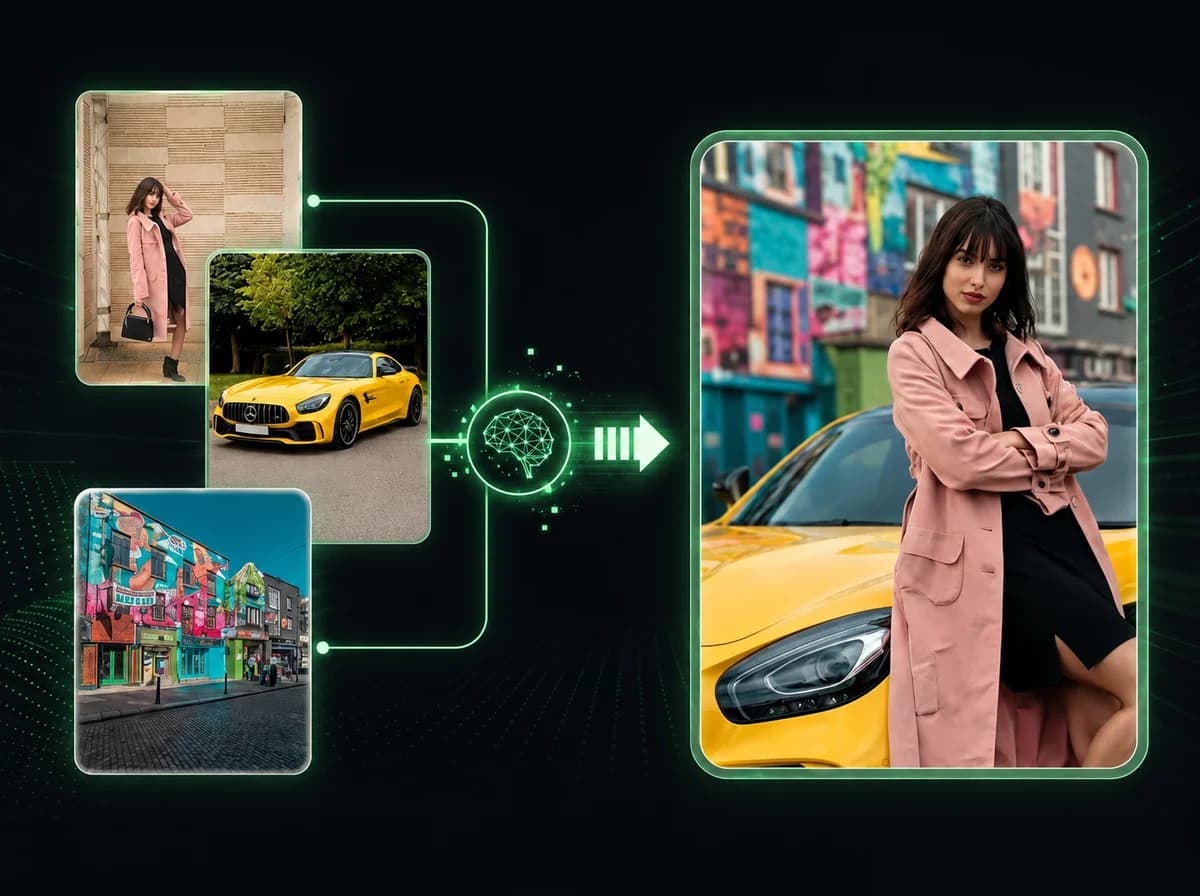
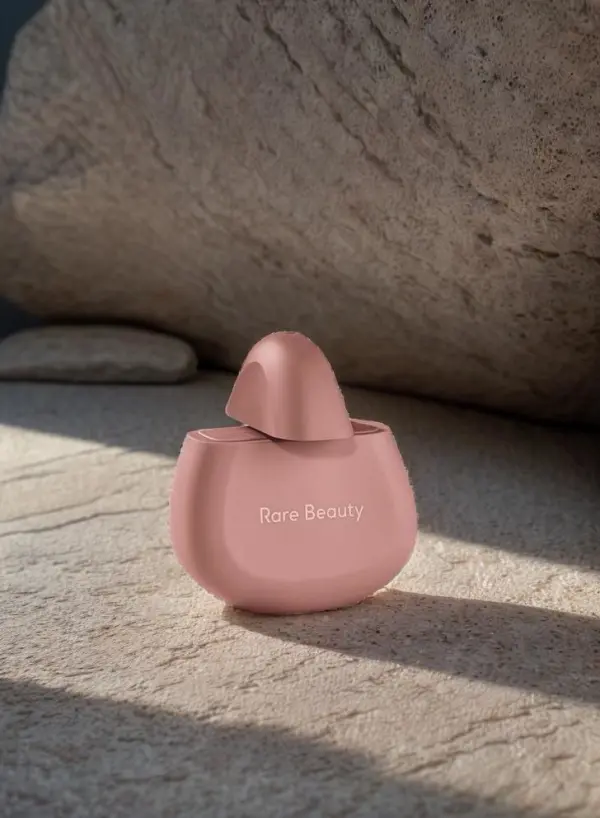
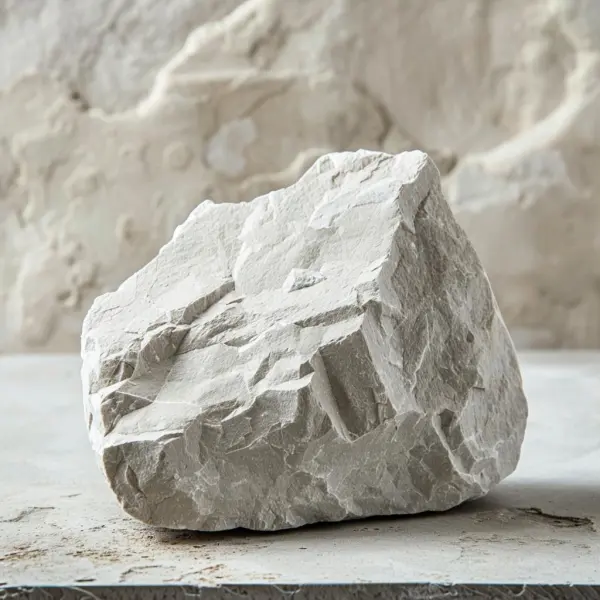
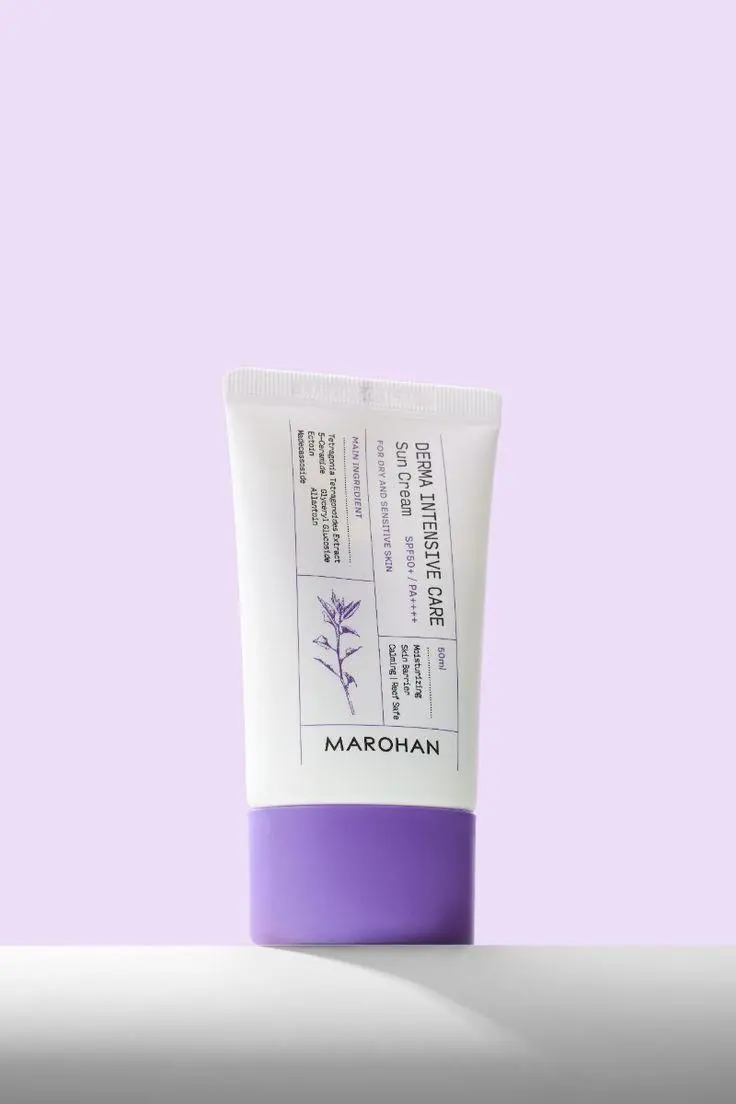
Choose a clear image with the whole product visible. Add a second image when you want to borrow a location, surface, lighting direction, or campaign mood.
Direct the shot
Pick slow orbit, push-in, turntable, macro reveal, or floating hero. Edit the prompt, aspect ratio, quality, and 3–15 second duration to fit the placement.
Generate and review
Check the credit cost, create the video, and inspect packaging, labels, proportions, and motion before downloading or trying another direction.
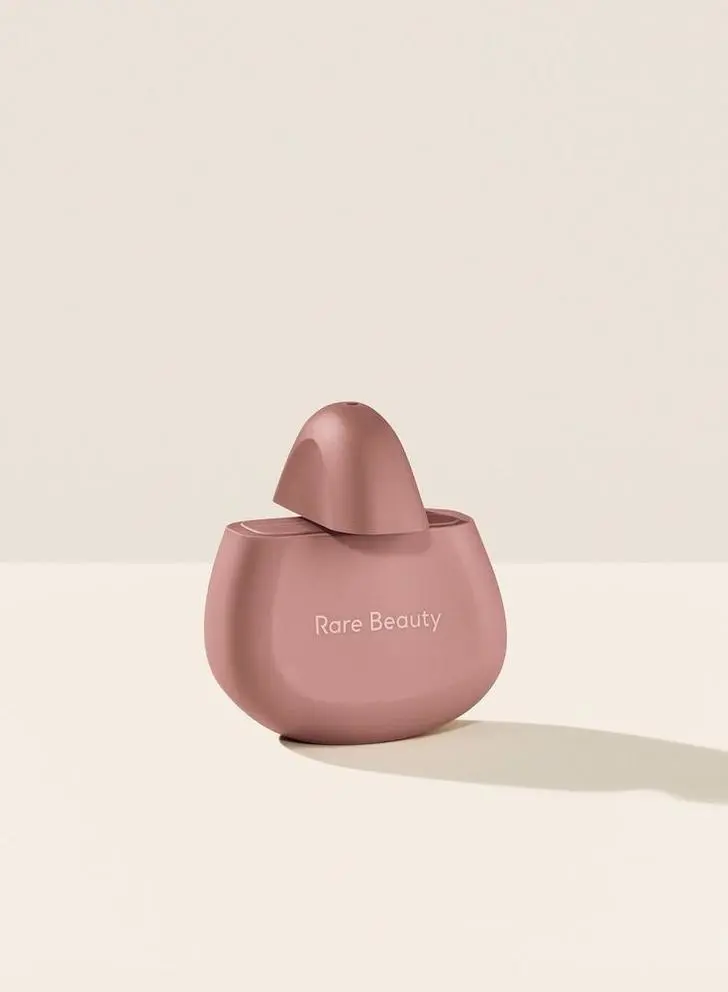
Keep the product at the center of the shot
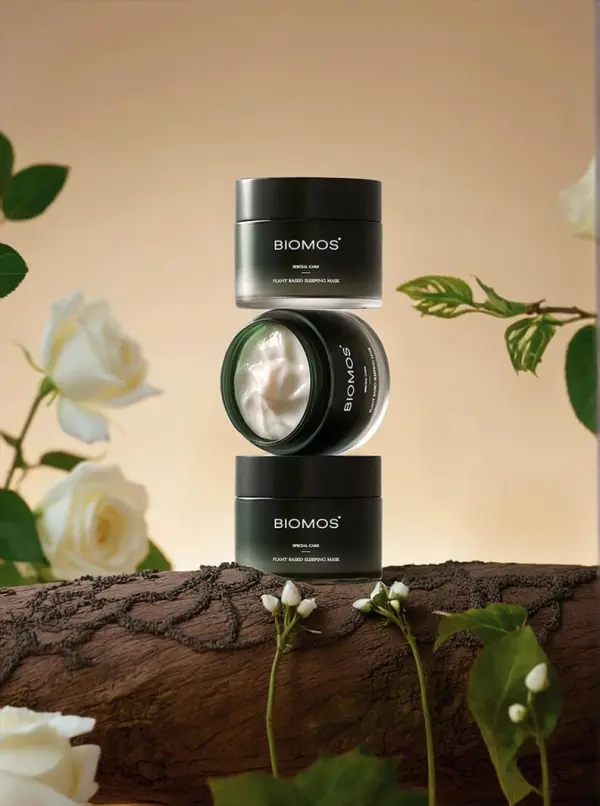
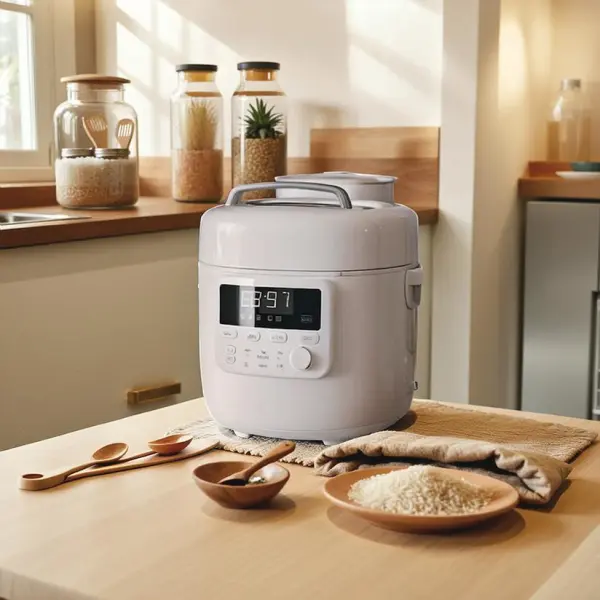
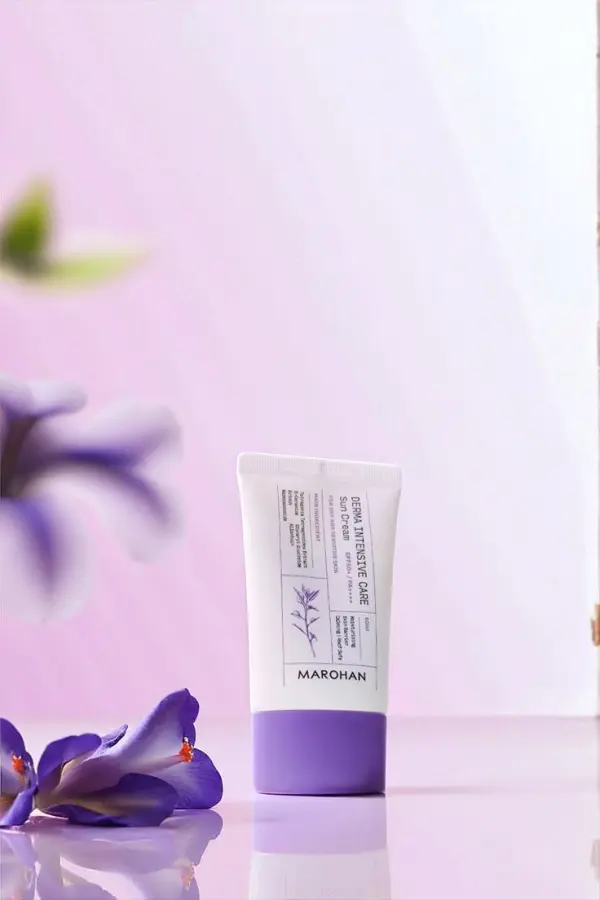
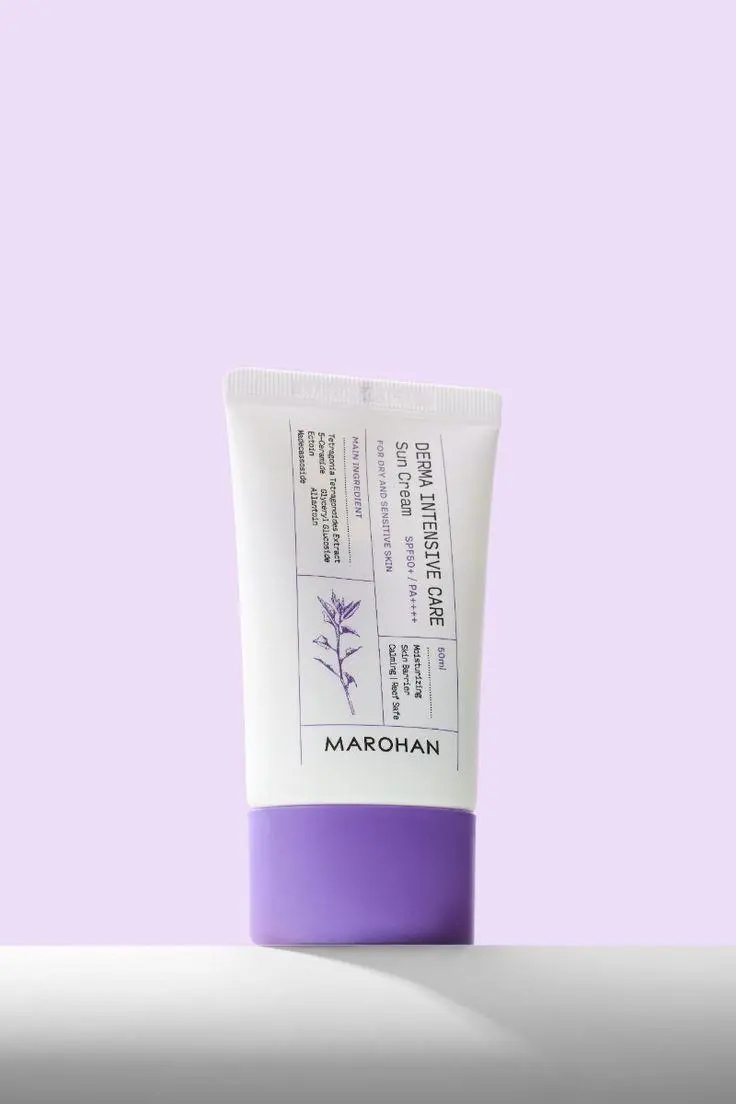
Start with the actual item you want to show. The product image anchors the generated bottle, packaging, color, and proportions while the scene reference supplies the set. Fine print and small brand details can still vary, so review each result before publishing.
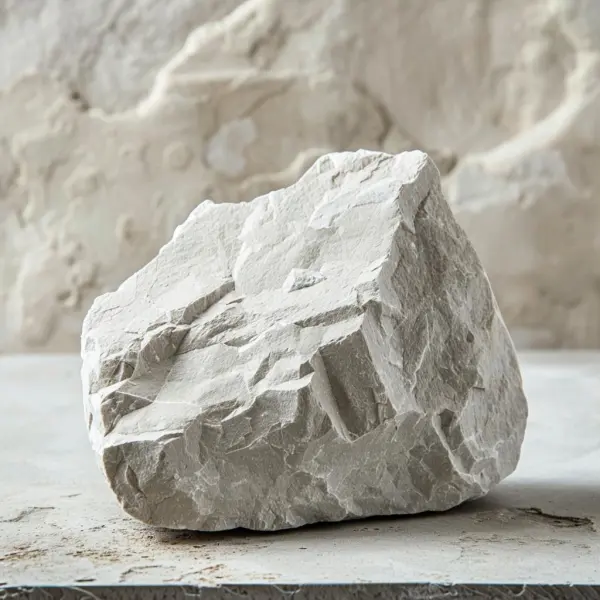
Place products in a scene you already like
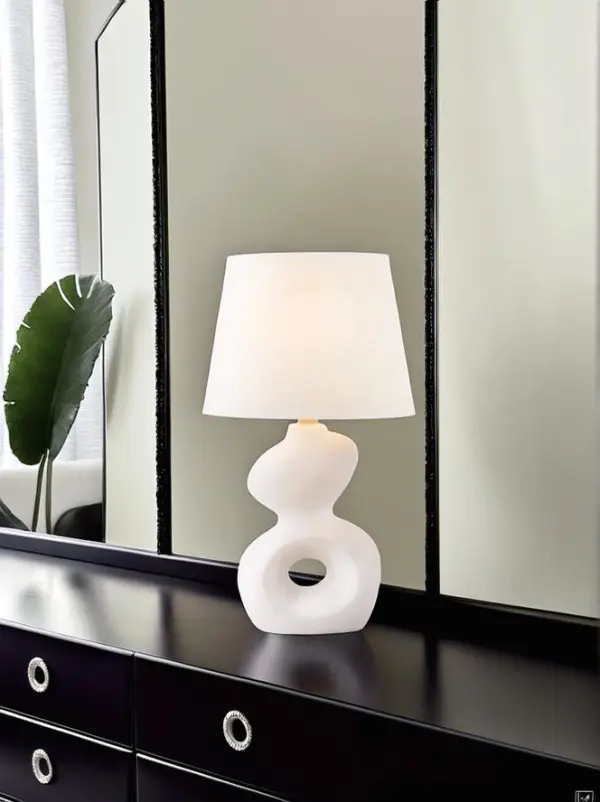
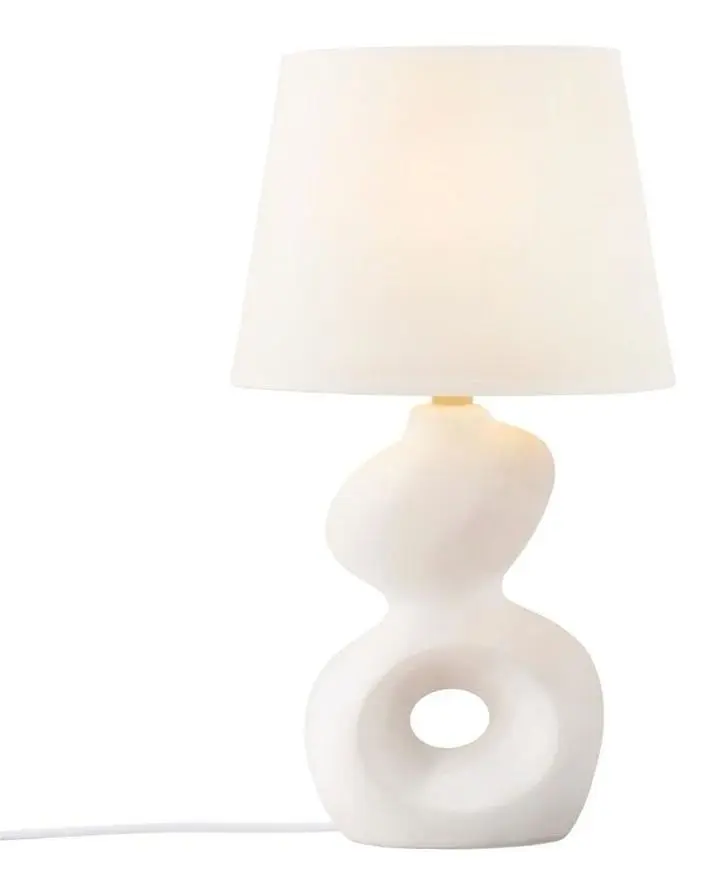
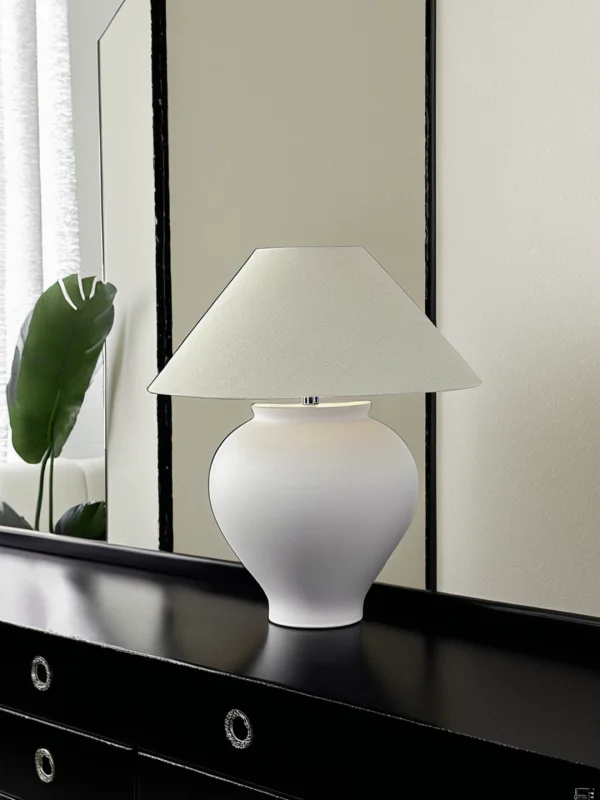
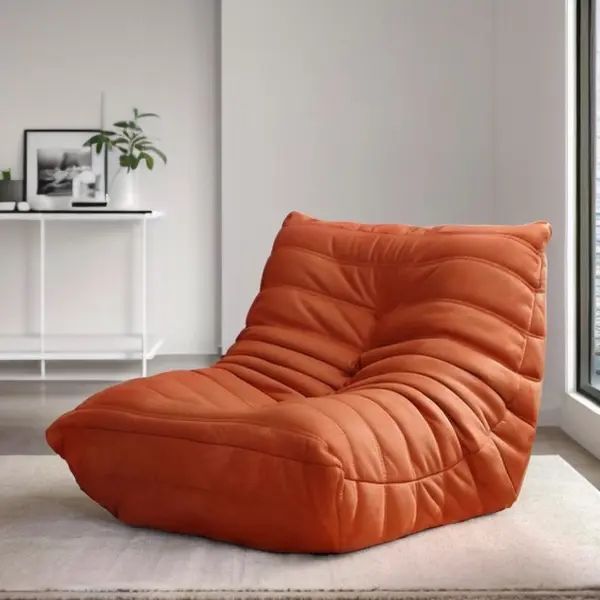
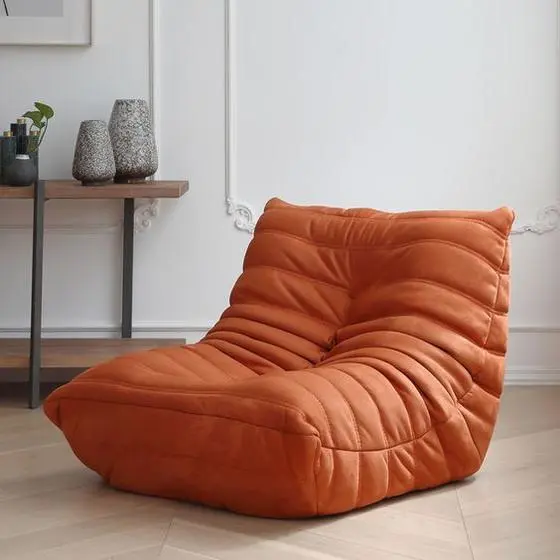
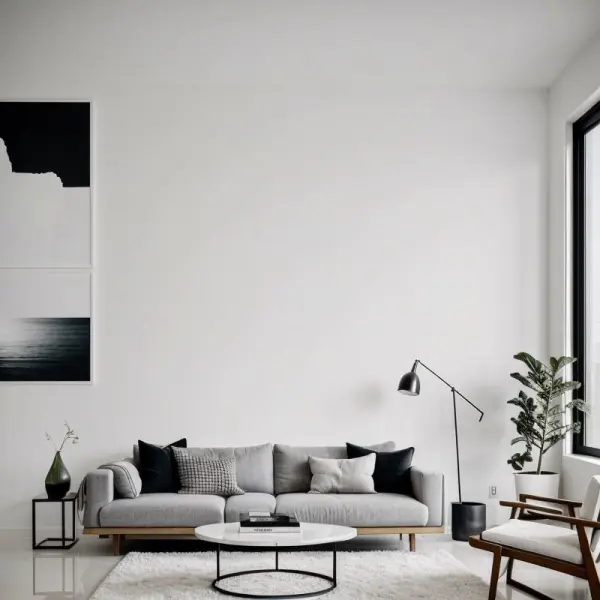
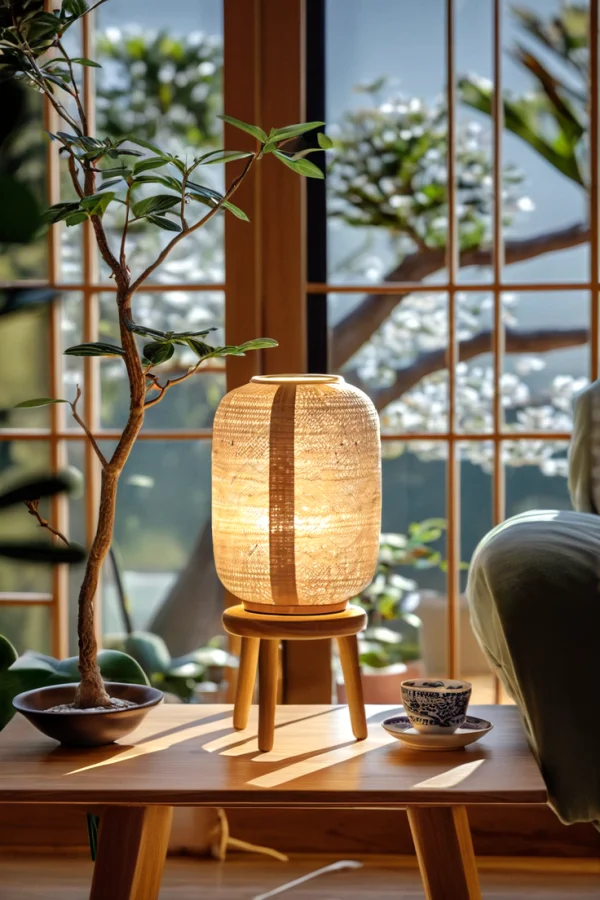
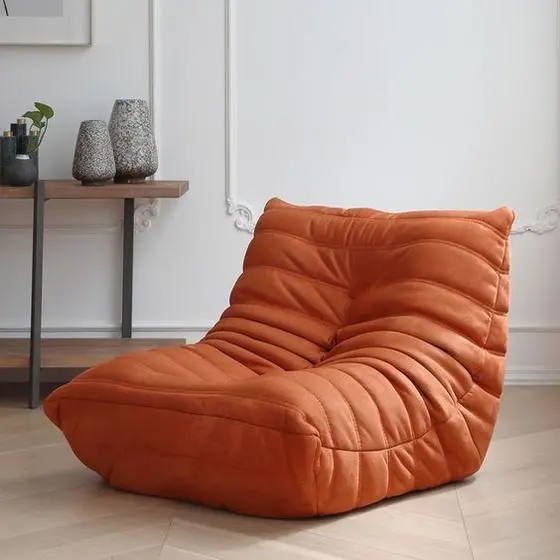
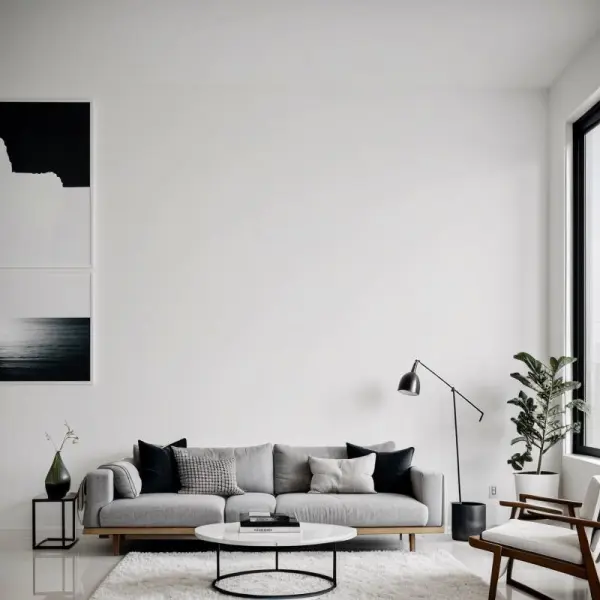
The second image is optional. Add it when a product needs a room, campaign set, countertop, or outdoor location. This is useful for larger items such as furniture, where floor contact, scale, and surrounding light shape the whole shot.
Choose the camera move, then refine the prompt
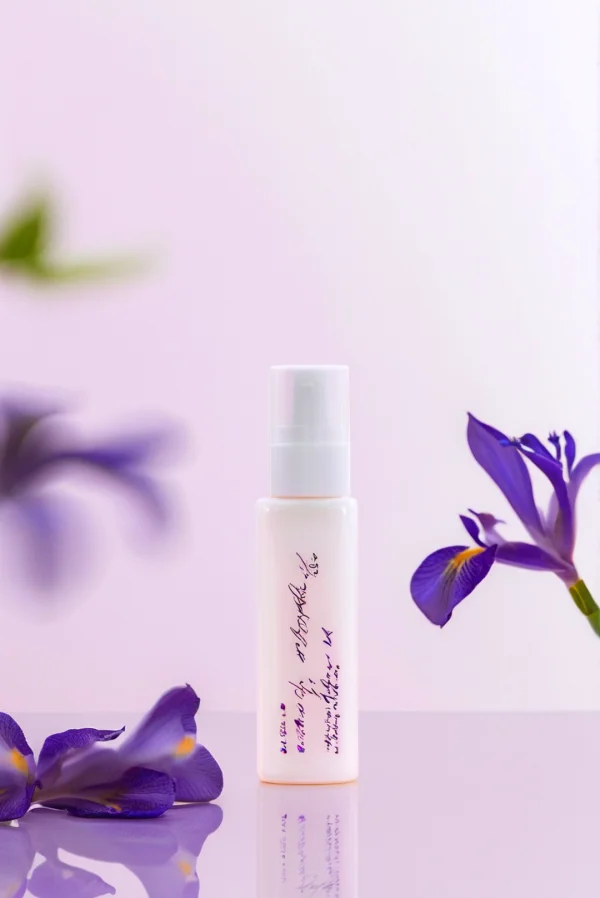
Use a preset to establish a dependable starting point, then describe the detail that matters: a closer opening, softer reflections, a slower arc, or a clean final frame. The prompt remains editable, so the preset never locks you into one treatment.
Build clips for storefronts and social feeds
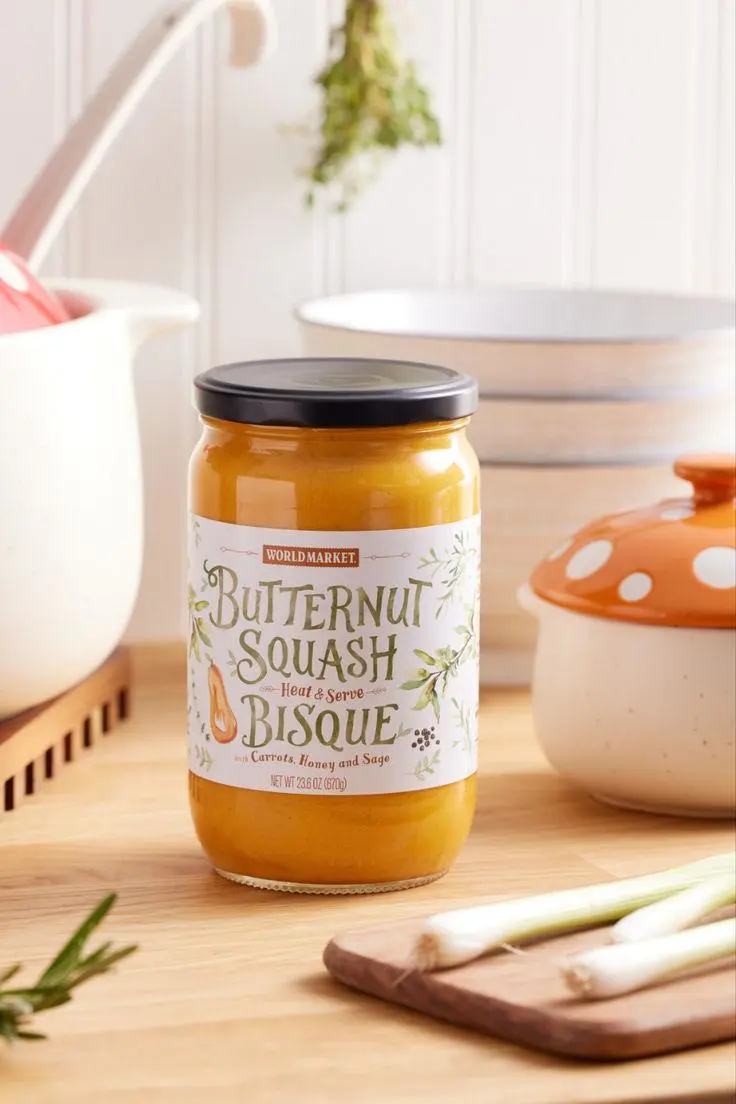
Create a square marketplace visual, a vertical Reel or short, or a widescreen campaign draft from the same product reference. Duration runs from 3 to 15 seconds, with 480p and 768p quality options shown in the tool.
Controls for a usable product video draft
The workflow keeps the source product, optional scene, movement, framing, and output controls in one place.
Product-first reference
Upload one main product image. When you apply a gallery example, iMideo keeps your uploaded product and borrows the available scene and motion settings.
Optional scene image
Use a second reference for the environment, lighting, surface, or campaign mood, or leave it empty for a prompt-led set.
Five motion presets
Start with slow orbit, push-in, turntable, macro reveal, or floating hero, then adjust the generated prompt.
3–15 second duration
Choose any supported length from 3 to 15 seconds, from a quick motion beat to a more complete product reveal.
Three aspect ratios
Frame the clip in 9:16 for vertical feeds, 1:1 for square placements, or 16:9 for widescreen use.
Two quality settings
Choose standard 480p for an early draft or high 768p when you need a clearer product preview.
Put your product in motion without another shoot
Upload the item, add a scene when you need one, and direct a 3–15 second product video from the browser.