
Auto Subtitle Generator & SRT File Generator
Upload a video and get burned-in subtitles plus a matching SRT file. Works in about 100 languages, can translate the captions, and exports a watermark-free MP4.
Click or drag video here
Max 600s, MP4/MOV/WEBM
3 Simple Steps to Add Subtitles
No timeline editing required
Upload Video
Upload an MP4, MOV, or WebM video up to 10 minutes long
Choose Language & Style
Pick the spoken language or use Auto Detect, choose a subtitle style, and optionally a translation language
Download
Get the video with burned-in subtitles, no watermark, plus the SRT file
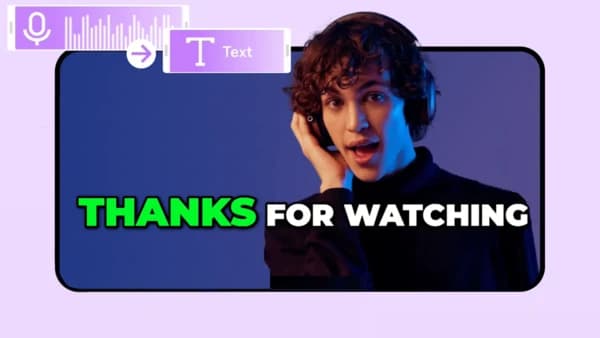
AI Speech Recognition
AI speech recognition transcribes spoken audio and aligns subtitles to the video timeline word by word. Clear speech with little background noise gives the best results.
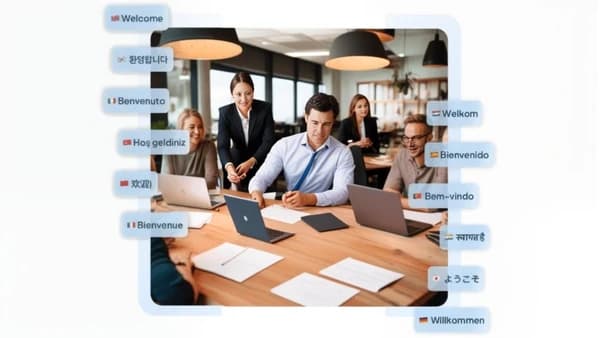
About 100 Languages Supported
Support for English, Chinese, Spanish, French, German, Japanese, Korean and about 100 languages in total. Auto-detection identifies the spoken language for you.
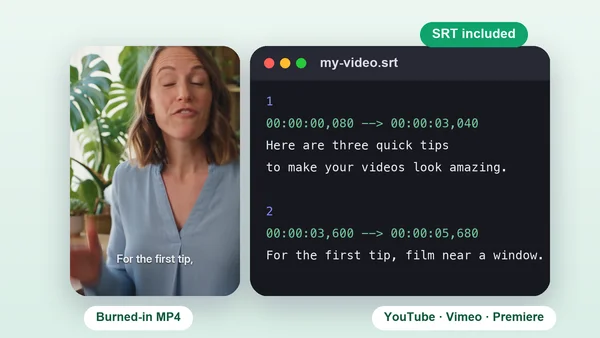
Download Subtitles as an SRT File
Every captioned video comes with its SRT subtitle file: a plain-text file with a number, a start and end timestamp, and the caption text for each line. Upload it to YouTube or Vimeo so viewers can switch captions on and off, or fix a word in any text editor before you publish.
Burned-In Subtitles
Download videos with hard-coded subtitles that work across common devices and platforms. No special players are required for social media publishing.

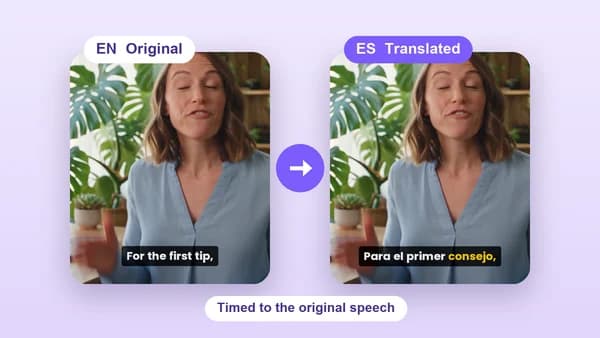
Translate Video Subtitles
Recorded in English but your audience speaks Spanish? Choose a translation language and the AI writes the subtitles in that language, timed to the original audio.
Why Choose iMideo?
Fast AI subtitle generation for creators, educators, marketers, and businesses.
AI Speech Recognition
Speech-to-text technology detects spoken language, generates captions, and syncs subtitle timing for videos with clear audio.
Fast Subtitle Processing
Short videos usually finish in a few minutes, with caption timing generated from the transcript and source audio.
About 100 Languages
Reach global audiences with support for about 100 languages and dialects worldwide.
Clean or Creative Styles
Pick a clean, readable style for tutorials, interviews and YouTube uploads. Making Reels or TikToks? Try our animated captions generator.
No Watermarks
Download clean videos with burned-in subtitles for social media, presentations, courses, and marketing.
Commercial License
Use generated subtitle videos for commercial projects when you have the rights to the source video and audio.
What Creators Say About Auto Subtitles

Maya T.
YouTube Creator
Added Spanish and French subtitles to all my videos. My international audience grew 300% in 2 months. The auto-detect nailed the English every time—no manual fixing needed.

Carlos R.
Online Course Instructor
Students with hearing impairments can finally access my lectures. With clear audio, I barely edit the output. It made my course content much easier to follow.

Jenna M.
Social Media Manager
Adding subtitles to Instagram Reels made silent viewing easier for our audience. The quick turnaround lets me batch-process short clips in an afternoon without opening a timeline editor.

Derek L.
Podcast Host
Turned my podcast into short video clips with subtitles for TikTok. Clear sections transcribed cleanly, and I could spot guest overlap before publishing. Repurposing content now takes far less manual editing.

Aisha K.
Marketing Specialist
Picking a subtitle style that fits our brand made a real difference. No more generic white subtitles. Clients love the professional look.

Tom W.
Content Creator
Used to spend 3 hours manually timing subtitles. Now it's 3 minutes. I can actually focus on creating instead of editing. This tool paid for itself in week one.

Lisa P.
Small Business Owner
Added Chinese subtitles to my product demos without hiring a translator for the first pass. The localized captions helped our Asia-facing demos feel more prepared for review and distribution.
Frequently Asked Questions
Common questions about AI subtitle generation
1What is an AI auto subtitle generator?
An AI auto subtitle generator transcribes speech from a video, creates timed captions, and burns them into the exported video. iMideo also gives you the SRT subtitle file, supports about 100 languages, and exports MP4 without a watermark.
2What languages are supported?
About 100 languages are supported, including English, Chinese, Spanish, French, German, Japanese, Korean, Portuguese, Russian, Arabic, Hindi, and more. Automatic language detection is available, and you can translate the subtitles into another language.
3How do I generate an SRT file from a video?
Upload your video, pick the spoken language or use Auto Detect, and generate. When the task finishes you can download both the captioned MP4 and the matching SRT file, timed to the speech.
4How do I translate video subtitles?
Before generating, choose a language under Translate to. The AI writes the subtitles in that language, timed to the original audio, and the SRT file is in the translated language too.
5Can I remove pauses and filler words like um and uh?
Yes. Turn on Remove silences to cut the pauses between sentences and Remove um / uh to cut hesitations. The subtitles stay in sync with the edited video.
6Can I change the subtitle style?
Yes. Choose a clean style such as a bar, a box or minimal text. For more animated looks made for short-form video, see our animated captions generator.
7What video formats are supported?
MP4, MOV, and WebM videos up to 10 minutes long. If your video is longer, trim it and upload it in parts.
8How long does processing take?
Short videos are usually ready in a few minutes. You can follow progress in the task manager and download the result as soon as it finishes.
9Can I edit generated subtitles?
The subtitles in the video are burned in, but you also get the SRT file. Fix any word in a text editor, then upload that file to YouTube or your video editor.
10How many credits does it cost?
4 credits per started minute of video. A 45-second clip costs 4 credits and a 3-minute video costs 12.
11Are burned-in subtitles enough for accessibility?
Burned-in subtitles help viewers who are deaf or hard of hearing and anyone watching on mute, because they show on every platform and device. Where a platform supports closed captions, also upload the SRT file and check it for errors, since many accessibility guidelines expect captions that viewers can turn on and off.
Start Adding Subtitles Online
Upload a video, generate timed captions, and download a watermark-free MP4 with its SRT file.