
AI Object Remover — Erase Unwanted Objects from Photos
Paint over unwanted objects and AI erases them: people, signs, wires, clutter. Background fill is reconstructed from the surrounding image context.
Click to upload or drag and drop
PNG, JPG, WebP (Max 10MB)
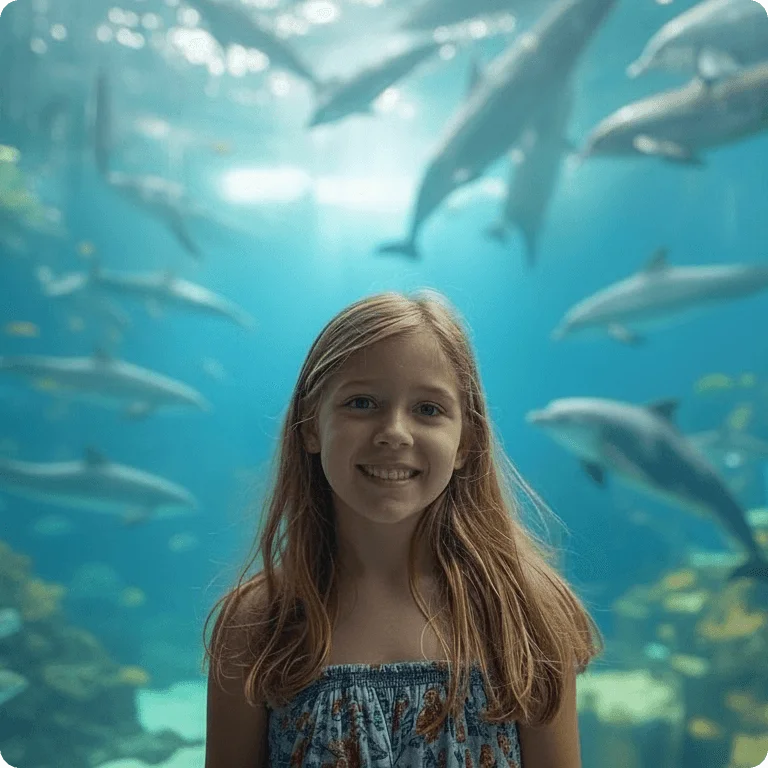
 BeforeAfter
What is an AI Object Remover?
An AI object remover is a photo editing tool. You paint over any unwanted element in an image, such as a stranger in the background, a distracting sign, a power line, or product clutter, and the AI erases it while filling the gap with background content. Unlike manual Photoshop masking and cloning, iMideo's AI image eraser lets you mark the area with a brush, then analyzes the surrounding pixels and reconstructs what the background might look like without the object. Results depend on the source photo, object size, and background complexity.
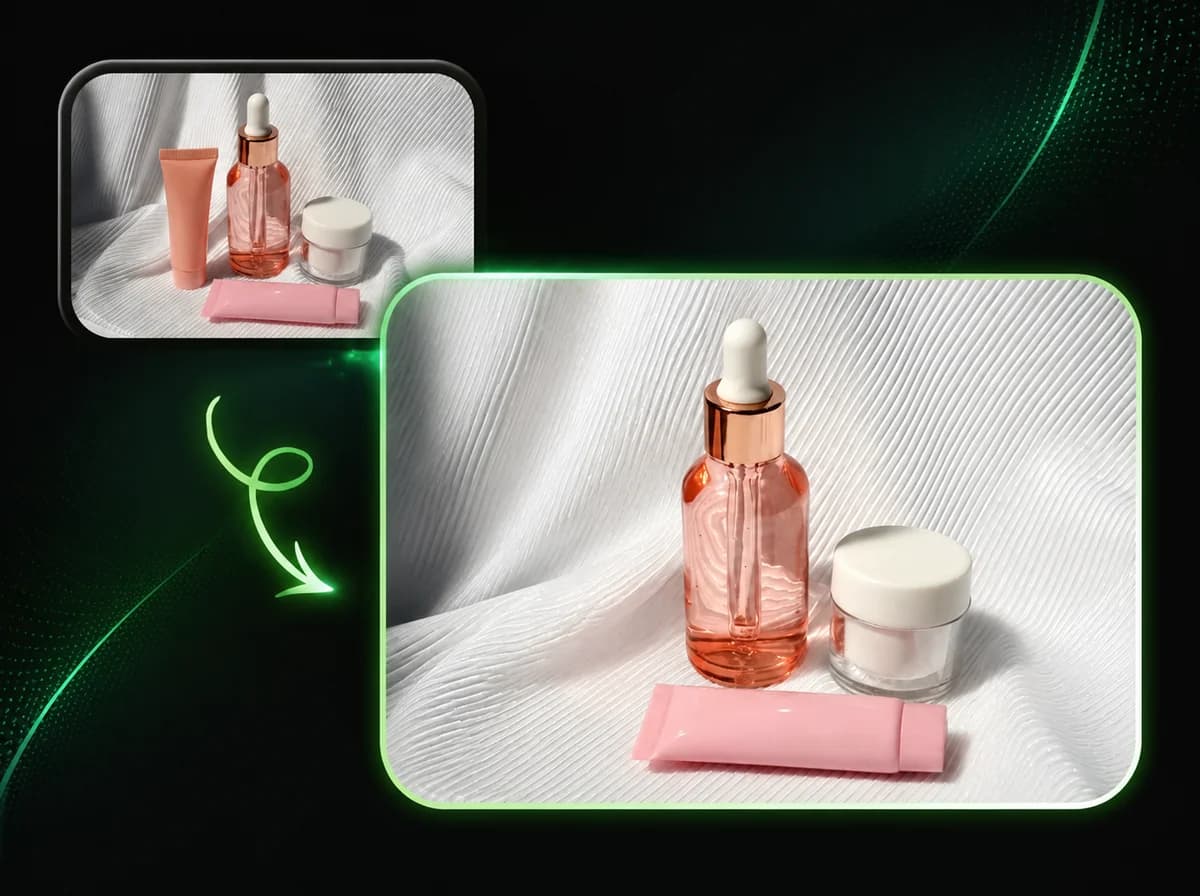
How to Remove Objects from Photos in 3 Steps
Upload a photo, paint the object, then download the cleaned result
Upload Your Photo
Upload the photo containing the object you want to remove. PNG, JPG, and WebP files up to 10MB are supported. The clearer and higher-resolution your photo, the cleaner the fill will be.
Paint Over the Object
Use the brush tool to paint over the area you want to erase. Cover the entire object generously; the AI uses the painted region as the removal mask. Adjust brush size to fit tight or large areas.
Download Your Clean Photo
The AI removes the object and fills the background after processing. Download your clean, watermark-free result.
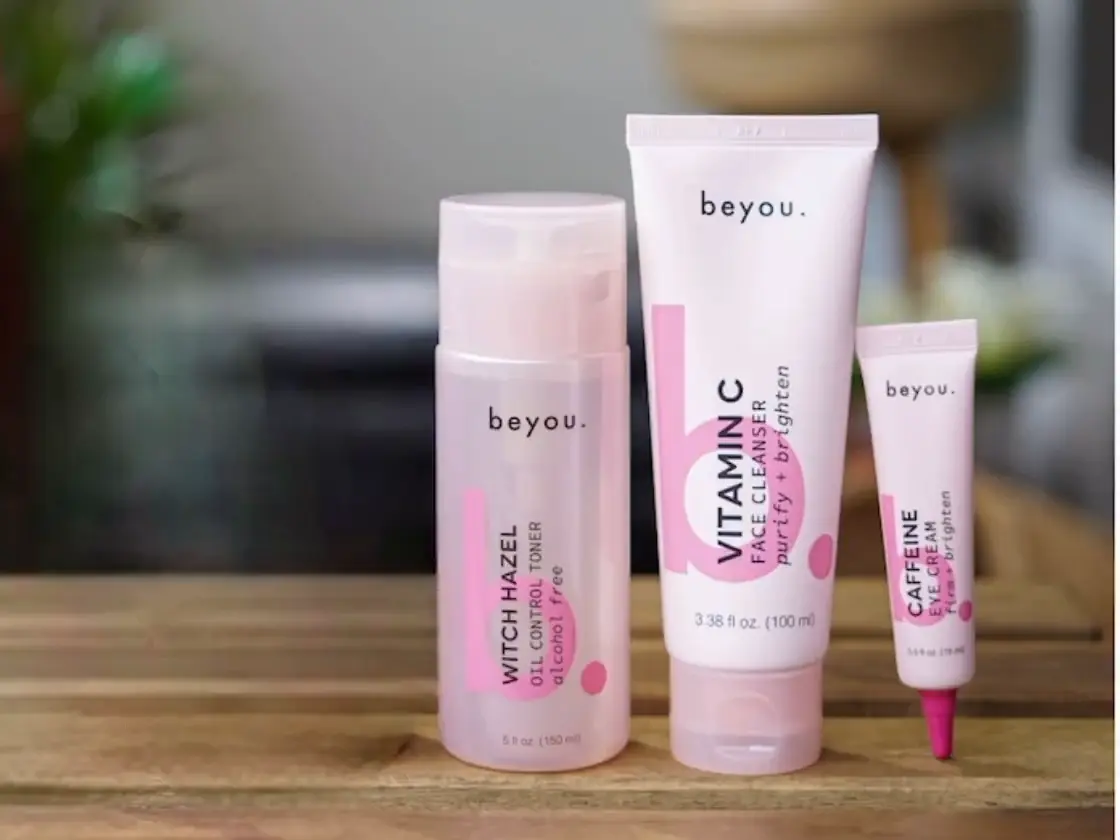
Paint Anything Away. AI Reconstructs the Background.
iMideo uses an AI image eraser model that understands context, not just pixels. When you paint over an object, the model looks at the surrounding background to estimate what should be there, then constructs a replacement fill. Walls can retain texture, sky gradients can continue, and floors can match better than a simple blur or clone-stamp workflow.
Remove Strangers and Tourists from Travel Photos
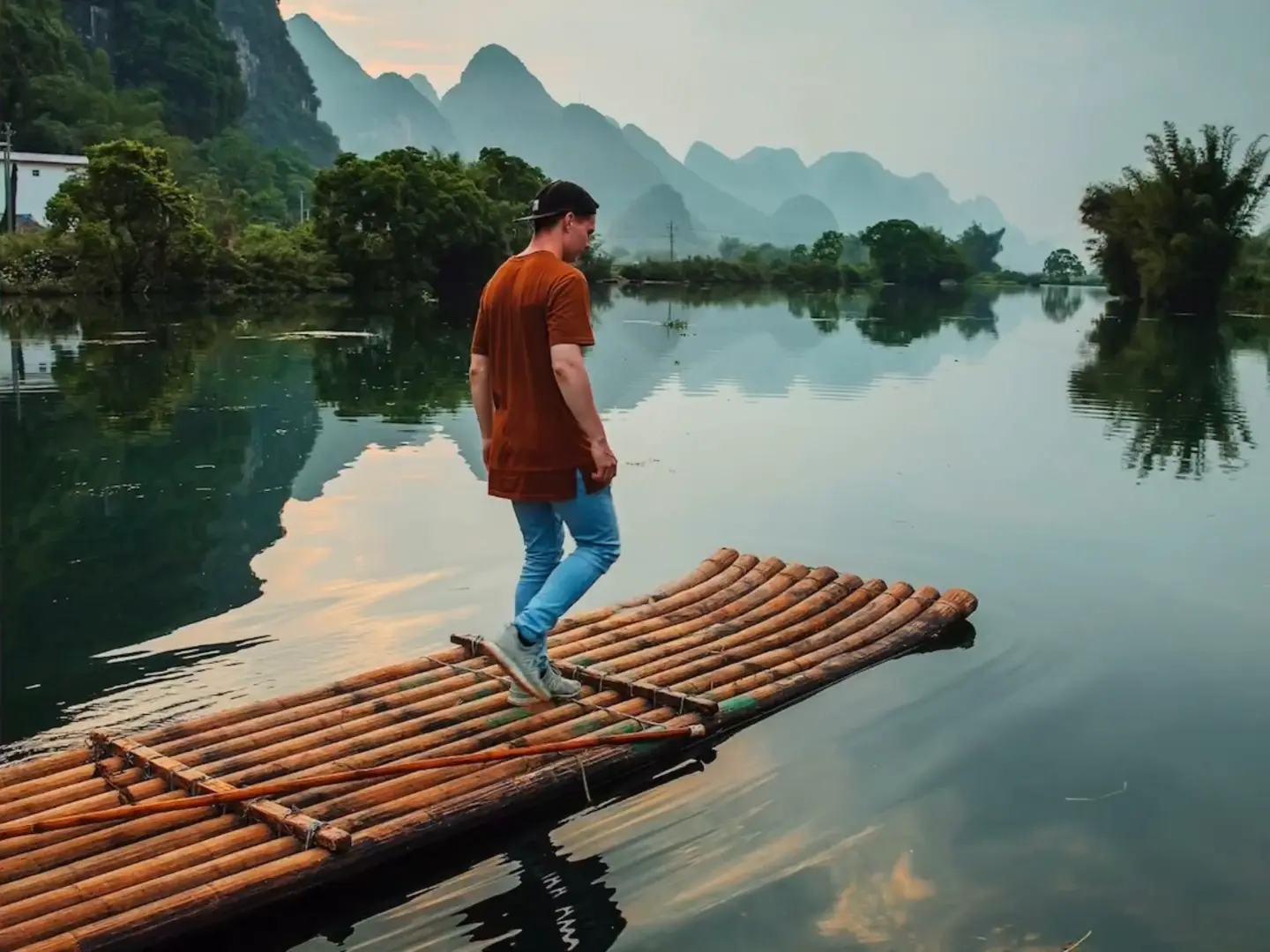
You finally make it to that viewpoint, and there's a crowd in every shot. With an AI object remover, you don't have to choose between the moment and the photo. Paint over the unwanted people and let the AI reconstruct the scene behind them. Works with groups, partial figures, and people at the edges of the frame. Crowd shots are one of the harder removal tasks, and the AI handles them better than you'd expect.
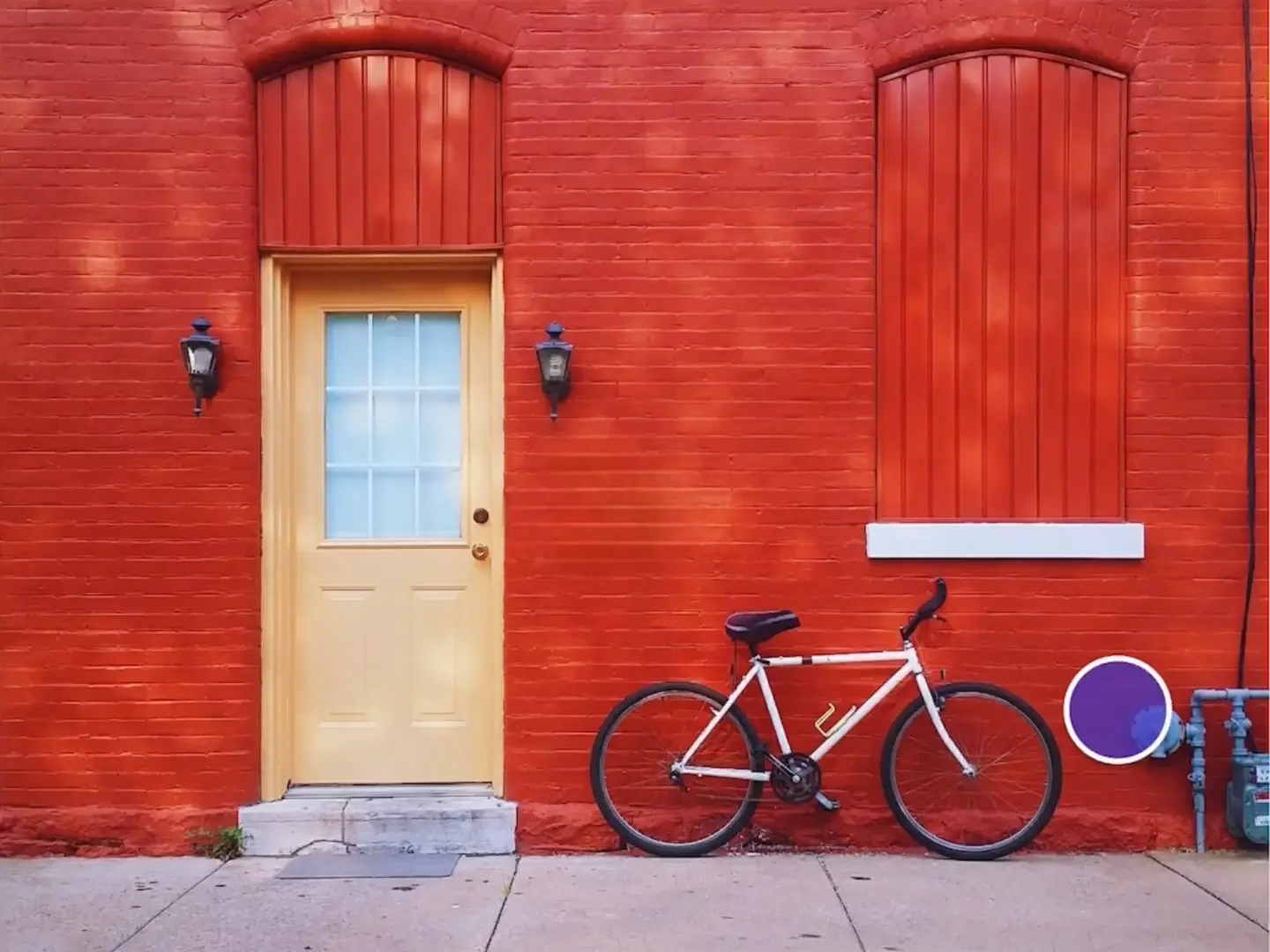
Clean Up Product Photos Without a Reshoot
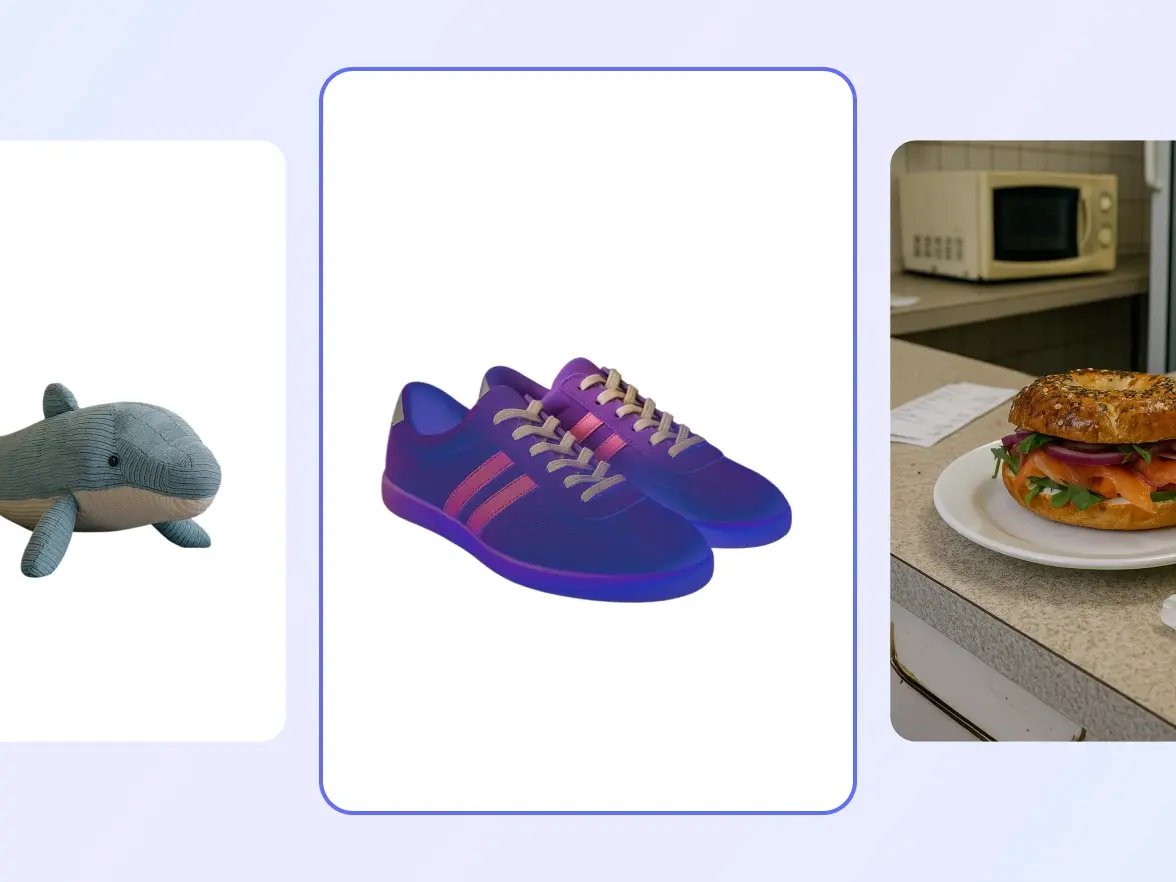
Product photography often requires multiple takes to eliminate shadows, props, tape, lint, and stray objects that sneak into the frame. Our AI image eraser lets you fix those issues after the fact, without a reshoot. Remove a price tag, a prop hand, a background reflection, or a distracting element from a flat-lay. The AI fills the gap with consistent background and your product stays front and center.
Erase Power Lines, Signs, and Visual Noise
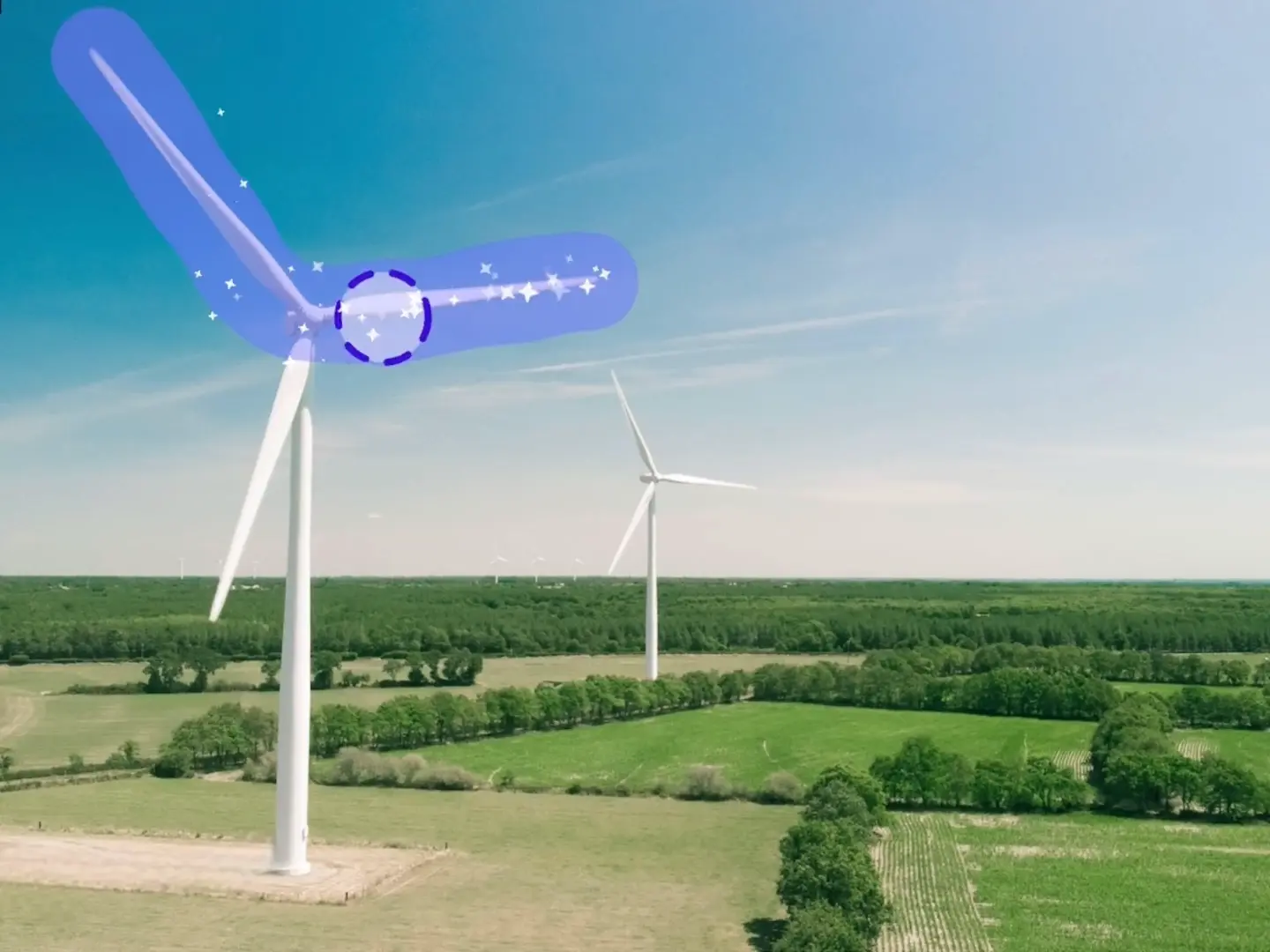
Wires across a skyline, a no-parking sign cutting through your composition, or an exit sign distracting from an interior shot can weaken an otherwise useful photo. The magic eraser handles fine, linear objects like power lines particularly well when there is enough sky or background around them. Paint a wide stroke over the wire, and the AI fills with a consistent gradient rather than a basic blur patch.
Works on Every Photo Type You Shoot
Whether you're editing a vacation snapshot, a professional headshot, a real estate listing, or a social media post, the AI adapts. The model handles complex backgrounds: busy streets, textured walls, natural landscapes, reflective floors. You don't need to understand how it works. Just paint what you want gone, and let the AI handle the reconstruction. Need to remove an entire background instead of a single object? Try our AI Background Remover for full-background removal.
Why Use iMideo's AI Object Remover
Precision Brush Control
Adjust brush size to paint large areas or fine details. The AI uses your painted mask as the exact removal zone.
Natural Background Fill
Not a blur, not a clone stamp. The AI reconstructs what the background should realistically look like behind the object.
Fast Object Removal
Upload, paint, and download after processing. Timing depends on image size, mask area, and server load.
Natural-Looking Background Fill
The AI tries to continue background texture, lighting, and color through the removed area so the edit looks less obvious.
Secure and Private
Your photos are processed for object removal and handled according to the product retention policy. They are not used for AI model training.
No Subscription Required
Remove objects when you need to clean up a photo and review current usage details on the pricing page.
What Our Users Say
Rachel M.
Travel Photographer
I shoot in crowded tourist spots constantly. Being able to remove strangers after the fact saves shots I'd otherwise throw out. The fill looks genuinely realistic, not like something was erased.
Jason K.
E-commerce Seller
I use this daily to fix product photos I've already shot. A stray wire, a shadow from the wrong angle, a price sticker I forgot to remove. It saves a lot of cleanup time.
Chloe T.
Content Creator
My posts look cleaner after I started removing background distractions before publishing. This tool is fast enough to be part of my regular editing flow, not a special project.
Mark A.
Real Estate Photographer
Removing cars from driveways, trash cans from curbs, personal items from interiors. All of it fits into my normal photo delivery workflow, and clients notice the cleaner images.
Yuki N.
Portrait Photographer
Power lines ruin half of my outdoor portraits. I used to spend time on each one in Photoshop. Now this handles many of those cleanup passes much faster.
Priya V.
Social Media Manager
We manage 12 brand accounts and need clean imagery constantly. This AI image eraser fits well into our publishing workflow, and the fill quality is strong on common cleanup tasks.
Luis G.
Food Blogger
Shot a beautiful flat-lay and only noticed the tape residue afterward. One brush stroke removed it, and the table texture blended well enough for the final post.
Sarah D.
Amateur Photographer
I'm not a professional editor at all but this is just three clicks. Upload, paint, download. The results look like they were done by someone who knows what they're doing.
Frequently Asked Questions
1What is an AI object remover?
An AI object remover is a photo editing tool that lets you select an unwanted element by painting over it, then erases the selected region while filling the gap with reconstructed background. It can replace manual clone-stamping or masking for common cleanup tasks such as people, signs, wires, clutter, and small props.
2How does the magic eraser work?
You paint over the object you want to remove using the brush tool. This creates a mask telling the AI where to erase. The AI then analyzes the pixels surrounding your painted area to understand background pattern, texture, color, and lighting, then reconstructs a replacement fill.
3What kinds of objects can I remove?
Many common distractions can be removed: people, cars, animals, signs, power lines, logos, furniture, trash cans, props, shadows, and more. The AI performs well on both large area removals and fine details like wires and text. Very large objects covering more than 60–70% of the frame may produce less consistent fills, as there is less background information for the AI to reconstruct from.
4How accurate is the background fill?
For typical objects against clear backgrounds such as sky, ground, walls, and floors, the fill can look convincing. Patterned or highly repetitive backgrounds like tiled surfaces, brick walls, and foliage can sometimes show minor inconsistencies. Higher-resolution photos generally produce better fills because the AI has more detail to work with.
5Can I use this to remove watermarks from images?
The AI object remover can erase text and overlaid graphics, including some watermark-like elements. Only remove watermarks from images you own, have permission to edit, or are otherwise allowed to use. For that specific workflow, use AI Watermark Remover.
6What's the difference between object remover and background remover?
Object remover lets you selectively erase specific elements by painting over them, while keeping the rest of the photo intact. Background remover removes the entire background and produces a transparent or clean cutout of the subject. For removing one person from a crowd or erasing a single distracting element, use object remover. To isolate a product or person against a clean background, use our AI Background Remover.
7What file formats and sizes does it support?
iMideo accepts PNG, JPG, and WebP image files up to 10MB. Higher-resolution images produce better results. The mask is automatically scaled to match your original image dimensions.
8How much does object removal cost?
Each AI object removal costs 3 credits. iMideo uses a pay-per-use credit system with no monthly subscription. Credits can be purchased in bundles from your account dashboard. Check our pricing page for current rates.
9Are my photos stored or used for training?
No. Your uploaded images are processed for your object removal result and handled according to the product retention policy. They are not used for AI model training or shared as public assets.
10What tips produce the best removal results?
Cover the entire object with your brush, including a small margin around the edges. Partial masking often leaves artifacts. Use a larger brush for big objects and reduce brush size for fine details. Higher-resolution source images give the AI more to work with. If the first result has artifacts, try again with a slightly wider or tighter brush stroke.
Other Image Tools
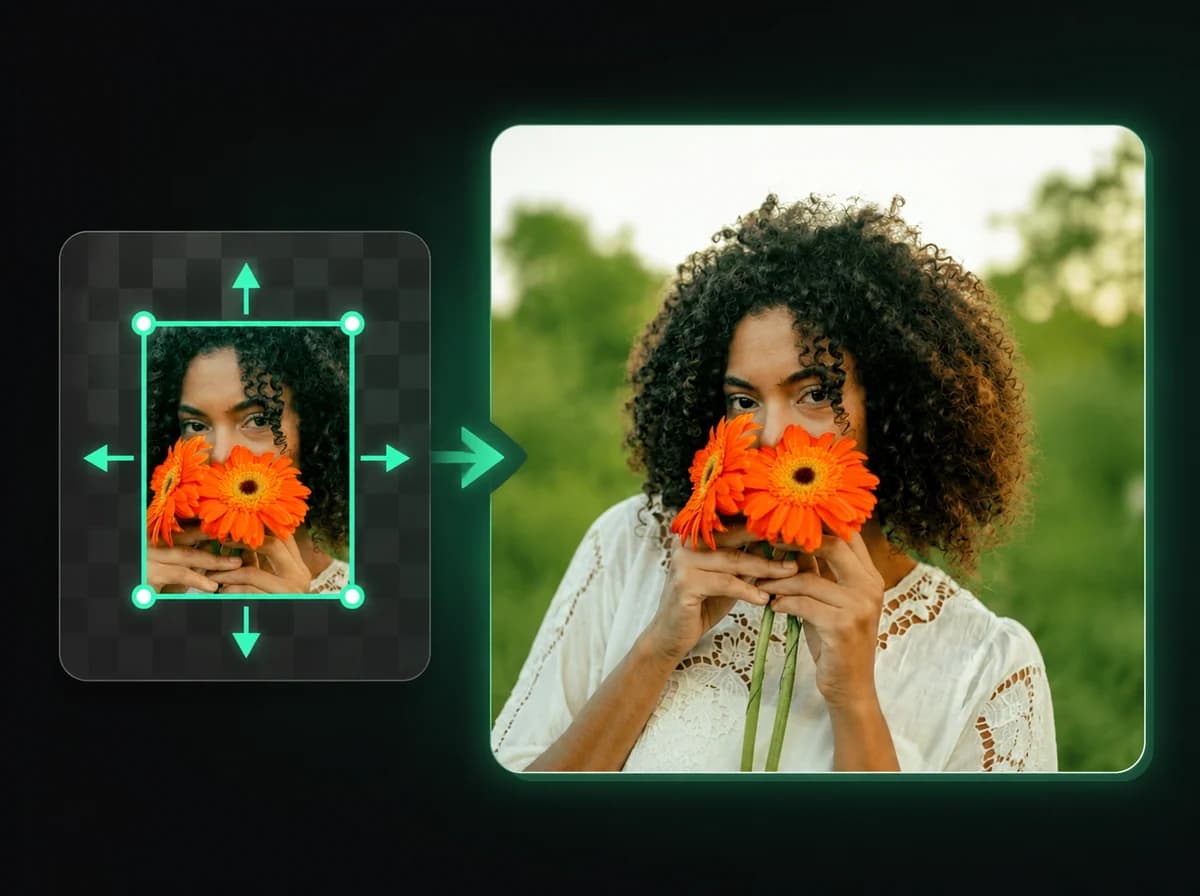
AI Image Expander
Expand any photo beyond its edges with AI-generated content.
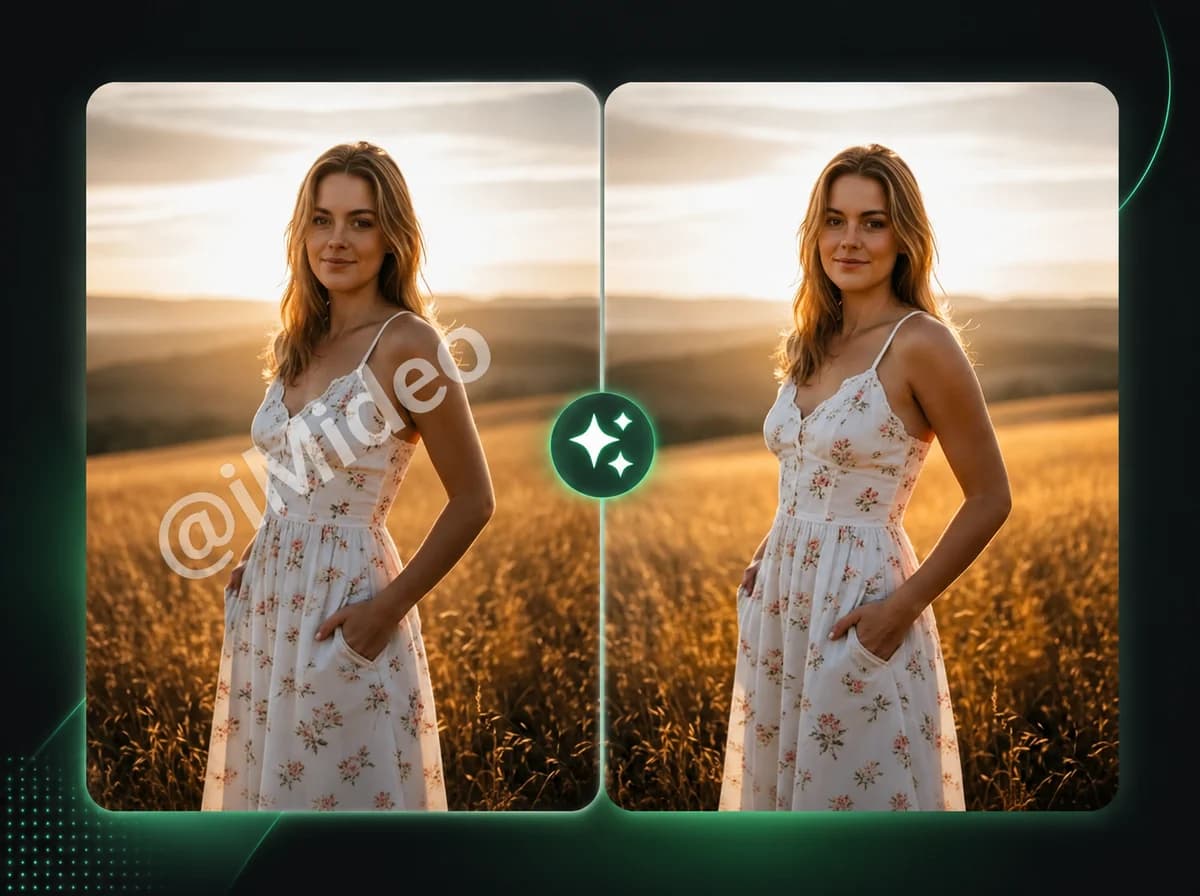
AI Image Watermark Remover
Remove watermarks from any image instantly with AI precision.

AI Image Upscaler
Upscale images to crisp 4K resolution instantly with AI enhancement.
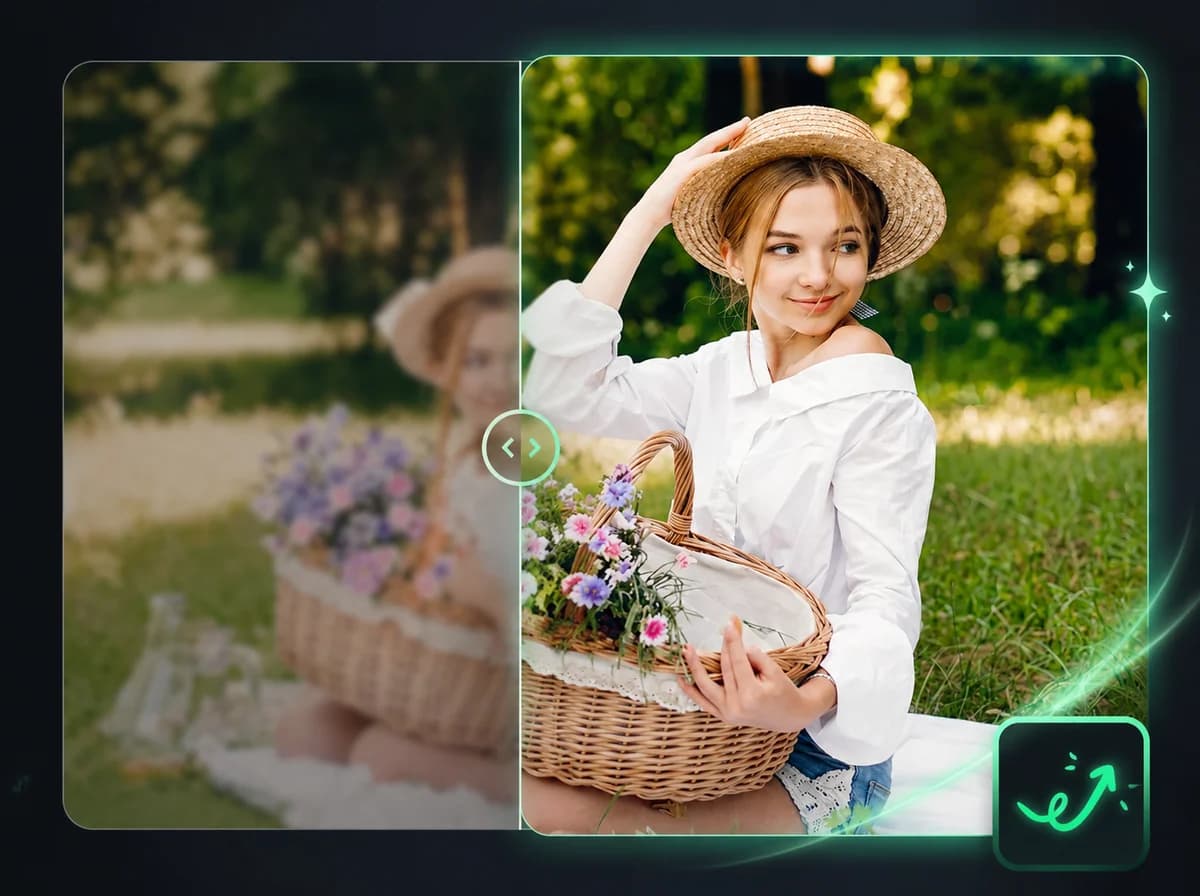
AI Image Enhancer
Fix blur, noise, and low quality in any photo automatically with AI.
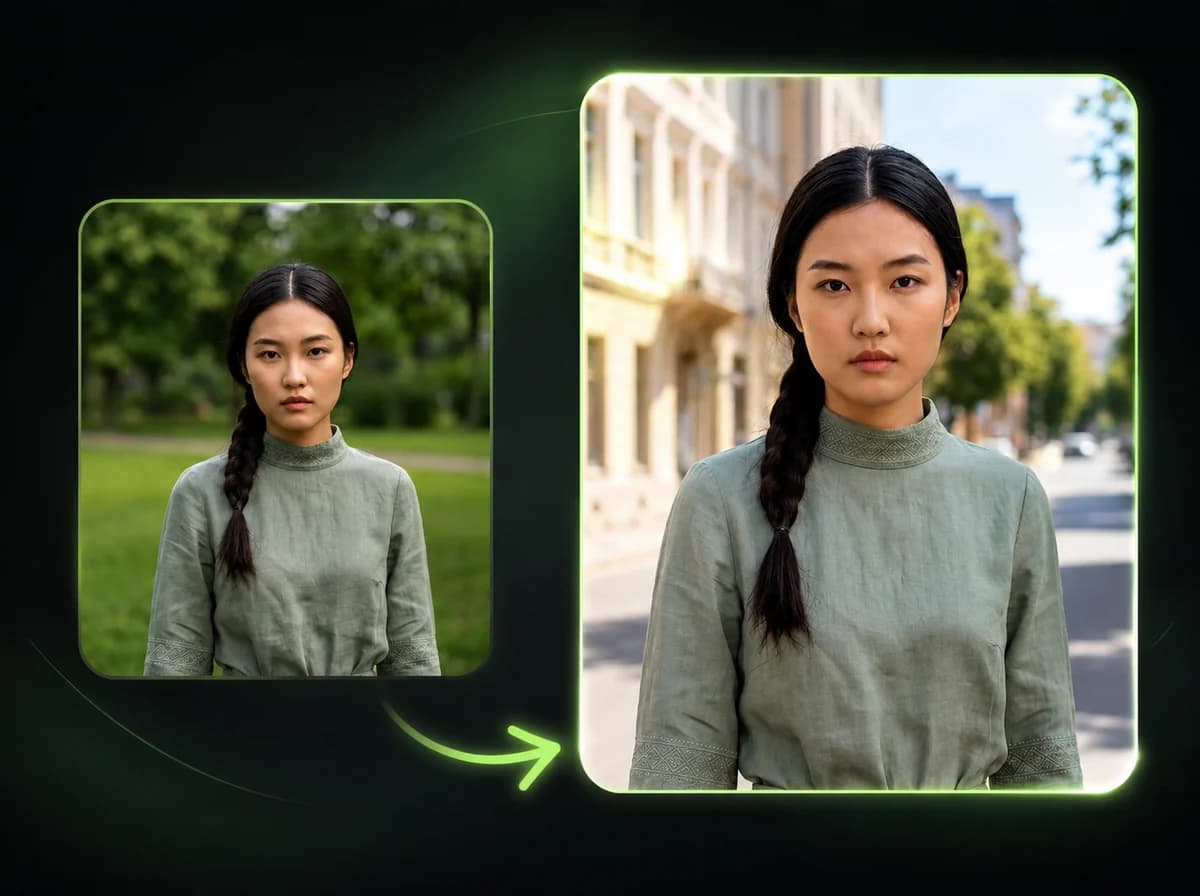
AI Image Background Changer
Change any image background to a new scene, color, or style instantly with AI.
Remove Unwanted Objects from Photos
Paint over it. AI erases it. Background fills in naturally. No Photoshop, no subscription, no watermarks.