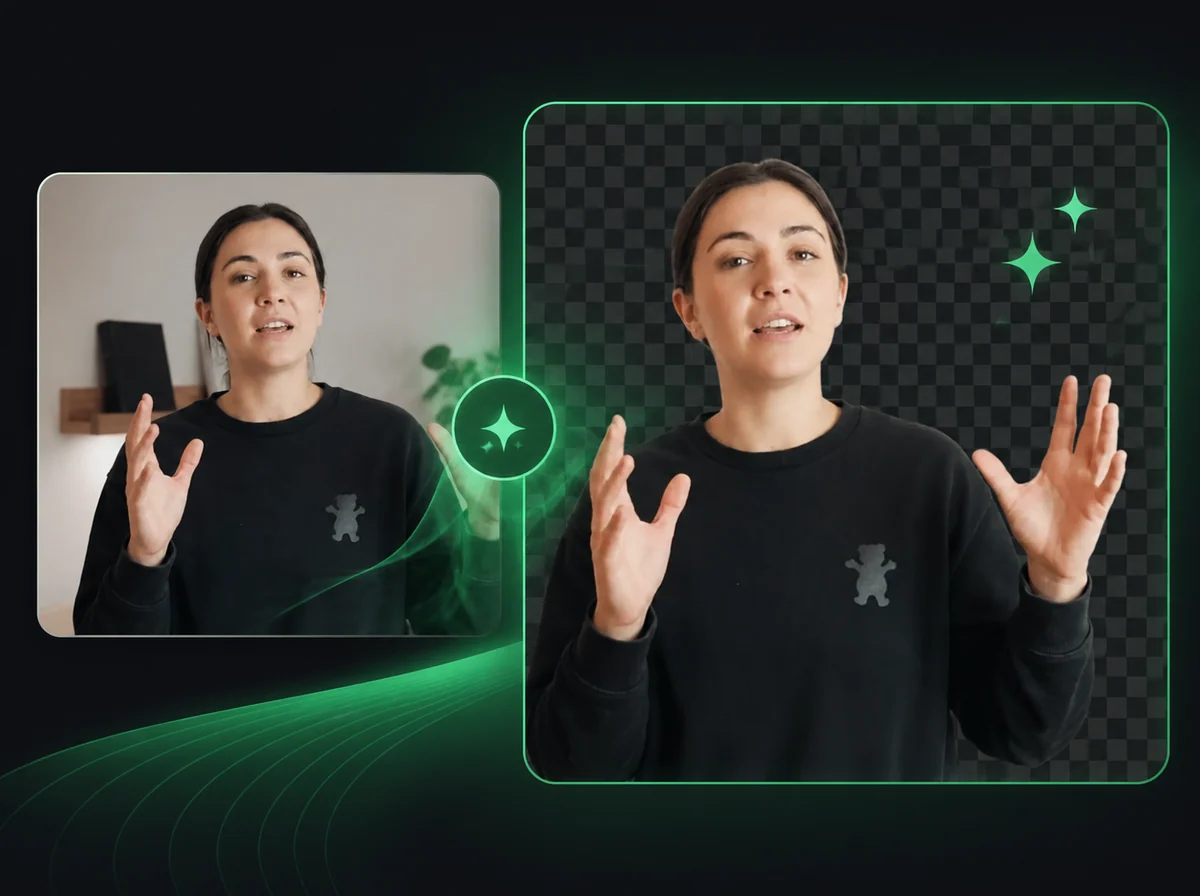
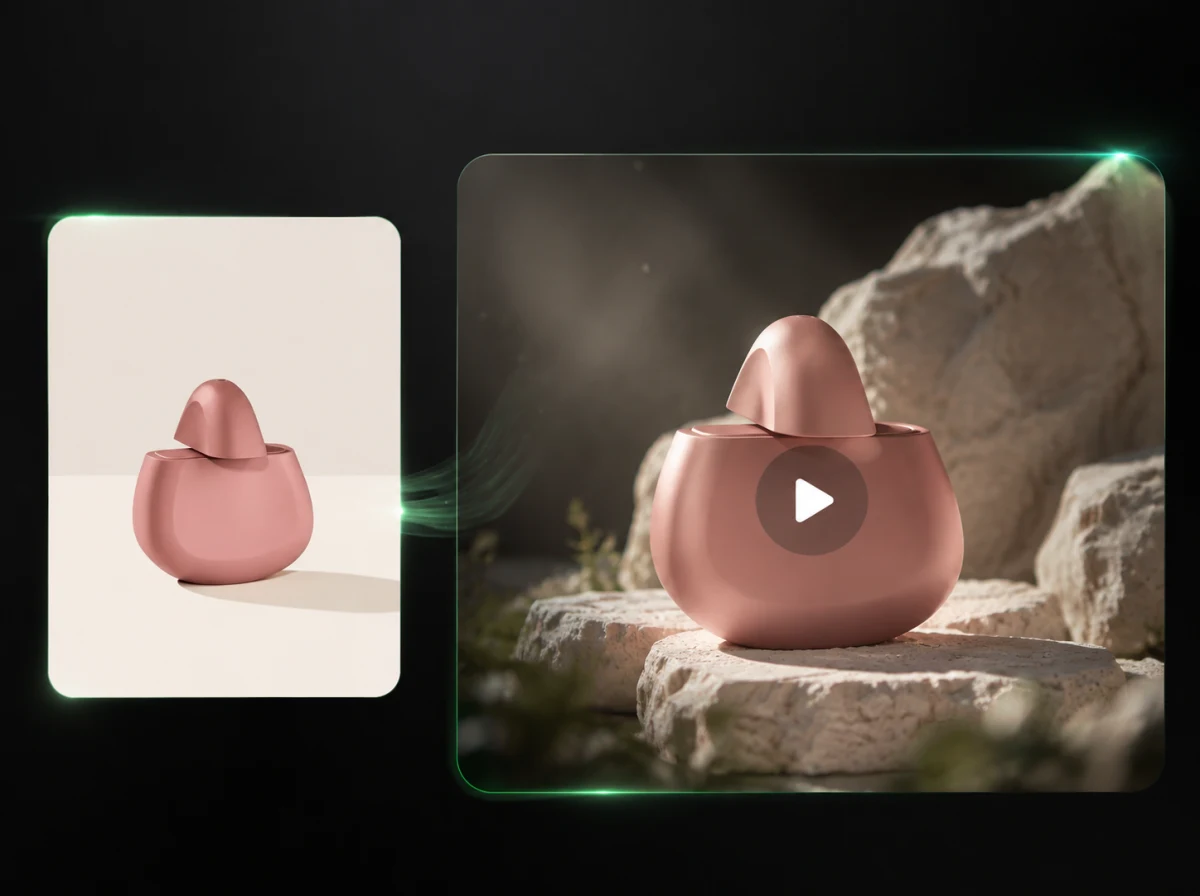
Powered by 8+ Leading AI Models
Loved by 10,000+ users
AI Video Extender: Make Any Clip Longer
3 Simple Steps to Extend Your Video
No timeline editing required — upload, describe, generate, and download.
Upload Your Video
Select the clip you want to extend. MP4, MOV, AVI and WebM are supported, and short, stable clips (up to 15 seconds for MiniMax H3, 30 seconds for Seedance 2.5) give the most consistent results.
Describe What Happens Next
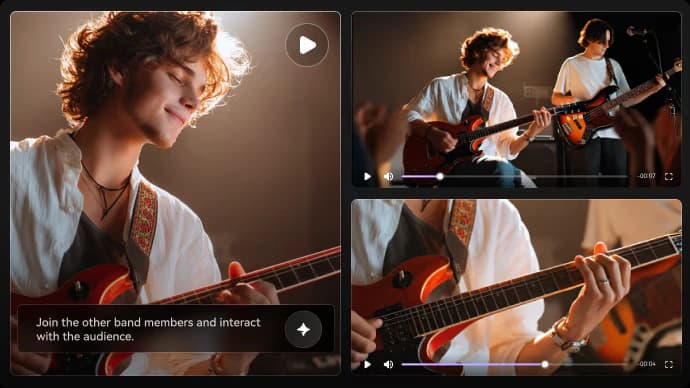
Enter a prompt describing how you want the video to continue — a longer camera pan, extended action, or atmospheric transition.
Generate & Download
Choose how many seconds to add (3 to 30, depending on the model) and the output resolution, up to 1080p. Preview the result, then download the extended video.
Why Choose iMideo Video Extender?
Cloud Generation Workflow
Extend your videos in a browser workflow with progress shown after submission. Processing time depends on clip length, resolution, prompt complexity, and queue load.
3 to 30 Second Extensions
MiniMax H3 adds 3 to 15 seconds and Seedance 2.5 adds 4 to 30 seconds. Chain several runs for an even longer result. If the source clip is soft, enhance it with AI Video Upscaler.
Secure Processing
Your videos are processed securely, stored temporarily for generation and deleted according to the product retention policy.
AI Sound Effects
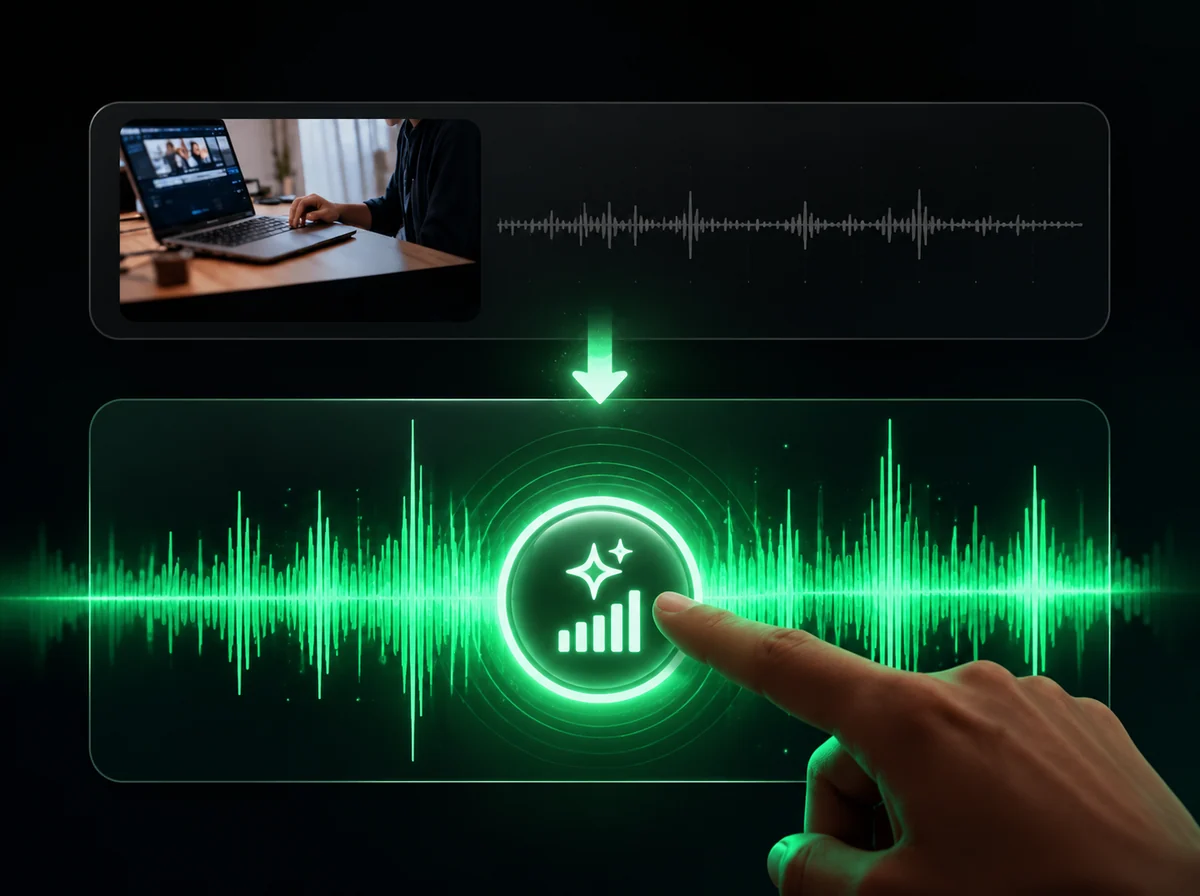
Optionally add AI-generated sound effects to your extended footage for a complete audiovisual experience.
Style Preservation
The AI maintains your video's original color grading, lighting, and visual aesthetic throughout.
Pay-Per-Use Pricing
Only pay for what you create. No subscriptions required, suitable for occasional use.
What Creators Say About Video Extender

Alex M.
Film Director
Extended a crucial drone shot by 8 seconds for an edit test. The AI matched the lighting and camera movement closely enough for us to decide whether a reshoot was needed.

Sophia L.
TikTok Creator
My dance video was 2 seconds too short. Instead of re-recording, I extended it and got a cleaner ending that worked for the edit.

Marcus T.
Video Editor
Practical shortcut for B-roll. Extended a sunset timelapse to match my narration timing, and the color gradient stayed close enough for the final sequence.

Elena K.
YouTuber
Used it to extend reaction clips where I cut too early. The prompt control was useful: I described a slow zoom out and it delivered that. Practical tool.

David R.
Marketing Producer
Extended a product hero shot for a 15-second ad placement. It gave us another usable take without scheduling a reshoot.

Nina W.
Wedding Videographer
Extended the first dance footage when the couple wanted a longer edit. The AI maintained the warm lighting and natural movement. Clients were satisfied.
Ready to Extend Your Video?
Upload a clip and generate an AI-powered extension in your browser.