AI Image Face Blur - Hide Faces, Keep the Scene
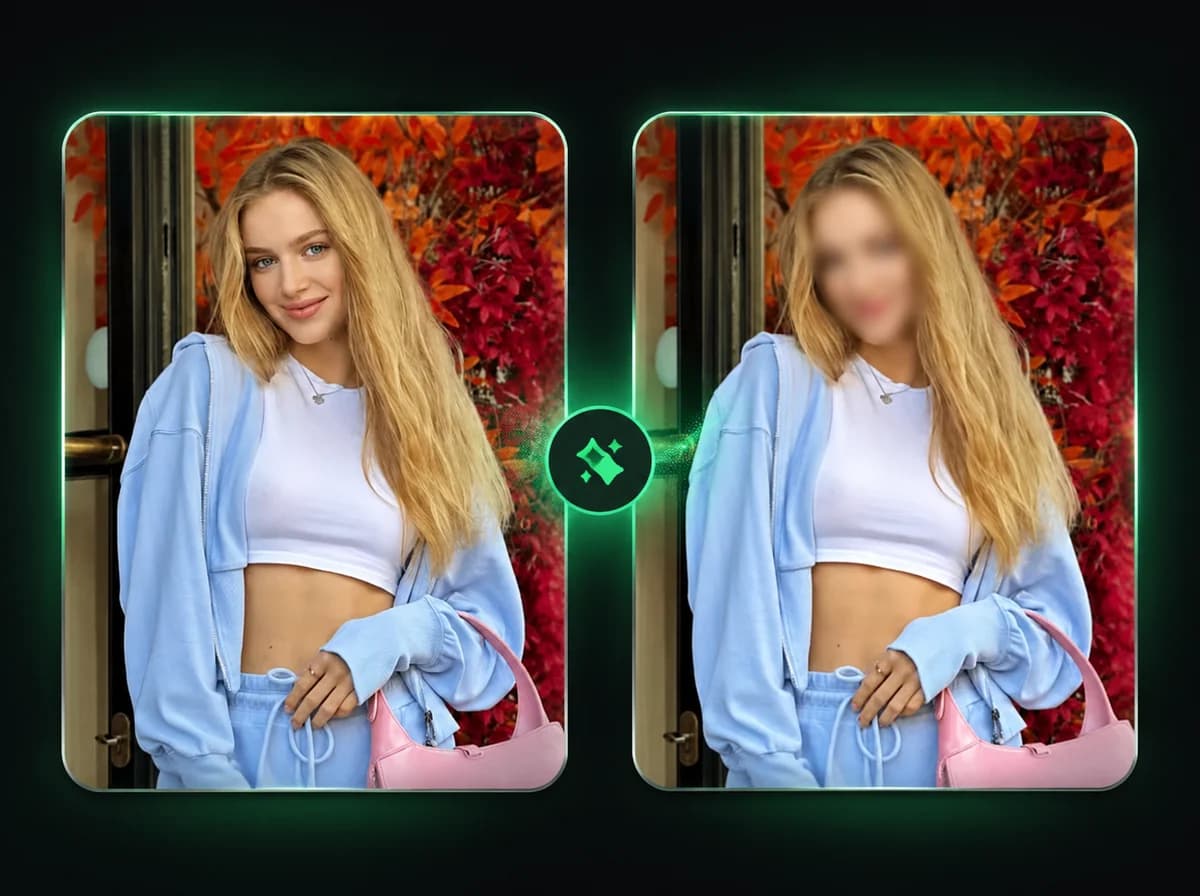
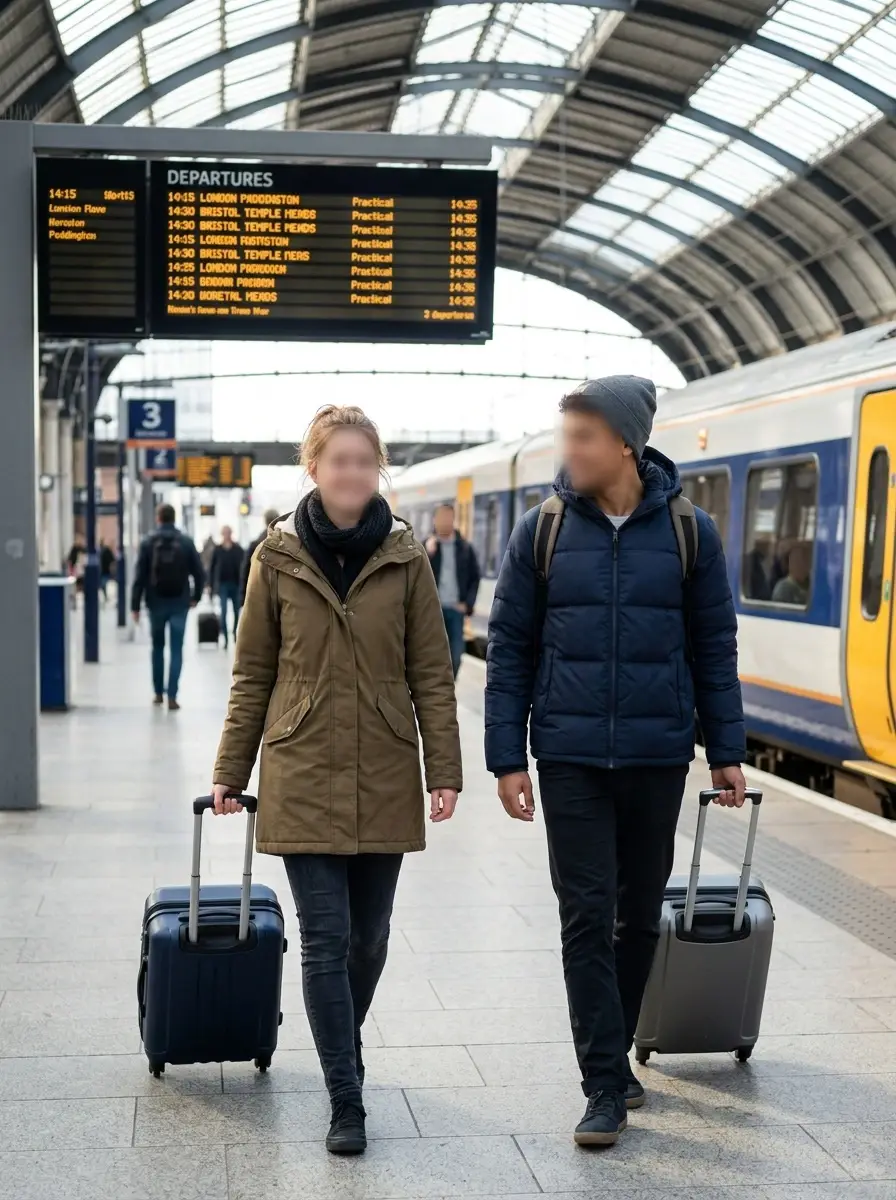
Upload one photo to blur visible faces for privacy while preserving clothing, pose, background, and the rest of the image.
Click to upload image
PNG, JPG, WebP · Max 10MB
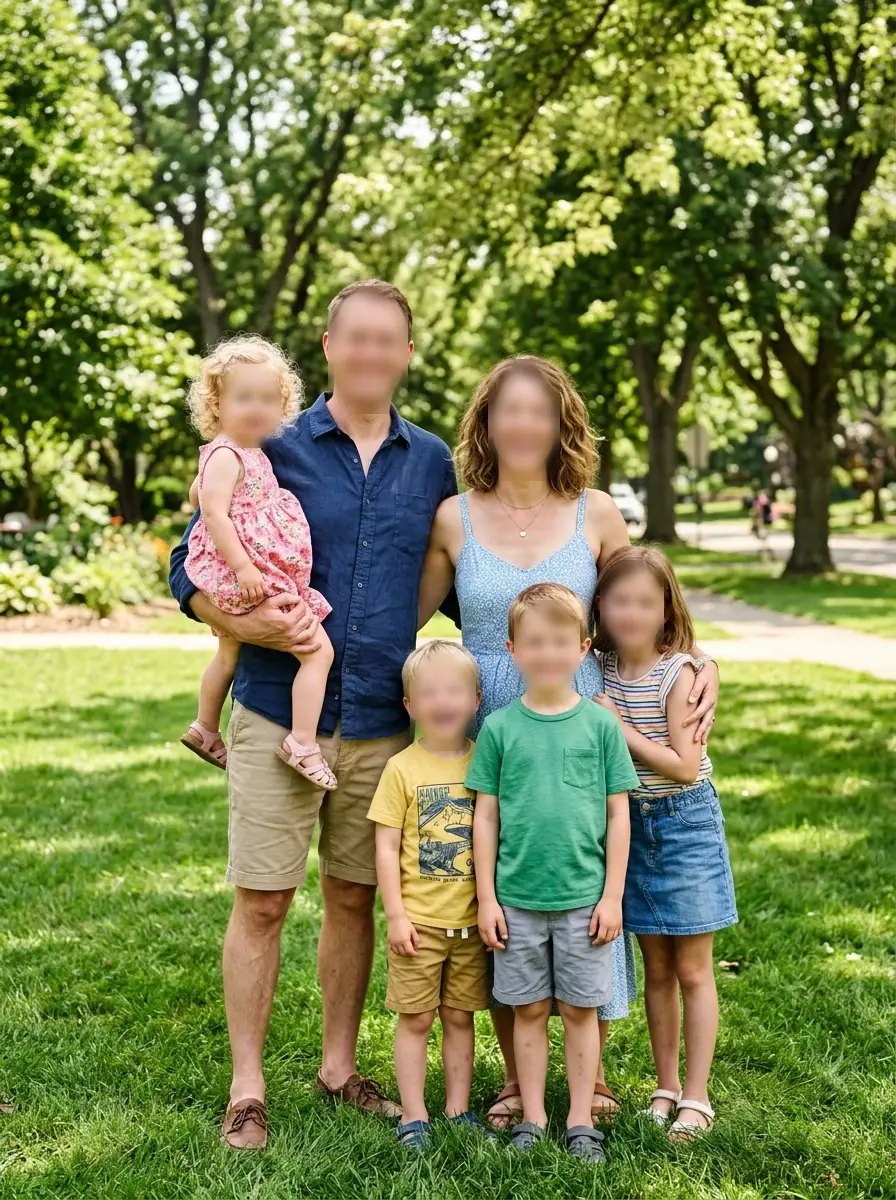
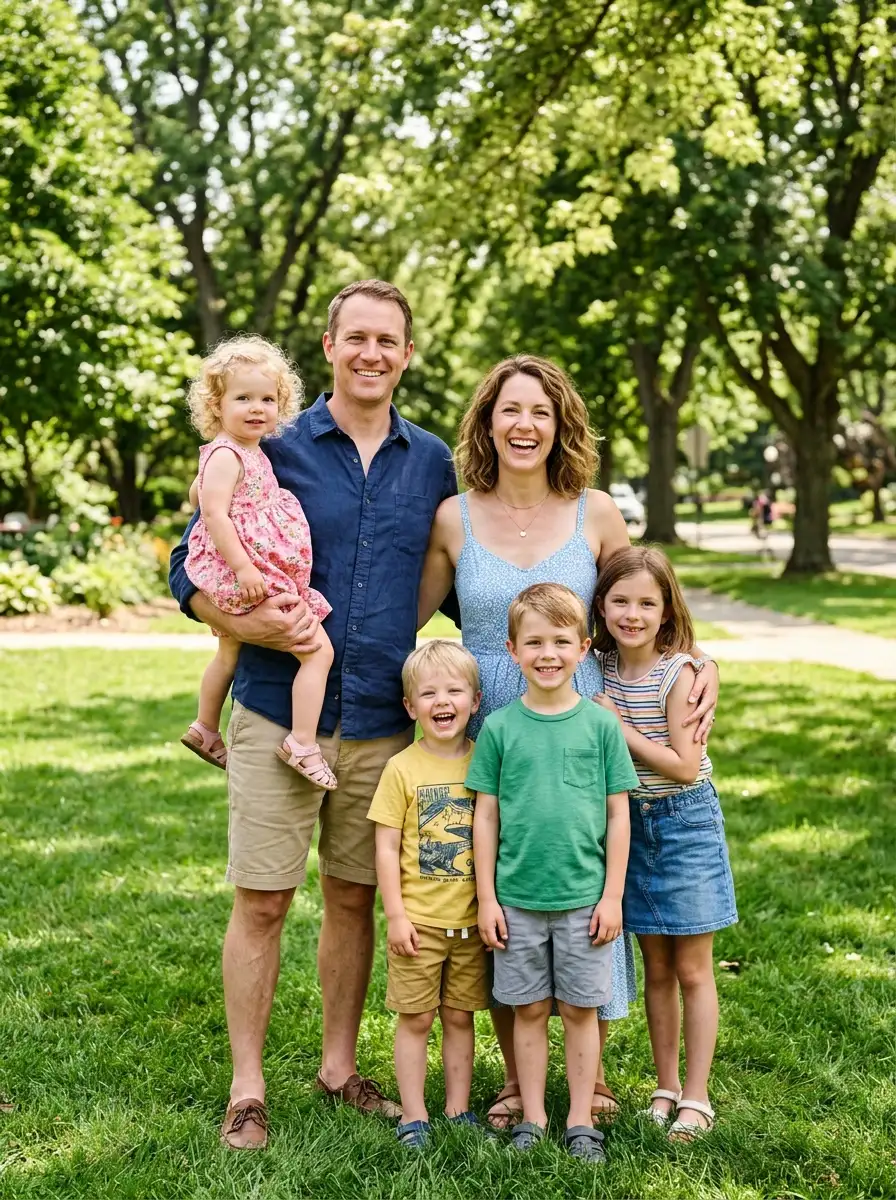
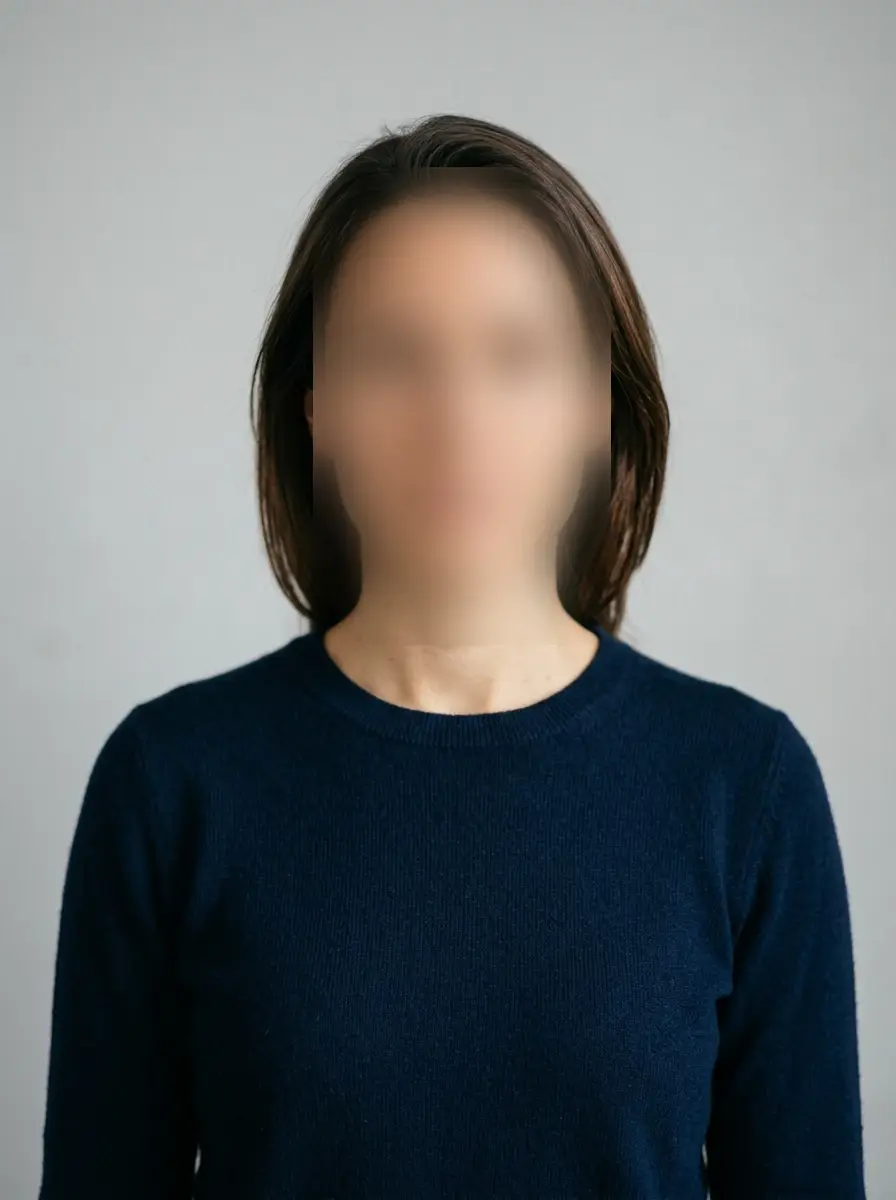
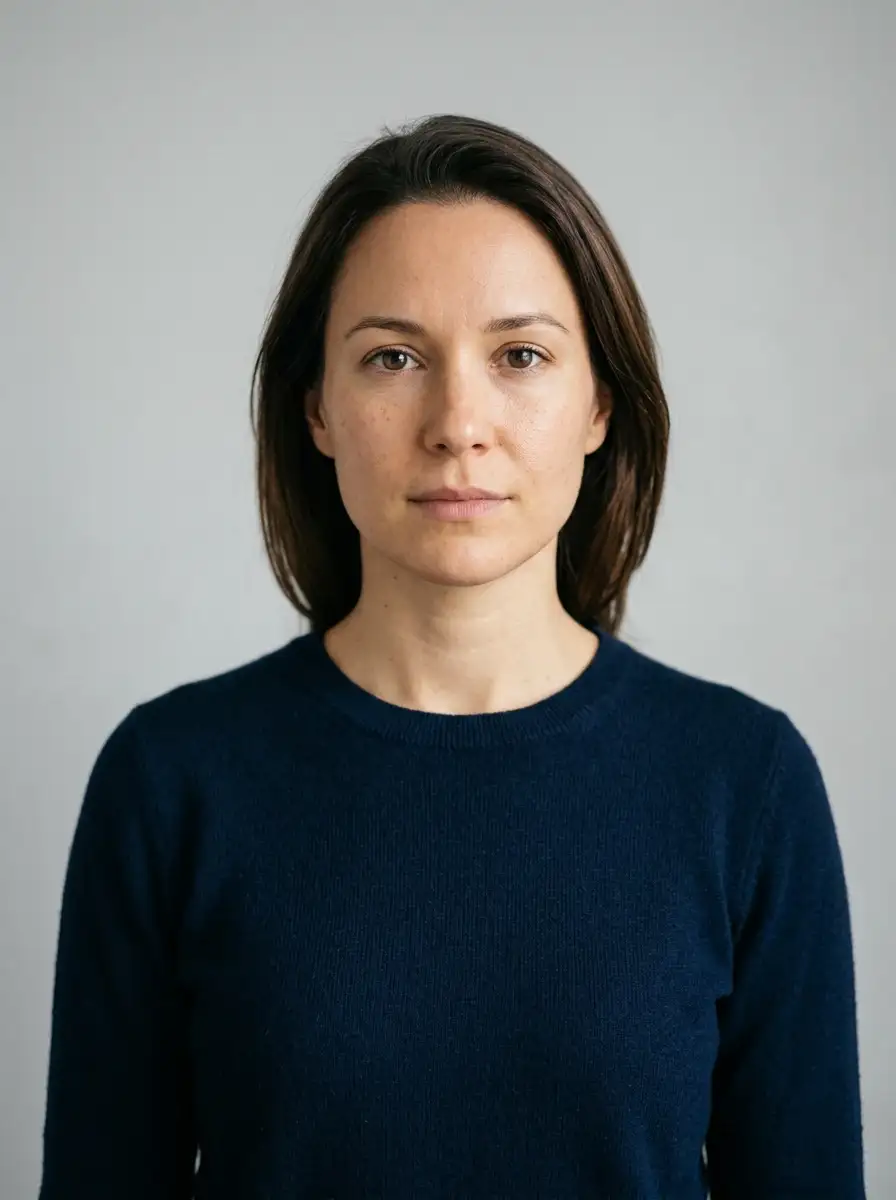
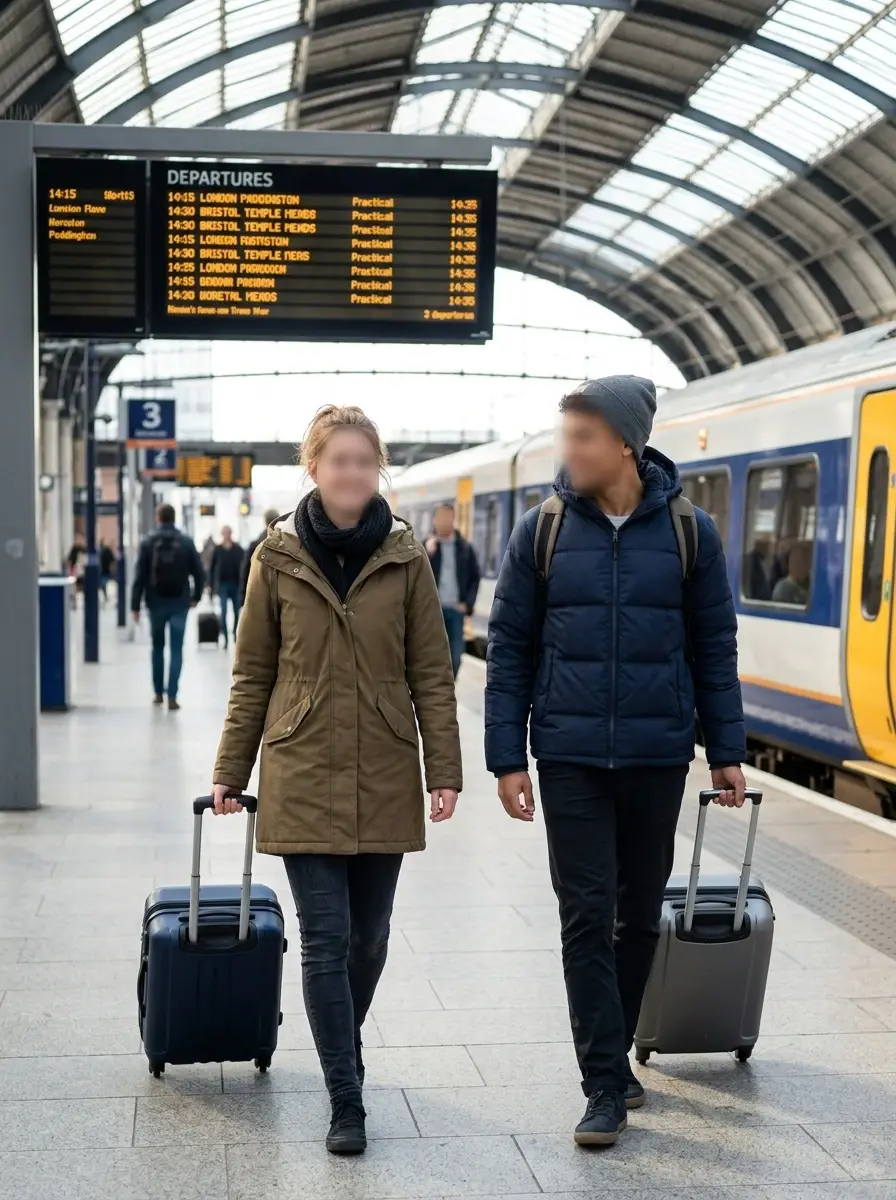
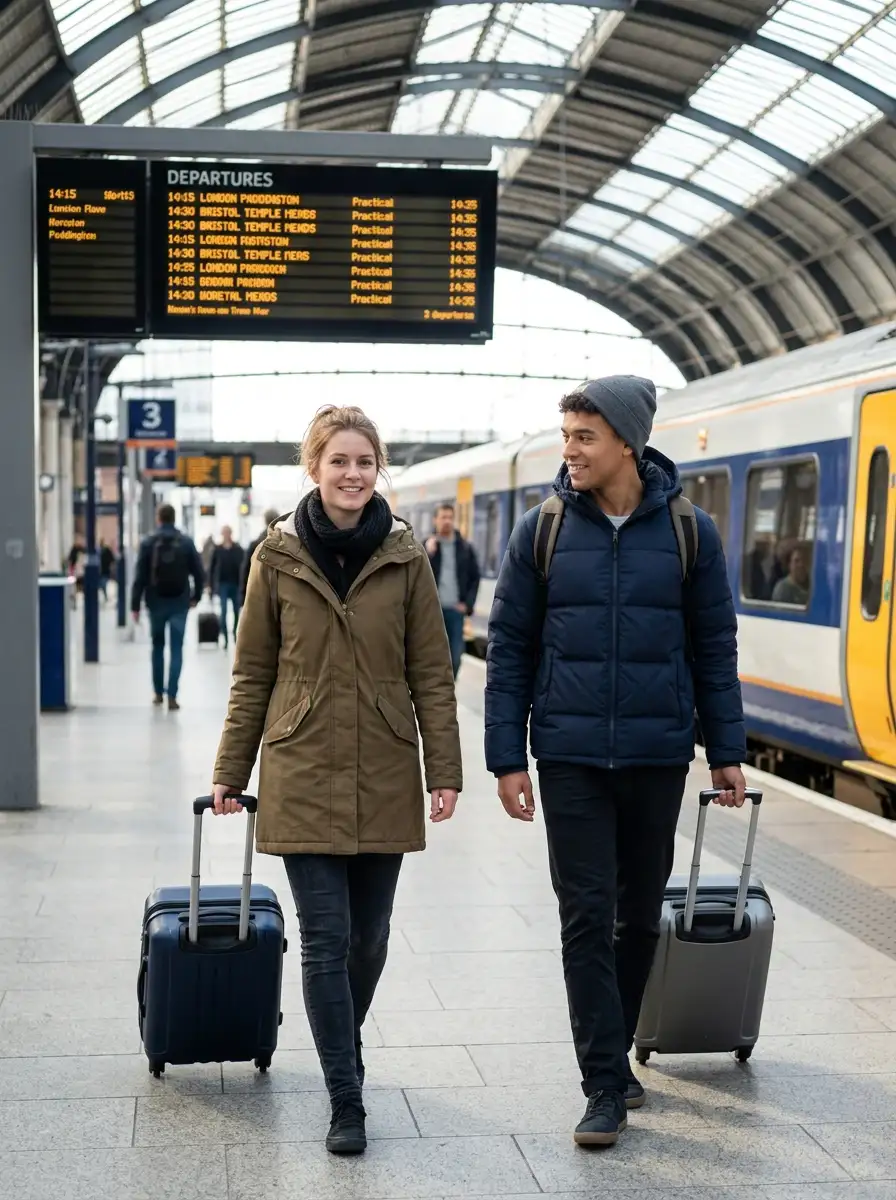
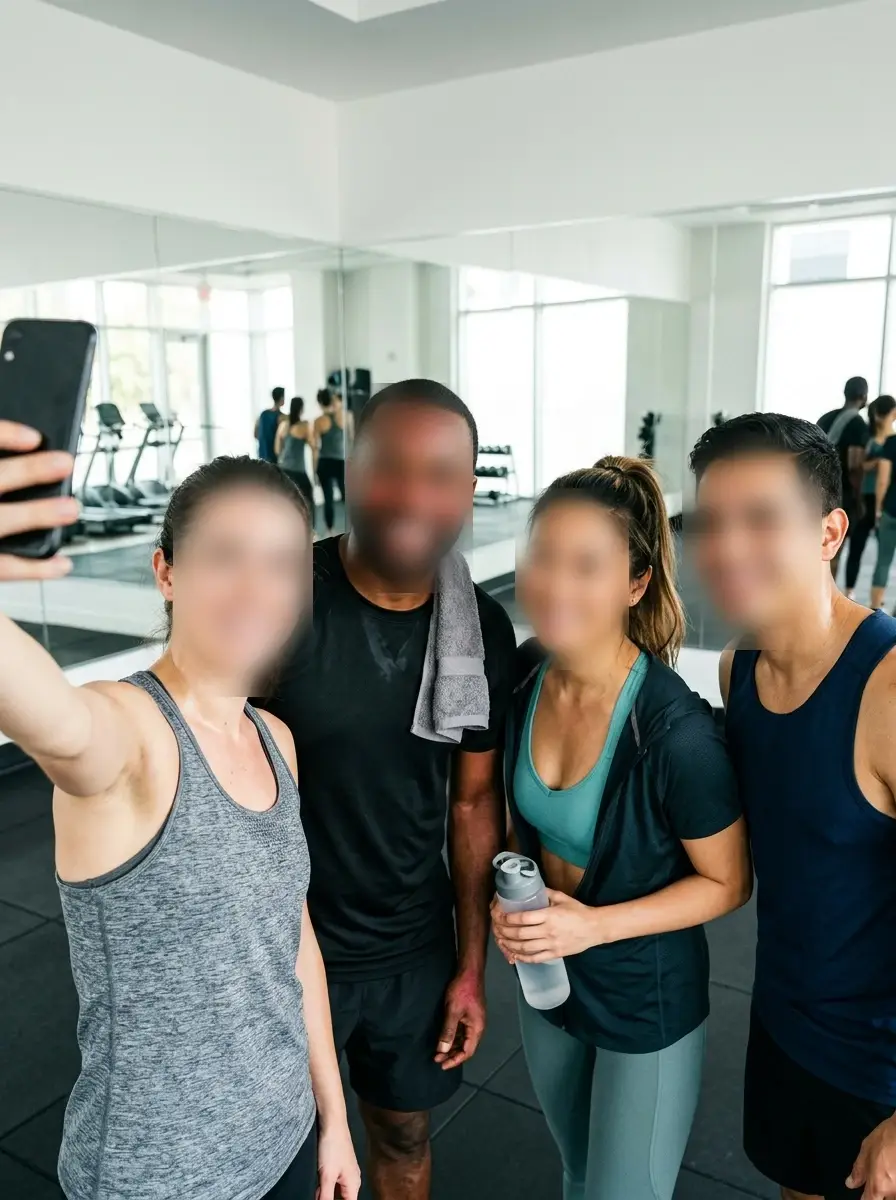
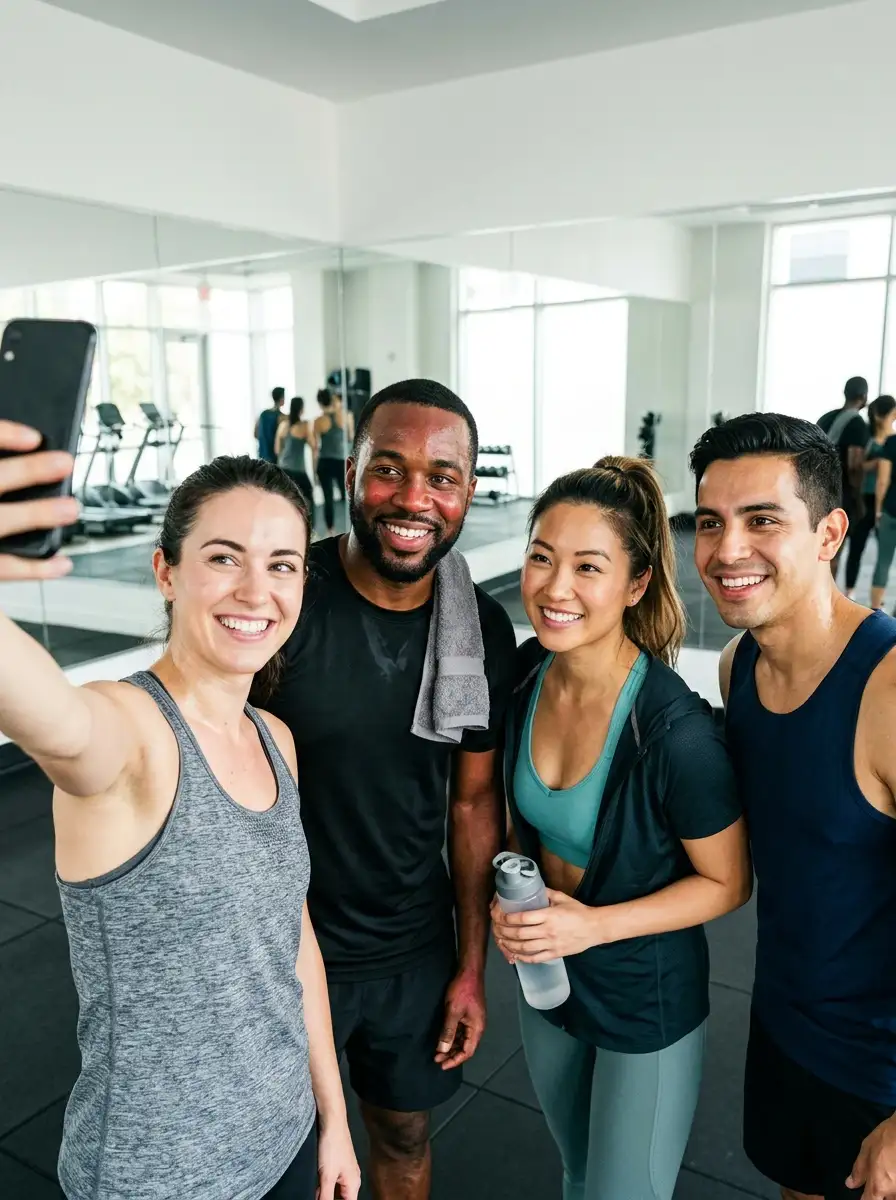
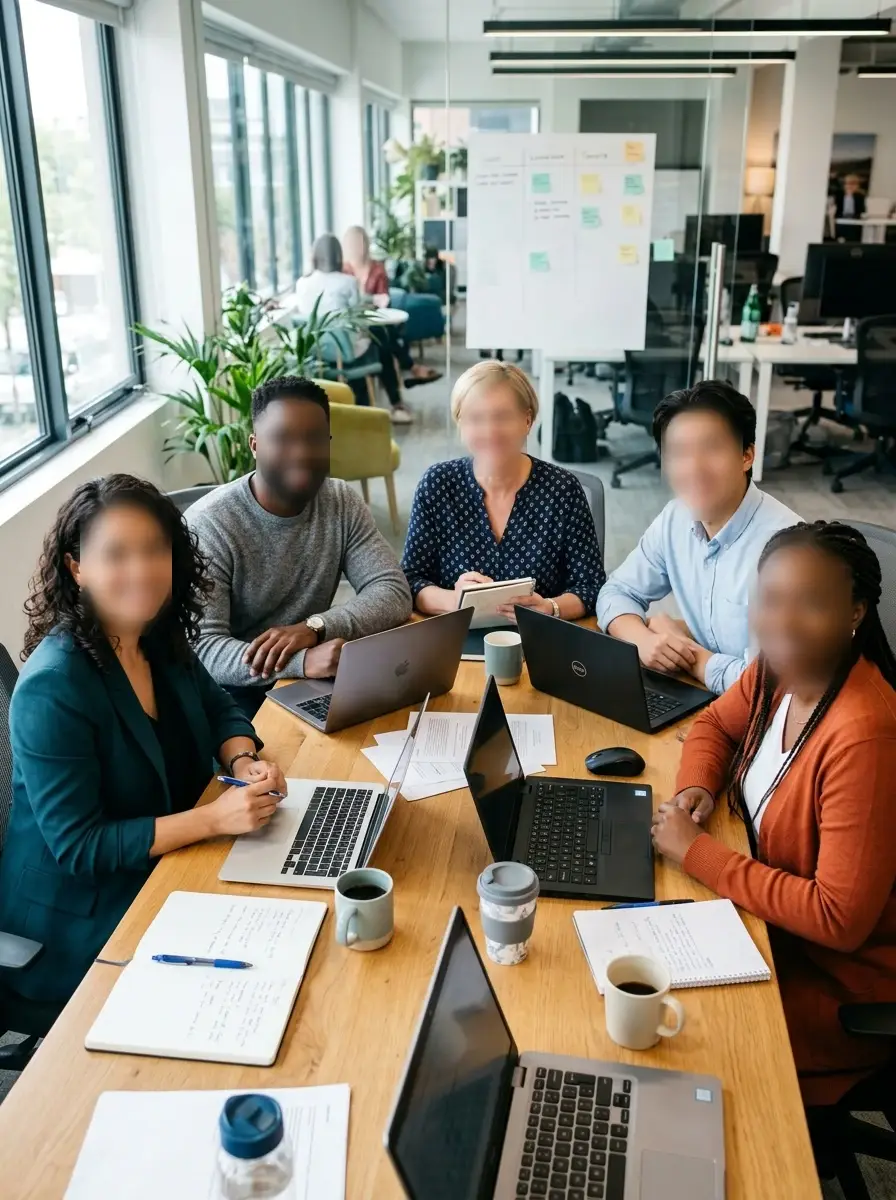
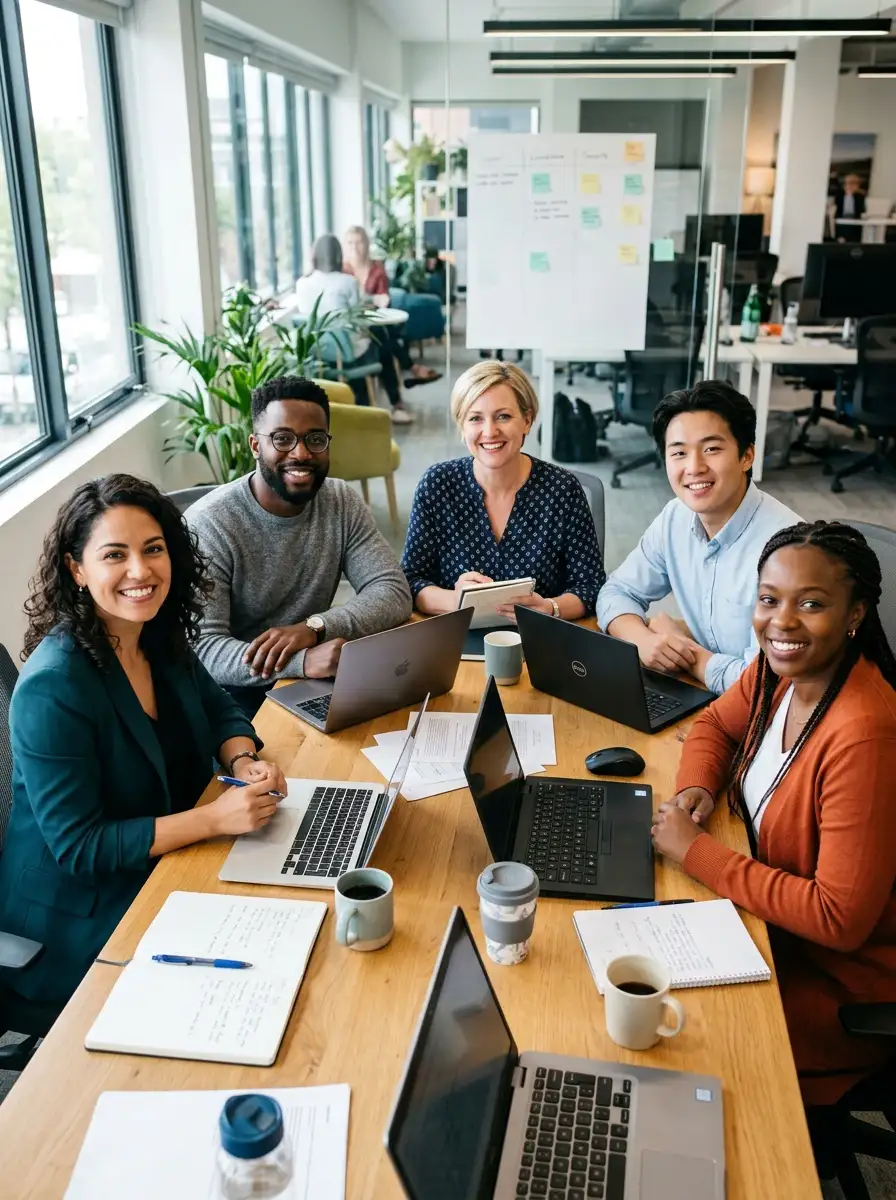
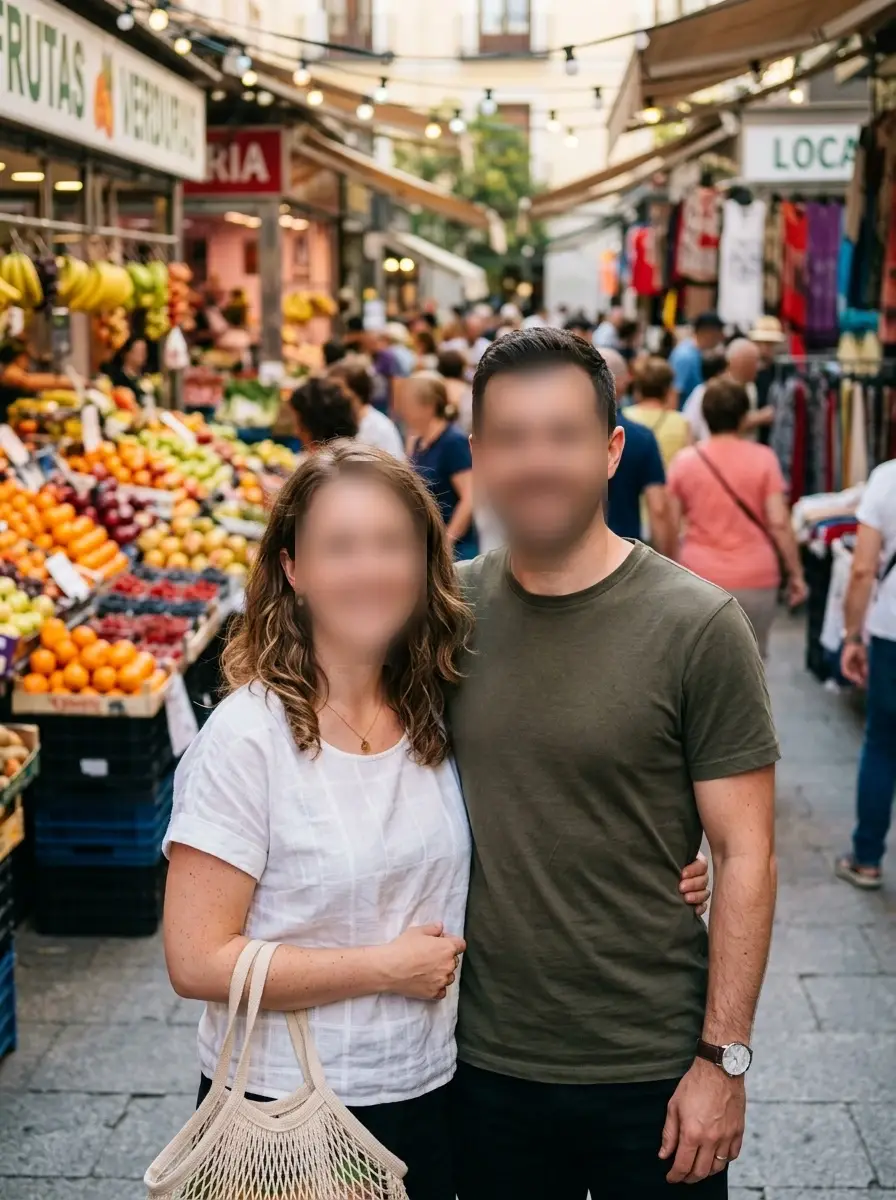
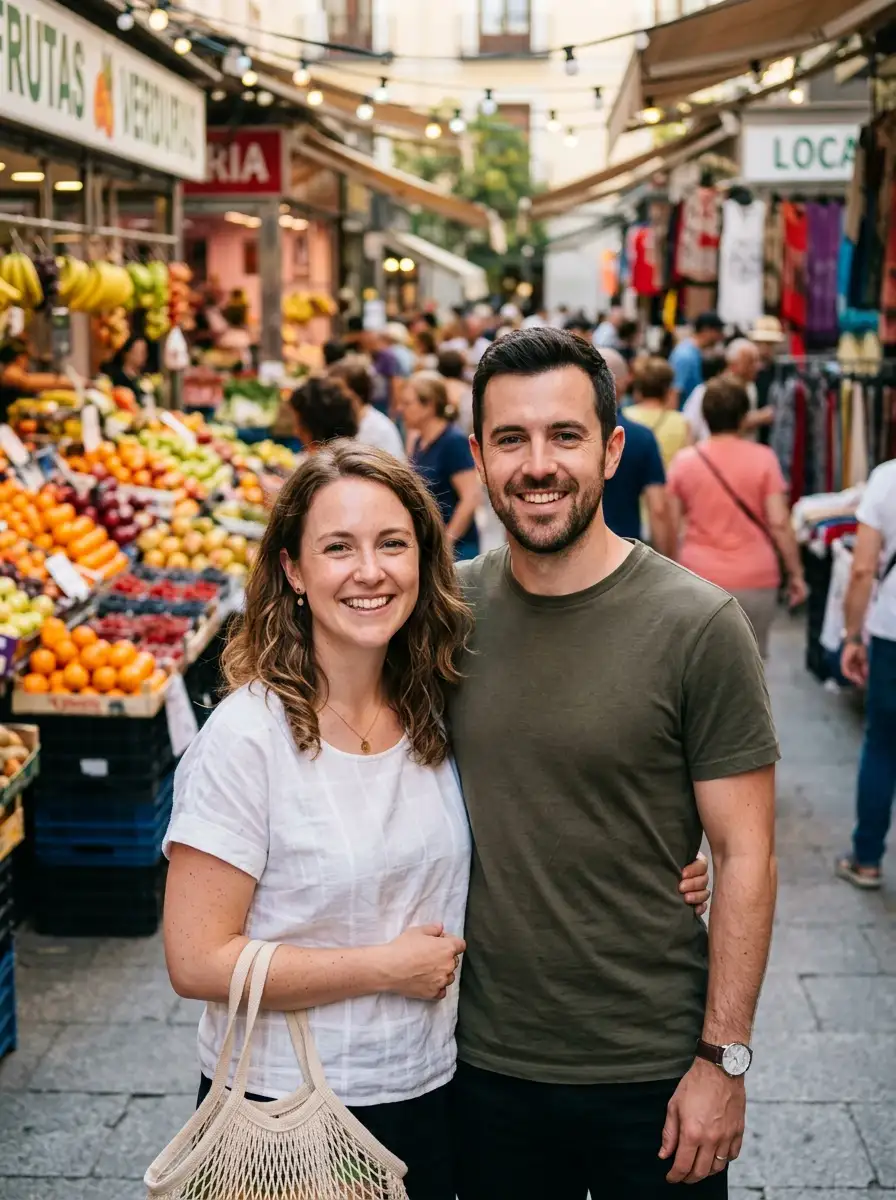
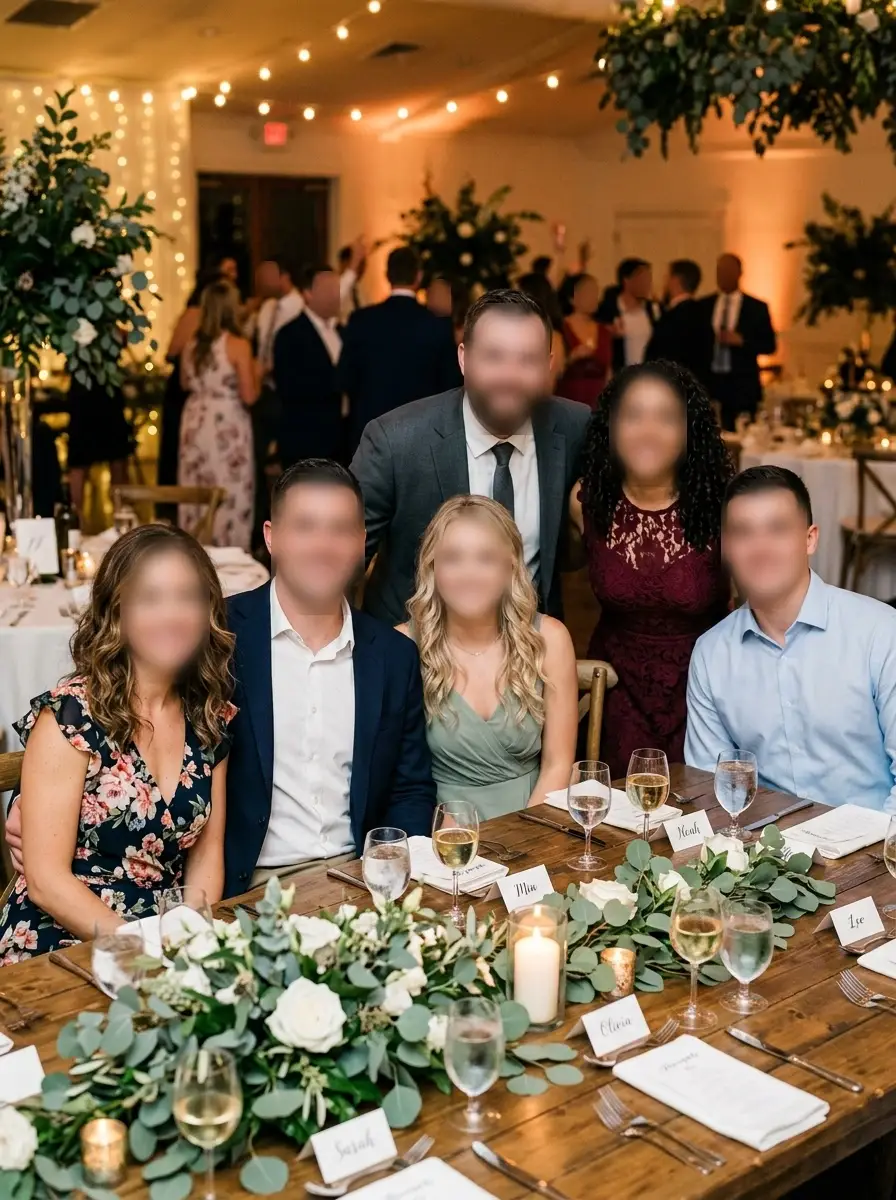
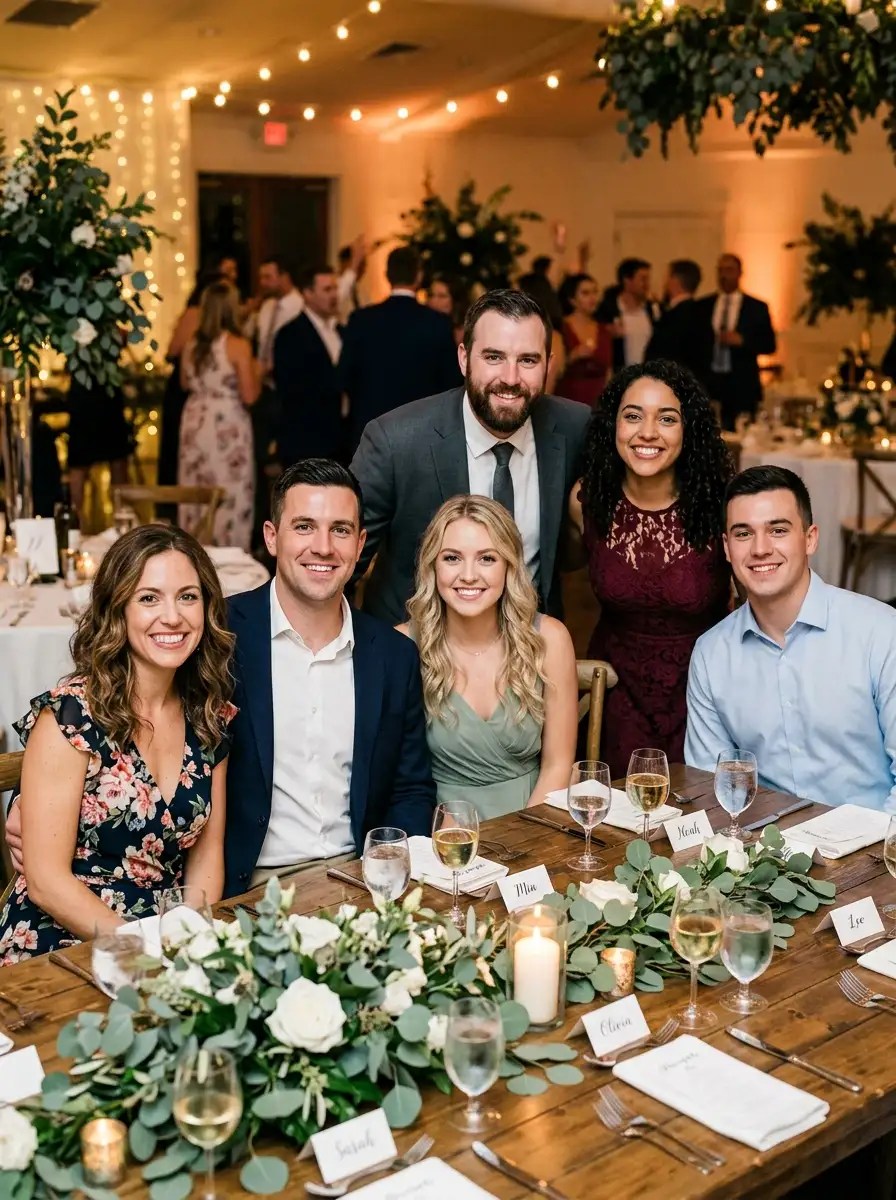
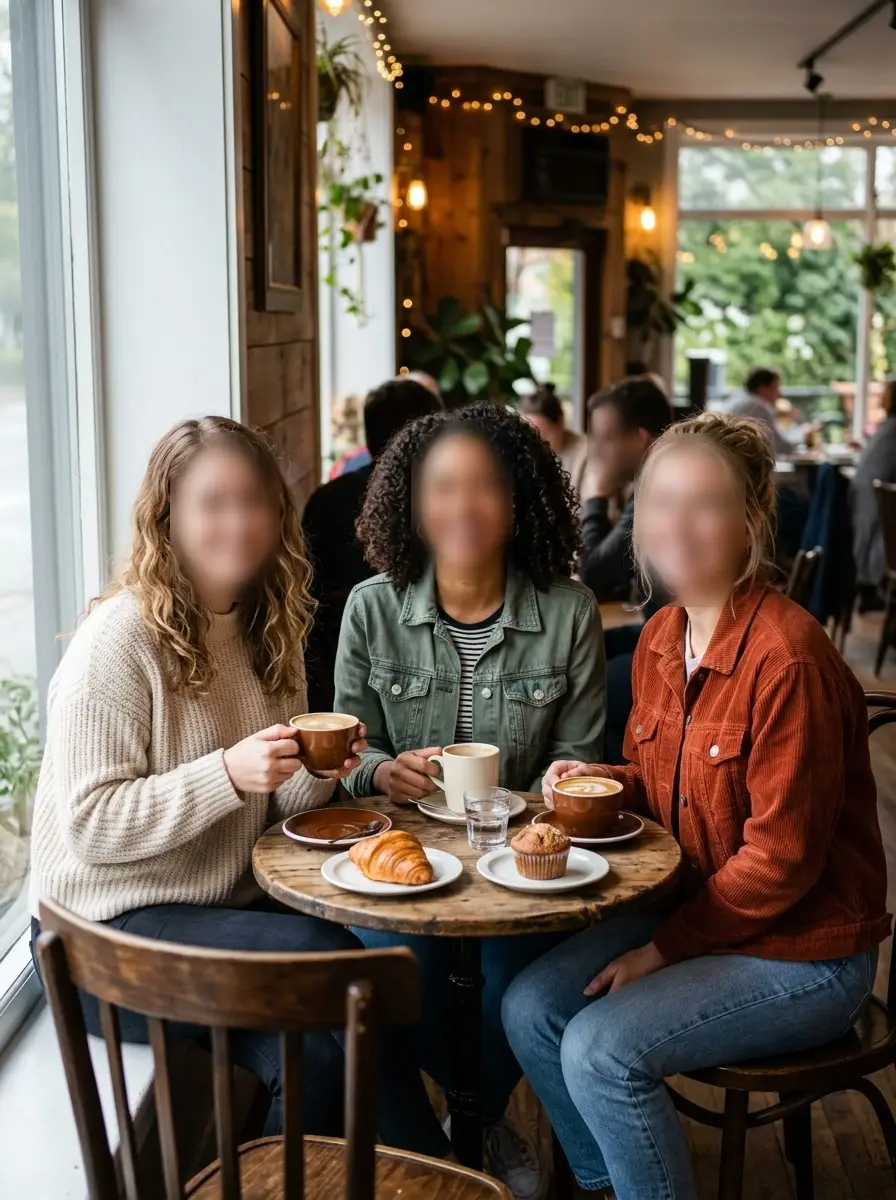
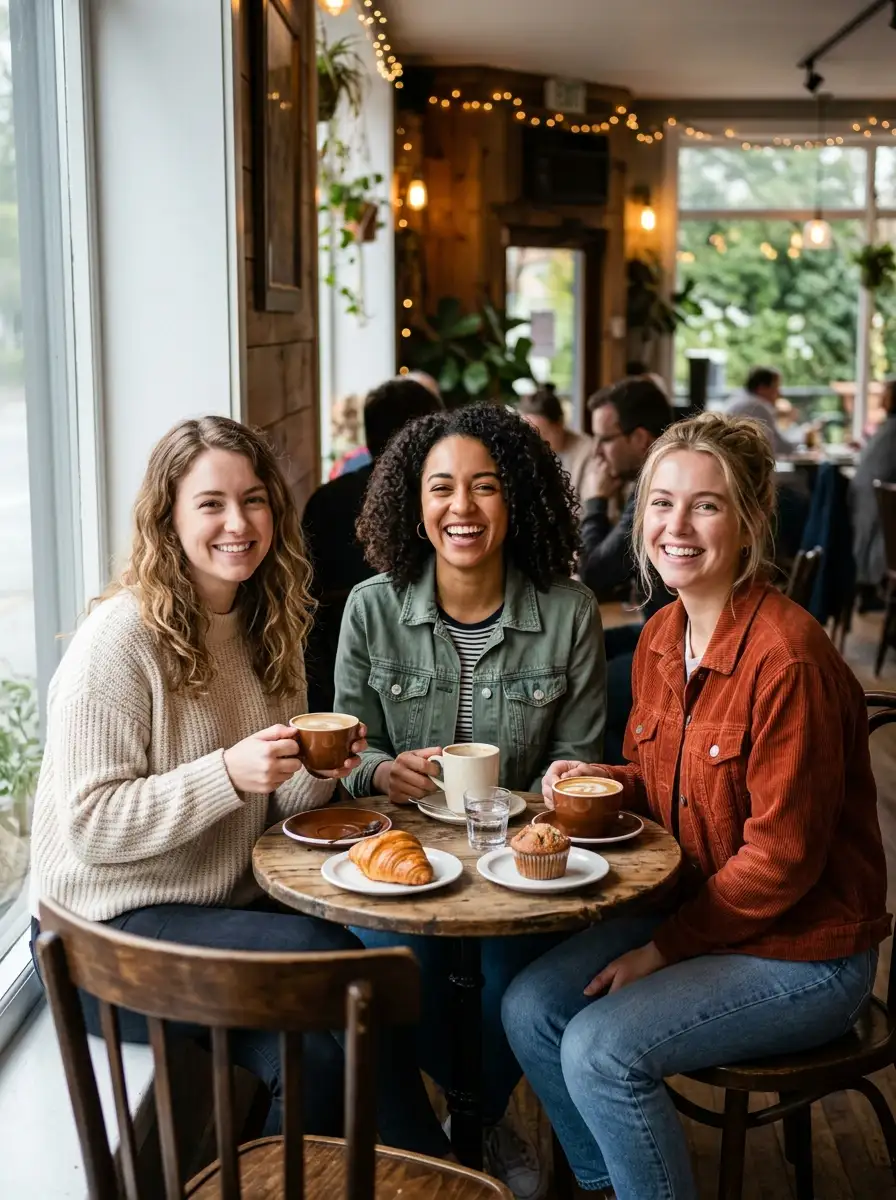
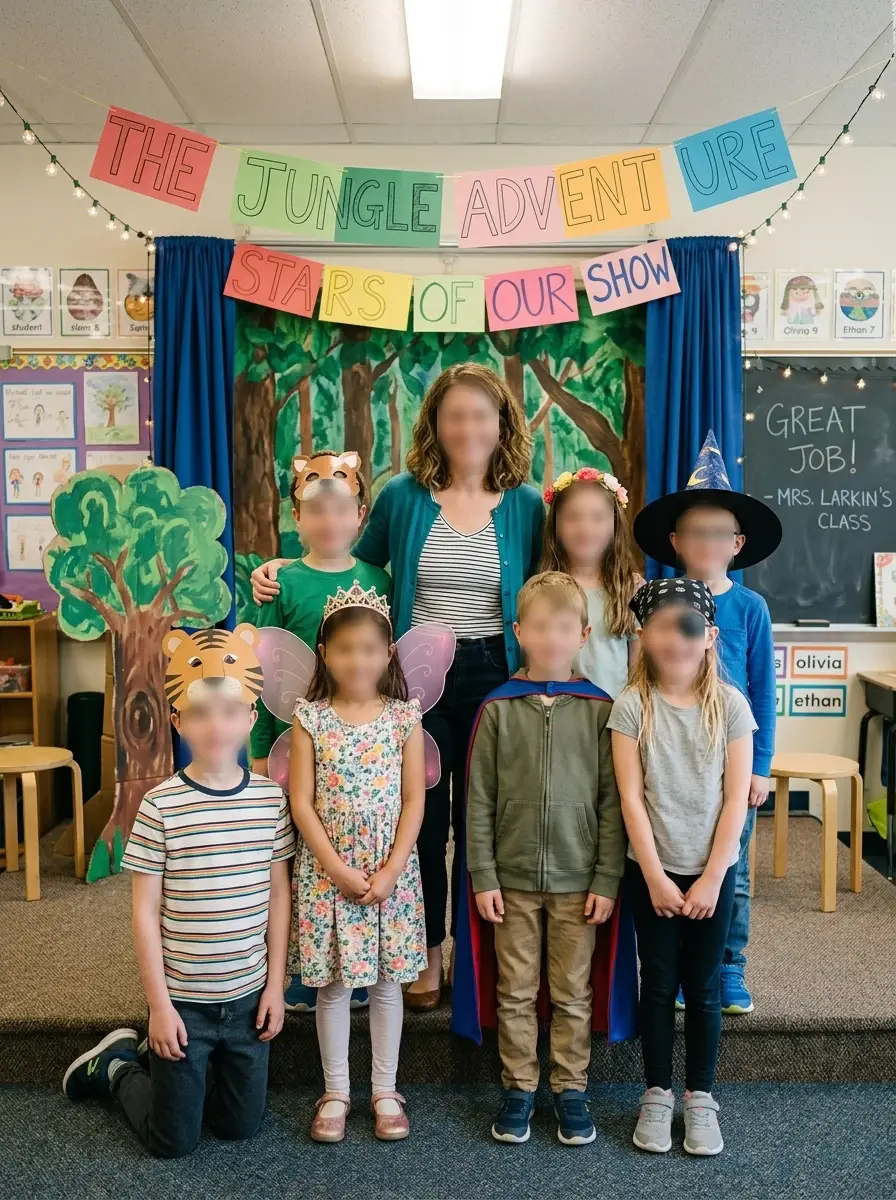
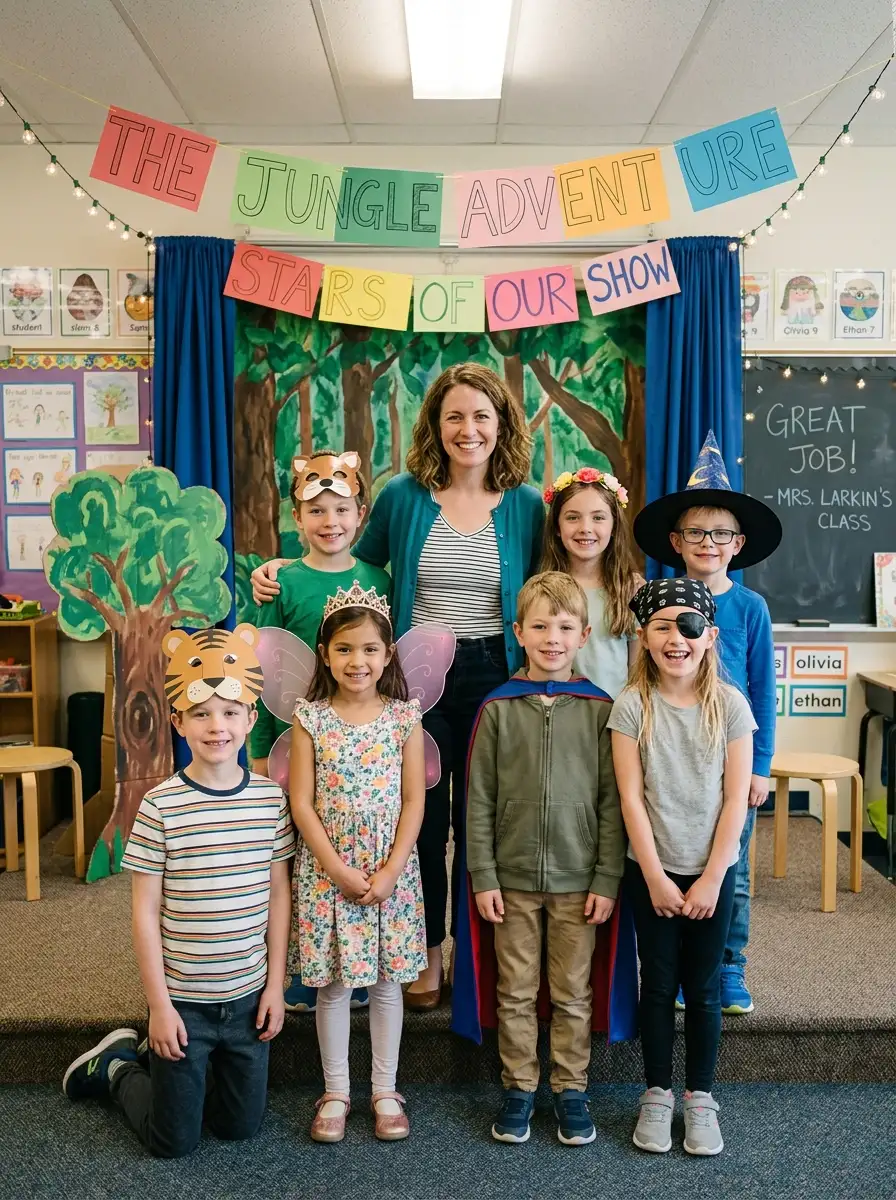
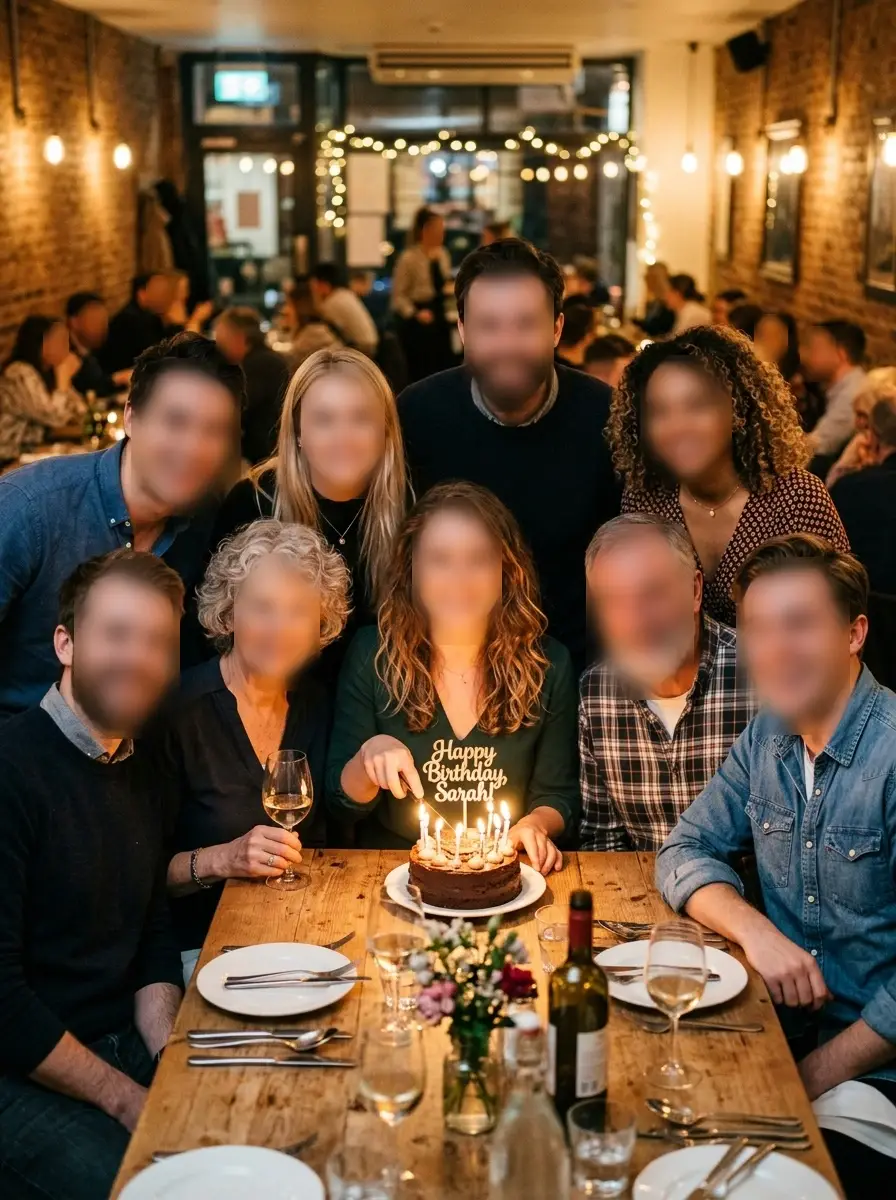
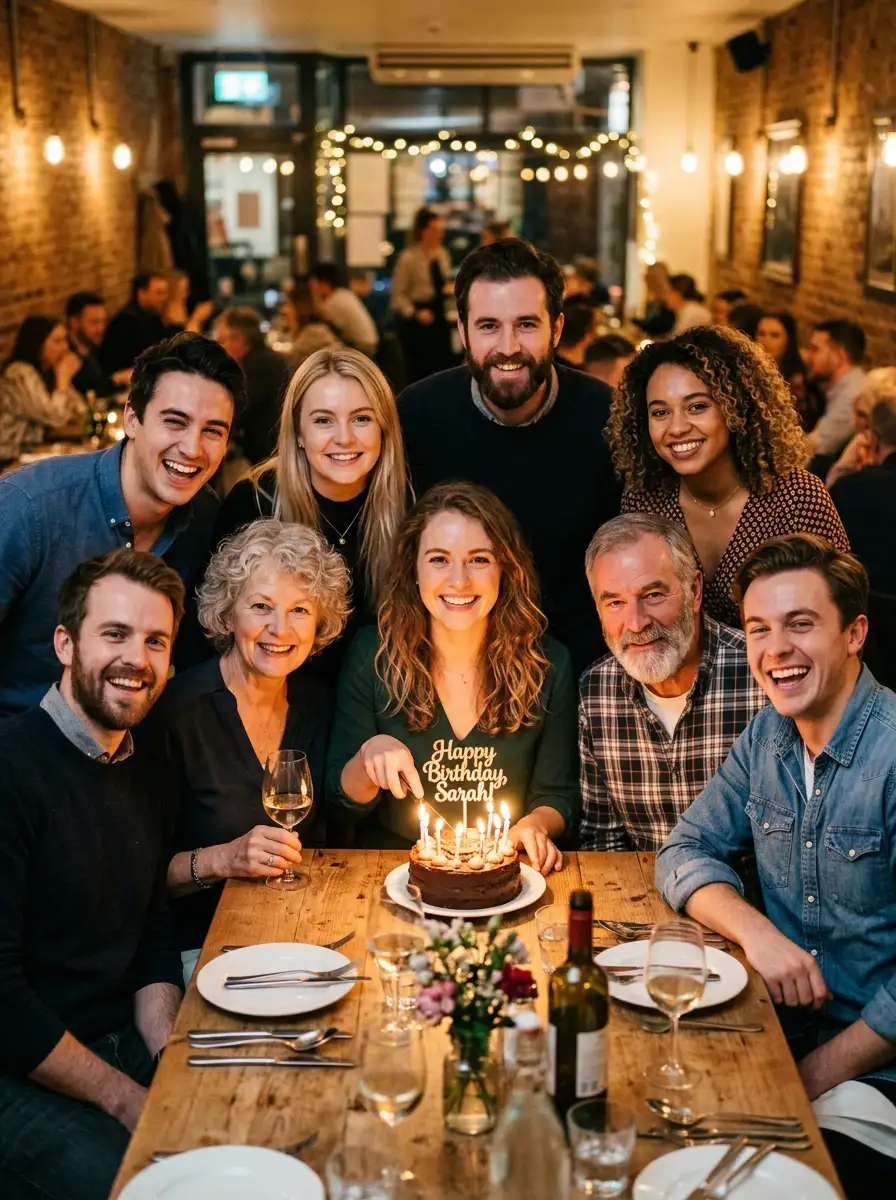
How to Use AI Image Face Blur
Upload one photo, generate the blurred-face result, then download the privacy-safe image.
Upload One Photo
Choose a JPG, PNG, or WebP image with the faces you want to hide. Clear, front-facing or slightly angled faces give the face blur tool the best source.
Generate the Face Blur Result
Start AI Image Face Blur. iMideo reads the uploaded photo, blurs visible faces, and keeps the surrounding scene aligned to the original image.
Download and Share
Save the blurred photo for social posts, documents, listings, galleries, or internal reviews where the scene matters but faces should not be exposed.
Why Use iMideo for Face Blur Photos
One-Image Workflow
The tool only needs the photo you want to protect. There is no text prompt, second reference image, or manual face selection step in the current flow.
Automatic Face Privacy
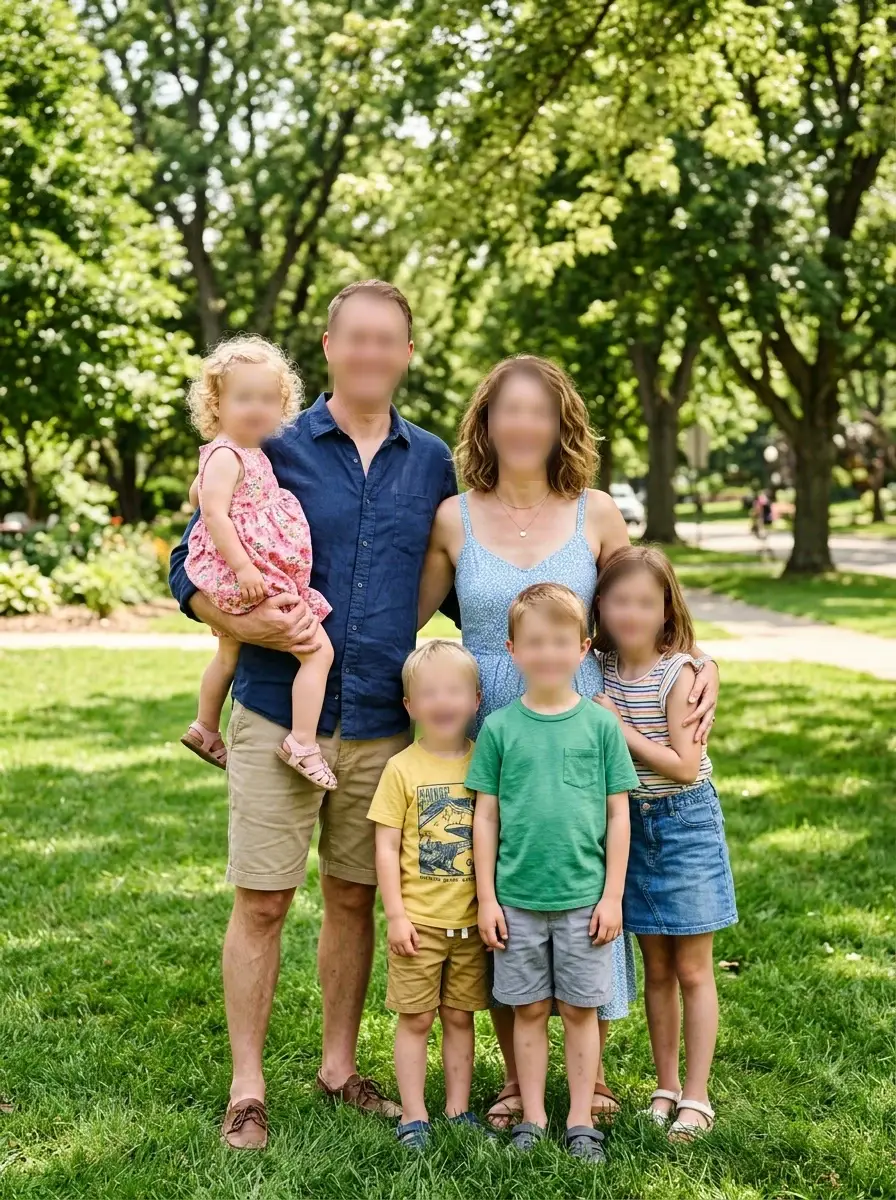
AI Image Face Blur focuses on hiding visible faces so you can keep useful context without showing recognizable facial details.
Scene Context Stays Useful
The surrounding body, clothing, room, background, signage, and event details stay readable where the source image gives the model enough detail.
Group Photo Friendly
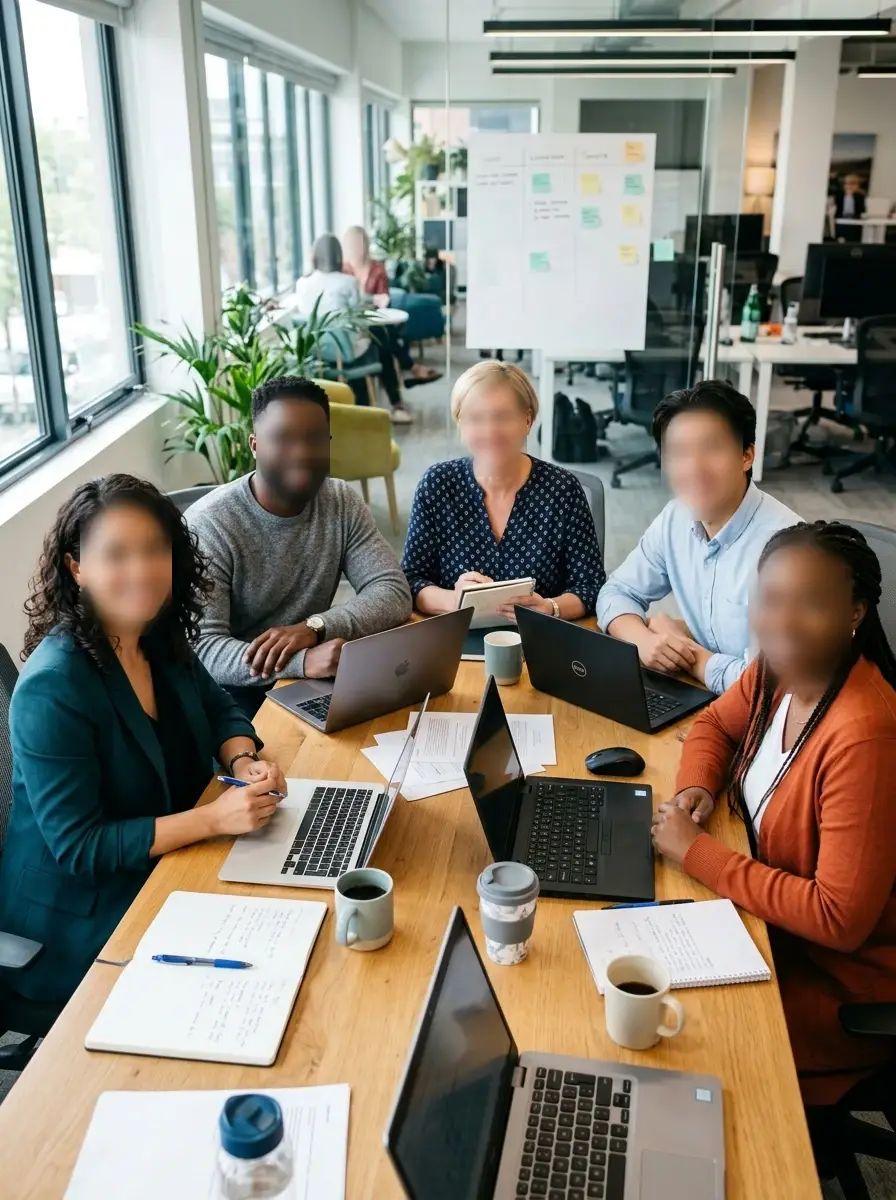
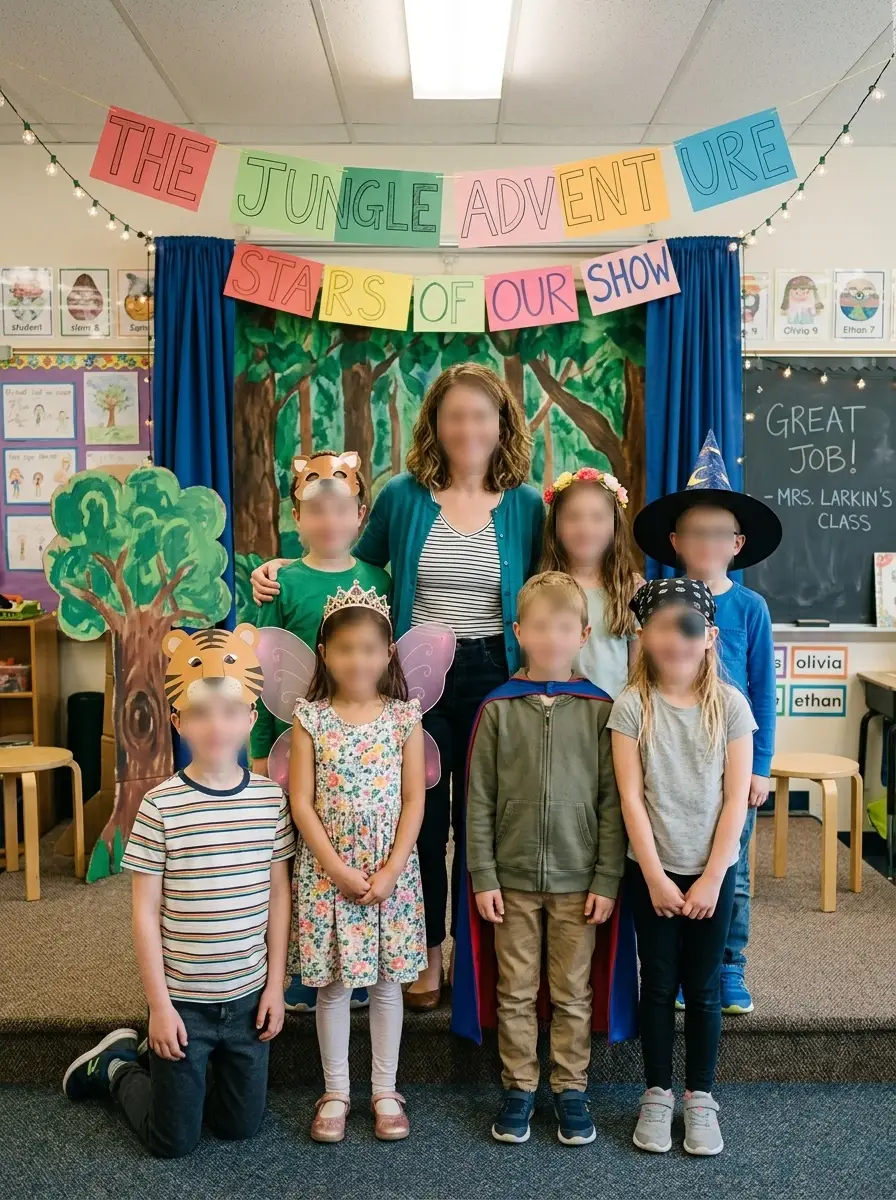
Use it for group photos, classrooms, team meetings, street photos, and events where more than one person may need anonymization.
Private Editing Flow
Uploads are processed for the generation task and are not displayed in the public template gallery.
Credit-Based Usage
Use credits only when you generate a result. Check the pricing page for current credit packages and account options.
What Creators Say About Face Blur Photos
Rina M.
Community Manager
I use it before posting event recaps. The room and activity still make sense, but the people in the background are not identifiable.
Caleb T.
Operations Lead
For internal reports, I need the meeting setup visible without showing every attendee. The before and after comparison makes review simple.
Mika S.
Travel Blogger
Street photos often catch strangers by accident. This helps me keep the place, signs, and atmosphere while removing face details.
Jordan P.
School Volunteer
Classroom photos are sensitive. I like that the tool keeps the project display and group moment visible while softening the faces.
Elena V.
Listing Editor
Sometimes property or venue photos include guests in the frame. Blurring faces lets me keep the useful space details.
Marcus L.
Social Editor
It is faster than explaining a manual masking pass. Upload one photo, generate the blurred version, and compare it with the original.
Nadia K.
Research Assistant
For documentation images, the context matters more than the faces. This keeps the scene readable for notes and presentations.
Theo B.
Event Photographer
When a client wants a preview but not every guest shown clearly, this gives me a practical privacy-first draft.
Blur Faces Before You Share the Photo
Upload one image and create a privacy-safe version that keeps the scene context while hiding visible faces.