
AI Image Combiner: Blend Two or More Photos into One
Combine two images with AI, or up to 14, and get one new photo where everything looks like it was shot together. Built for product scenes, portraits and creative composites, not side-by-side collages.
Click to upload images
2–14 images · PNG, JPG, WebP · Max 10MB each
What is AI Image Combiner?
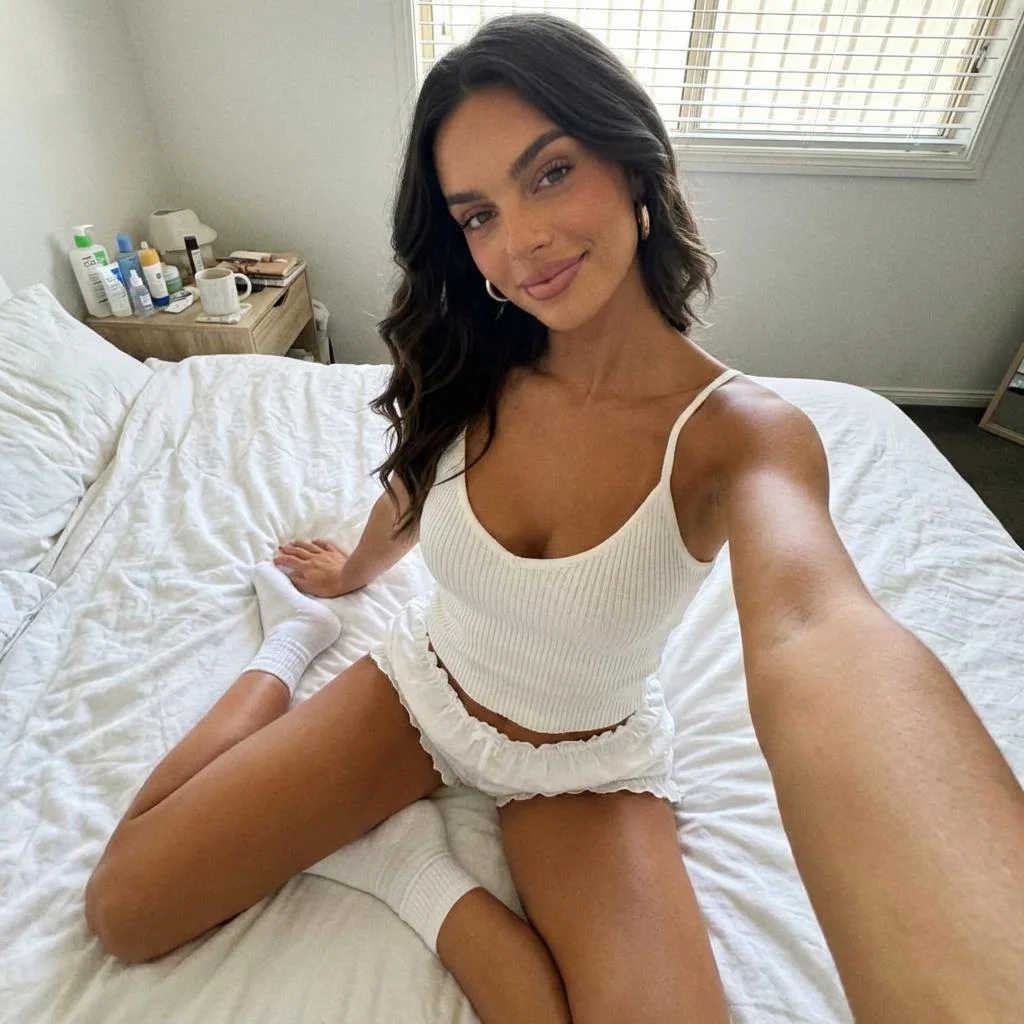
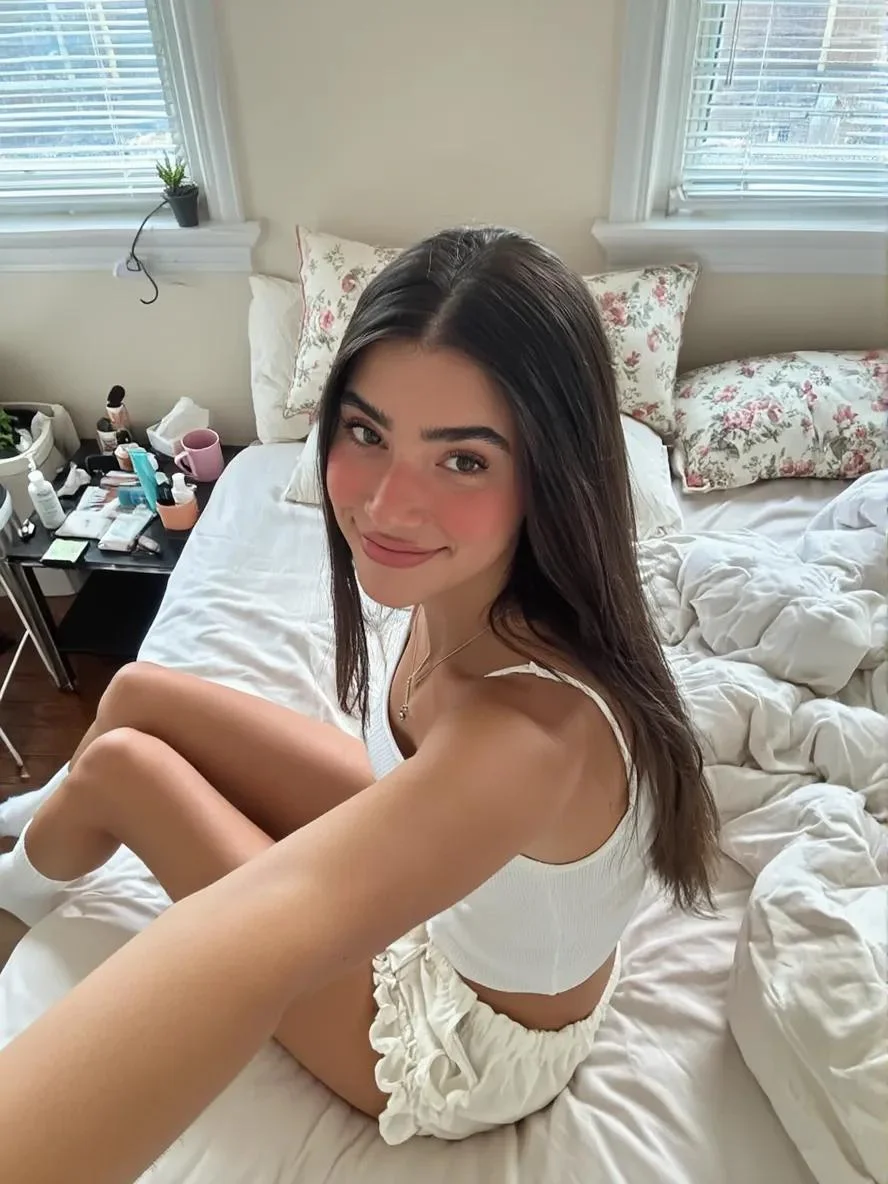
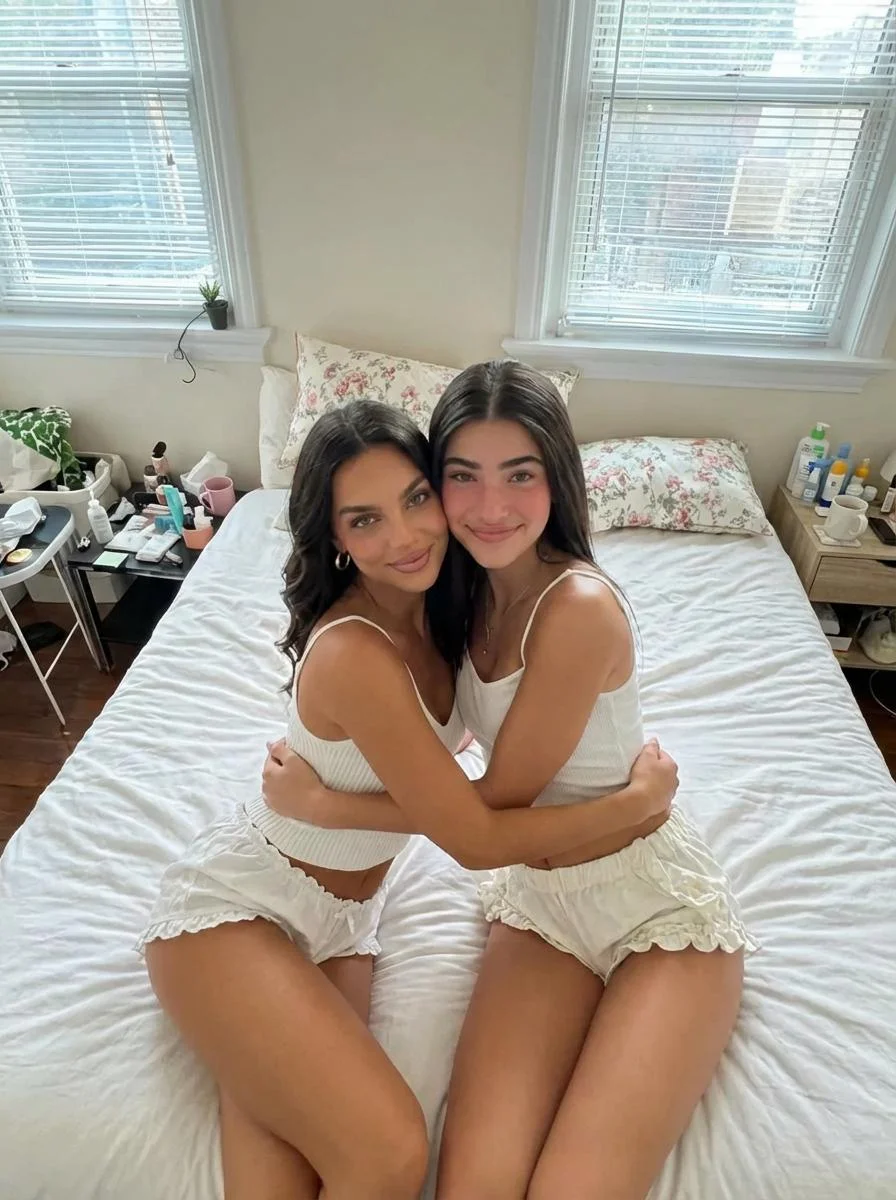
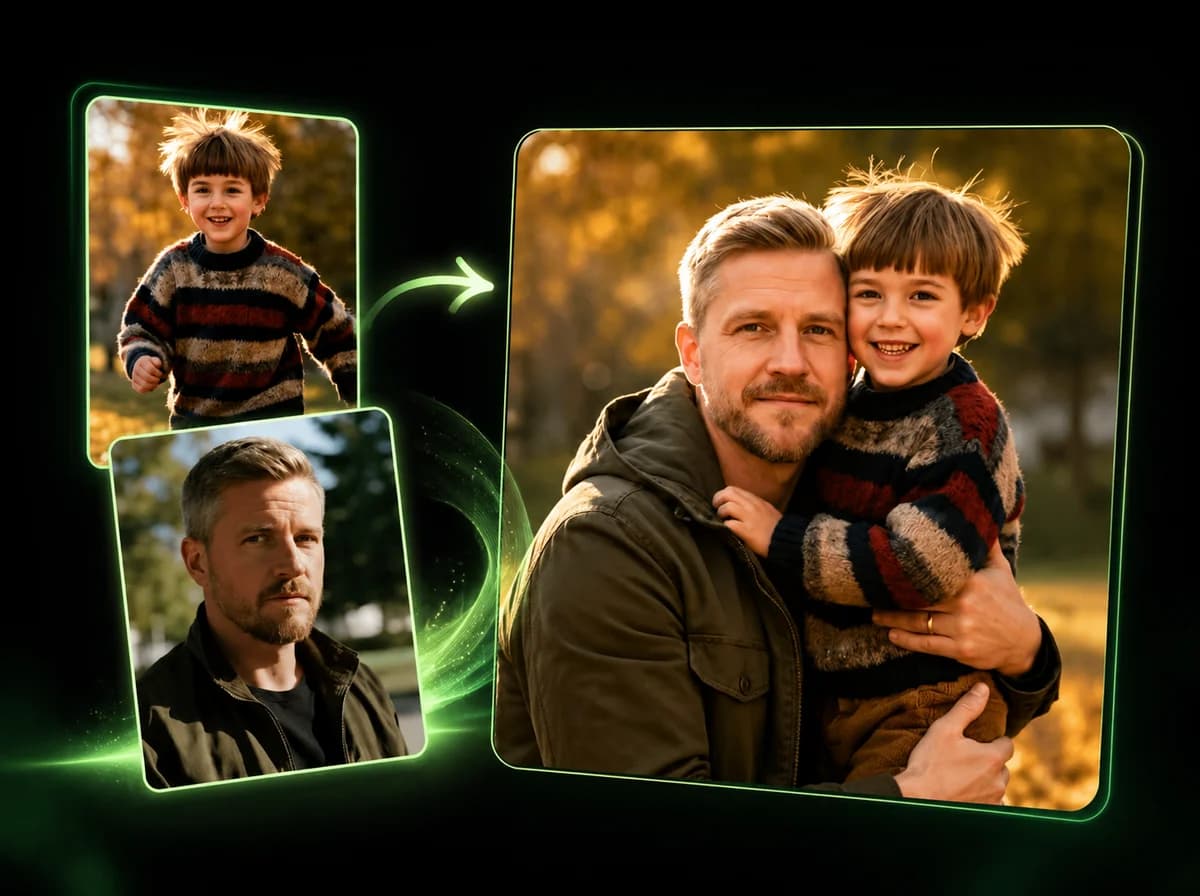
AI image combining takes two or more photos and merges them at the content level — not as a side-by-side grid or layered collage, but as a single unified image where the content from each photo reads as one scene. You upload your photos, the AI analyzes what's actually in them, and you get one output image after processing. Most 'image combiner' tools just tile or layer photos together. iMideo uses Nano Banana Pro to understand scene composition and content relationships in each photo, then generates a result that looks like one image when the inputs are visually compatible. Combine product photos with lifestyle backgrounds, merge portraits, or blend different scenes together — without touching Photoshop.
How to Combine Photos with AI
Upload, merge, and download after the AI finishes processing
Upload Your Photos
Upload 2 to 14 photos you want to combine. PNG, JPG, and WebP files up to 10MB each are supported. The clearer and more consistent your photos, the better the merge result.
Generate the Merge
Click the merge button and let the AI process your images. The model analyzes the content in each photo and generates a single, natural-looking combined image. No settings to configure.
Download Your Result
Your merged image is delivered as a clean, watermark-free PNG after processing. Download it when the result appears.
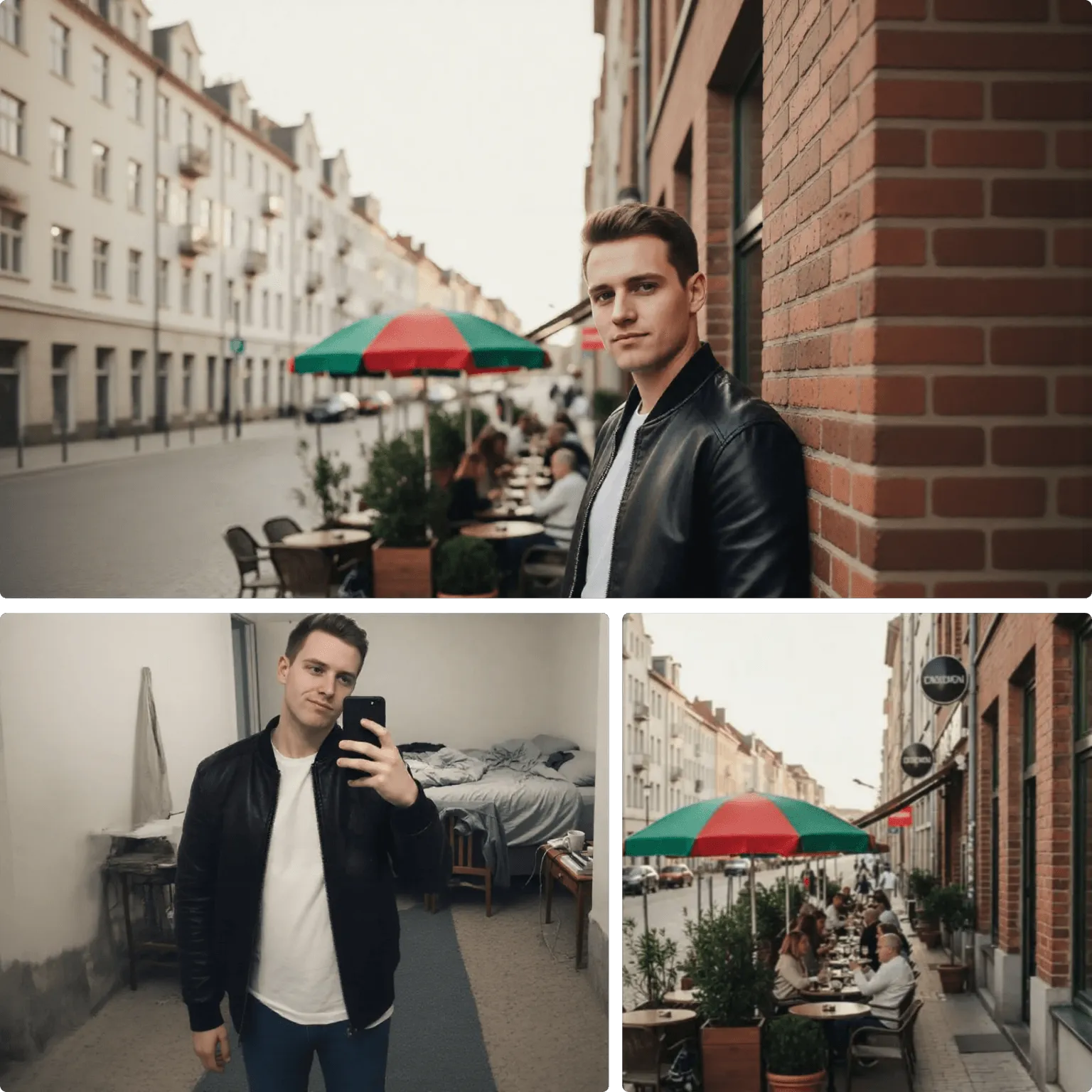
Real Content-Level Blending, Not a Photo Collage
Most tools that call themselves 'image combiners' just tile photos side by side or layer them with opacity. iMideo uses Nano Banana Pro, a model built to understand scene composition and content relationships across multiple images. When you upload your photos, the model doesn't assemble them — it generates a new image where the visual elements look like they belong together. Proportions stay consistent, lighting adapts across the frame, and the result doesn't look pasted together.
Combine Up to 14 Photos in a Single Merge
Most photo merge tools cap you at two images. The AI image combiner on iMideo accepts 2 to 14 photos in one merge. That means you can pull together an entire product lineup, combine multiple angle shots, or merge a group of reference images — and get one unified output, regardless of how many photos you upload.
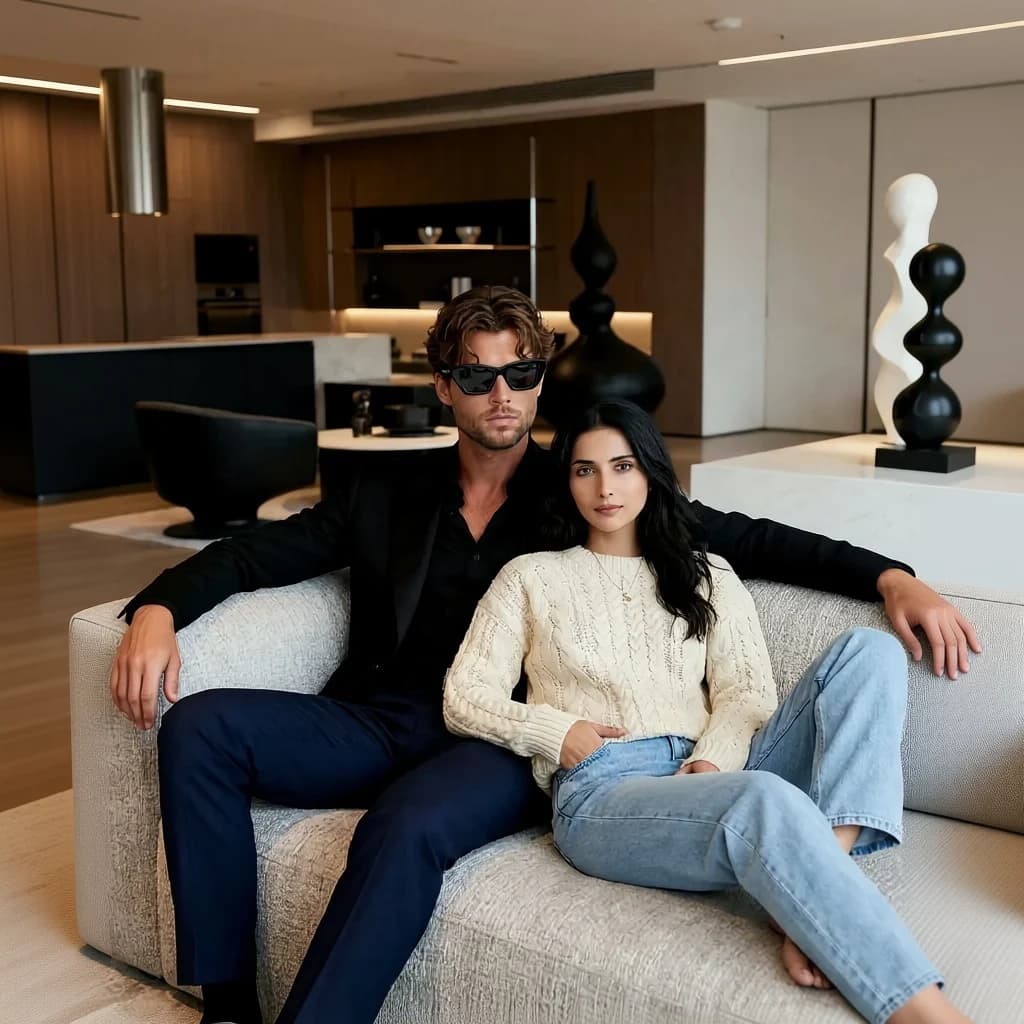
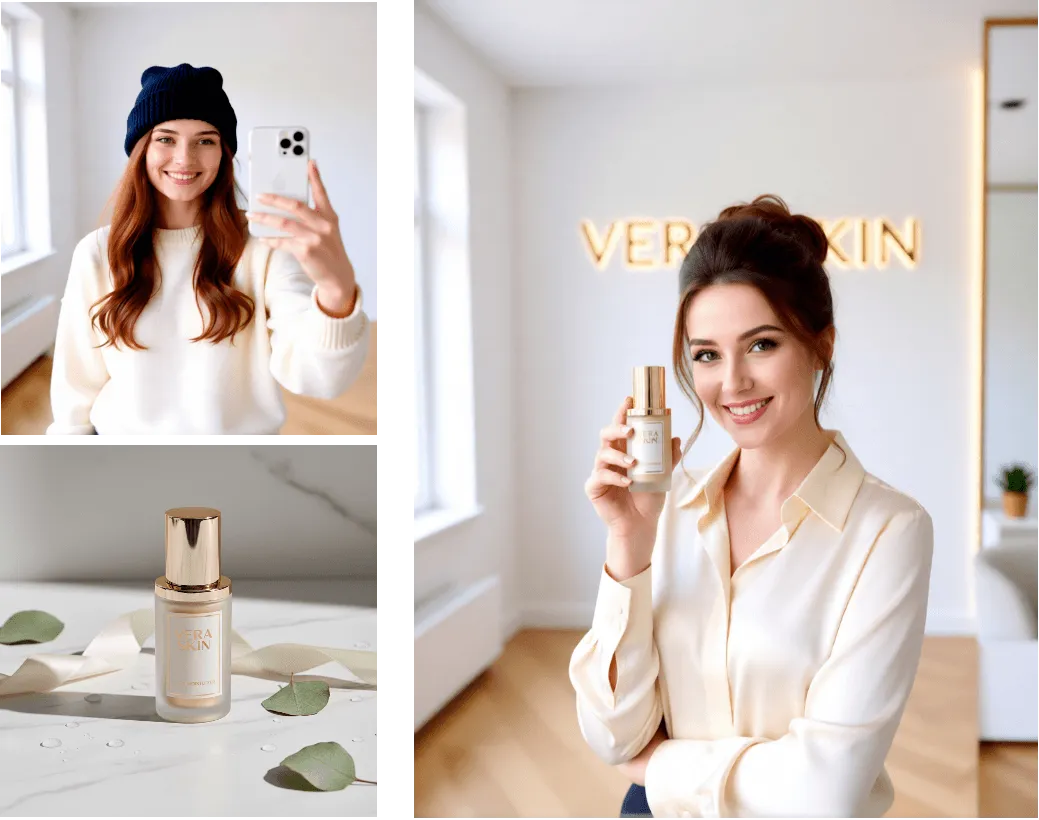
Blend Products, Portraits, and Scenes Together
The most common use cases: combining a product shot on a plain background with a styled lifestyle scene, merging portraits taken in different lighting conditions, or blending outfit photos from multiple angles into one image. Image combiner is best when you want visual elements from multiple photos merged into a single, new composition — not when you need to swap a specific face or body in a portrait.
Why Choose Our AI Image Combiner
Fast Results
Upload, process, and download in a browser workflow, with timing depending on the number of photos, image detail, and server load.
Up to 14 Photos
Upload 2-14 photos in one generation. Two photos or fourteen use the same workflow.
Natural Blending
The AI adapts lighting, proportions, and composition so the result looks unified, not assembled.
Easy to Use
No sliders, no layers, no design software. Upload photos and click merge. If you need to edit a single photo first, try AI Object Remover.
Secure Processing
Your photos are processed for image merging and handled according to the product retention policy. They are not used for AI model training.
4 Credits Per Merge
No subscription required. Each image merge costs 4 credits — buy only what you need.
What Our Users Say
Emma K.
E-commerce Manager
We shoot products on plain white, then combine them with lifestyle shots to get composed listings. The AI blending is good enough that we've stopped doing separate studio sessions for context images.
Ryan T.
Content Creator
I use it for lookbook content — combining an outfit photo with a location background I didn't shoot in. The low cost per merge makes it easy to iterate without second-guessing every attempt.
Lin W.
Graphic Designer
For early-stage concept mockups I'll merge 3 or 4 reference images to show a client the general direction. It's rough but useful, and much quicker than building every Photoshop comp from scratch.
Sarah B.
Photographer
Clients sometimes want to see how a portrait will look in a different environment before we commit to a location shoot. I combine a headshot with a background photo and it gives us a usable reference.
Jake M.
Marketing Manager
We needed to show a product in several scene setups but only had one clean product shot. Combining it with different backgrounds gave us concept images before deciding what needed a real shoot.
Natalie C.
Fashion Blogger
I combine multiple angle shots of an outfit into one image for my posts. It saves scrolling for my audience and makes the outfit layout look more intentional than just putting four images in a grid.
Alex P.
Shopify Seller
Tried three other image combiners before this one. The others all produced obvious collages. iMideo actually blends the images — it looks like one photo, not a grid.
Mei H.
Social Media Manager
We produce a lot of branded visual content. The ability to upload up to 14 photos in one merge is something I haven't seen anywhere else. It speeds up the whole visual production workflow.
Frequently Asked Questions
1What is an AI image combiner?
An AI image combiner is a tool that merges 2 to 14 uploaded photos into one generated image. The output is not a collage or a side-by-side grid — the model analyzes the content in each photo and creates one unified composition where products, people, backgrounds, or scene elements look like they belong together.
2How do I combine two images with AI?
Upload the two photos, put the one that should set the overall look first, and click merge. The AI reads what is in each image, such as a product and a background or two people, and generates a single new photo that blends them, with matching lighting and proportions. You can download the result as soon as it finishes.
3Is this a photo merge tool or a collage maker?
Neither, exactly. Collage and photo merge tools place your pictures next to each other or stack them in a grid, so the original photos stay separate. An AI photo combiner creates a brand-new image that blends the content of your photos into one scene. If you just want two pictures side by side, a collage maker is faster; if you want them to look like a single shot, use the AI image combiner.
4How many photos can I combine at once?
You can upload between 2 and 14 photos per merge. All photos are processed together in a single generation — you don't need to run multiple merges to include more images.
5What types of photos produce the best results?
Clear, well-lit photos with consistent subject matter tend to produce the most natural-looking merges. Photos with similar compositions, lighting conditions, or color palettes blend more cleanly. Heavily filtered, low-resolution, or very different-style photos may produce less consistent results.
6What file formats and sizes are supported?
iMideo accepts PNG, JPG, and WebP files up to 10MB each. You can upload up to 14 files per merge. Higher-resolution photos generally produce better blending results.
7What does the output image look like?
The output is a square (1:1) PNG image with no watermarks. The AI generates the merged result as a single composition. The exact output dimensions depend on the model, but the result is delivered as a clean, downloadable PNG.
8How long does an image merge take to process?
Processing time depends on the number of photos uploaded, image detail, and current server load. You will see progress while the AI generates the merged image.
9How much does it cost to combine images?
Each image merge costs 4 credits, regardless of how many photos you upload (up to 14). iMideo uses a credit-based pay-per-use model. You can purchase credits in bundles from your account dashboard. Check our pricing page for current rates.
10Are my uploaded photos stored or used for AI training?
No. Your photos are processed for your merge result and handled according to the product retention policy. They are not used for AI model training or shared as public assets.
11Does the order I upload photos matter?
Yes, order affects the result. The first photo you upload tends to have more influence on the overall composition and style of the merged output. If you want a specific photo to anchor the final image, upload it first. That said, results can vary — if you're not happy with the output, try reordering the photos and generating again.
Other Image Effects

AI Halloween Costume Generator
Upload a photo and become a zombie, witch or vampire, with your face kept.
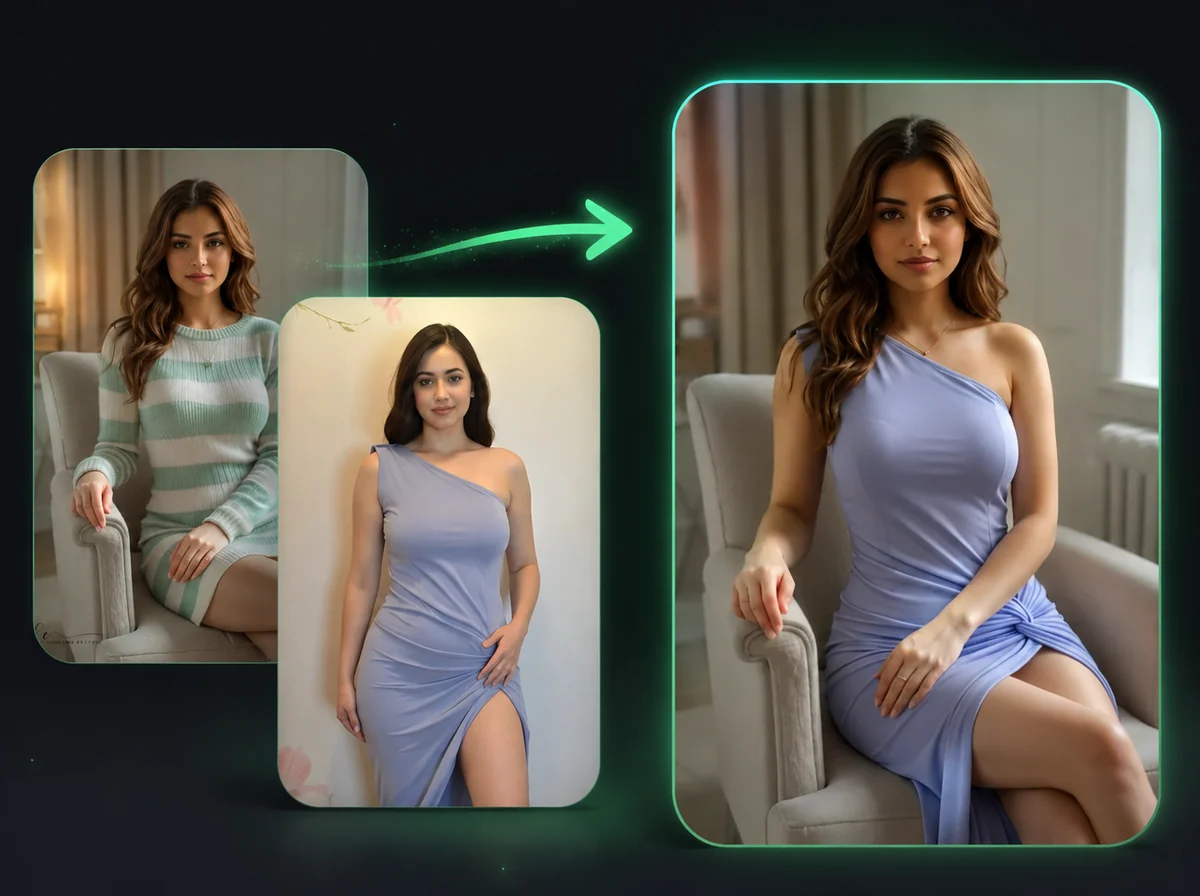
AI Image Body Swap
Swap bodies in photos while keeping your face unchanged.
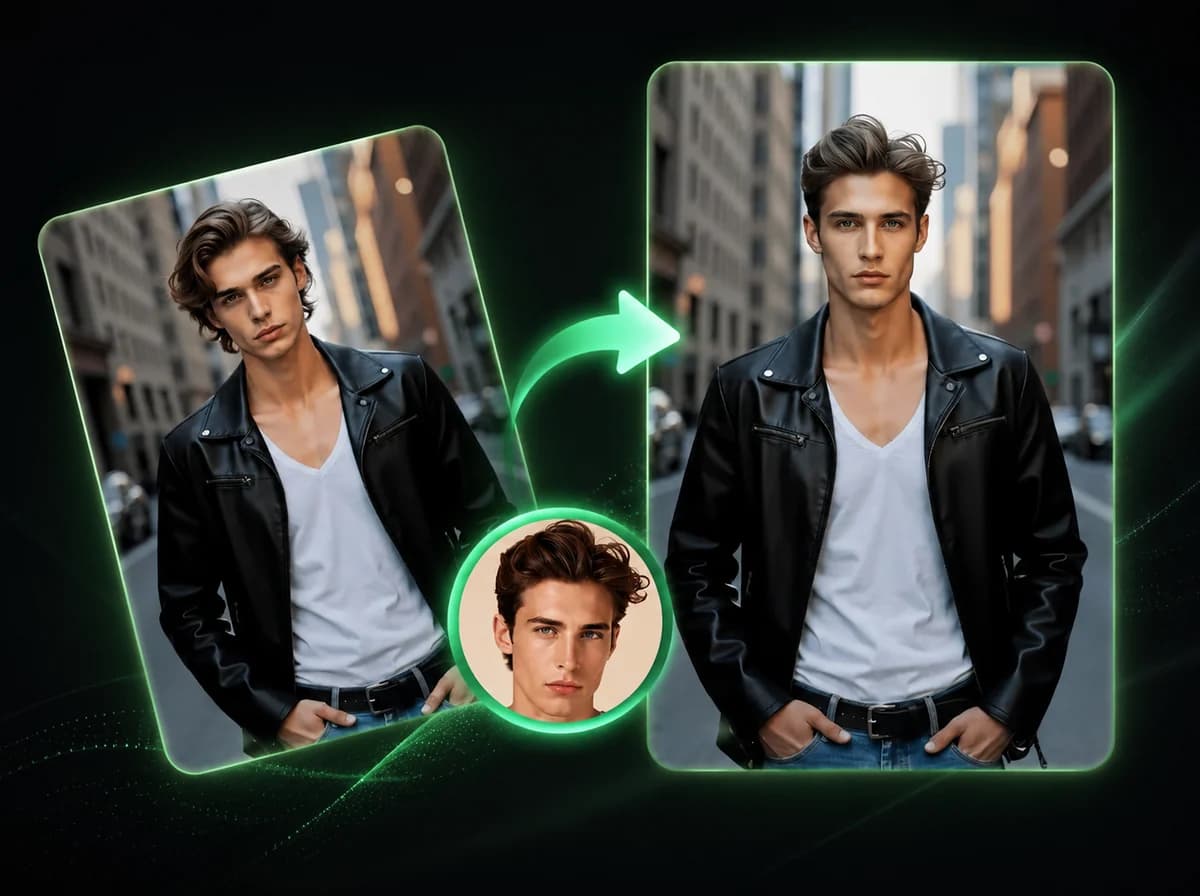
AI Image Head Swap
Replace entire head including hair and hairstyle in 10 seconds with AI.
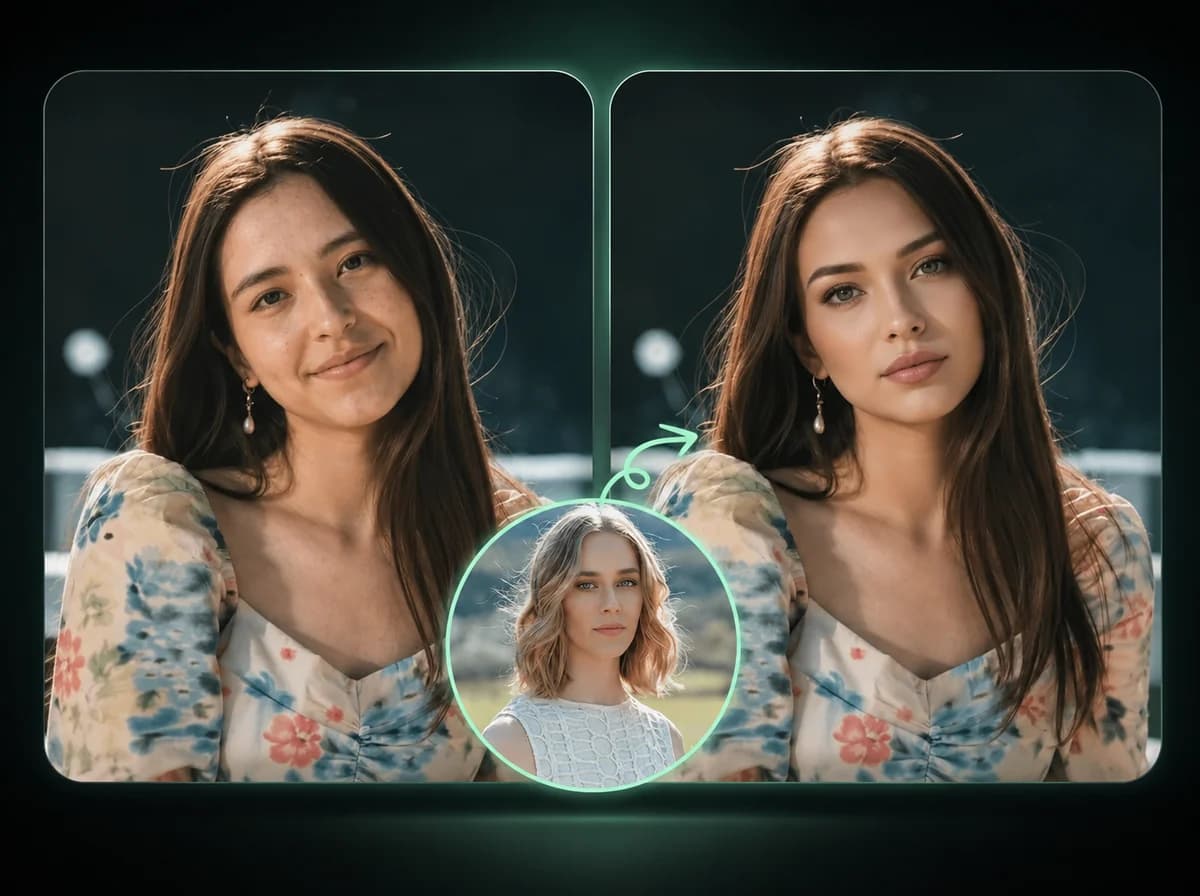
AI Image Face Swap
Swap faces in photos with AI precision.
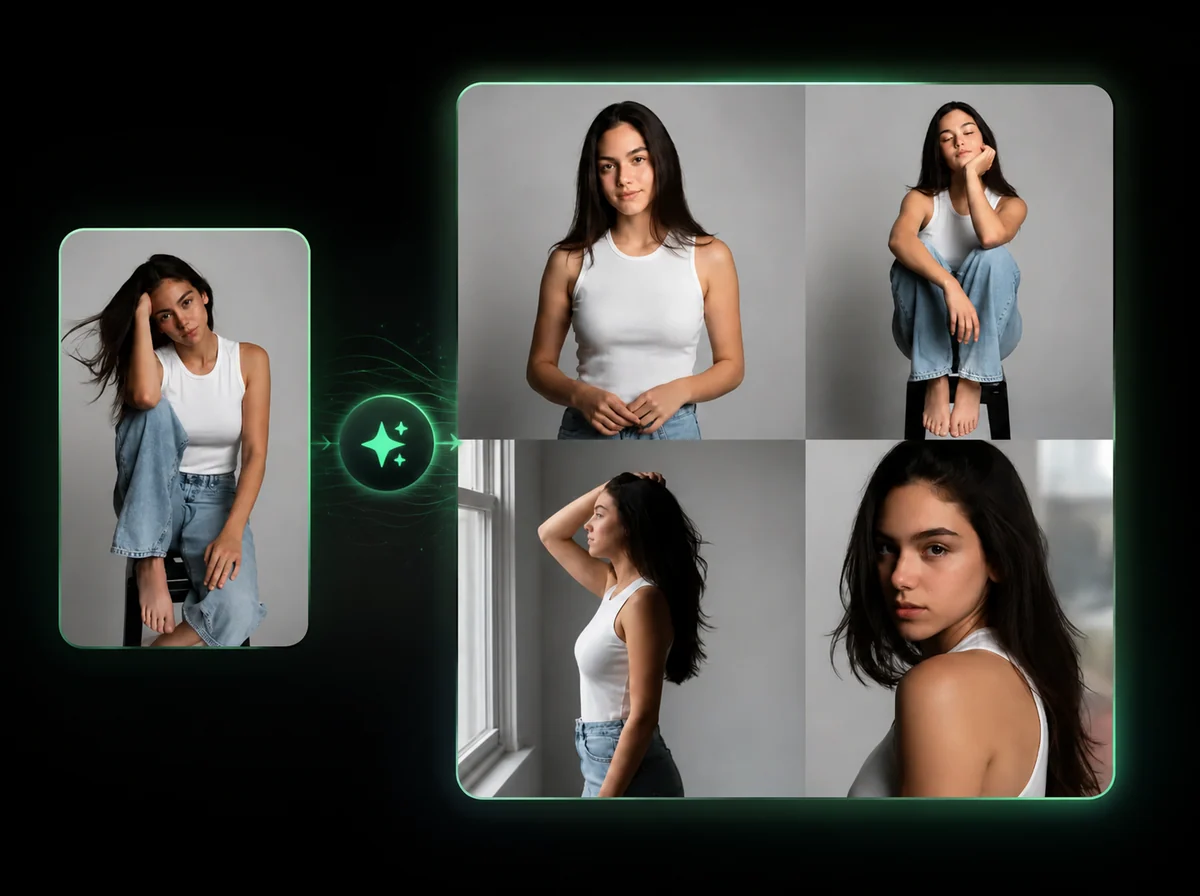
AI Pose Generator
Change a model's pose. Outfit, product, and background stay locked — describe the pose in plain English.
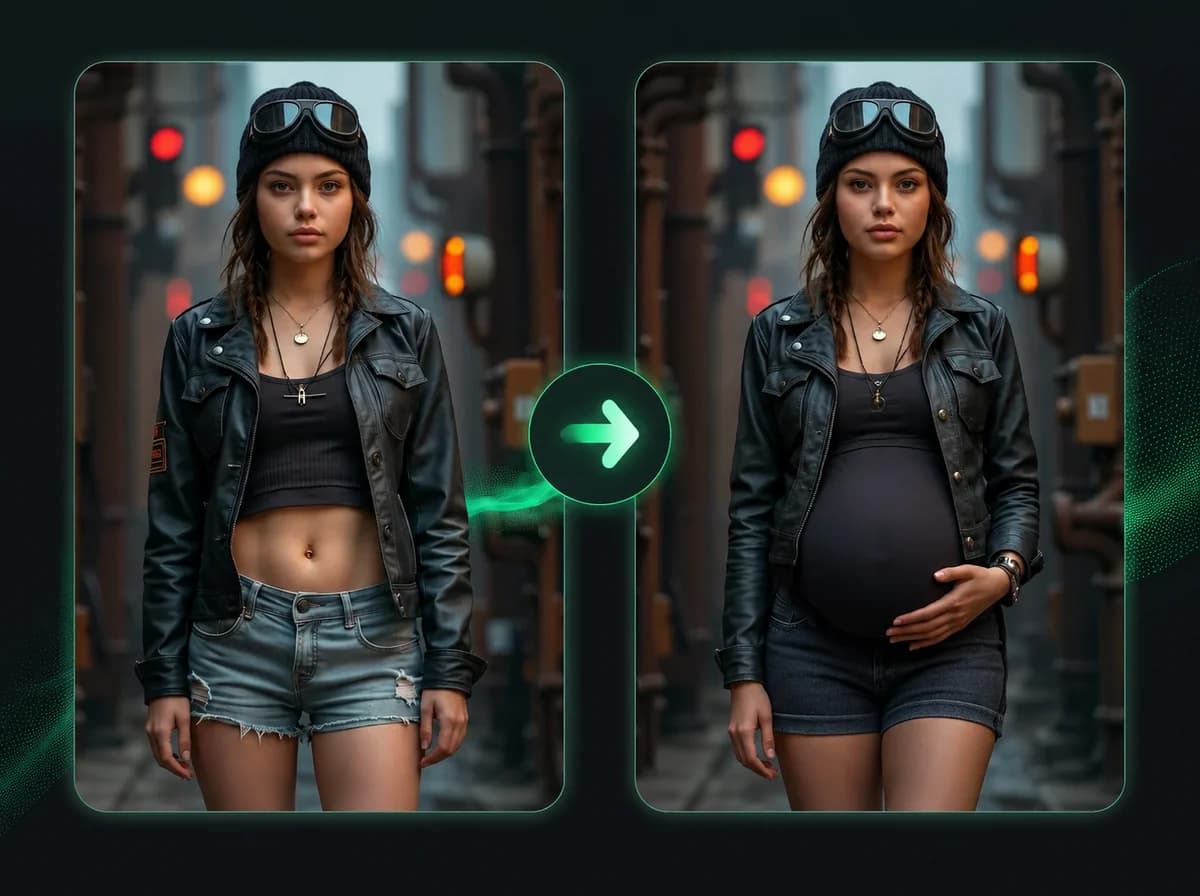
Pregnant AI
Add a realistic 8-month baby bump to any photo.
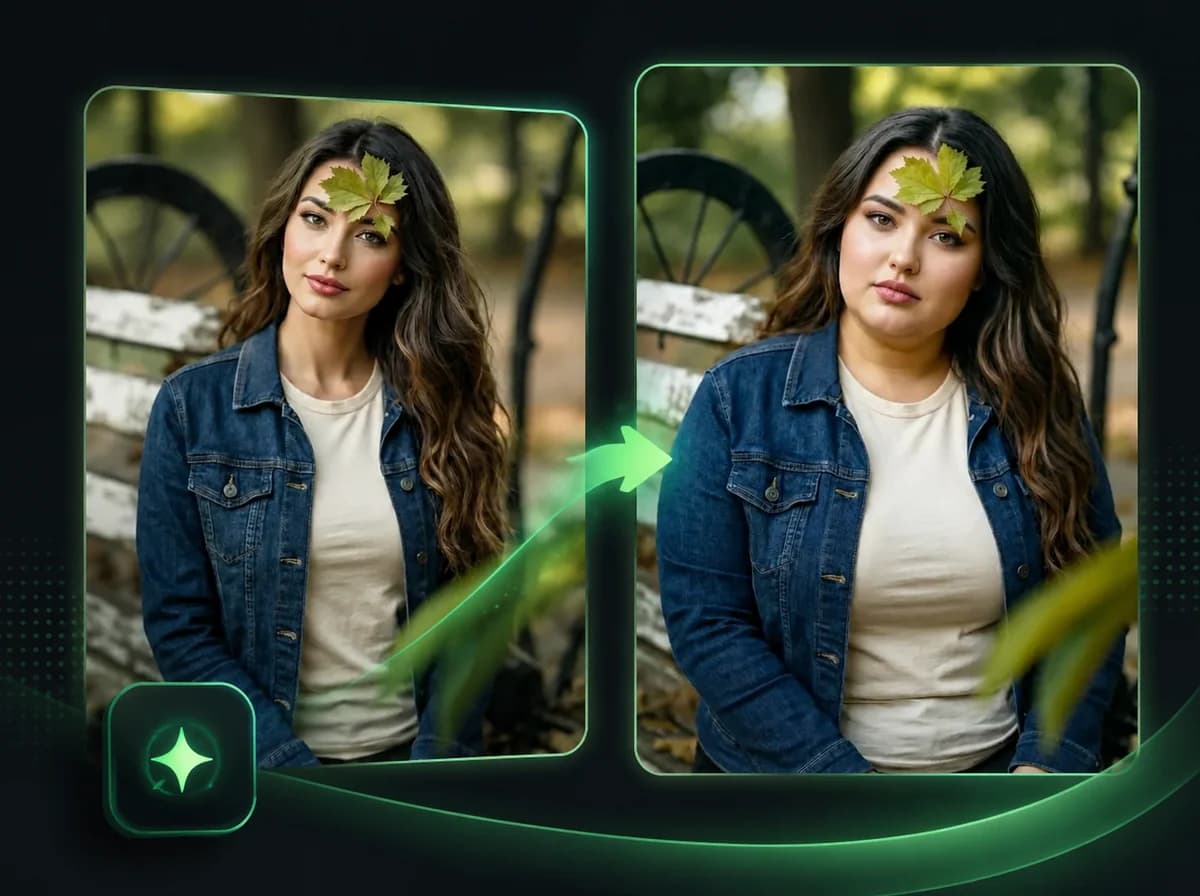
Fat AI Generator
See yourself overweight. AI transforms any photo with a realistic heavy body — outfit and face unchanged.

Mugshot Generator
Turn any portrait into a staged booking-photo image with height chart, neutral pose, and flat flash light. Same face, mugshot drama.
Ready to Combine Your Photos?
Upload 2 to 14 photos and get a natural AI-merged image after processing — no subscription, no watermarks.