
AI Photo Recolor — Every Colorway from One Photo
Upload a product photo, pick a preset or brand HEX color, and the AI color changer keeps fabric, light, and shadows aligned after processing.
Click to upload product image
PNG, JPG, WebP · Max 10MB
What Is AI Photo Recolor?
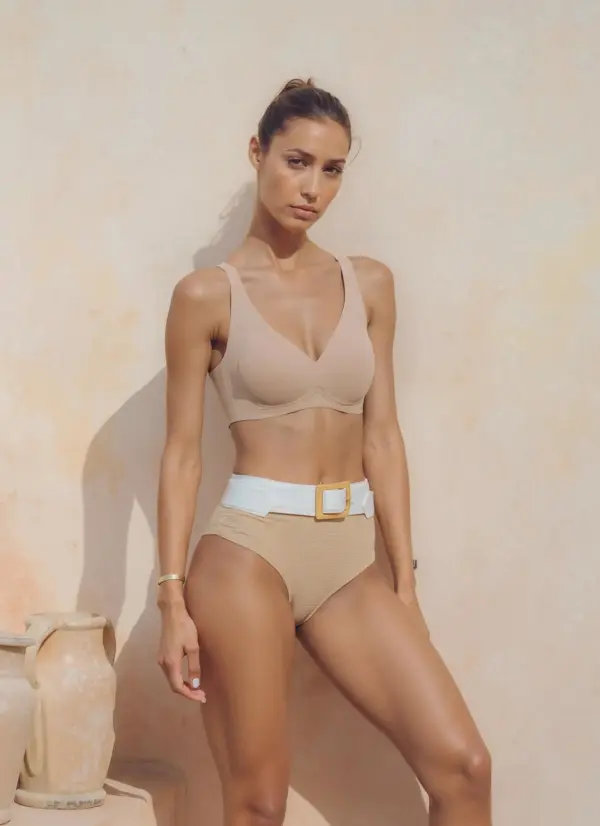
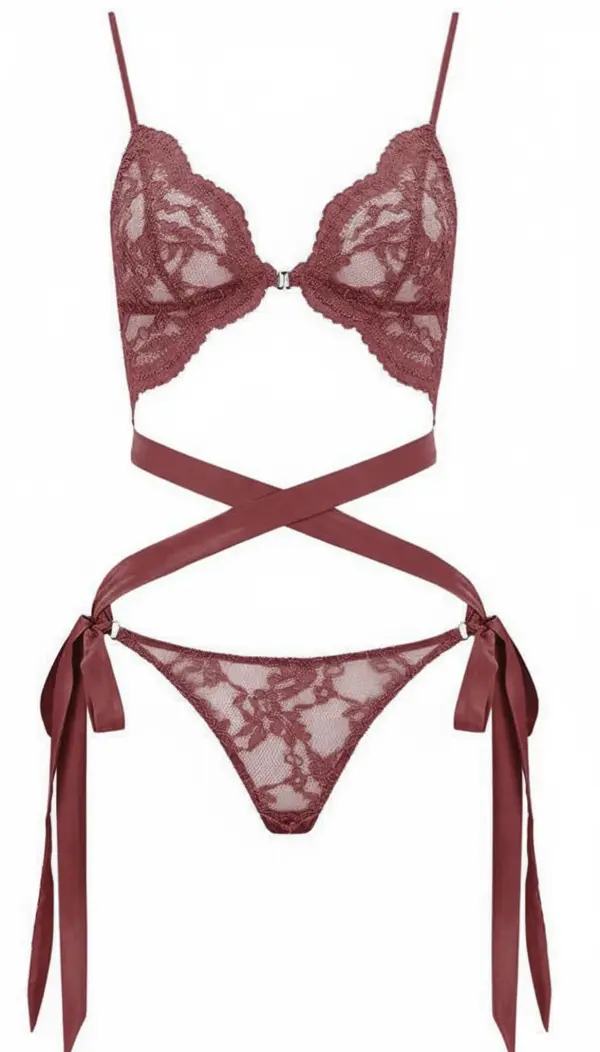
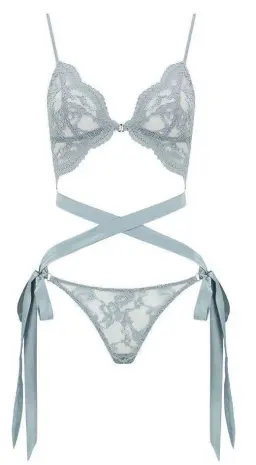
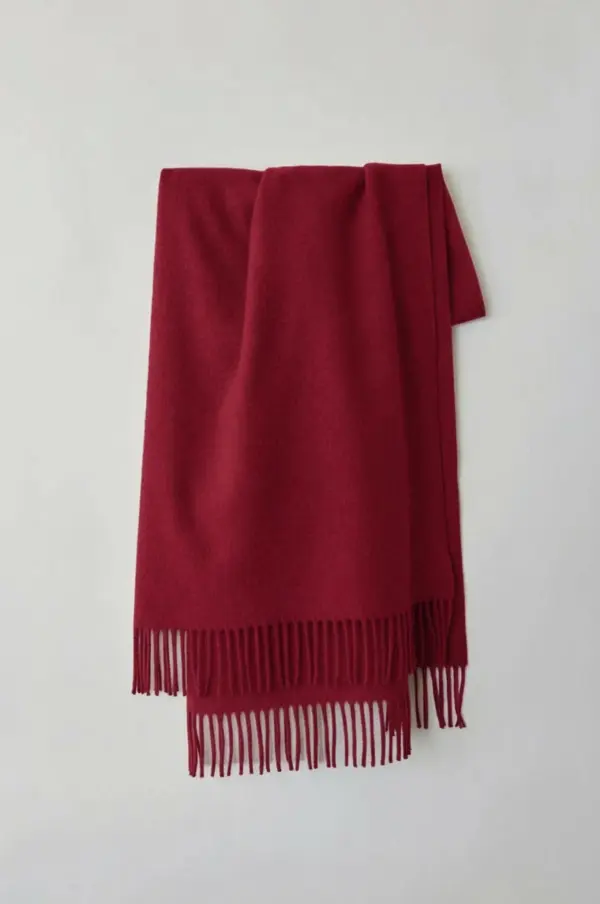
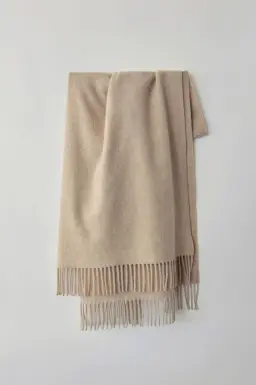
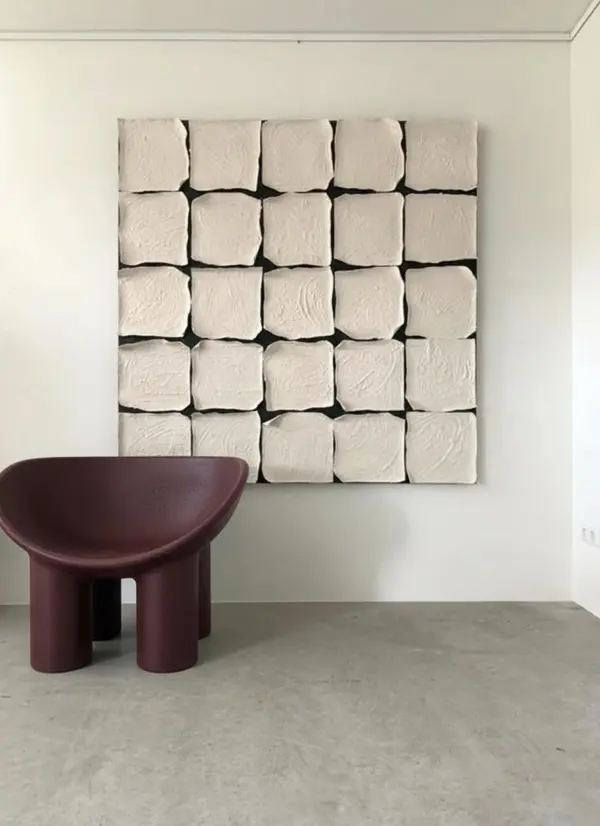
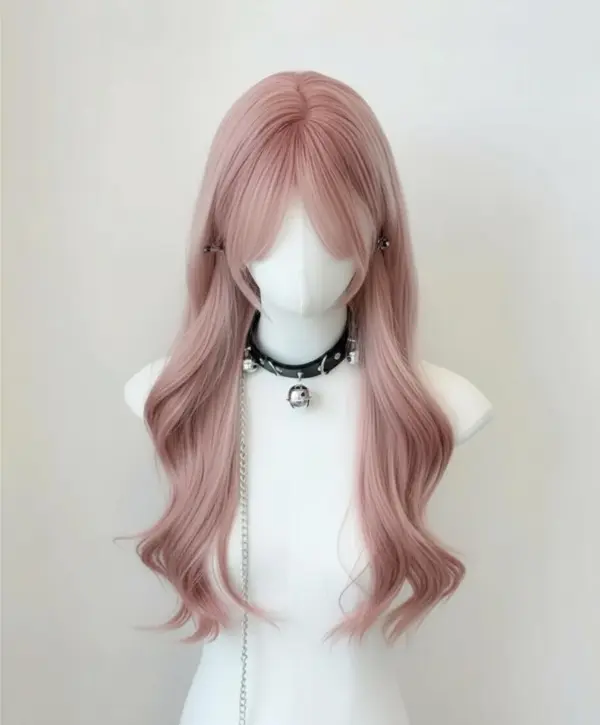
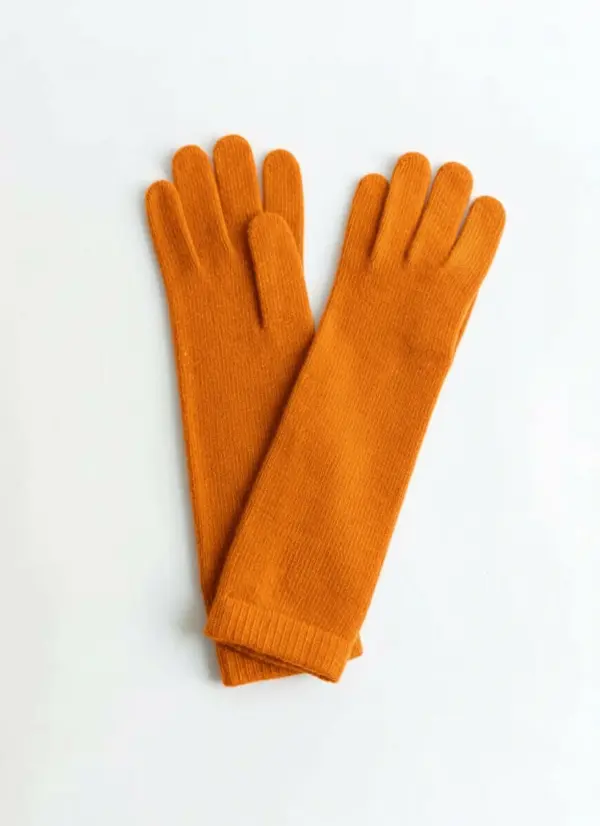
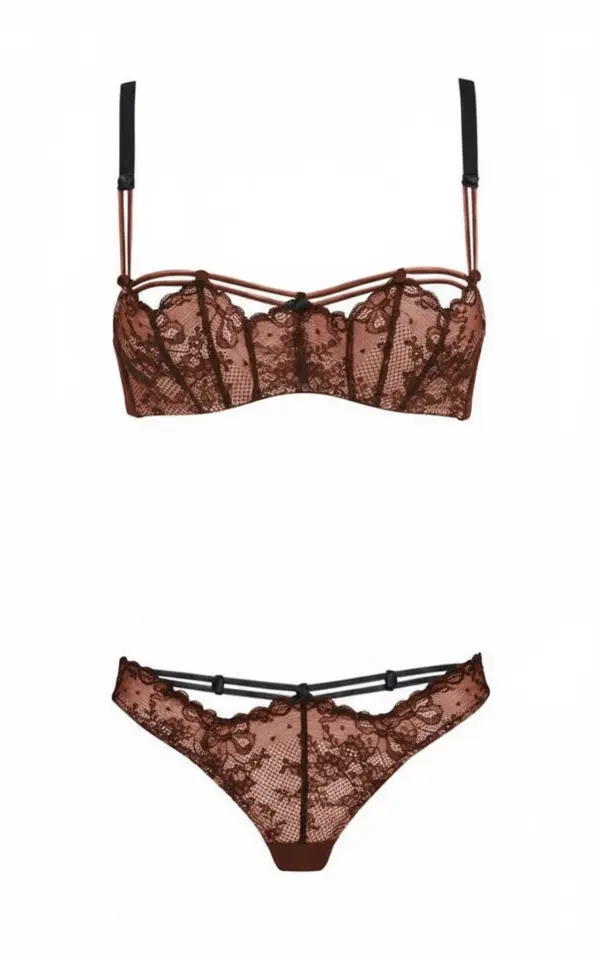
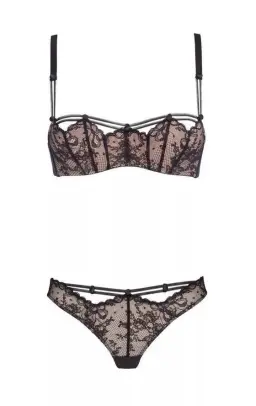
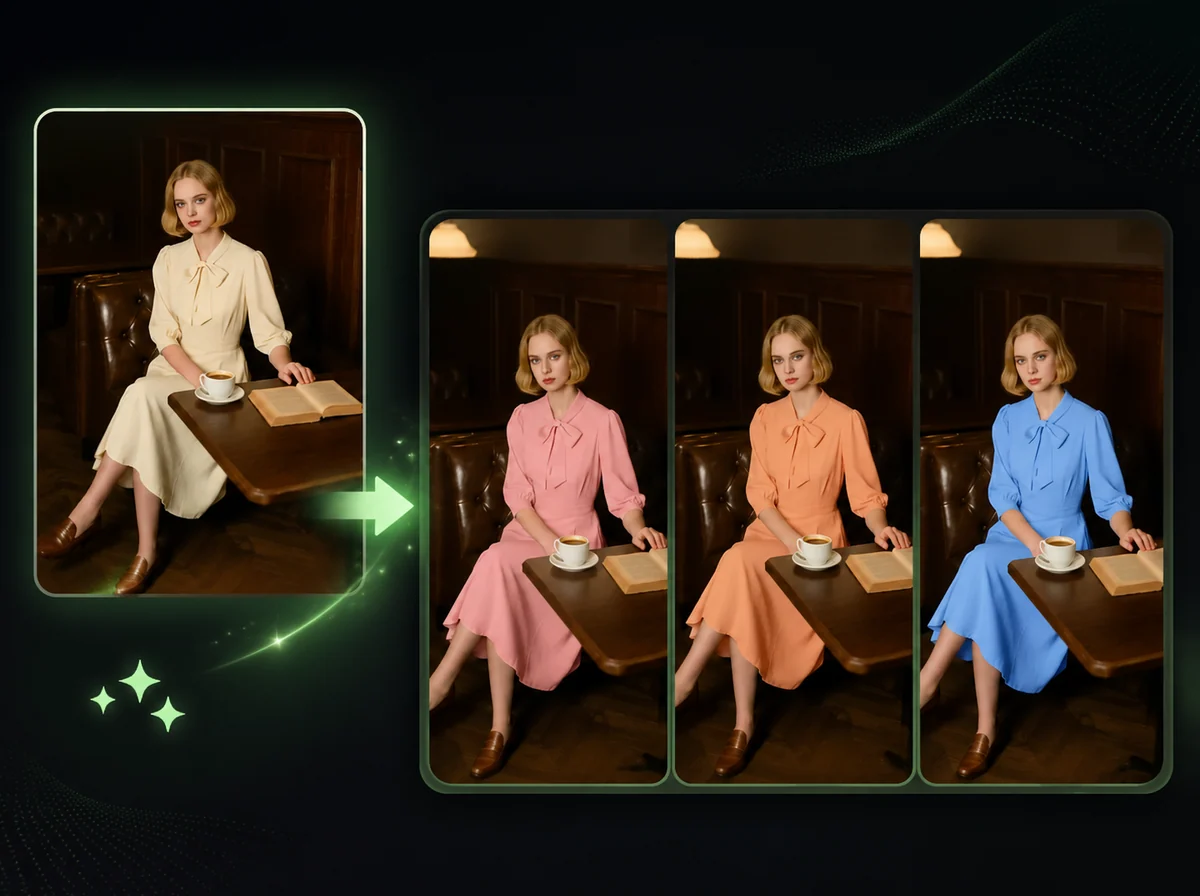
AI Photo Recolor (also known as an AI Color Changer) is an online tool that changes the color of a product in a photo while keeping the original shape, material, texture, and lighting. Upload a product image, pick a target color from a 14-color palette or enter a custom HEX value, optionally type the product name (so the AI knows whether it's a jacket, chair, or handbag), and the AI replaces the color across the entire object, including folds, shadows, and reflections, in a single pass. This is not a hue slider or a Photoshop layer blend. The AI segments the actual product from the background, understands its material (knit fabric, leather, plastic, wood), and applies the new color with realistic shading. The composition, the background, and the model pose all stay the same. Only the product color changes. Use it to produce colorways of a product without reshooting, or to recolor an image of a chair, a handbag, or another product against your existing room or studio backdrop.
How to Recolor a Product Photo in 3 Steps
Upload, pick a color, and download the recolored image — no Photoshop or layer work needed
Upload Your Product Photo
Upload a clear product photo — PNG, JPG, or WebP up to 10MB. Best results come from photos where the product is well-lit and the color you want to change is fully visible.
Pick a Target Color
Choose from 14 preset product colors (black, white, grey, red, orange, yellow, green, cyan, blue, navy, purple, pink, brown, beige) or open the custom picker and enter a HEX value. Optionally type the product name like "jacket" or "chair" to guide the AI.
Download the Recolored Image
Review the recolored photo after processing, then download it watermark-free at the original aspect ratio and resolution. Repeat with a new color to generate the next variant in the same session.
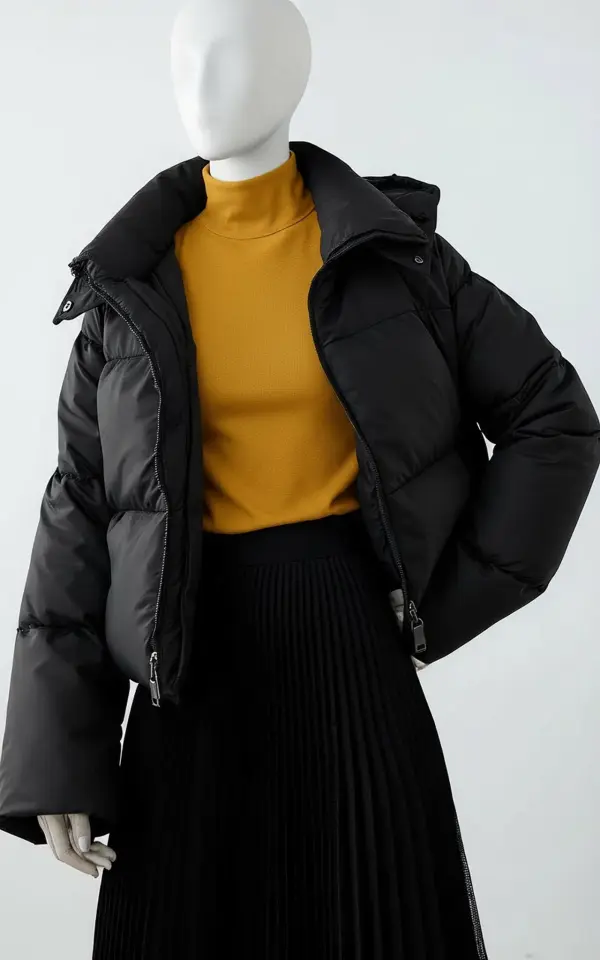
Recolor Inner Knit Layers Without Re-Styling the Look
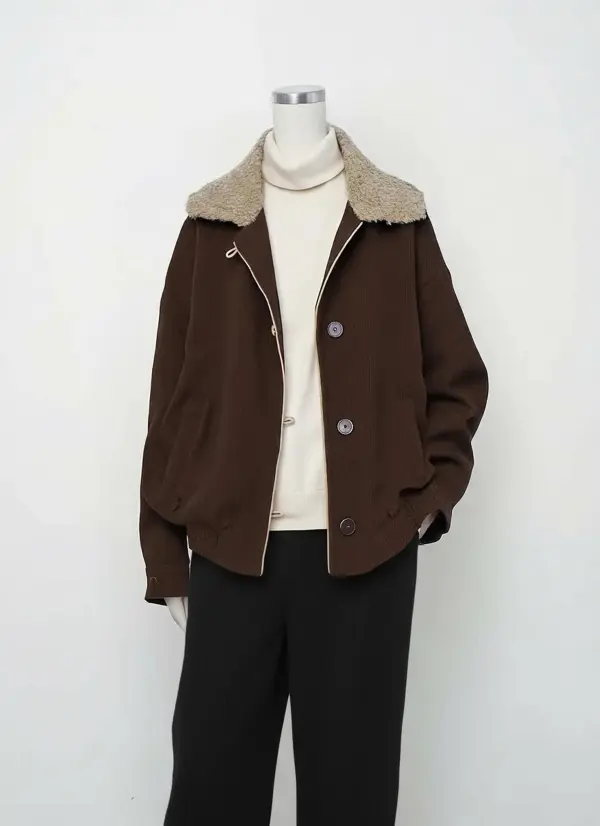
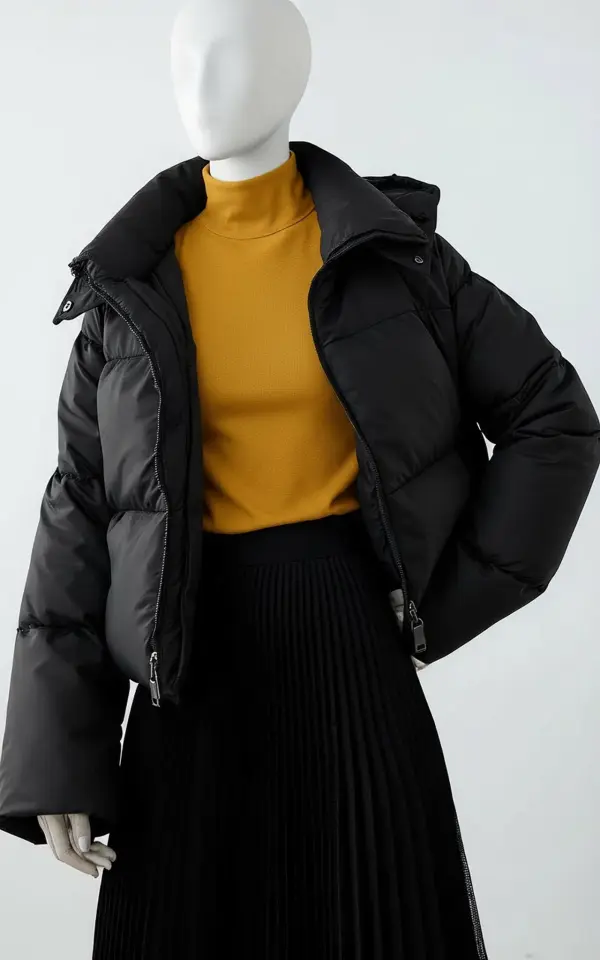
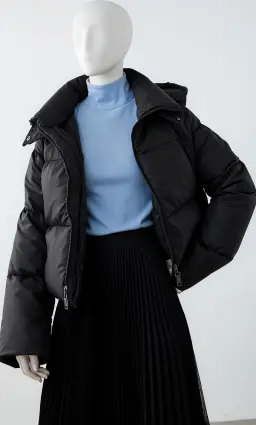
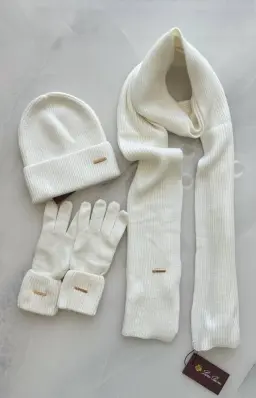
Drag the slider to compare. Mannequin shoots usually pin the whole outfit (jacket, skirt, accessories) together, so swapping just the inner knit color would normally mean re-styling and re-shooting. Upload the photo once, type "sweater" or "knit" in the product name field, pick a new HEX, and only the inner layer changes color. The jacket, skirt, mannequin pose, and studio backdrop stay aligned with the source image, so the recolored shot can sit next to the original in a product grid.
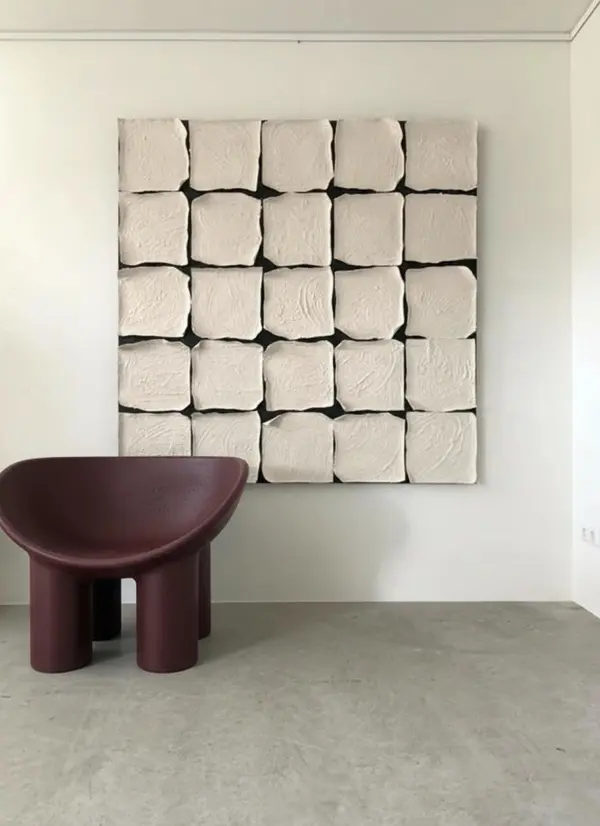
Preview Furniture in New Fabric Colors, in Your Real Room
Drag to compare. Photograph the chair, sofa, or cabinet once and test fabric options against the same room background. The wood floor, the wall paint, and the window light all stay unchanged, so what you see is how the new color will live in the space. Interior designers and home retailers use this for moodboards and client approval rounds instead of mocking up colors in 3D software.
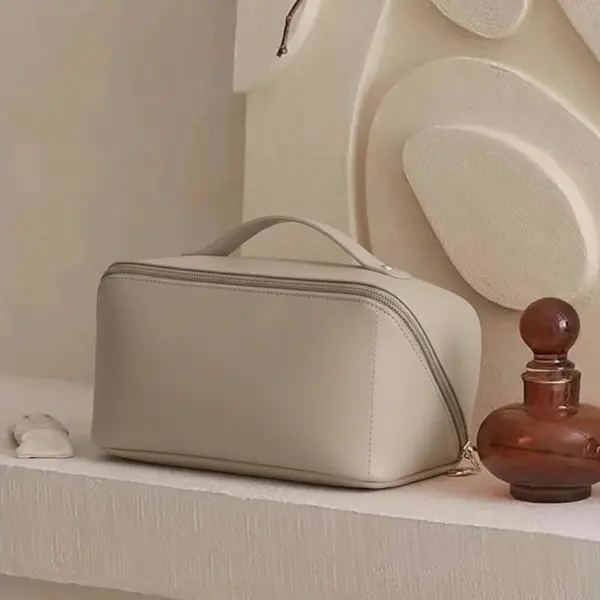
Accessories and Small Goods — Pixel-Sharp Color Edges
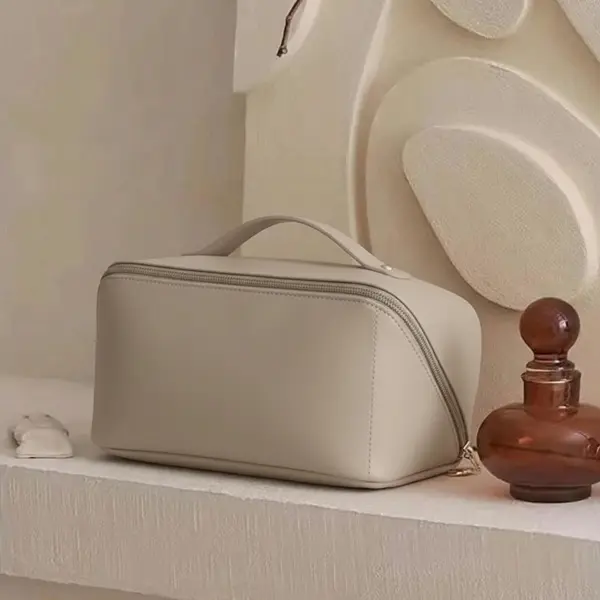
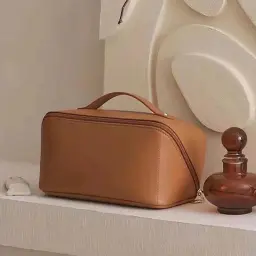
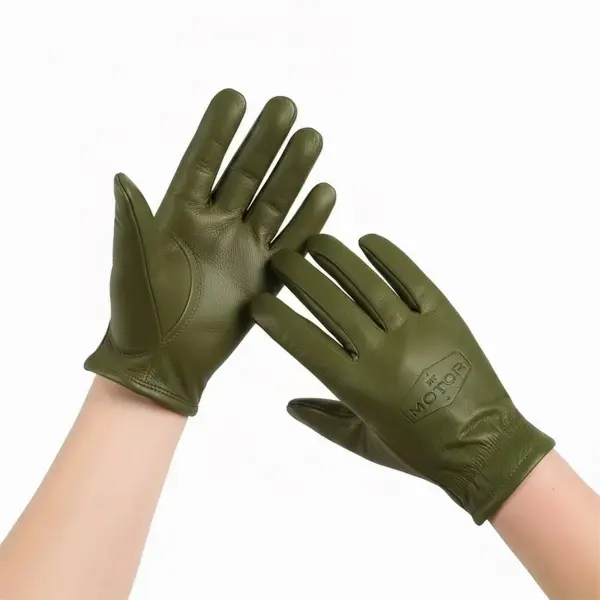
Drag to compare. Bags, makeup pouches, wallets, and other small items often have logos, hardware, and trim details that lazy recolor tools smudge. The AI traces the actual product silhouette before applying color, so zippers stay metallic, leather grain stays visible, and stitching keeps its contrast. Accessory brands use this to generate Instagram-ready product variants in a single sitting.
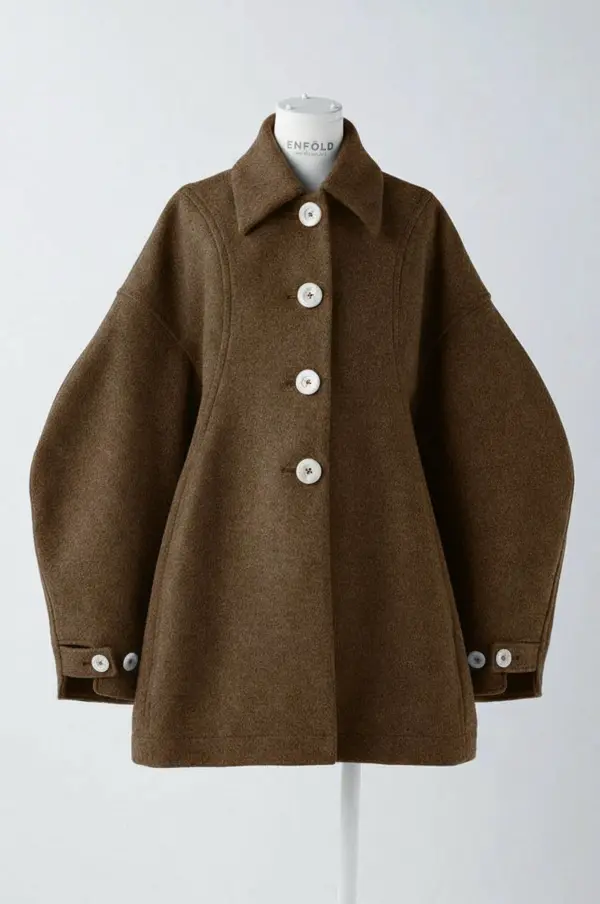
Outerwear Recolor That Keeps the Buttons and Trim
Drag to compare. Coats, blazers, and jackets carry brand-defining details: buttons, lapels, lining, contrast stitching. The AI only swaps the dominant fabric color and leaves the hardware untouched, so your house buttons and woven labels survive every recolor. Type "coat" or "blazer" in the product name field to lock the AI onto the right subject when the photo includes other items.
Why Use iMideo AI Photo Recolor
14 Presets + Custom HEX
Pick from a 14-color product palette or open the custom picker to enter a brand HEX value. Useful for matching campaign palettes, product line colors, and approved brand codes.
Texture and Shadow Preserved
The AI keeps the original fabric weave, folds, and shadows intact. Only the color shifts. The photo composition stays untouched.
5 Aspect Ratios
Choose 1:1, 3:4, 4:3, 9:16, or 16:9 output. Match Instagram squares, Pinterest portraits, Shopify listings, or print formats without cropping.
Fast Recolor Workflow
Upload, pick a color, and track progress while the AI prepares the recolored image. Processing time depends on image detail and server load.
Watermark-Free, Commercial-Safe
Output images are clean: no logo, no watermark. Use them on product listings, Amazon, ads, and brand campaigns when you have the rights to the source photo and product design.
Runs in Your Browser
No download, no plugin, no Photoshop license. Open the page on a laptop or phone and recolor a photo without installing anything.
What Our Users Say
Hana K.
Shopify Boutique Owner
I run a knitwear store and I used to photograph every sweater in every color. Now I shoot the core product image and generate recolor drafts for the rest. The fabric texture in the recolor looks like yarn, not a flat color fill.
Marcus B.
Interior Design Studio
Clients often ask, "can I see this sofa in olive?" Before, I'd render in SketchUp. Now I recolor the actual showroom photo so they can review the option against their own paint and floor.
Aiko T.
Handbag Brand Founder
Our bags have brass hardware and stitching that other recolor tools often distort. This one keeps the metal visually separate and changes the leather color. I generated nine colorway drafts for our pre-order page from a single product photo.
Liam P.
Print-on-Demand Seller
I sell apparel through Printful and need mockups for every color a tee comes in. Pasting the design into the printer's mockup tool gives the same generic shirt every time. Recoloring my own studio shot makes my product page feel like a real brand.
Sofia G.
Furniture E-commerce
We carry a dining chair in 14 finishes. Used to be one shoot day per launch. Now we shoot once, recolor in the office, and update the catalog the same week. The recolor keeps wood grain visible, which I didn't expect from any AI tool.
Naveen R.
Marketing Agency Creative
Client needed five color variations of the same campaign hero shot, each matching a partner brand's primary color. HEX input made the workflow straightforward: paste the brand HEX, generate, then review the result instead of building selections by hand.
Priya M.
Etsy Accessories Seller
I make leather goods and customers ask if I do other colors. Now I can show them a recolored preview during the same conversation, which makes custom-order discussions easier.
Tomás F.
Product Designer
I use this during the concept phase to test color directions on prototype photos before committing to production samples. Cheaper than printing three foam-core prototypes, and the team can see the actual product context instead of a flat swatch.
Frequently Asked Questions
1What does AI Photo Recolor do?
AI Photo Recolor is an online tool that changes the color of a product in a photo while keeping its shape, material, texture, and lighting intact. Upload one product image, pick a target color from a 14-color palette or enter a custom HEX value, and the AI replaces the color across the entire object, including folds, shadows, and reflections, in a single pass.
2Is AI Photo Recolor the same as an AI Color Changer?
Yes. "AI Photo Recolor" and "AI Color Changer" describe the same kind of tool. Both change the color of an object in a photo using AI segmentation and material-aware shading. iMideo's color changer focuses on product photography use cases: e-commerce colorways, furniture finishes, accessory variants, and brand-color campaigns.
3How is this different from a hue shift in Photoshop?
A hue slider rotates the entire color spectrum and breaks any neutral elements (white labels, brown buttons, grey hardware). This AI color changer segments the actual product, identifies its material, and recolors only the dominant fabric or surface, so zippers, logos, stitching, and trims stay at their original color.
4Can I use my exact brand HEX color?
Yes. Beyond the 14 presets, click "Custom" in the color dropdown and enter a 6-digit HEX value (e.g. #2B5F9C). The output applies that target color to the product, which is what you need for brand-consistent campaigns or matching a Pantone reference.
5What product categories does this work on?
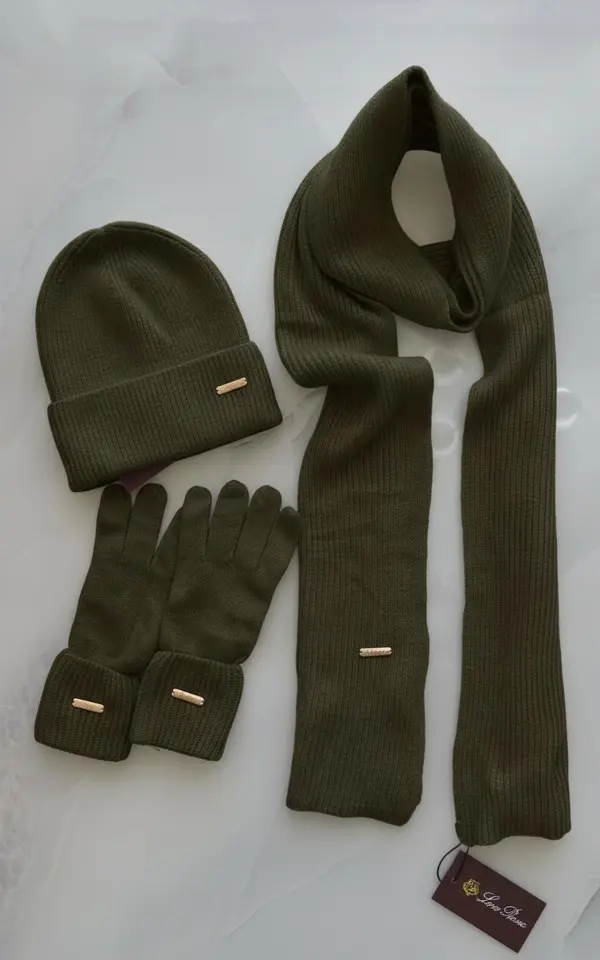
Clothing (shirts, pants, dresses, jackets, outerwear, knitwear), accessories (handbags, scarves, gloves, hats, makeup pouches), footwear, furniture (chairs, sofas, cabinets), and small home objects. It works best when the product fills a meaningful portion of the photo and is not heavily occluded. For hair color edits on portrait photos, use AI Hair Color Changer instead — it's tuned specifically for hair strands and skin tones.
6Does it keep fabric texture and shadows?
Yes. The AI reads the original photo's lighting direction, shadow depth, and material texture, then re-applies the new color with the same physical properties. A wool coat stays a wool coat after recolor. The weave, folds, and shadow falloff carry over instead of flattening into a solid color block.
7What input image works best?
A clear, well-lit photo where the product is fully visible and not blocked by hands, mannequins, or strong reflections. PNG, JPG, and WebP files up to 10MB are supported. Avoid heavy filters and very dark or very blown-out exposures, which reduce the AI's segmentation accuracy.
8How long does a recolor take?
Processing time depends on image resolution, material detail, and current server load. You will see progress while the recolor runs, and the result appears in the task panel when it is ready.
9How much does it cost?
iMideo runs on a pay-per-use credit model, no subscription required. Each recolor generation deducts a small credit amount from your balance. See our pricing page for current credit bundle rates.
10Can I use the recolored images commercially?
Yes. Output images are delivered watermark-free and you can use them on product listings, marketplaces (Shopify, Amazon, Etsy), paid advertising, social campaigns, and printed catalogs. There is no per-use license fee on top of the credit cost. If you also need on-model shots for the recolored items, pair this tool with our AI Virtual Try-On to put the new colorway on a model.
11Are my uploaded photos kept private?
Yes. Your photos are processed for your recolor request and handled according to the product retention policy. They are not used for AI model training or shared as public assets.
Other Image Effects

AI Halloween Costume Generator
Upload a photo and become a zombie, witch or vampire, with your face kept.
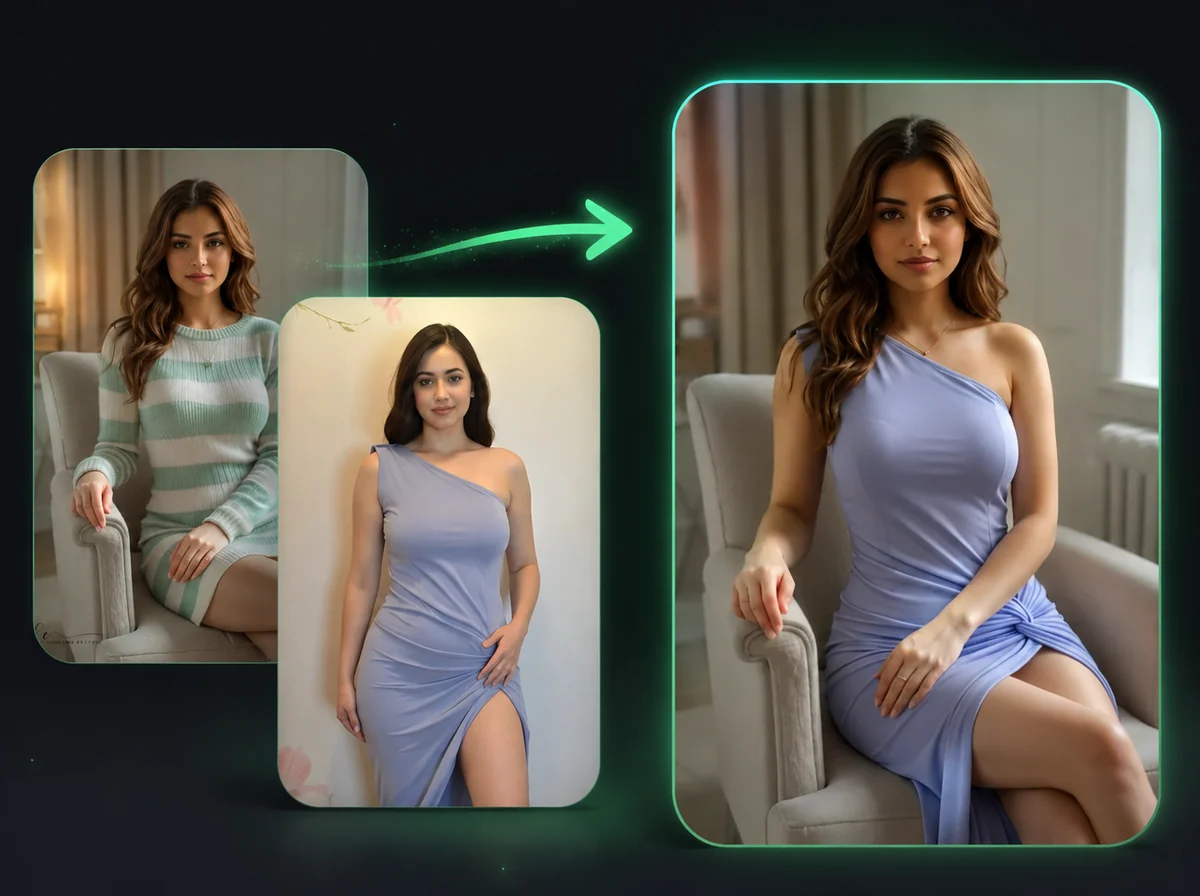
AI Image Body Swap
Swap bodies in photos while keeping your face unchanged.
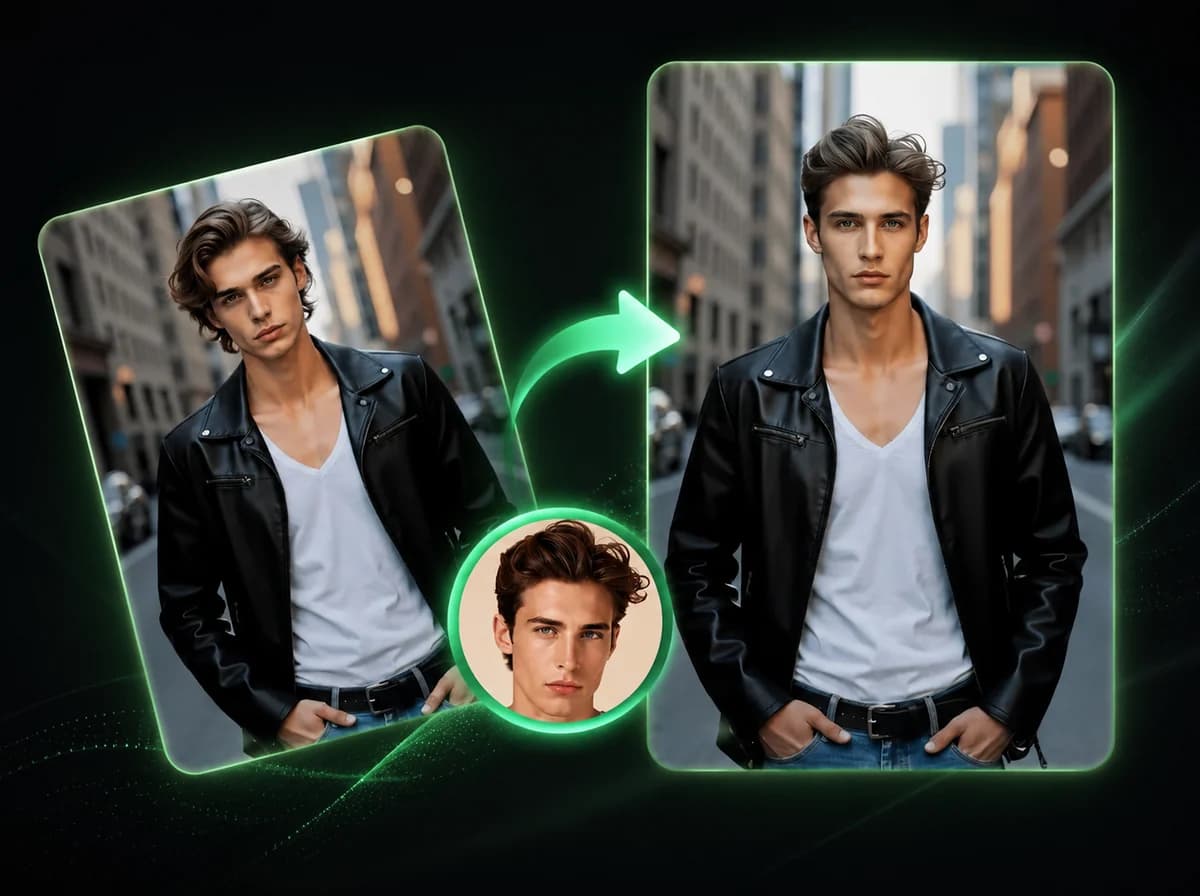
AI Image Head Swap
Replace entire head including hair and hairstyle in 10 seconds with AI.
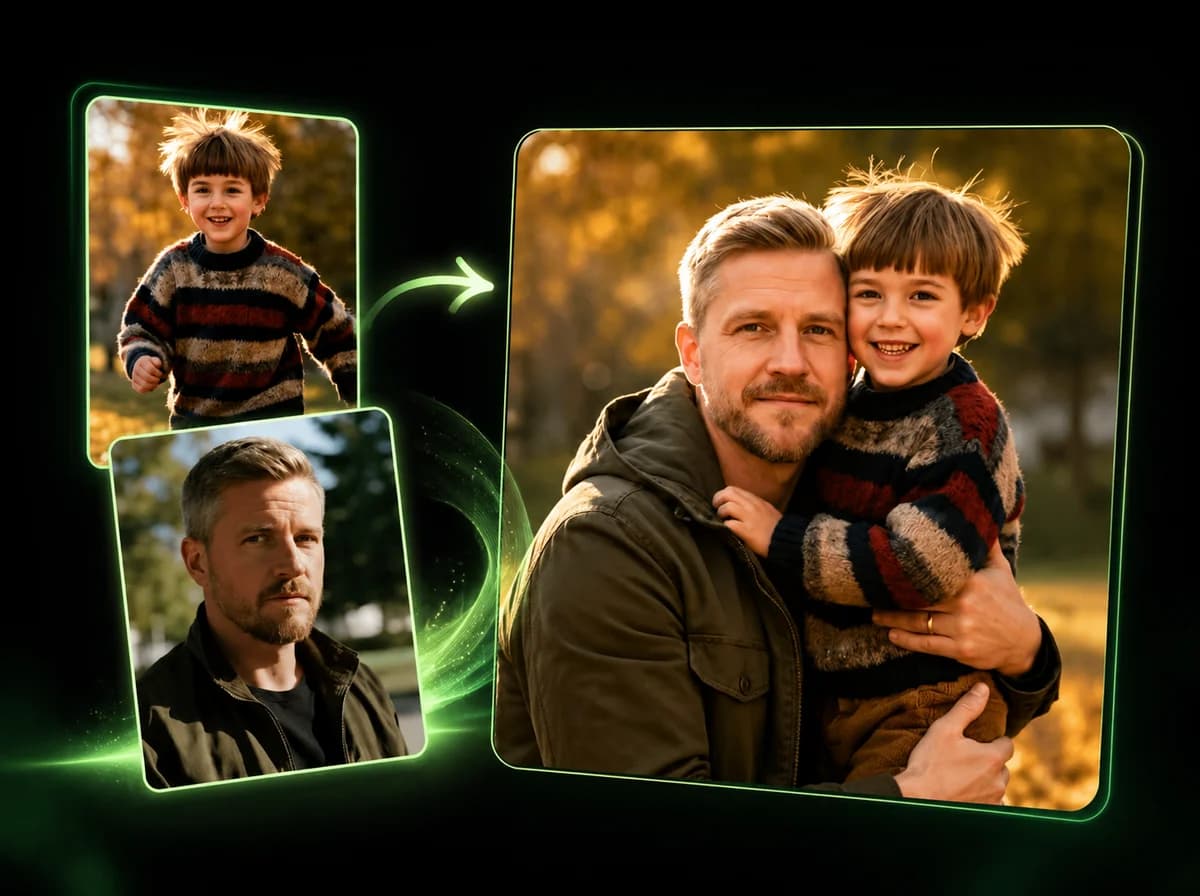
AI Image Combiner
Merge 2–14 photos into one natural-looking image with AI.
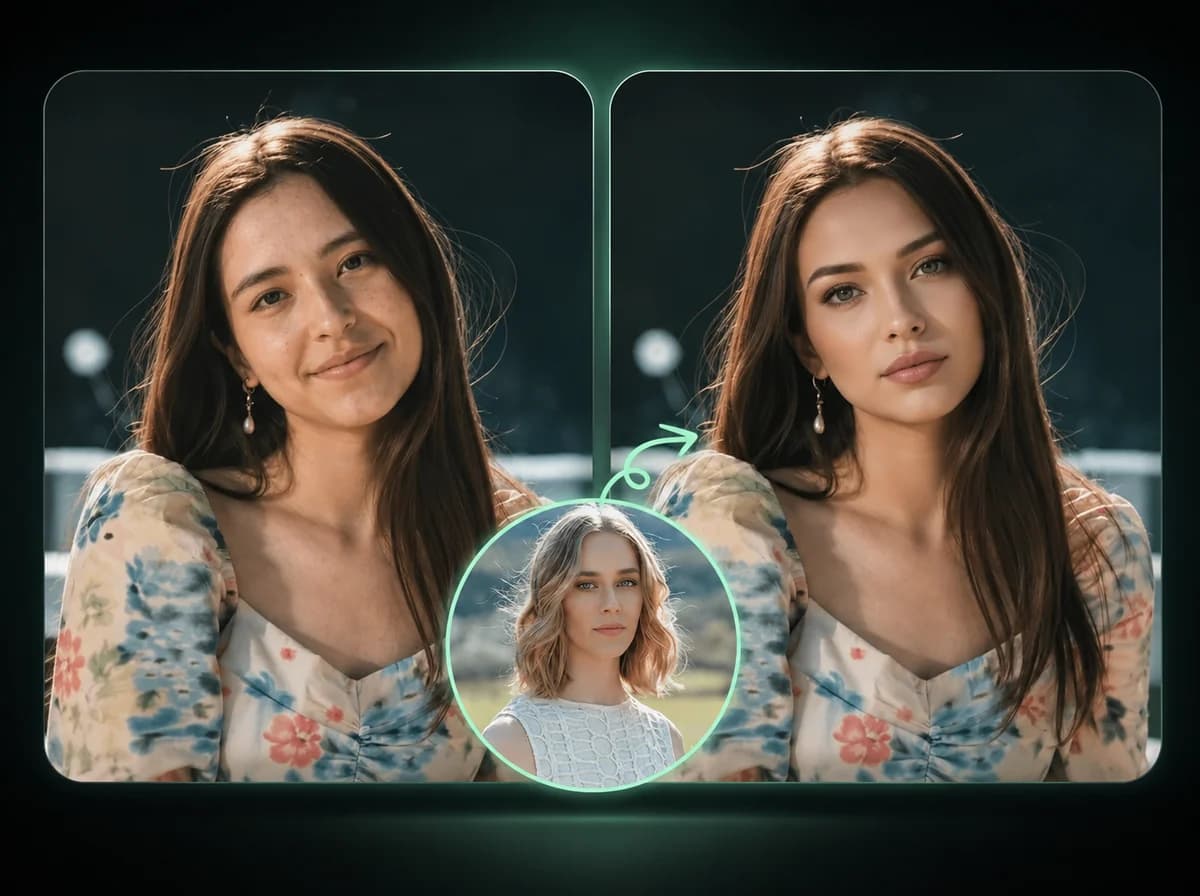
AI Image Face Swap
Swap faces in photos with AI precision.
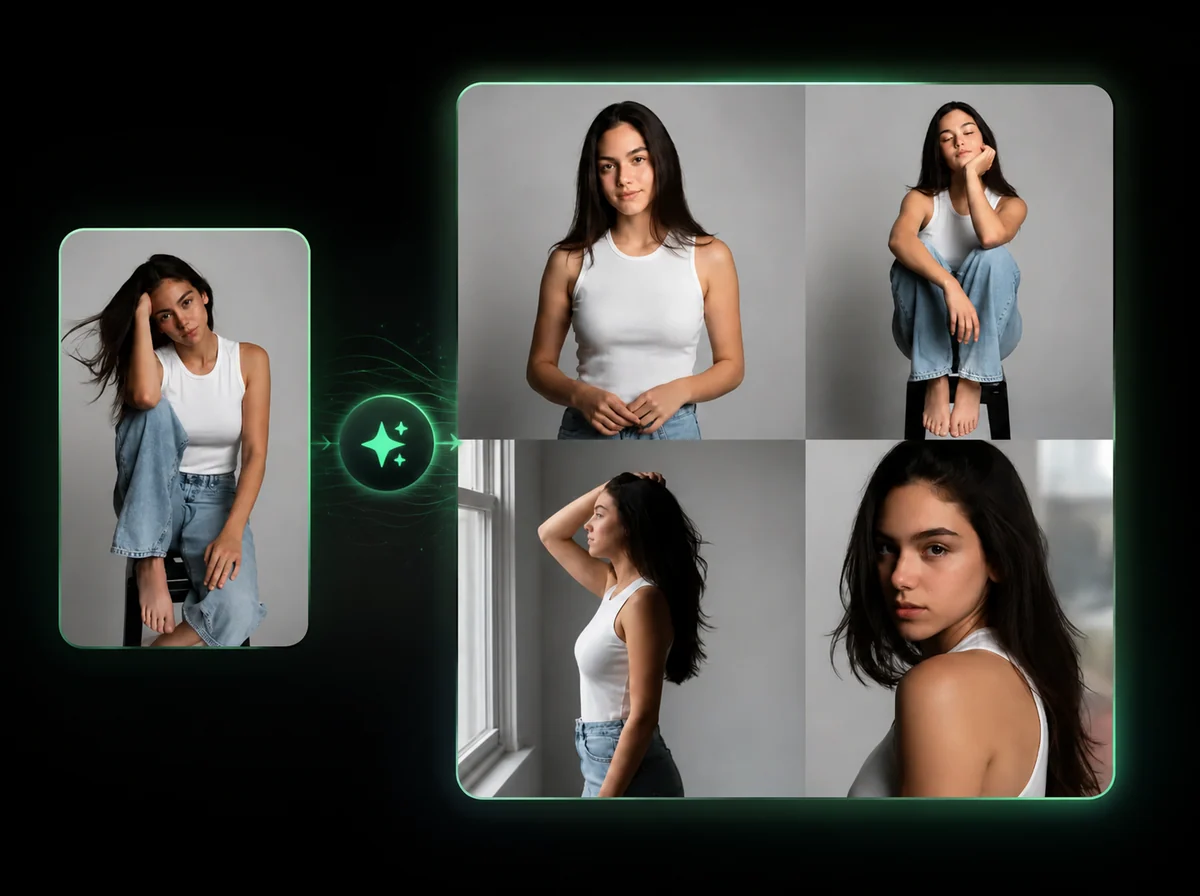
AI Pose Generator
Change a model's pose. Outfit, product, and background stay locked — describe the pose in plain English.
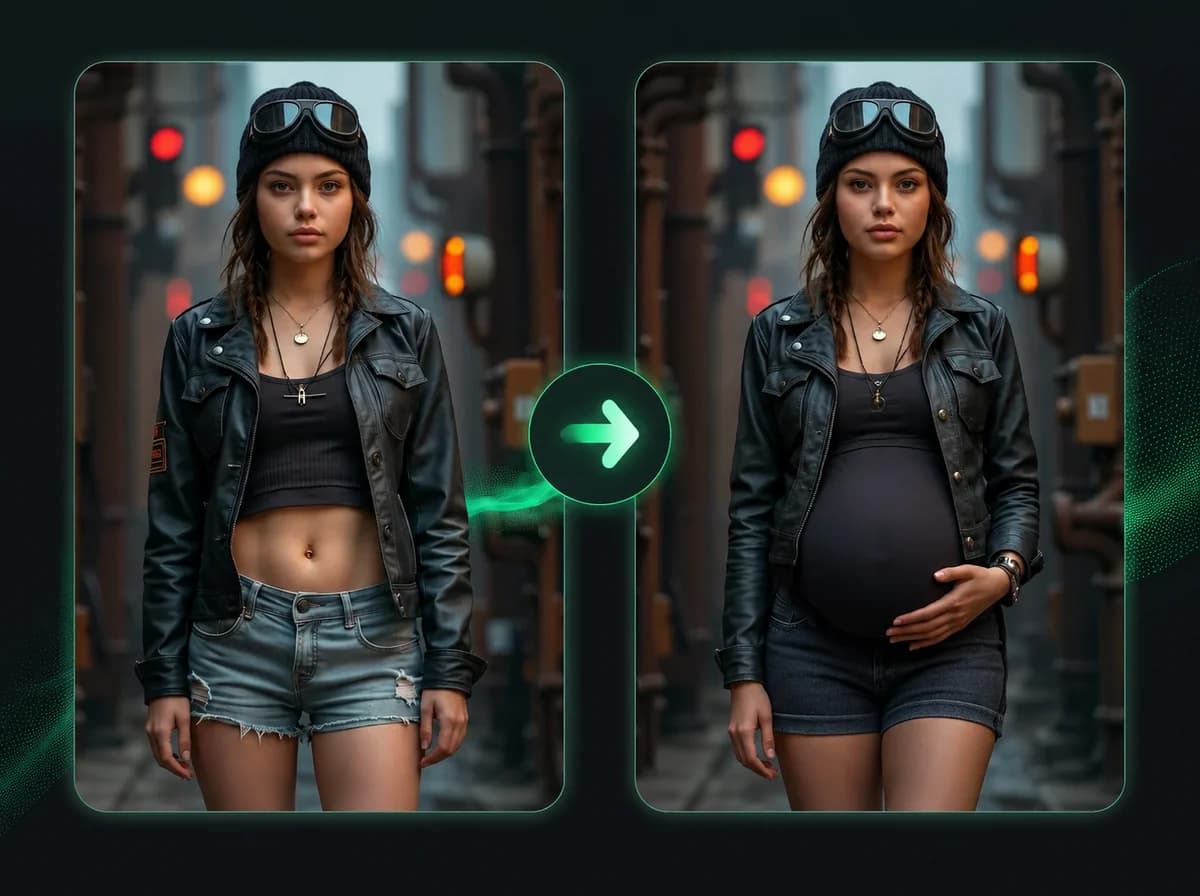
Pregnant AI
Add a realistic 8-month baby bump to any photo.
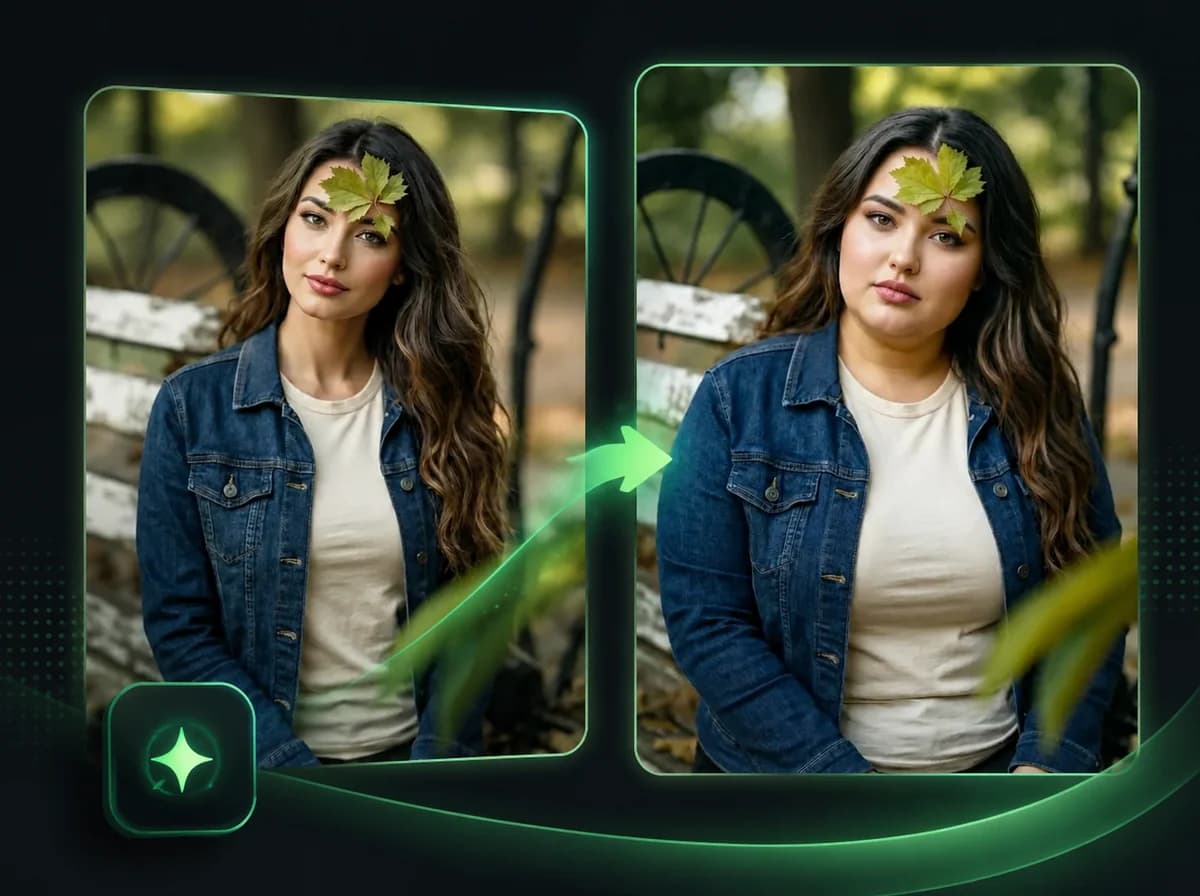
Fat AI Generator
See yourself overweight. AI transforms any photo with a realistic heavy body — outfit and face unchanged.
Recolor Your Product Photo Online
A browser-based AI color changer for product photos. Upload one image, pick a preset or HEX color, and get a recolored version that keeps fabric, lighting, and shadows aligned. Watermark-free, no Photoshop required.