AI Smile Filter - Natural Smile, Same Portrait
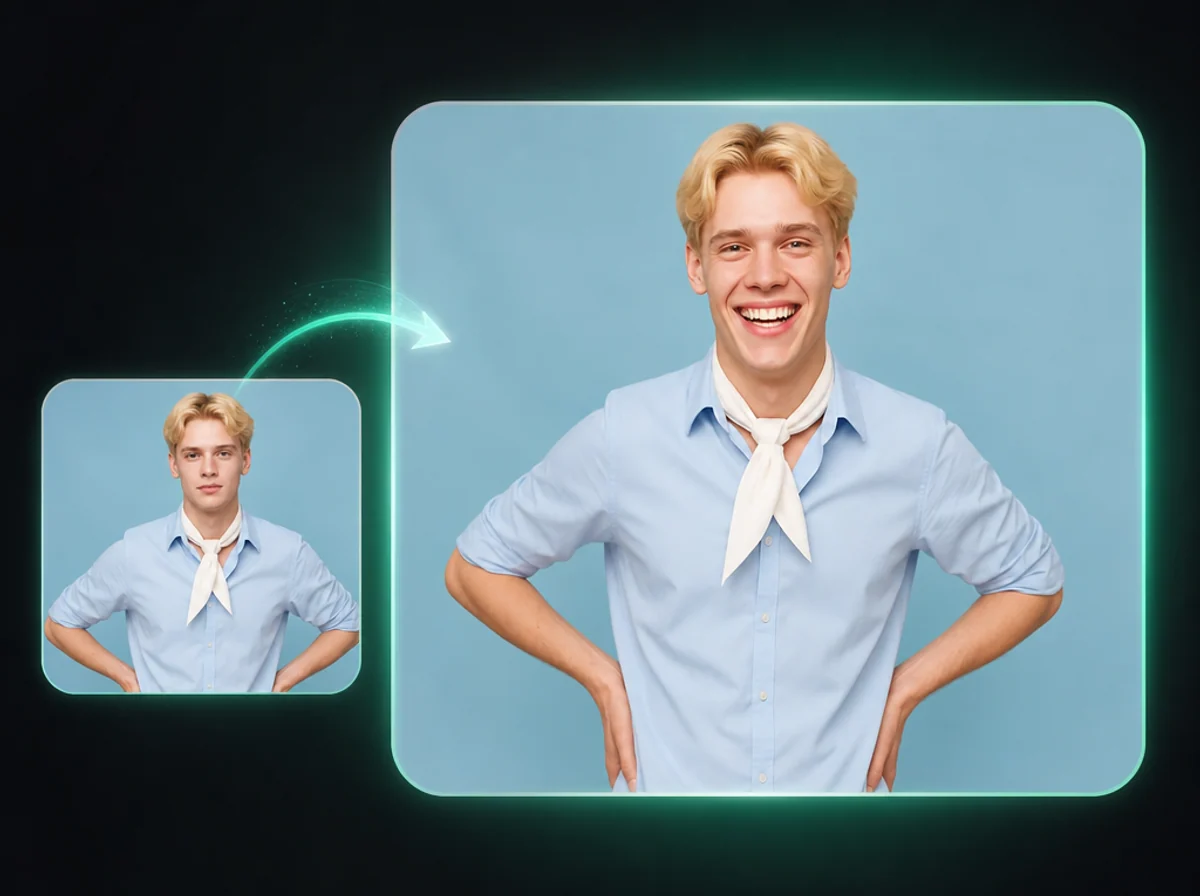
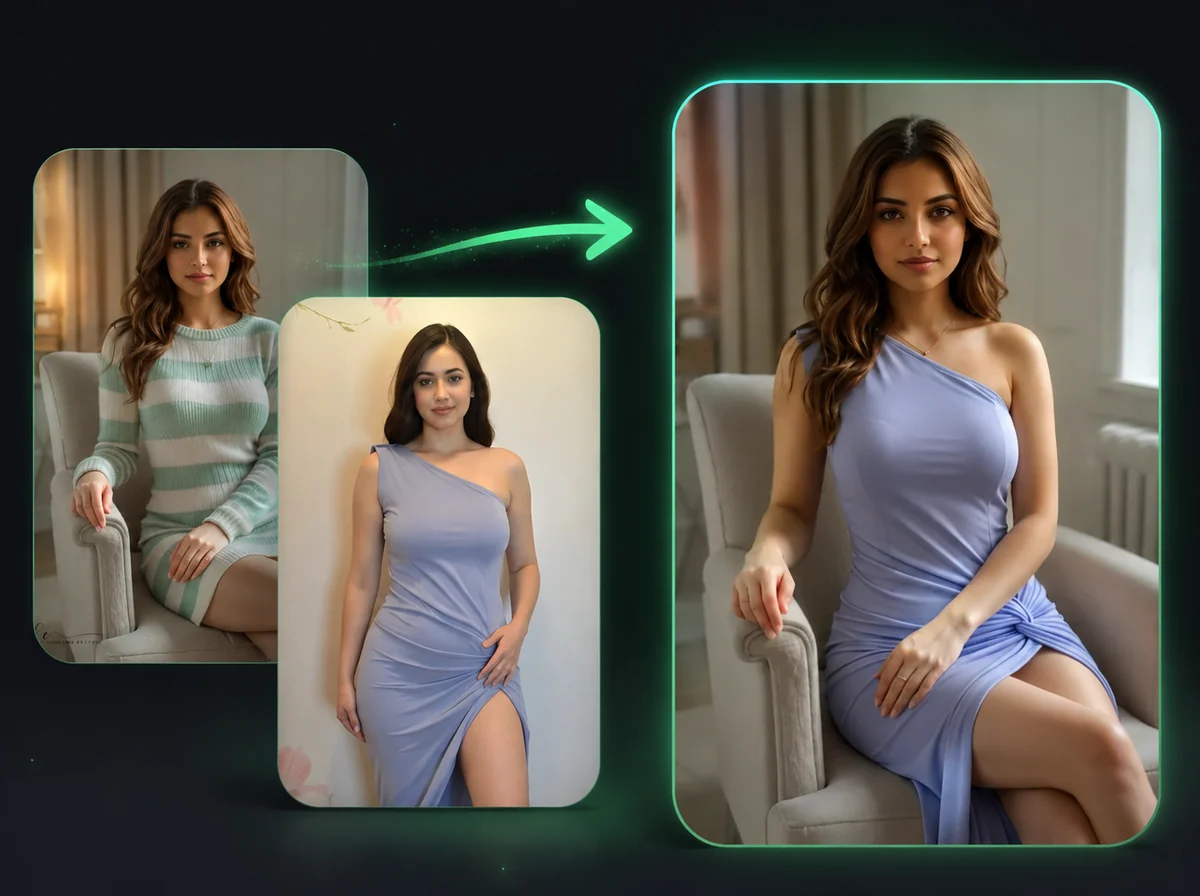
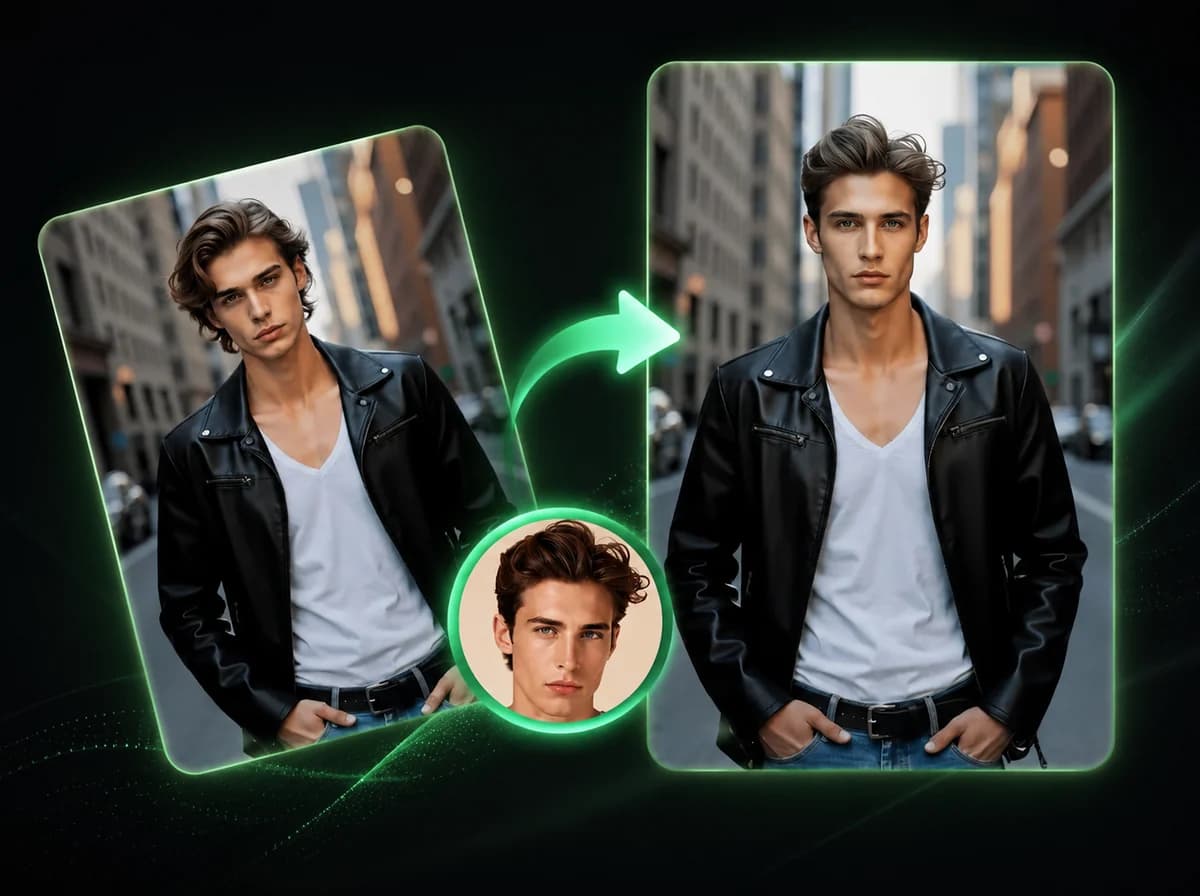
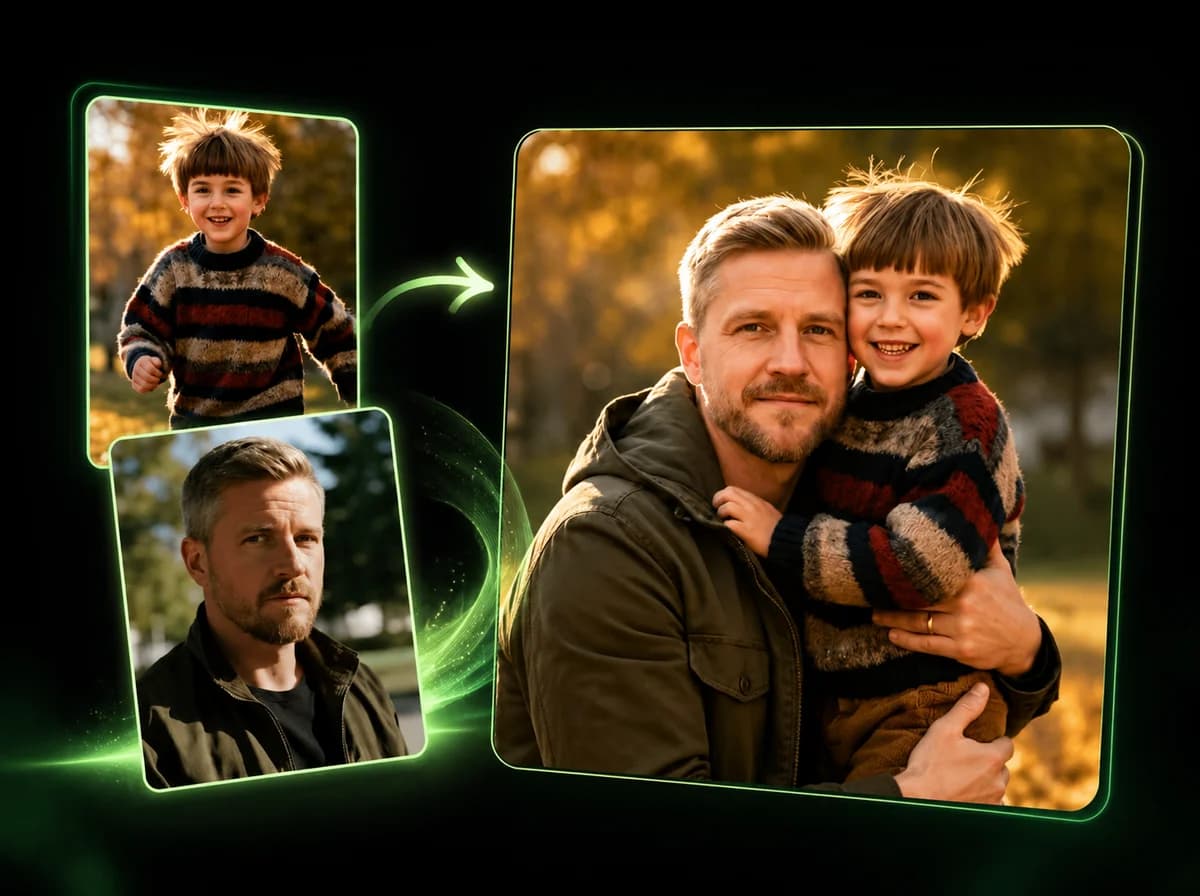
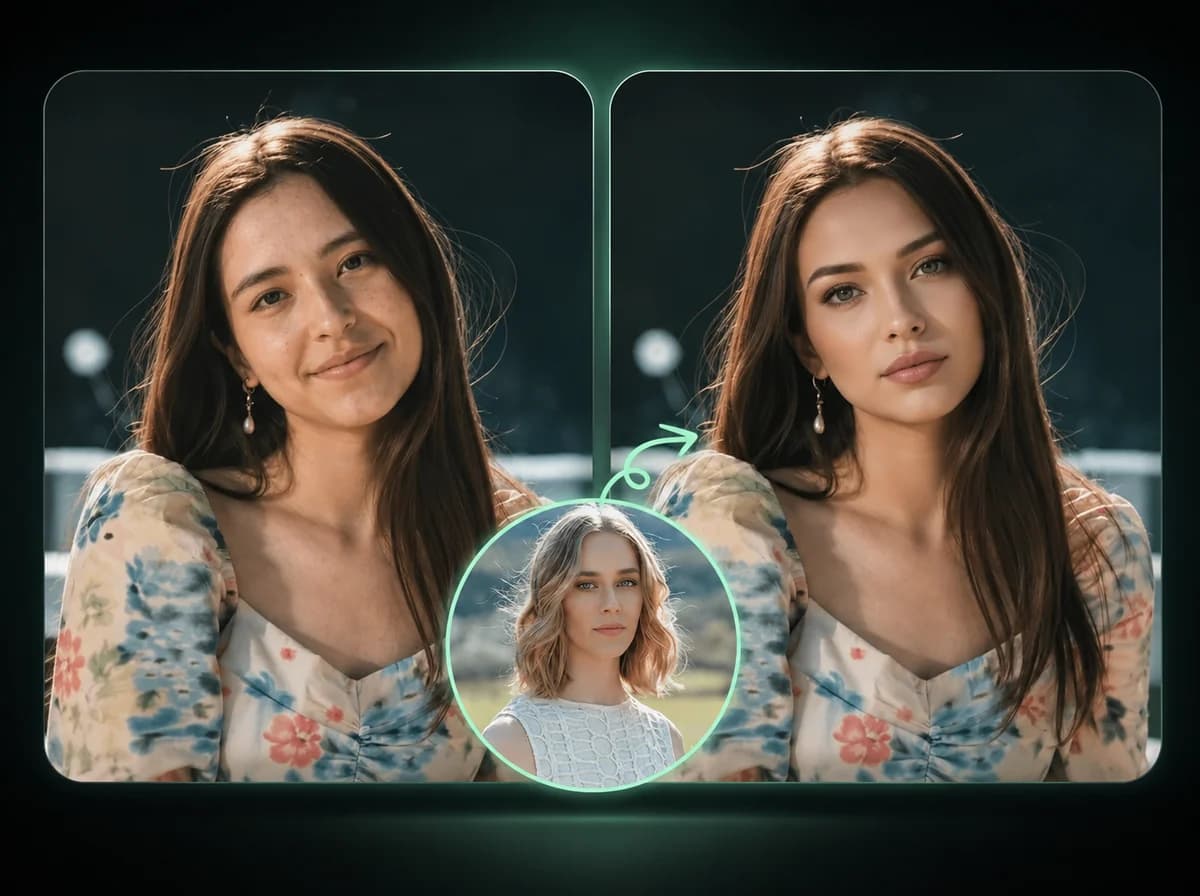
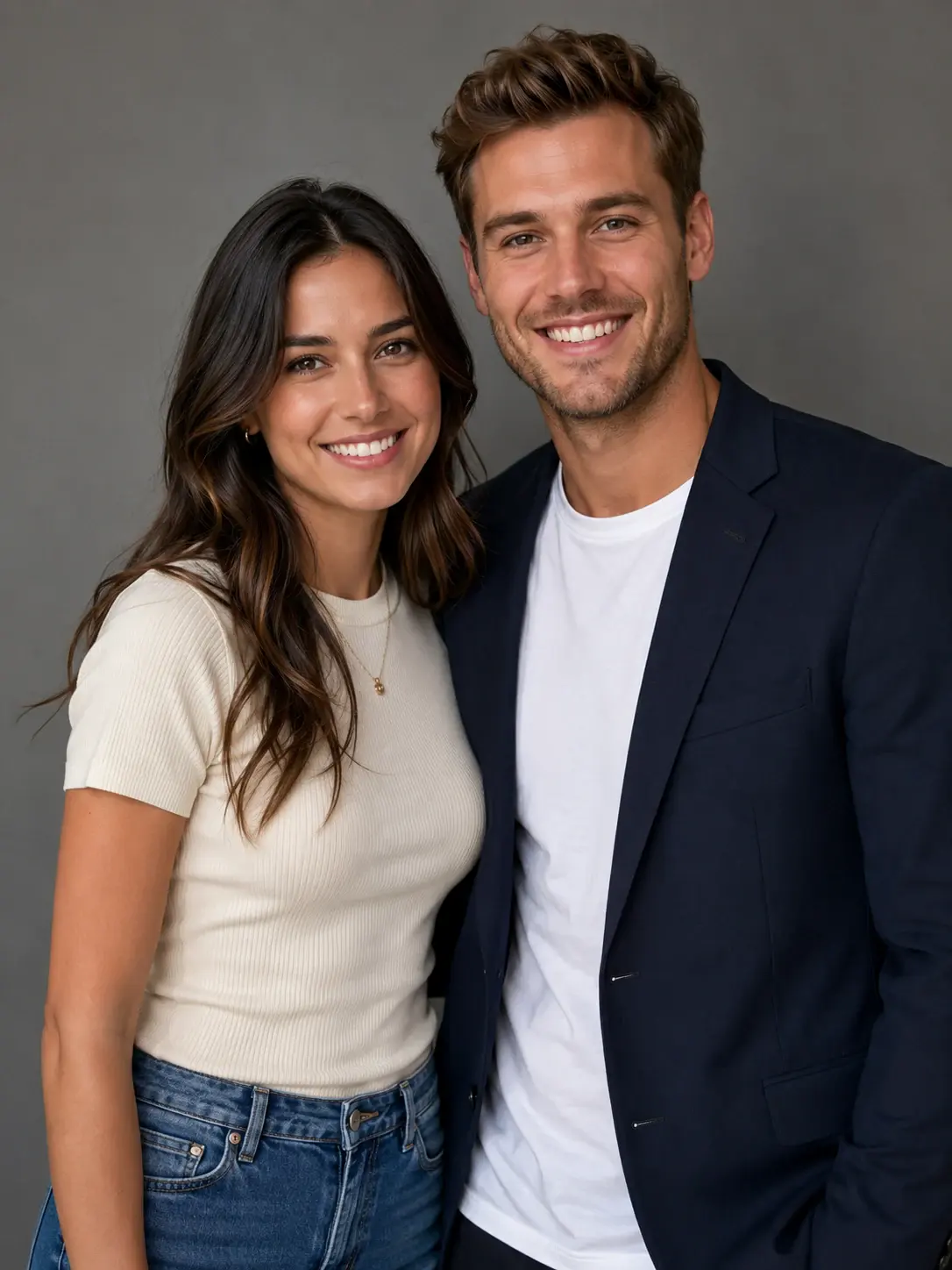
Upload one portrait to add a natural smile to a photo while keeping the same identity, pose, clothing, lighting, and background.
Click to upload image
PNG, JPG, WebP · Max 10MB
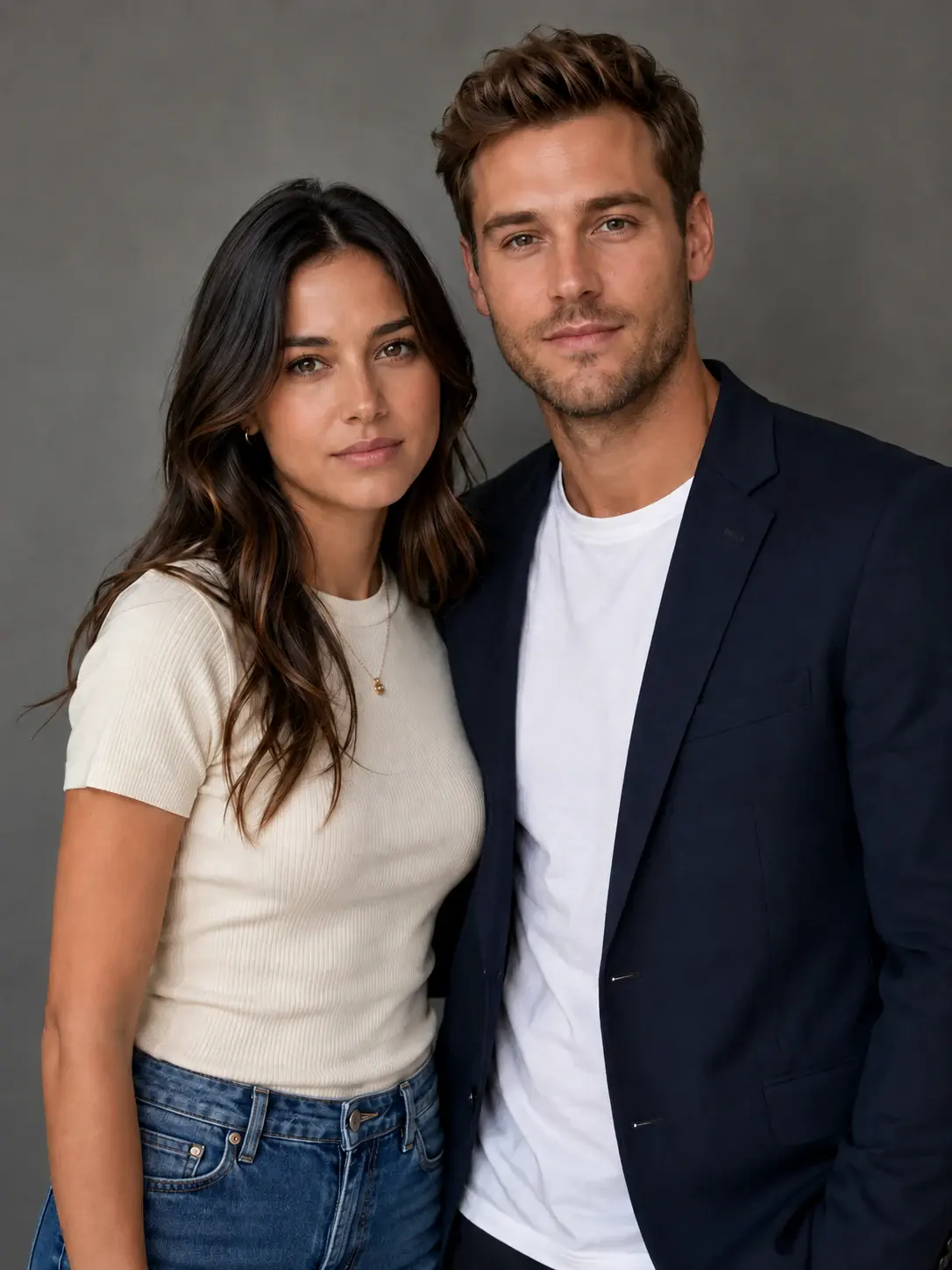
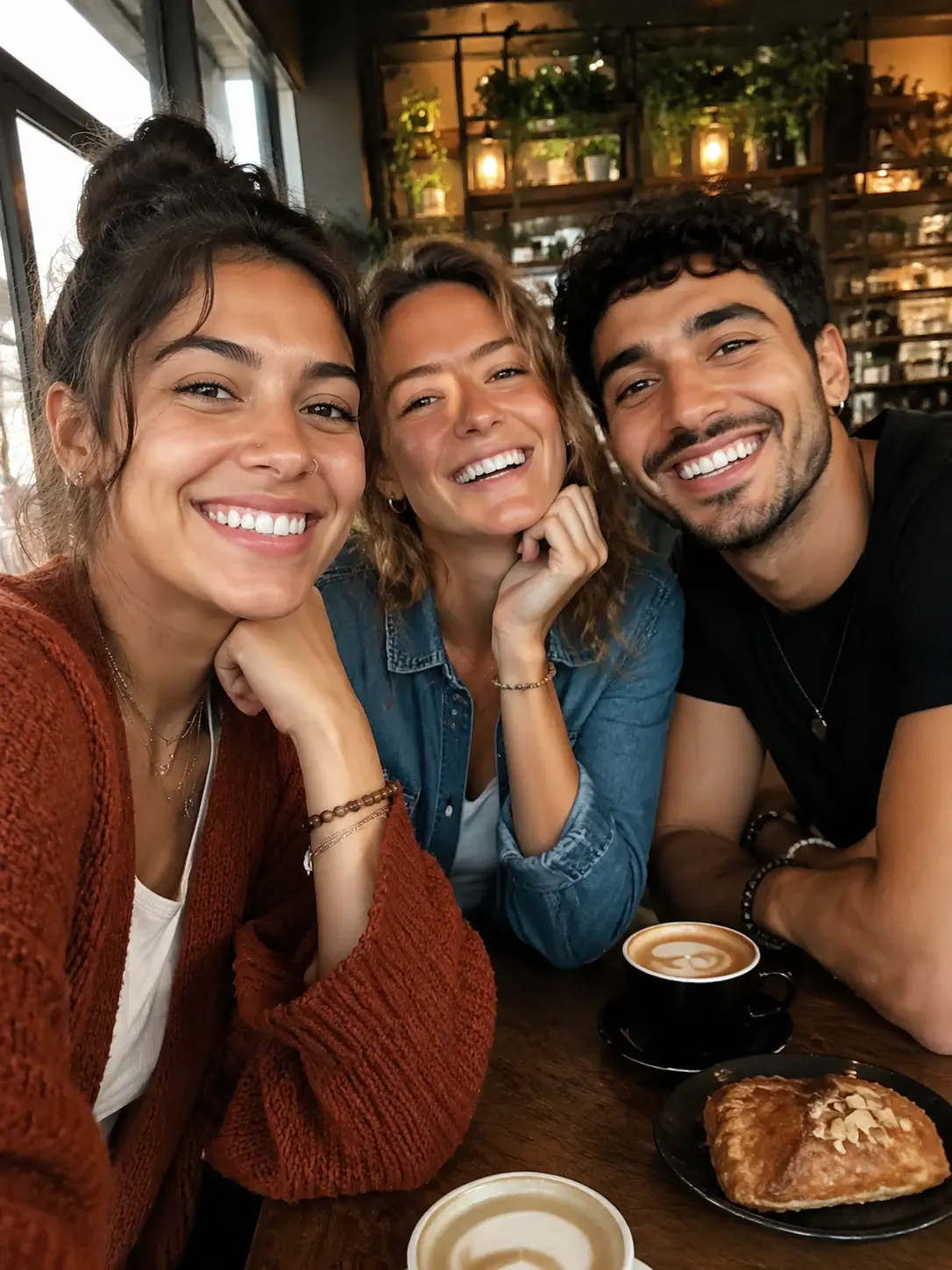
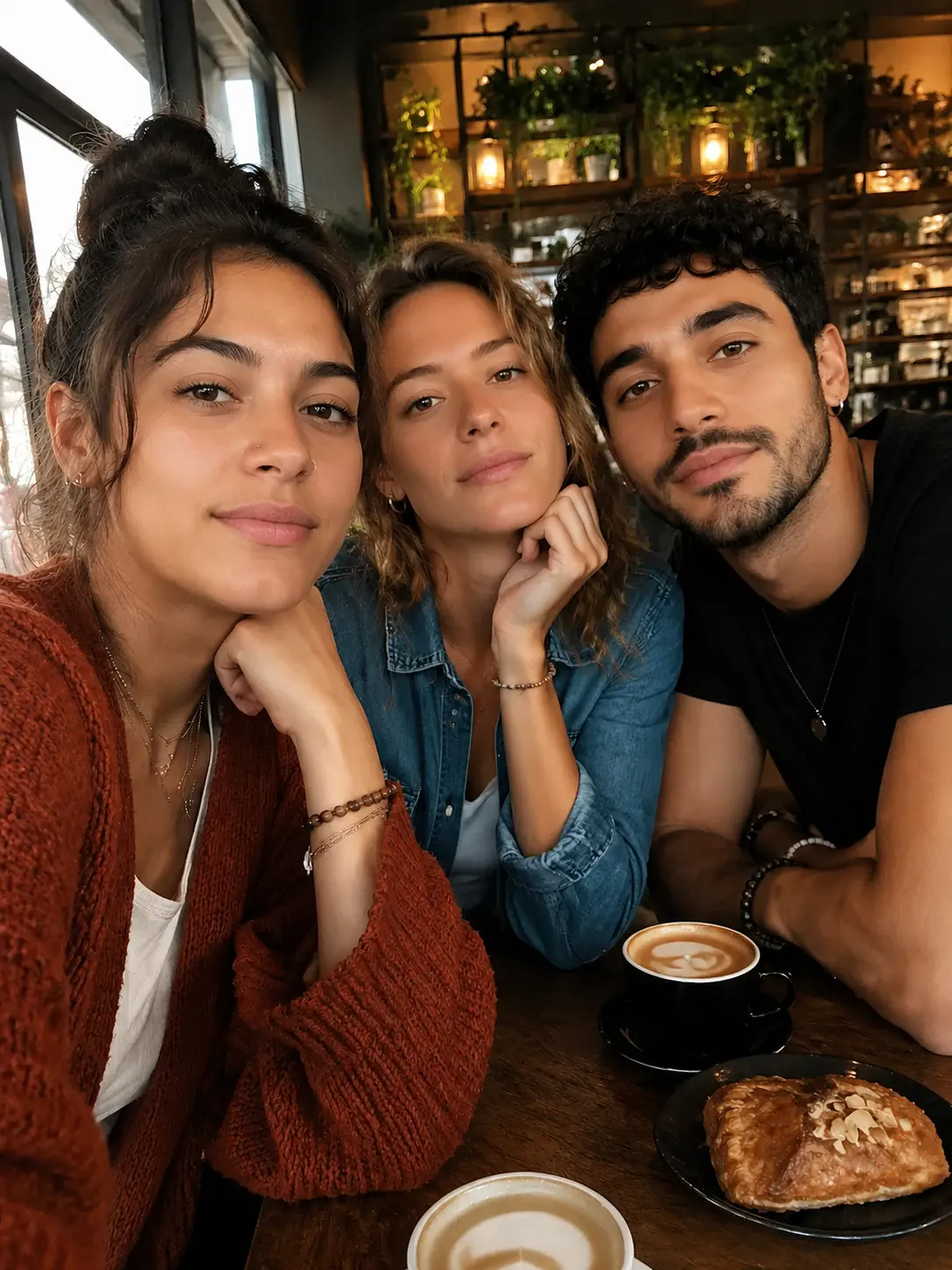
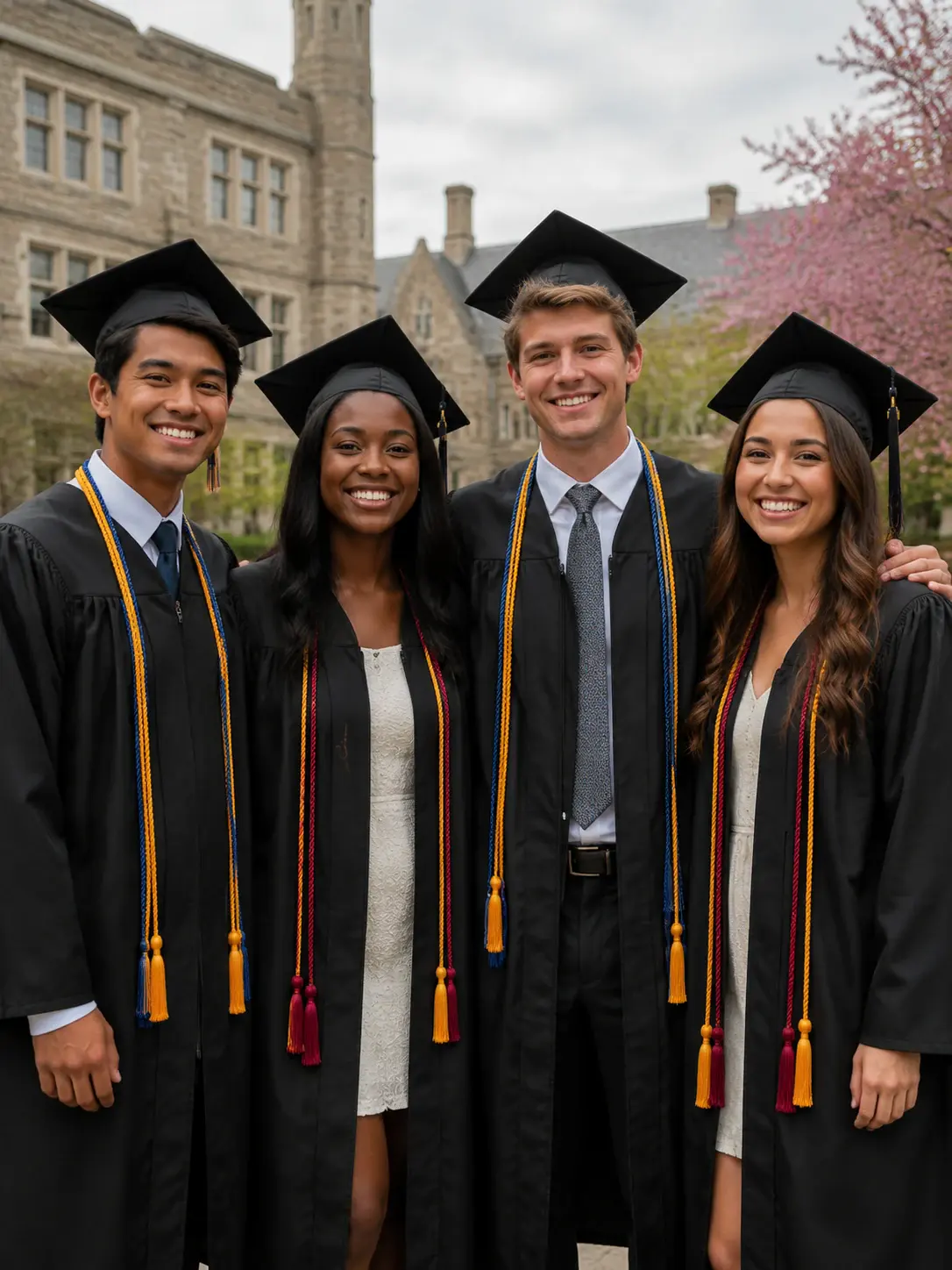
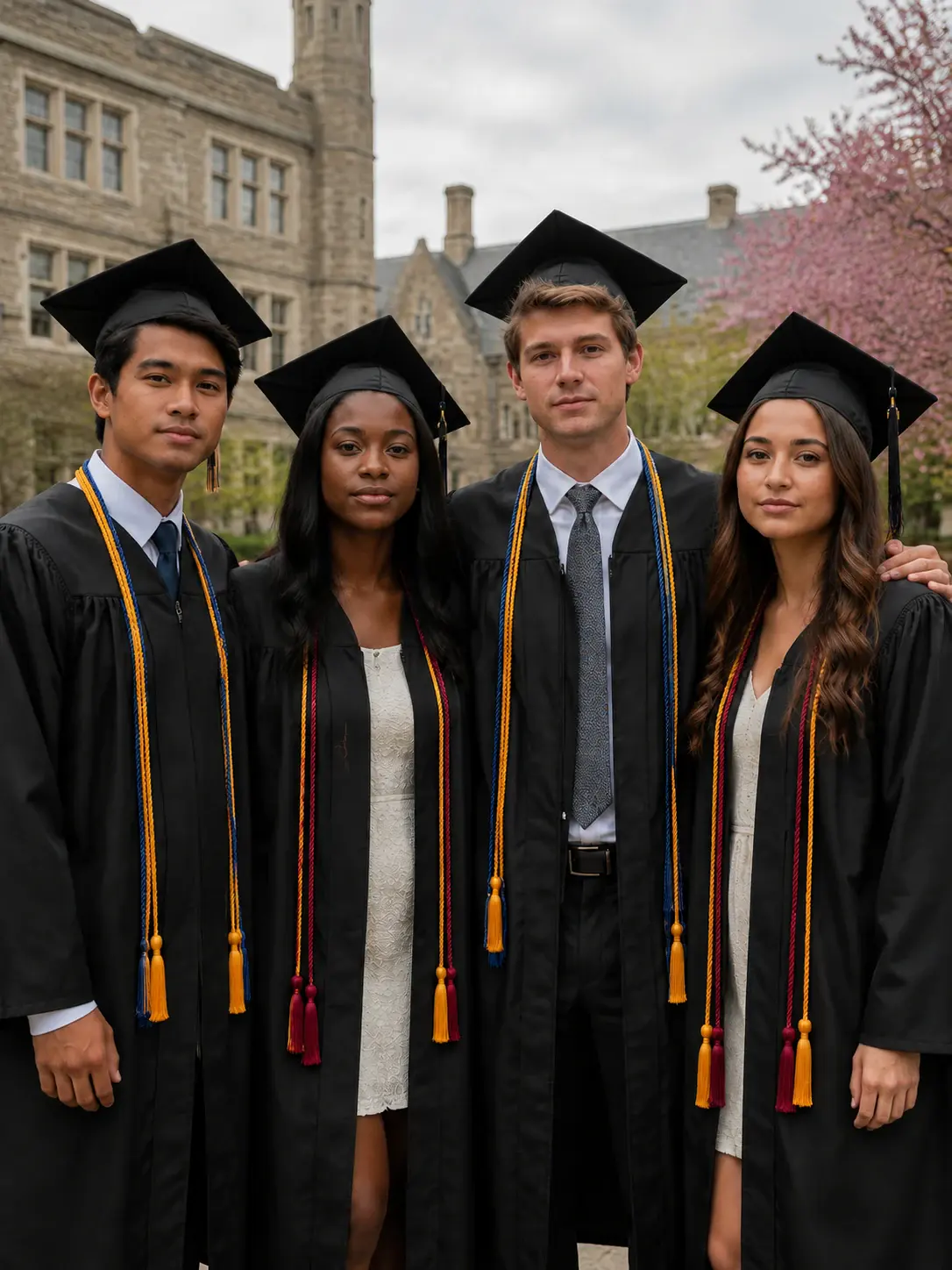


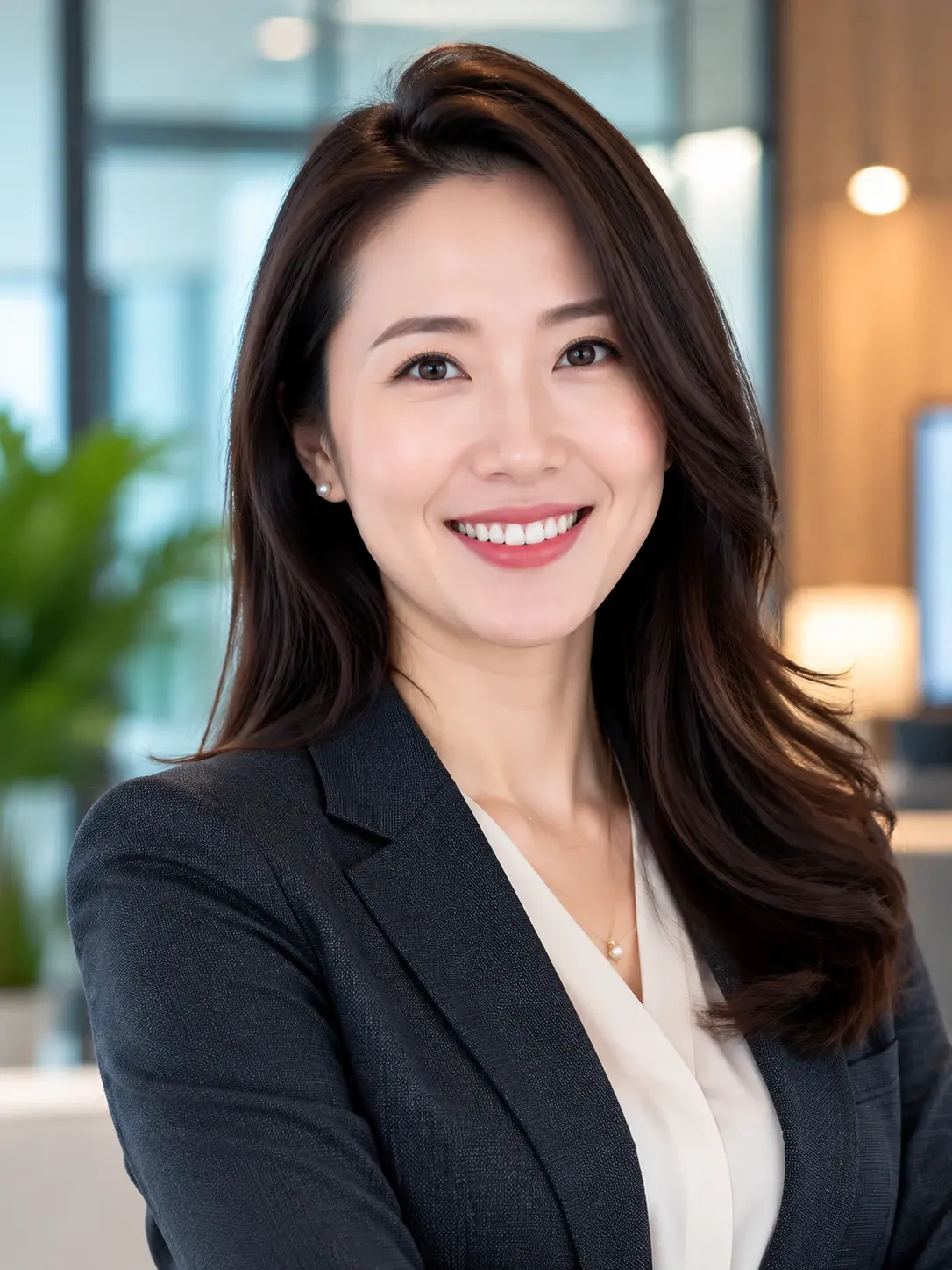
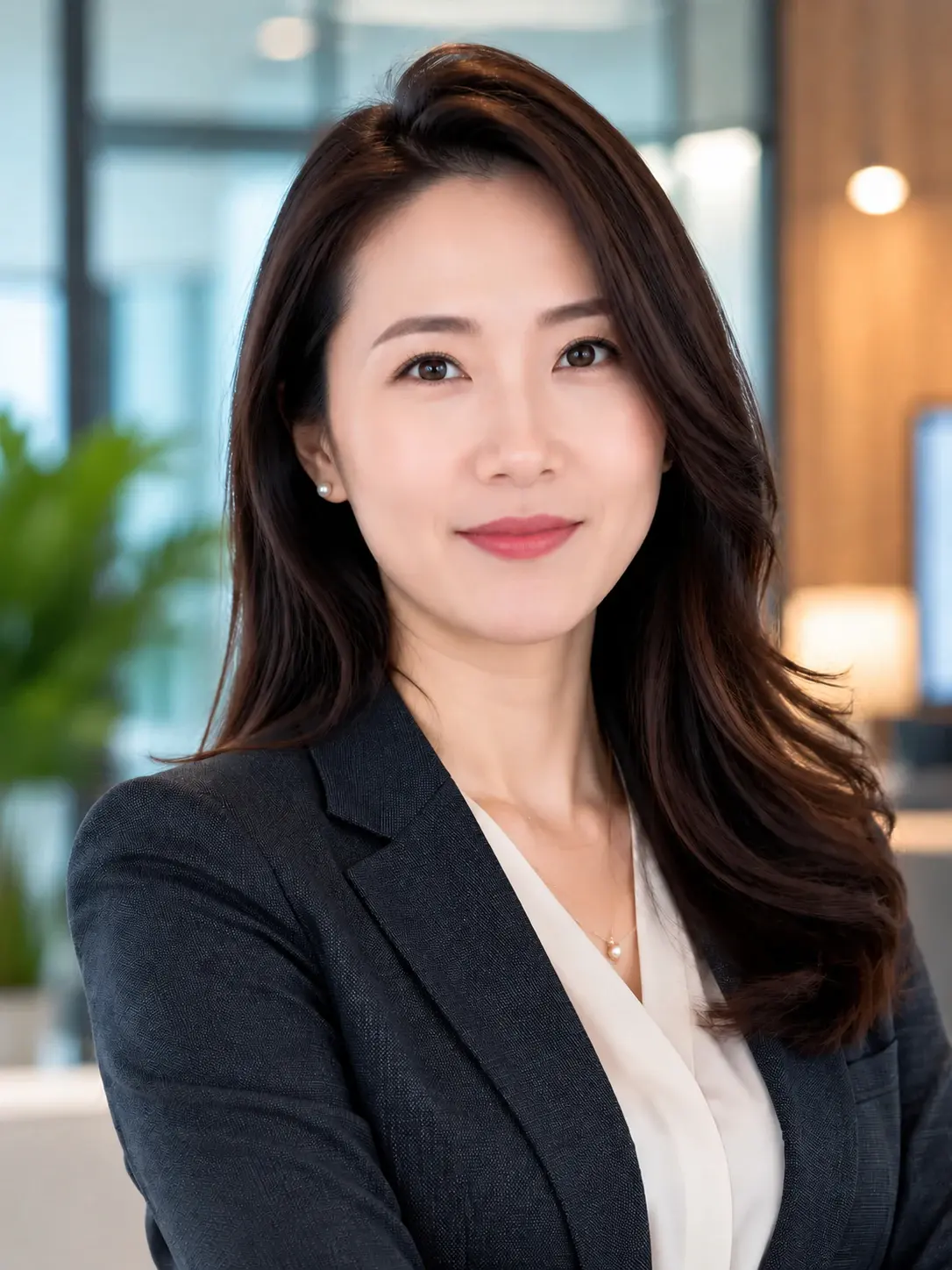
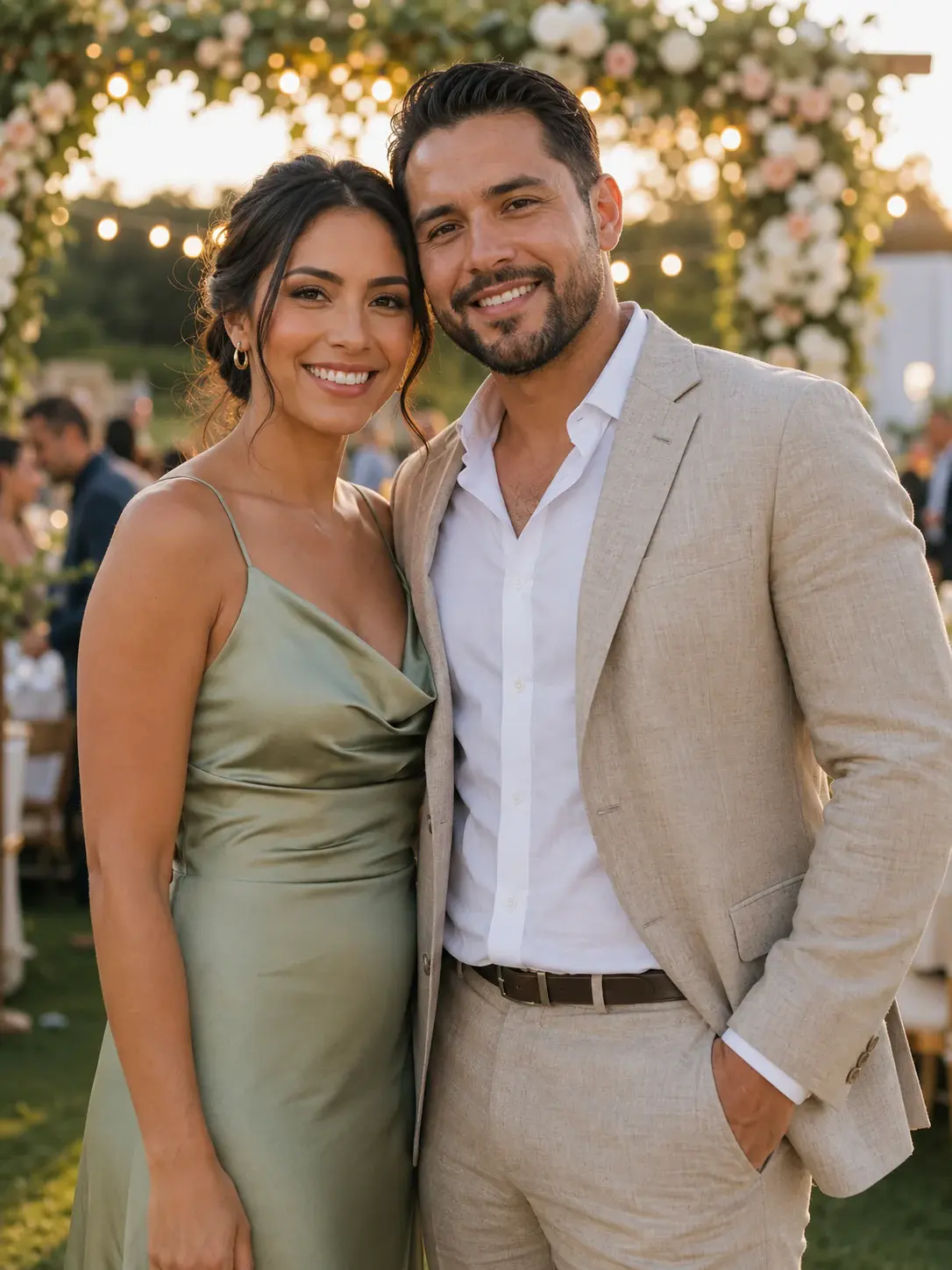
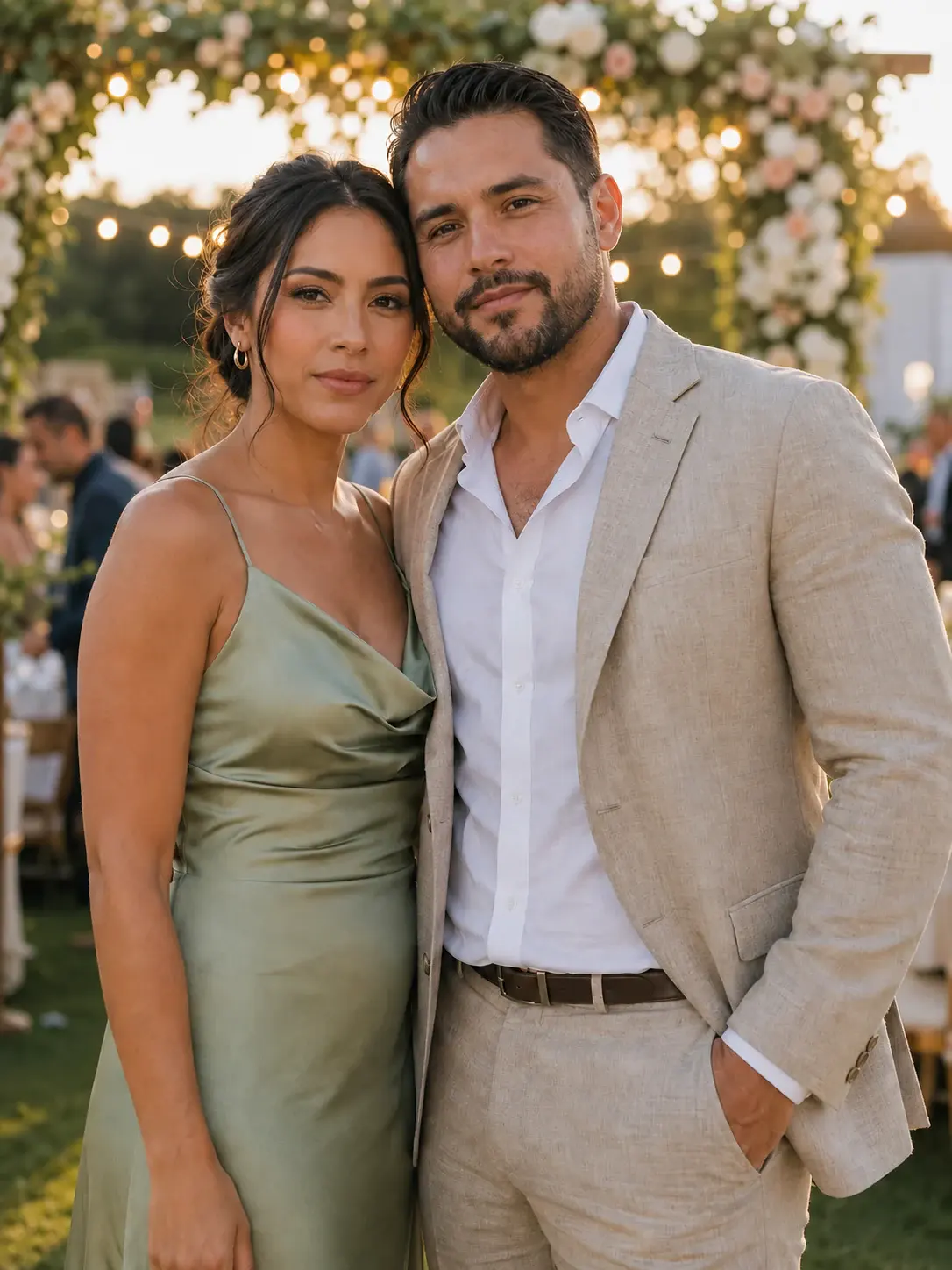
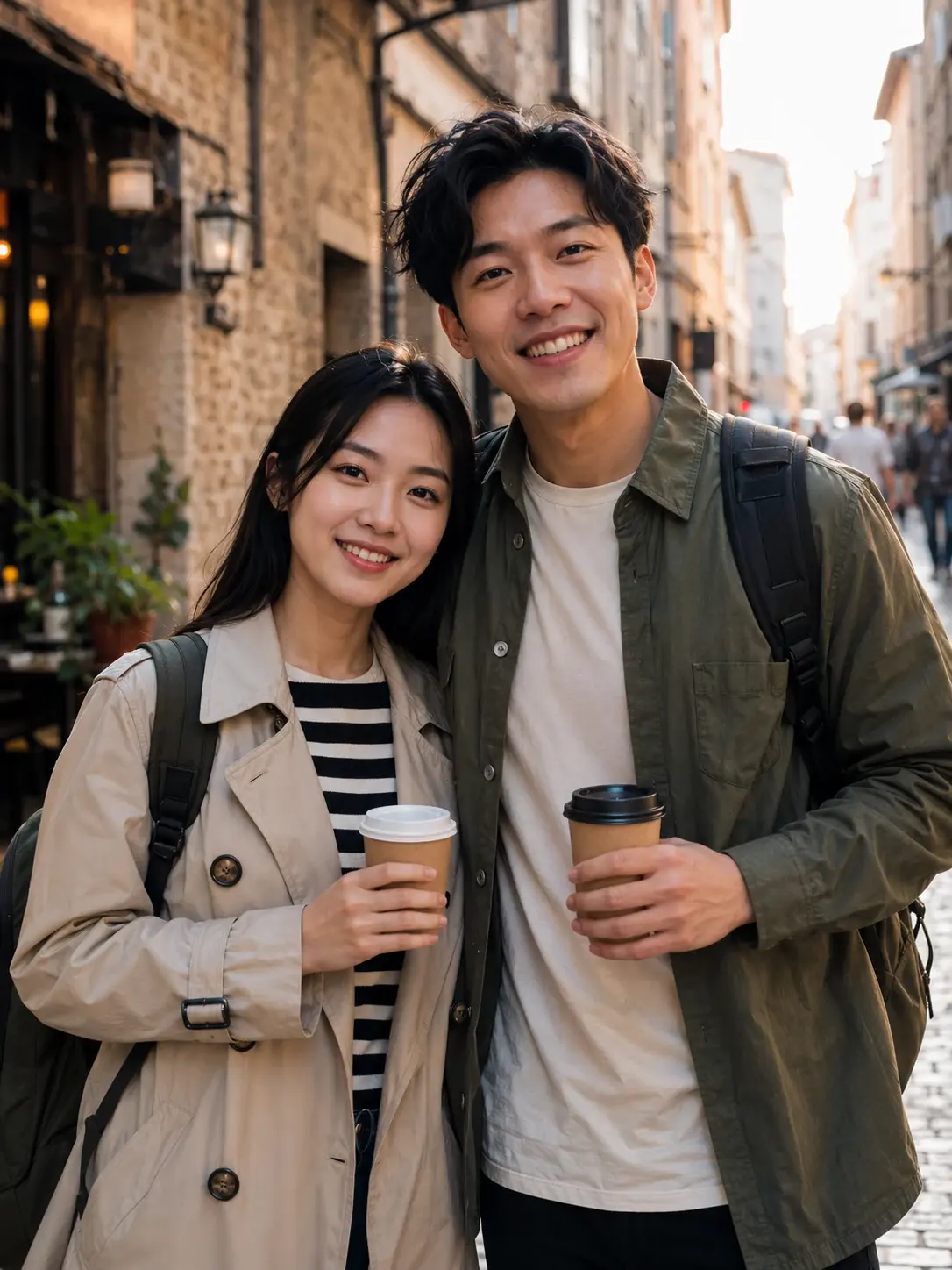
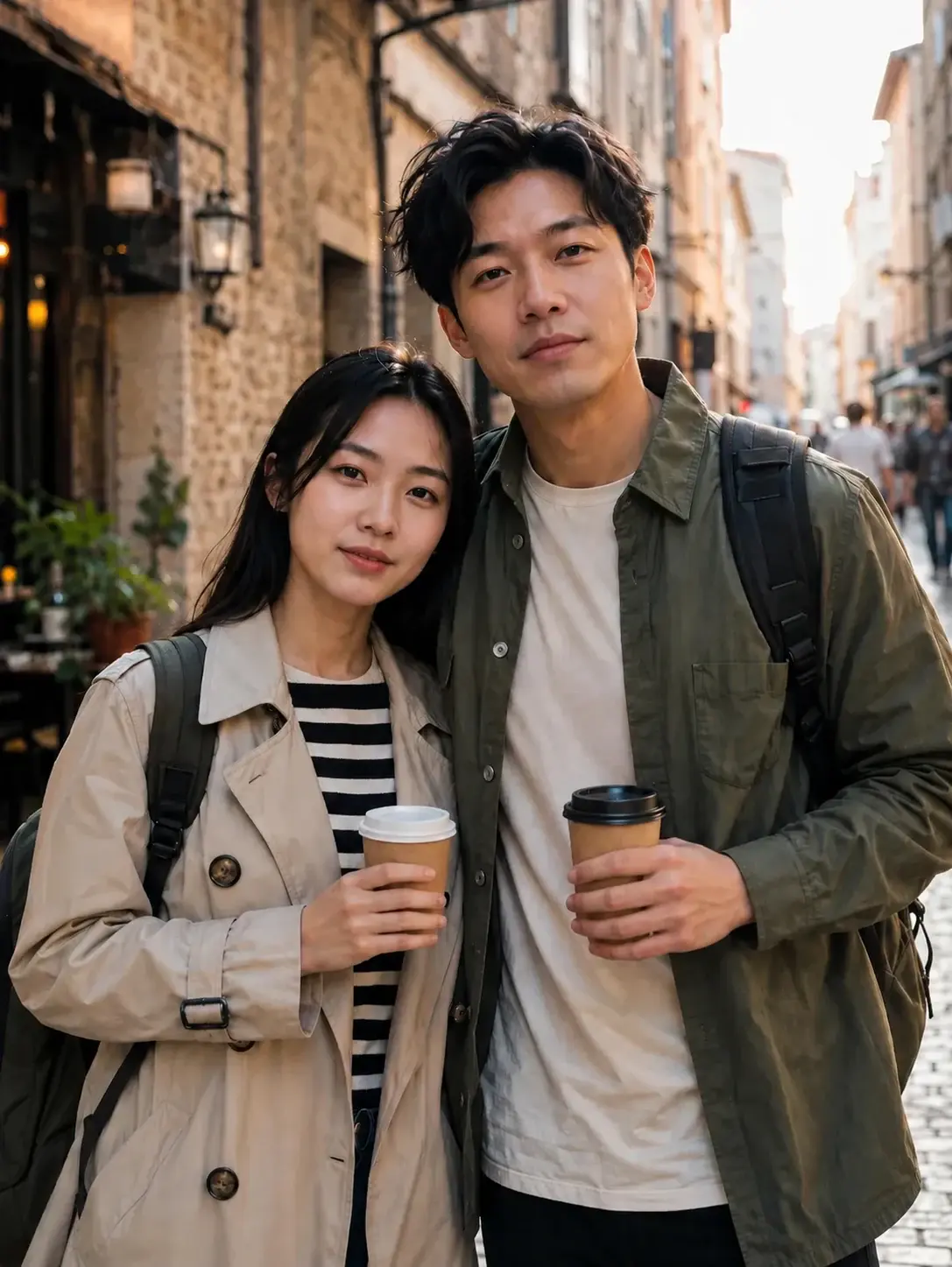
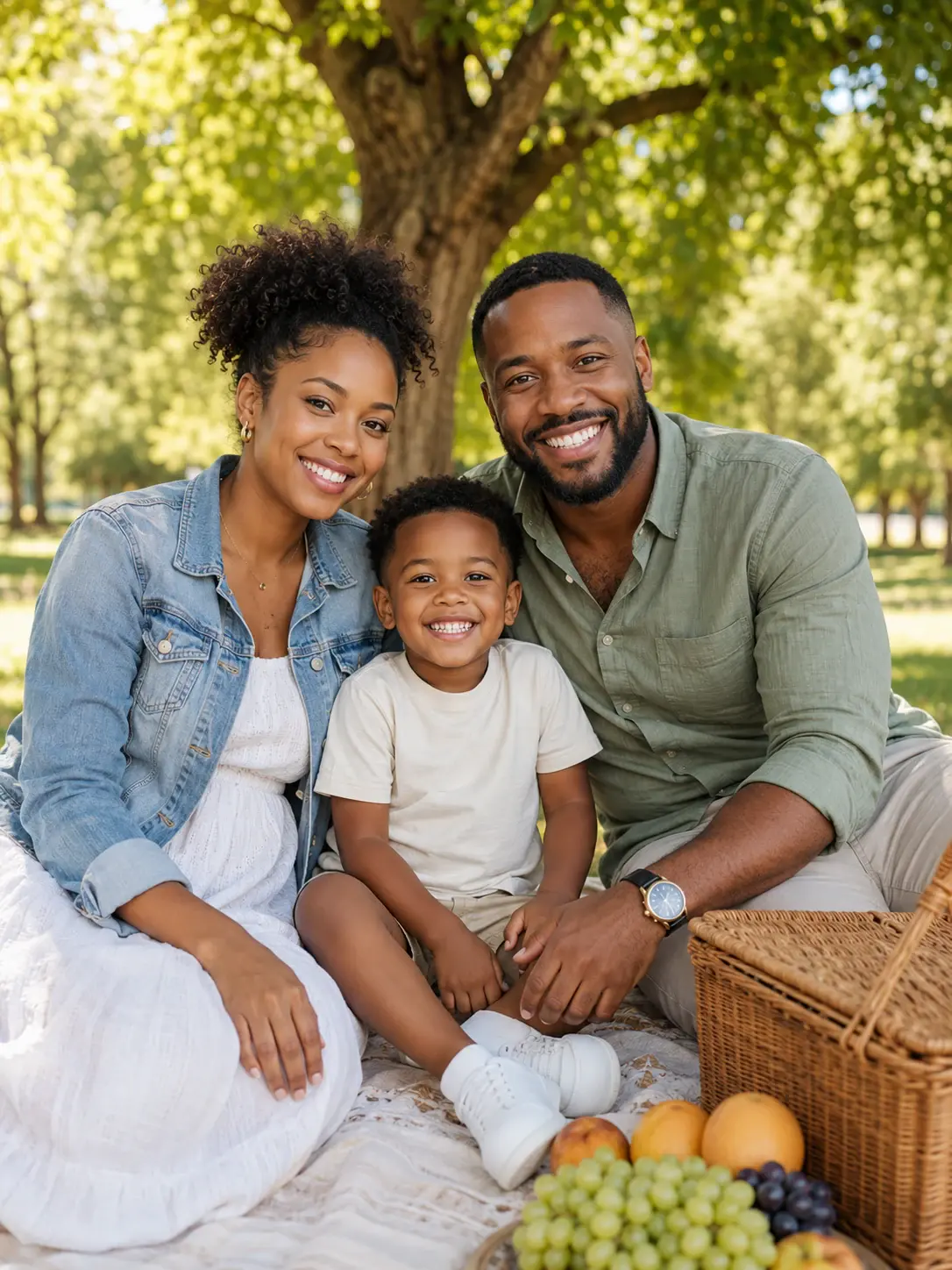
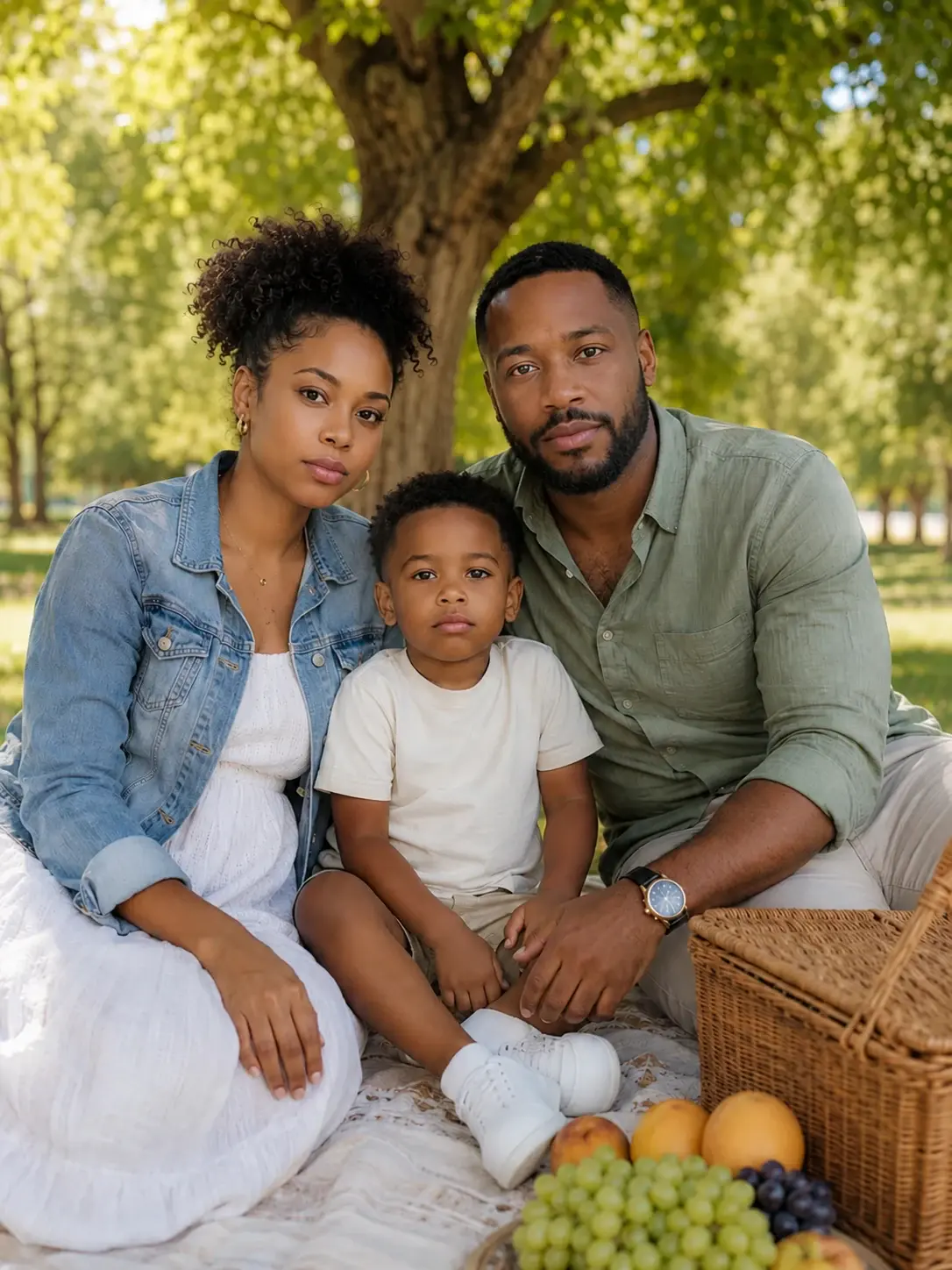


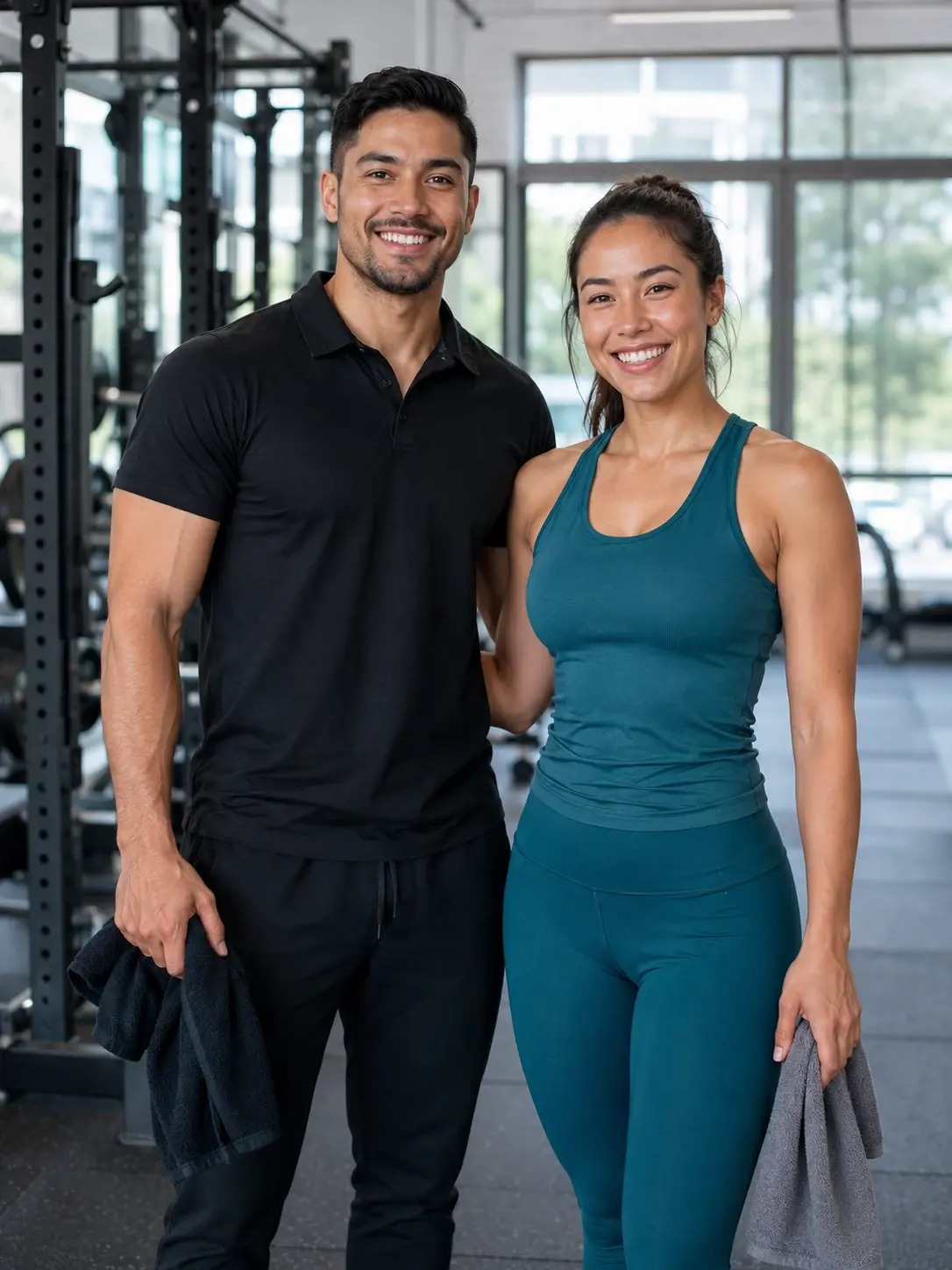
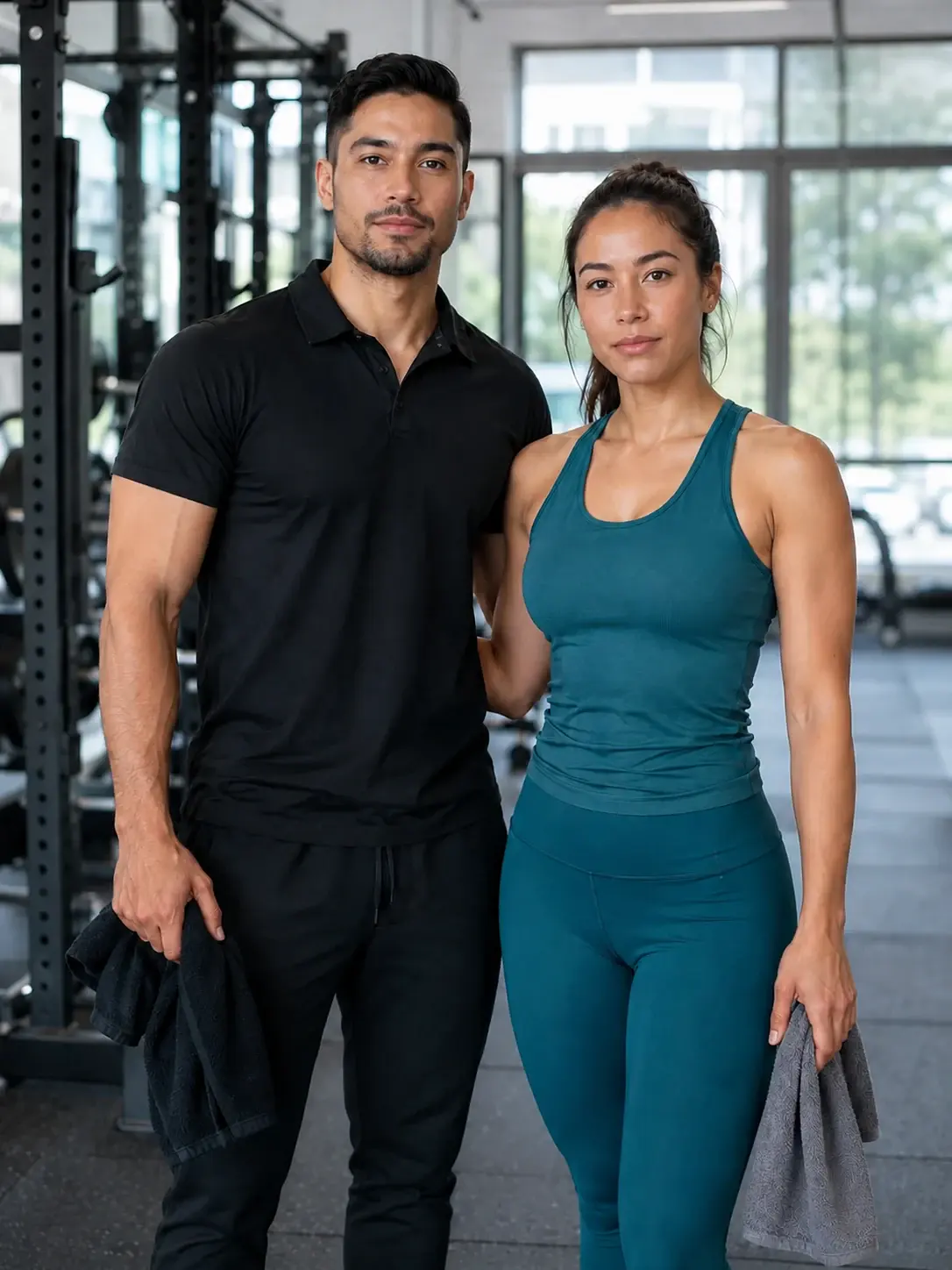
How to Use AI Smile Filter
Upload one portrait, generate a smiling version, then download the result.
Upload One Portrait
Choose a clear JPG, PNG, or WebP portrait. A single visible face with steady lighting gives the AI the best source for a believable smile.
Generate the Smile Filter Result
Start the AI Smile Filter tool. iMideo adds a warmer expression while keeping the subject, pose, clothing, and background aligned to the original image.
Download and Compare
Save the smiling portrait, compare it with the before image, or try another source photo when you want a different expression.
Why Use iMideo for Smile Filter Photos
One-Image Workflow
The tool only needs a before image. There is no second reference photo, prompt field, mask, or manual mouth selection to manage.
Photo Smile Editor
The AI focuses on mouth curve, cheeks, and facial expression instead of turning the entire portrait into a different person.
Same Scene Preservation
Clothing, accessories, pose, crop, and background stay tied to the source image where the photo gives the model enough detail.
Profile and Team Ready
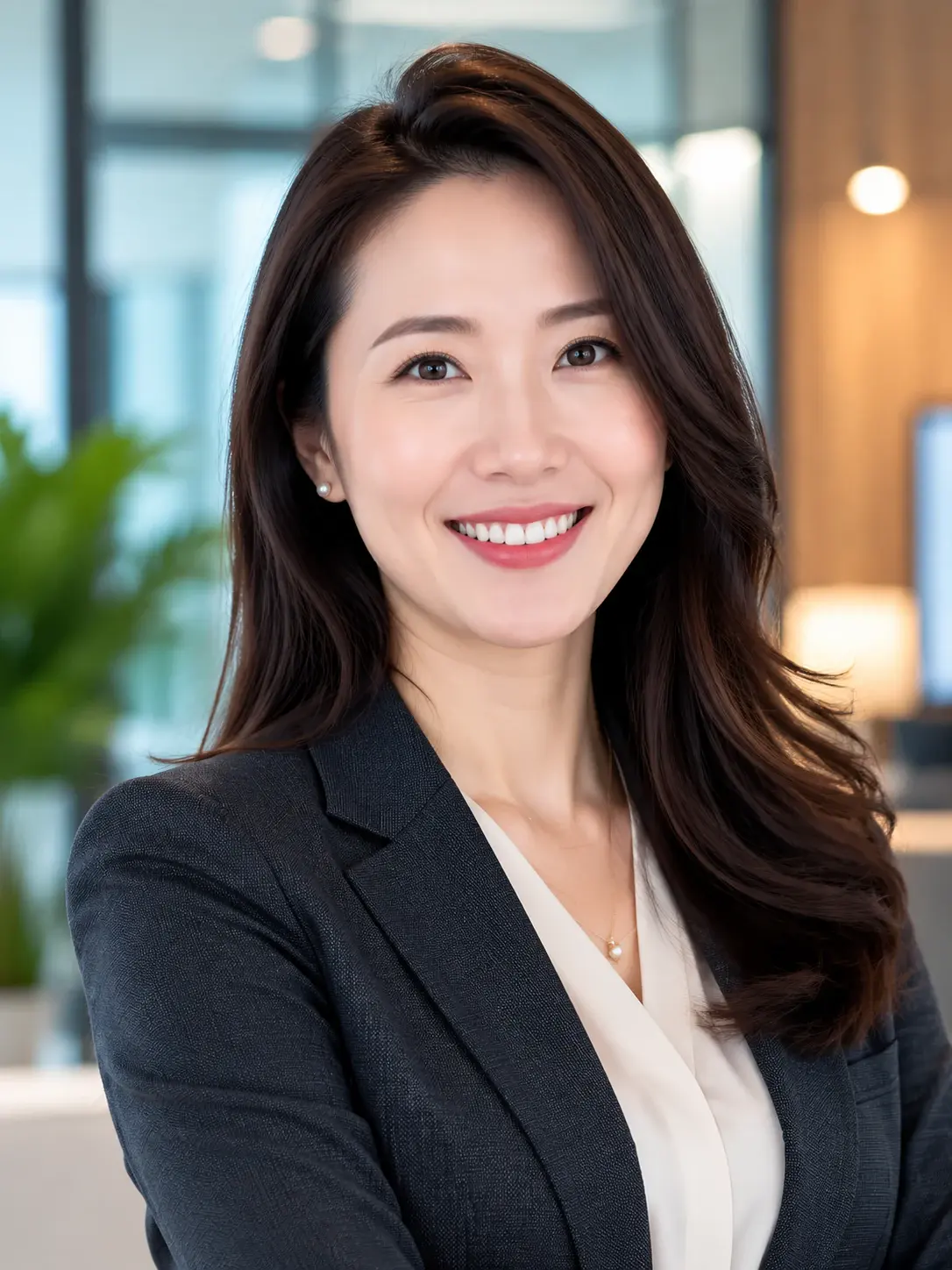
Use it for headshots, About pages, profile photos, social avatars, and team portraits that need a warmer expression.
Private Editing Flow
Uploads are processed for the generation task and are not displayed in the public template gallery.
Credit-Based Usage
Use credits only when you generate. Check the pricing page for current credit packages and account options.
What Creators Say About AI Smile Filter
Maya R.
Portrait Photographer
I use it when a client likes the pose and lighting but wants a friendlier expression. It saves me from rebuilding a whole retouch pass.
Andre V.
Team Page Designer
Our headshots came from different shoots. The smile filter helps normalize the mood without changing everyone into stock-photo portraits.
Lina K.
Social Media Manager
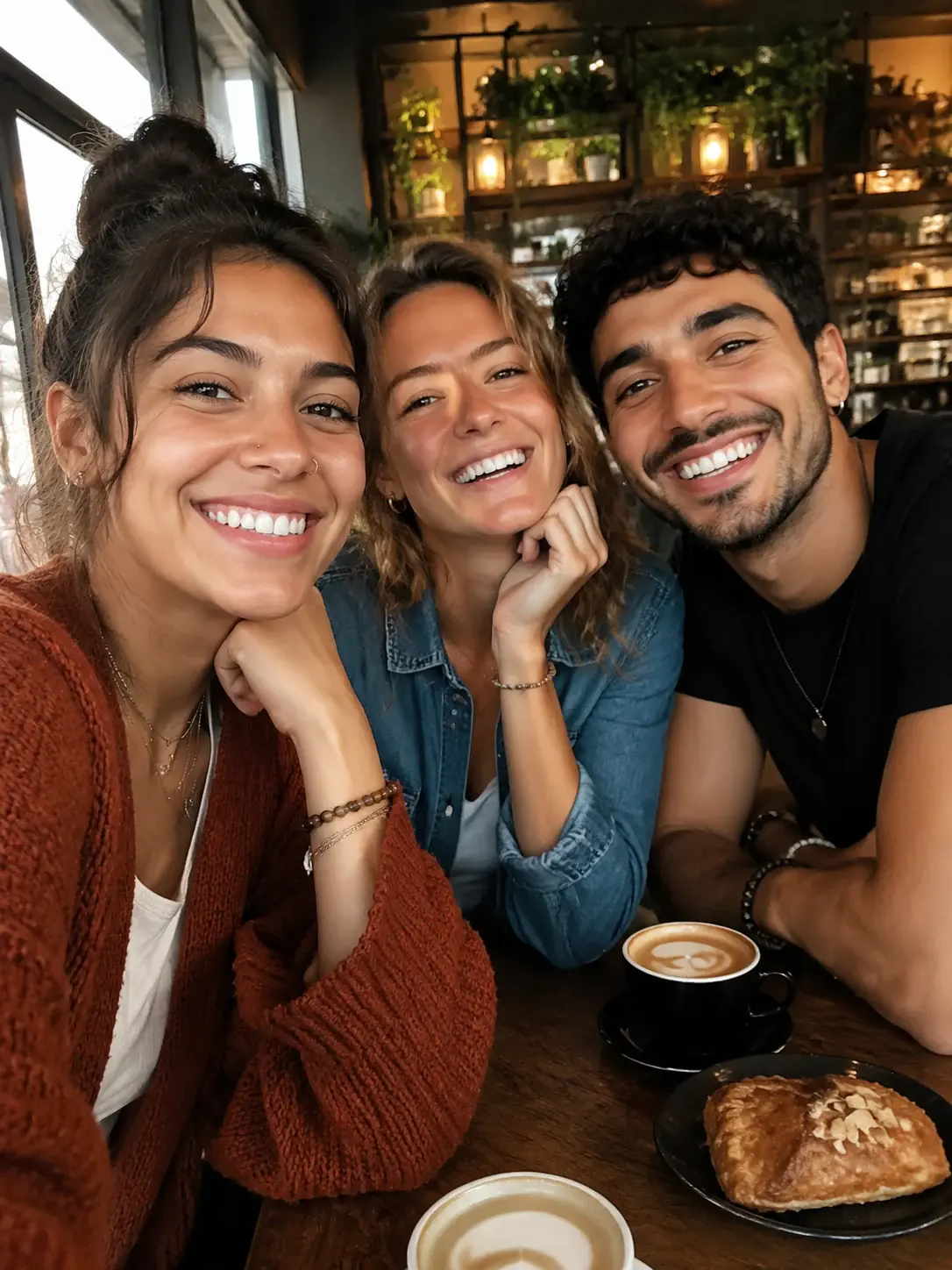
It is useful for carousel photos where one expression is too serious. The before/after examples make it easy to pick the right kind of source image.
Noah P.
Founder
I tested several profile photos for a launch page. Keeping the same shirt and background made the comparison practical.
Eva S.
Event Editor
For event albums, the tool helps rescue photos that were almost right but missed the expression at the exact moment.
Chris M.
Fitness Coach
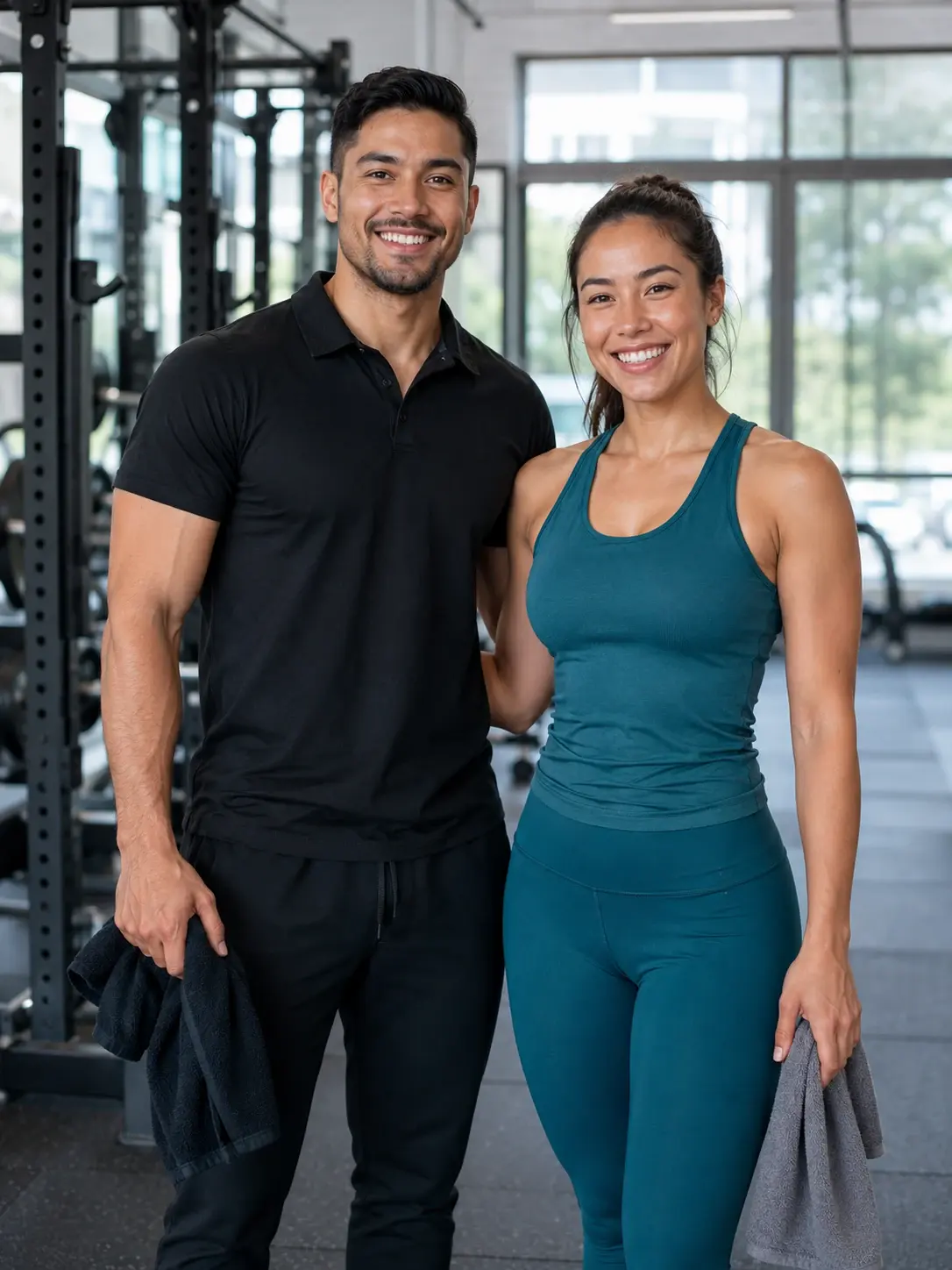
The gym photos still look like the same people and the same room. The difference is that the expression reads more confident.
Hana W.
AI Art Hobbyist
I like that I do not have to write a prompt. I upload a portrait, run it, and decide whether the expression fits the character.
Julian T.
Brand Designer
For persona boards, a subtle smile can change how approachable the image feels while keeping the rest of the visual direction stable.
Add a Natural Smile to Your Portrait
Upload one photo and create a warmer smiling version while keeping the same person, outfit, and scene.