Expand Photos with AI
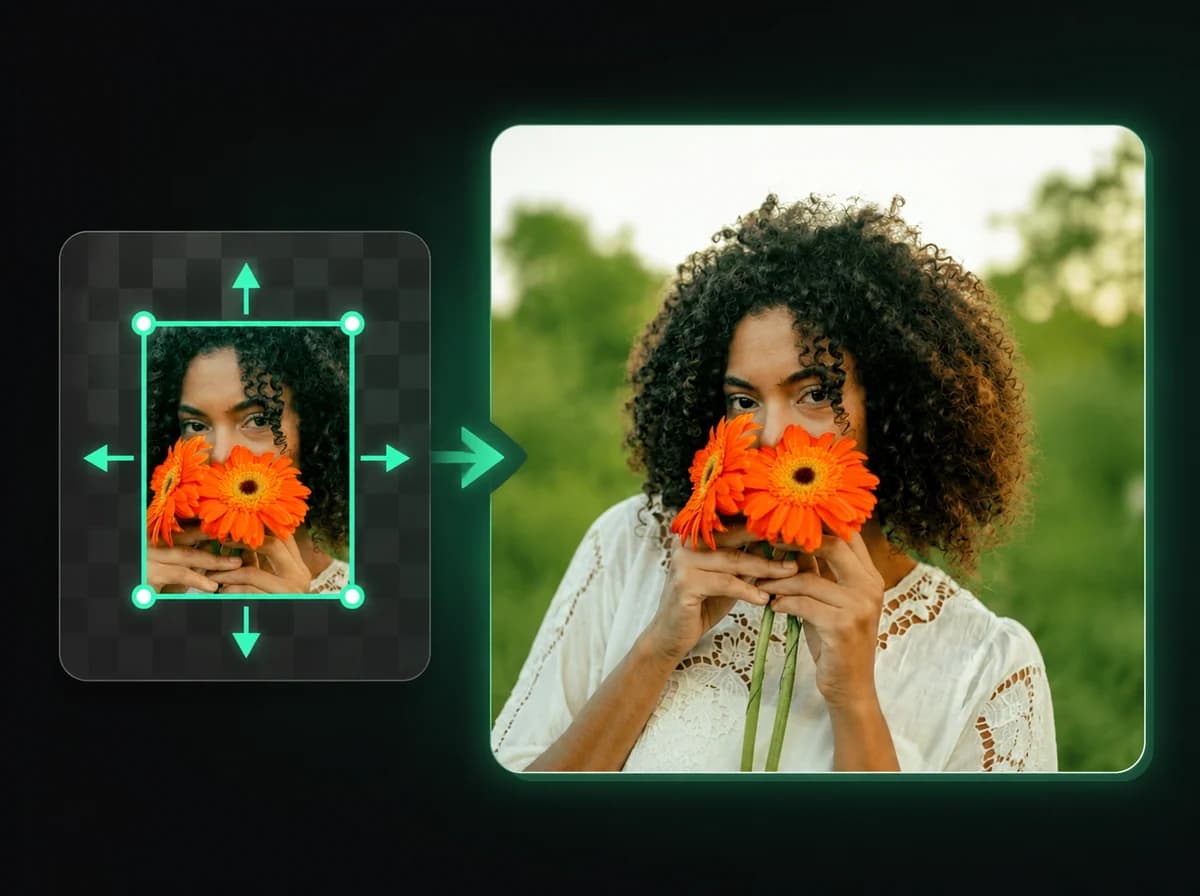
Upload an image, pick an aspect ratio, and AI fills the rest. No manual patching, no clone stamp, no empty white borders.
Click to upload or drag and drop
PNG, JPG, WebP (Max 10MB)
Expand an Image in 3 Steps
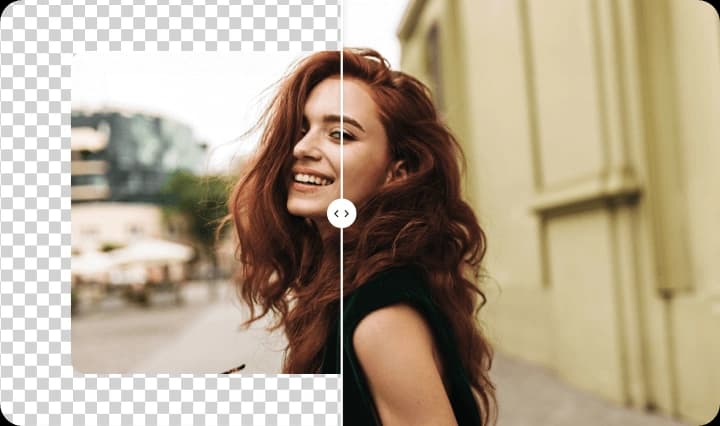
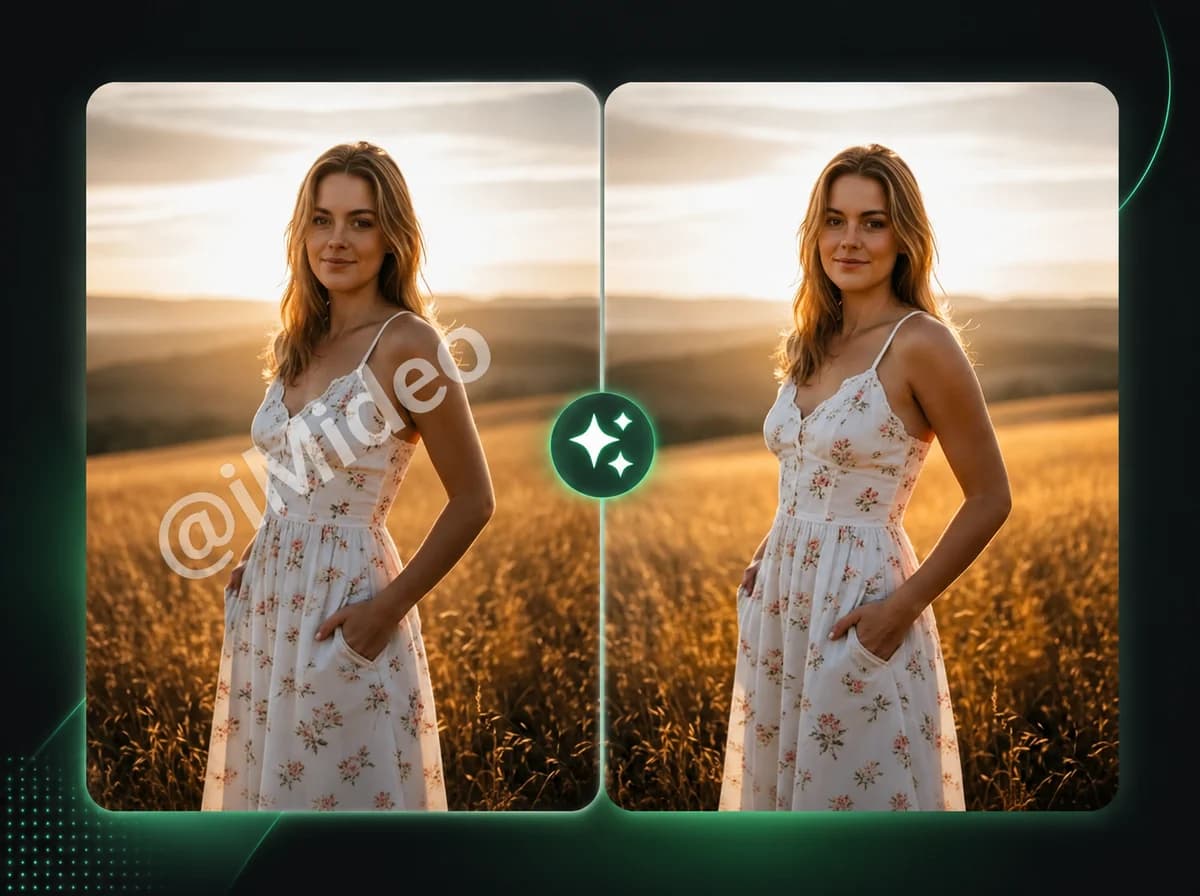
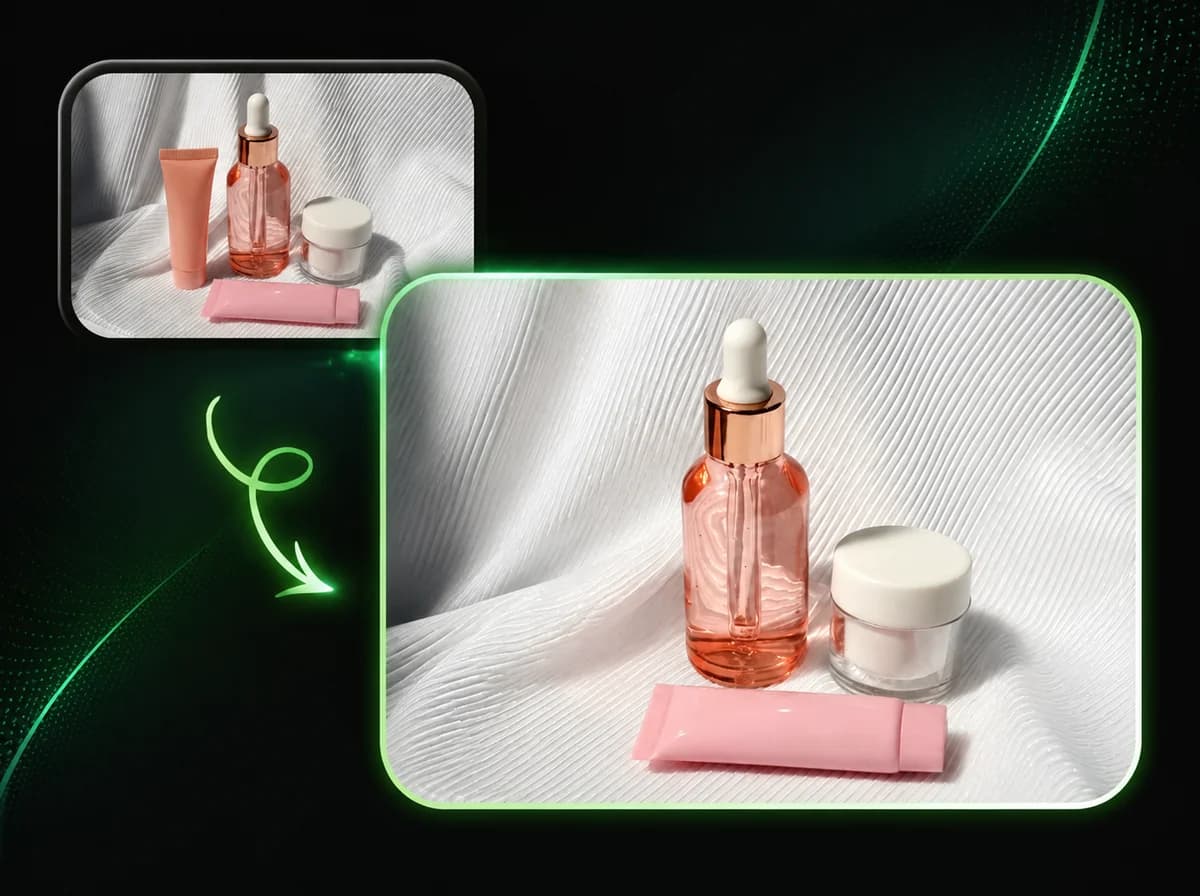
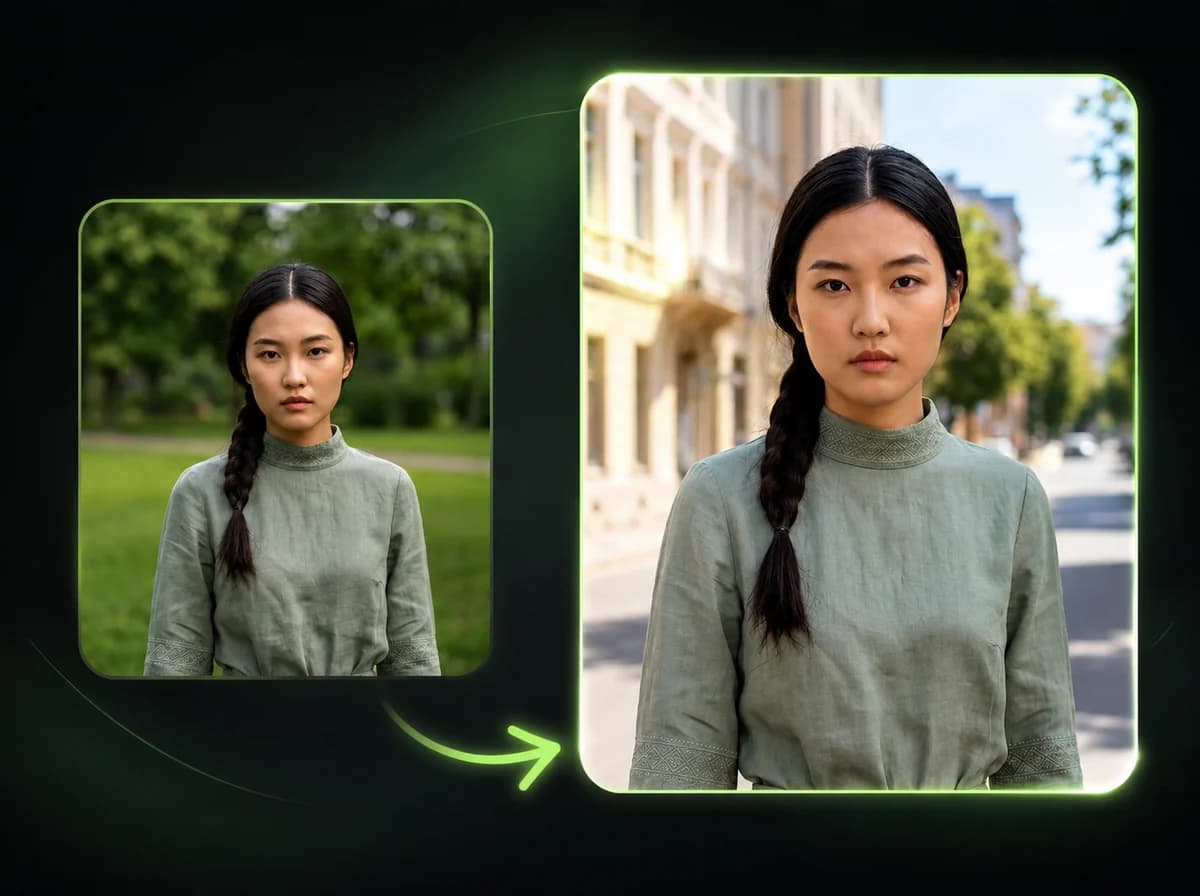
Change your image's aspect ratio without cropping — AI fills the new space after processing
Upload Your Image
Select the photo you want to expand. PNG, JPG, and WebP files up to 10 MB are supported. Click to browse or drag and drop directly into the upload area. The clearer and sharper your source image, the more coherent the AI-generated extension will be.
Choose an Aspect Ratio
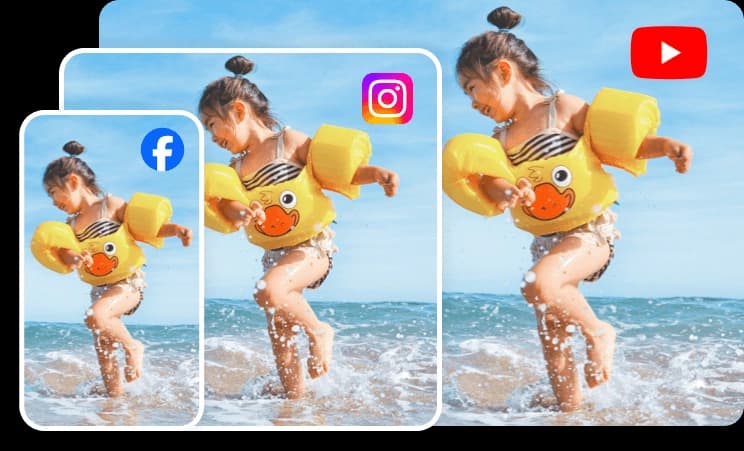
Select from seven preset ratios: 1:1 for social media squares, 16:9 for YouTube and widescreen, 9:16 for Stories and Reels, 4:3 for presentations, 3:2 and 2:3 for standard photography formats, or 3:4 for portrait crops. The AI expands the canvas to your selected ratio while keeping your original image intact at the center.
Download Your Expanded Image
Once the AI finishes processing, download your expanded image as a JPEG. The new areas are generated from the original scene context — including lighting, background texture, and visible surroundings — so you can review the result for design, social, or publishing workflows.
Why Use iMideo Image Expander
7 Ratio Presets
Choose from 1:1, 16:9, 9:16, 4:3, 3:4, 3:2, and 2:3 — all standard formats for social media, print, and screen display.
Fully Automatic
Upload your image, select a ratio, and the AI handles the rest. No manual masking, prompting, or editing required.
Fast Processing
Expansion runs in a browser workflow with progress shown after submission. Processing time depends on image size, expansion area, and server load.
Multiple Input Formats
Accepts PNG, JPG, and WebP files up to 10 MB — the standard formats from cameras, phones, and design tools.
Secure Processing
Your images are processed securely and not retained after the task completes. Uploaded files are not used for training or shared as public assets.
Credit-Based Pricing
New users receive free credits on sign-up. Each expansion costs 2 credits. View the pricing page for plan details.
What Our Users Say
Rachel Kim
Social Media Manager
I constantly need the same photo in multiple aspect ratios — Stories, feed posts, YouTube thumbnails. Expanding with AI means I keep the original subject and let the AI fill the extra space. The results are clean enough for our social workflow.
James Okafor
E-Commerce Photographer
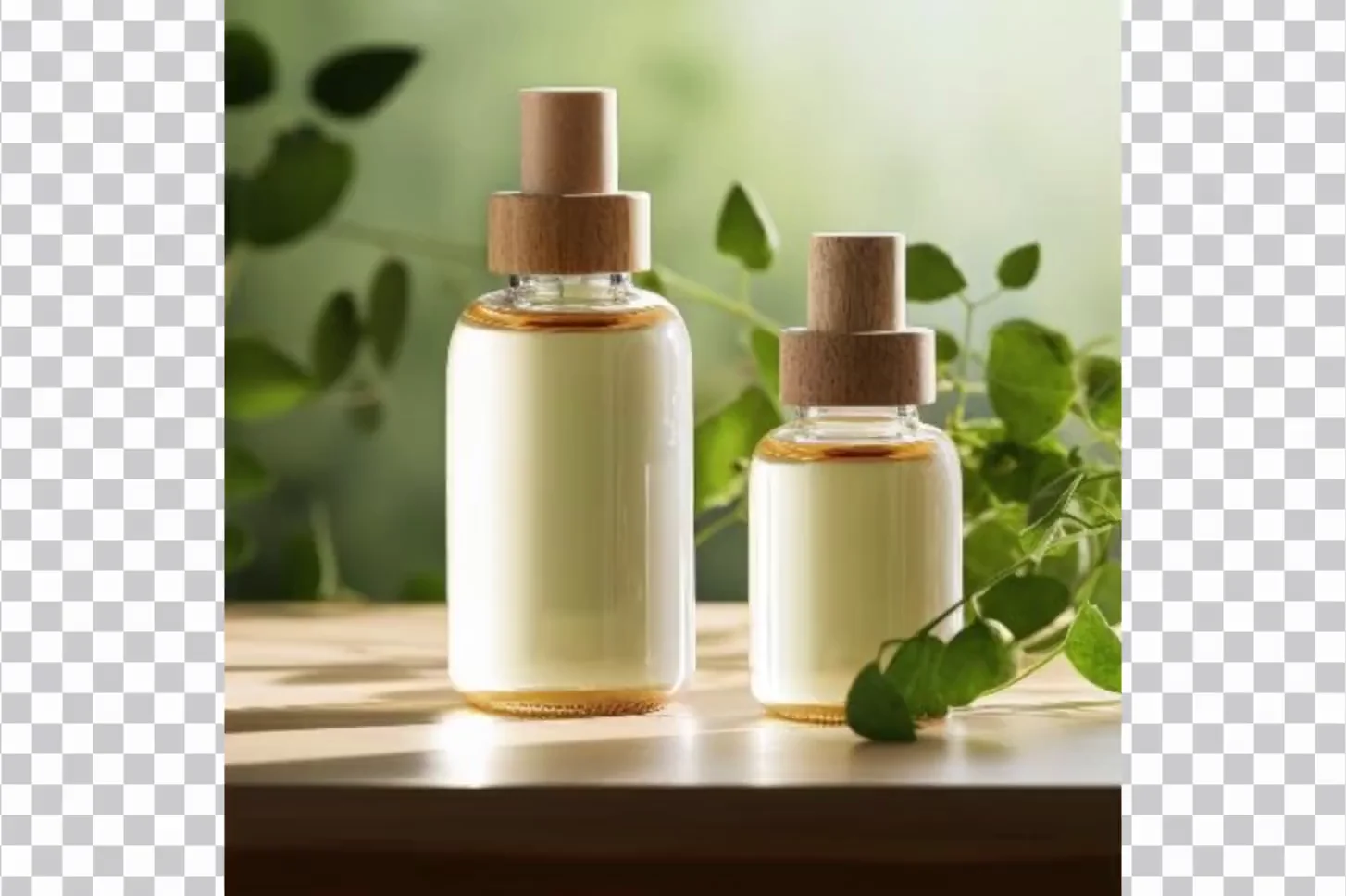
Product shots often come in square format but our banners need 16:9. Instead of reshooting or using white backgrounds first, I expand with AI and review the background fill. It often gives us a usable first pass for banner assets.
Mia Hoffmann
Graphic Designer
Client supplies a tight crop and wants it as a full-bleed hero image. Used to mean a reshooting request. Now I expand the canvas and the AI fills the background convincingly. Not every image works, but the hit rate is high enough that it's my first step.
David Chen
Travel Photographer
Some of my best shots are slightly too tight for the composition I wanted. The AI extends the sky and landscape edges in a way that holds up well. Sky gradients in particular blend cleanly. Useful for prints where I need more canvas around the subject.
Priya Nair
Content Creator
Switching between portrait and landscape for different platforms used to mean sacrificing part of the image. Now I upload once and expand to one of the supported ratios. The background fill on simple lifestyle photos often blends cleanly enough for social drafts.
Tom Bergman
Marketing Director
Campaign images come from various sources with inconsistent aspect ratios. We standardize many assets to 16:9 for our website and 4:3 for print. The AI expansion keeps the subject intact and fills the rest, which makes review simpler.
Sarah Liu
Freelance Art Director
I use it for presentation mockups where the supplied image doesn't fit the slide ratio. The AI is good with simple backgrounds — gradients, blurred bokeh, studio setups. For complex scenes it's hit or miss, but for clean product and portrait shots it often works well enough for mockups.
Alex Moreau
Real Estate Agent
Property exterior photos are usually shot square or portrait, but our website carousel needs 16:9. Expanding the sky and foreground with AI works well for many exterior shots where the edges are open sky or grass, which helps avoid some retakes.
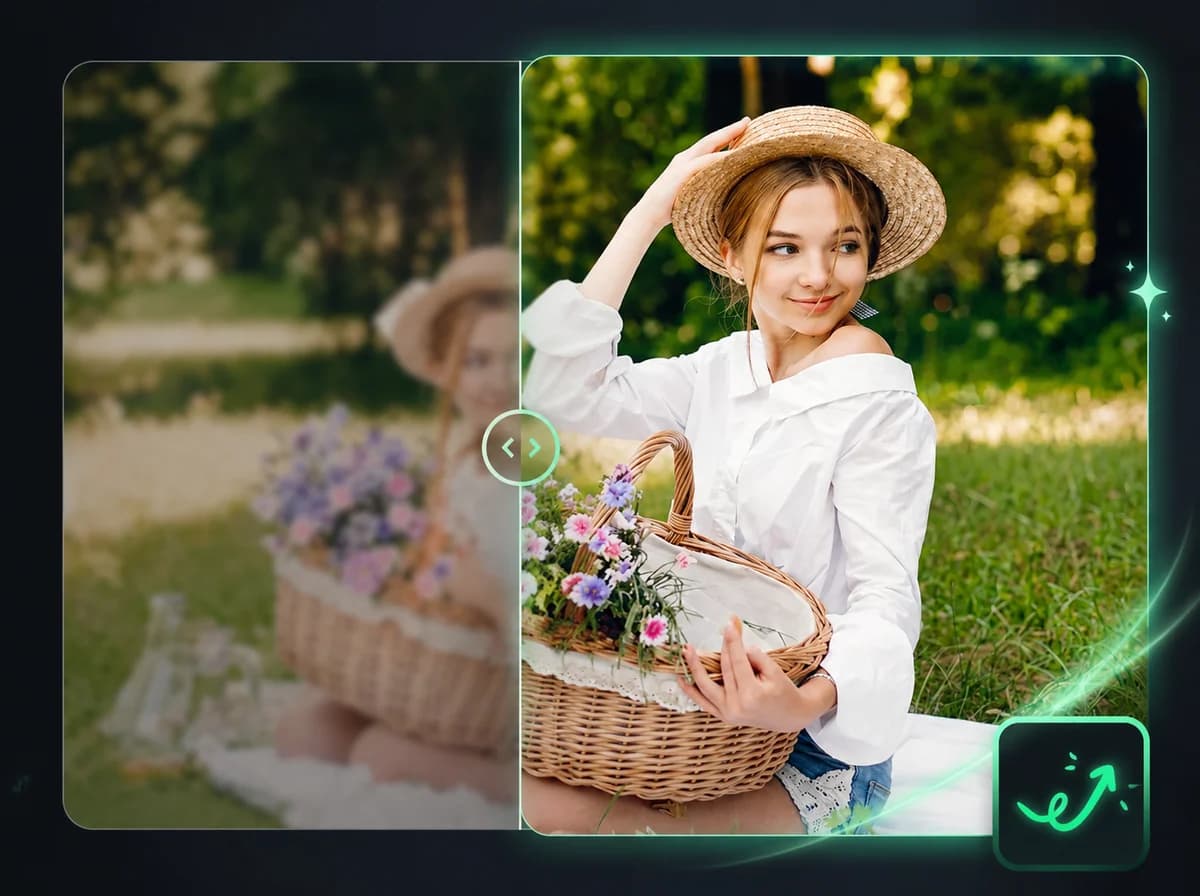
More space. Same subject.
Expand photos to supported aspect ratios — pick a preset, and AI fills the new area based on the original image context.