
Introduction
If you searched for a face swap photoshop alternative, you probably are not looking for a 40-minute retouching lesson before you get one usable image. You want to start with a clear source photo, put that face into a target photo, and quickly see whether the result is good enough to post, send, or keep editing.
For this timed test, both tools get the same beginner task: a front-facing source image, a target portrait shot from a similar angle, and a goal of publishable static-image quality. The AI route uses iMideo's face swap photoshop alternative. The Photoshop route uses manual selection, alignment, masks, color matching, and cleanup.
This comparison matters because the fastest workflow is not always the right one for every image. By the end, you should know whether a face swap photoshop alternative is enough for your first 5-minute attempt, or whether Photoshop is worth the extra control.
Quick comparison table: face swap photoshop alternative timing
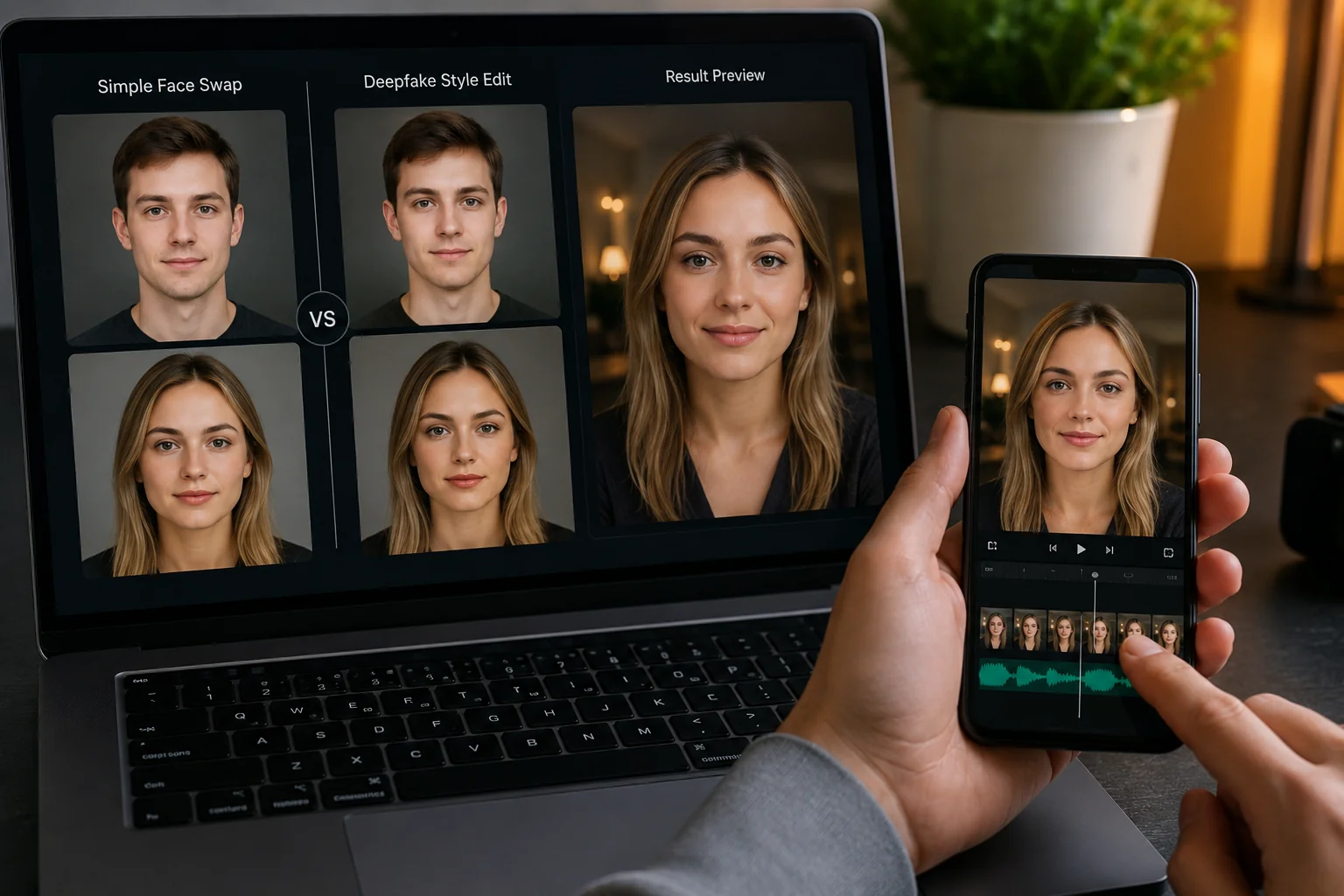
Use this table as a quick decision map before you start. A face swap photoshop alternative is usually faster because it handles the fragile steps for you, but Photoshop still gives you more control when the image has tricky hair, hands, shadows, or props near the face.
| Step | Photoshop Manual Route | AI Face Swap Route |
|---|---|---|
| Prepare two images | 1-3 minutes | 1-3 minutes |
| Align eyes, mouth, and face angle | 5-12 minutes | Usually automatic |
| Blend edges and skin | 10-25 minutes | Generated in one pass |
| Fix lighting and details | 10-30 minutes | Review and retry if needed |
| Export first usable result | 30-60 minutes for beginners | 2-5 minutes for a first usable result |
Photoshop overview: manual benchmark for a face swap photoshop alternative
Photoshop is the control-heavy baseline for judging any face swap photoshop alternative. If you search terms like face swap photoshop, swap faces photoshop, or swap faces photoshop adobe, most tutorials teach a layer-and-mask workflow. It can look excellent, but only if you have patience and a steady eye.
The manual workflow starts by opening both images and duplicating the target layer, so you can undo safely. Next, you select the source face with a lasso, object selection, or pen-style edge, then copy it and paste it above the target image.
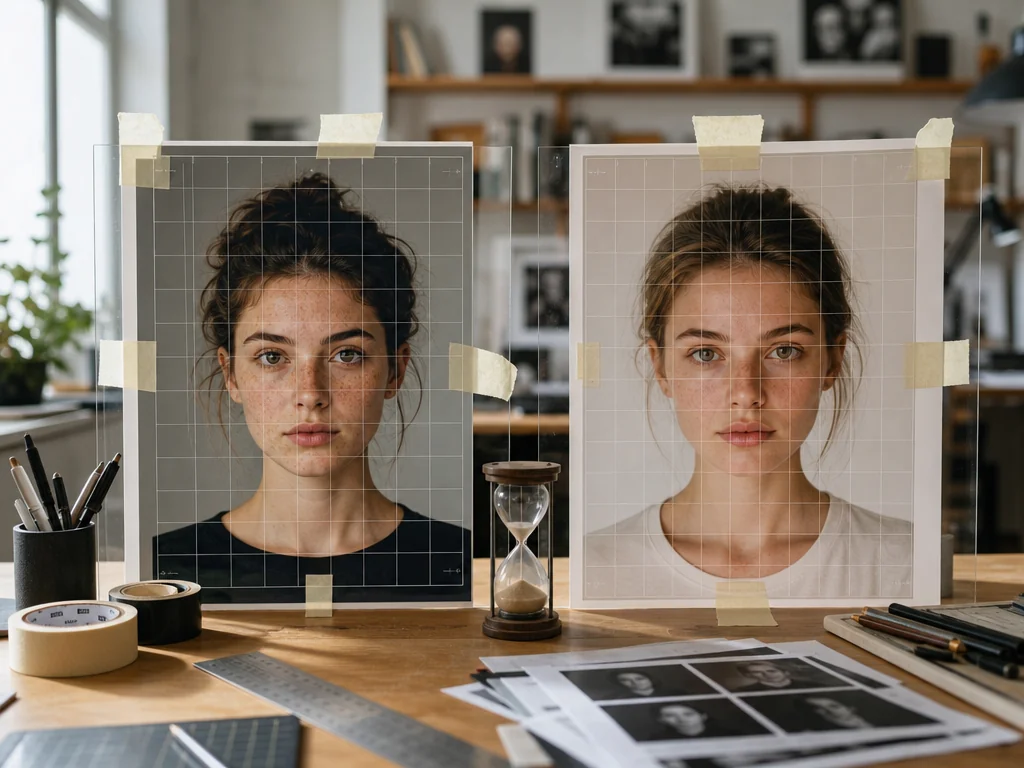
Then the slow part starts. You lower the pasted face opacity, use Free Transform or Warp to line up the eyes, nose, mouth, and jaw, add a layer mask, and paint with a soft brush until the edges stop looking pasted on.
After alignment, you still need to match skin tone, contrast, and light direction. A beginner often uses Curves, Hue/Saturation, Color Balance, the healing brush, and clone cleanup to make the face sit naturally in the target photo.
- Step 1: Choose two photos with similar camera angles and expressions.
- Step 2: Paste the source face onto the target and align the eyes first.
- Step 3: Add a layer mask and hide hard edges around cheeks, forehead, and chin.
- Step 4: Adjust color, shadows, highlights, and texture until the result feels cohesive.
- Step 5: Zoom out, check whether the face looks natural, then export.
Photoshop pros
- Best when you need pixel-level control for commercial retouching or a campaign image.
- Useful when hair, hands, glasses, or heavy shadows overlap the face.
- Flexible if you want to swap Photoshop like a professional and keep editable layers.
Photoshop cons
- Slow for a first-time user who only wants a fast test result.
- Easy to create mismatched skin, blurry edges, or warped facial proportions.
- Not the most practical face swap photoshop alternative when you need several drafts quickly.
AI face swap overview: the fast face swap photoshop alternative
An AI workflow is built for the user who wants the result first and the detailed touch-up later. As a face swap photoshop alternative, it removes the need to manually cut, align, mask, and color-match the face before you can judge whether the idea works.
The iMideo Web workflow is simple: open the image face swap tool, upload the source face photo, upload the target photo, start the generation, then review the result. If the first result is rough, change the source image or target image instead of spending 20 minutes repairing a weak match by hand.
For the best first attempt, use a sharp source photo where the face is visible, not blocked by hair, sunglasses, or strong motion blur. Choose a target image with a similar head angle and expression, because any face swap photoshop alternative has an easier job when both images already agree.
The biggest speed advantage is that the AI handles alignment and blending in one pass. It tries to preserve the target expression, lighting, and surrounding context where possible, so your review step becomes a creative call instead of a technical repair session.
- Step 1: Upload a clear source face image.
- Step 2: Upload the target photo where you want that face to appear.
- Step 3: Generate the image and check the eyes, mouth, jawline, and skin edges.
- Step 4: Download the best result, or retry with a cleaner image pair.
AI face swap pros
- Fast enough for social drafts, avatar tests, concept previews, and beginner practice.
- Lower learning curve because you do not need to master layers, masks, or brush settings.
- Good fit when your main goal is to create several options and pick the strongest one.
AI face swap cons
- Less manual control than Photoshop when you need exact brand styling or detailed retouching.
- Weak input images can still produce odd edges, mismatched angles, or unnatural expressions.
- You should use images you have rights or permission to edit, and consent rules vary by region.
AI Face Swap Online
Swap faces in photos with AI. Upload two images to blend a source face into a target photo while preserving expressions, lighting, and context where possible.
Free to start • No credit card required • Professional quality
Key differences in a face swap photoshop alternative workflow
The real question is not whether one tool wins every time. The useful question is where a face swap photoshop alternative saves you time, and where Photoshop still protects quality.
- Speed: AI wins the first draft because the upload-generate-download path removes most manual work. Photoshop takes longer because every alignment and blend decision is yours.
- Learning curve: AI is friendlier for a first-time user who has never used masks. Photoshop rewards practice, but the first session can feel slow if you are only trying to swap faces Photoshop-style once.
- Control: Photoshop gives you precise control over edges, texture, color, and shadows. AI gives you faster iteration, but you usually guide quality by choosing better input images rather than editing every pixel.
- Failure recovery: With Photoshop, a bad edge can be repaired manually. With AI, it is often faster to retry with a cleaner source photo, a more similar target angle, or softer lighting.
- Quality ceiling: A skilled editor can still make Photoshop look more polished for complex composites. A face swap photoshop alternative is strongest when the source and target photos are already compatible.
- Iteration volume: AI is better for testing ten ideas before choosing one. Photoshop is better after you have chosen one image that deserves detailed finishing.
If you want a broader planning checklist before choosing images, the complete AI face swap guide for 2026 breaks down source quality, target selection, and common creative uses. That wider workflow helps you avoid the beginner mistake of blaming the tool when the photo pair is the real problem.
Which face swap photoshop alternative should you choose?
Choose Photoshop when the image is for a polished commercial layout, a client review, or a complex composite where hair, hands, glasses, shadows, or brand colors must be controlled carefully. It is also the better option when you need a layered file that another designer can inspect and adjust later.
Choose AI when you are making your first face swap, testing a profile image, drafting a social post, or comparing several concepts before investing time in cleanup. For a first-time creator, a face swap photoshop alternative gives you the fastest path from zero to a result you can actually judge.
A practical hybrid workflow is often best: generate the face swap with AI, then use Photoshop only if the winning version needs tiny edge, color, or background fixes. If your goal is quick humor or social sharing, this fast face swap meme workflow shows how creators move from idea to shareable image without building a full retouching project.
Final take: choosing a face swap photoshop alternative
In this timed comparison, Photoshop remains the stronger choice for detailed control, complex image repair, and professional finishing. It can help you swap faces with precision, but the beginner path includes selection, alignment, masking, color correction, lighting fixes, and edge cleanup before you see a final result.
If your goal is a first usable image in minutes, a face swap photoshop alternative is usually the smarter starting point. Upload two compatible photos, review the generated result, and only move into manual editing if the image deserves extra polish.
For most first-time users, the decision is simple: start with AI for speed, then use Photoshop as a finishing tool when quality demands it. That workflow keeps creation accessible while still leaving room for professional refinement.
FAQ about a face swap photoshop alternative
Why is AI face swap faster than Photoshop?
A face swap photoshop alternative is faster because it automates selection, alignment, blending, and basic tone matching. In Photoshop, you handle each of those steps manually.
Does AI face swap match Photoshop quality?
It can match Photoshop for simple, compatible photos. Photoshop can still win when the image needs detailed edge repair, complex lighting fixes, or exact creative control.
When should I still use Photoshop instead?
Use Photoshop for client work, brand visuals, print assets, or images with occlusions such as hair, hands, glasses, and dramatic shadows.
Can I combine Photoshop touch-ups with AI face swap?
Yes. A common workflow is to generate with AI first, then use Photoshop for final color, edge, or background refinements.
Are Photoshop face swap tutorials still useful in 2026?
Yes. Even if you use a face swap photoshop alternative, Photoshop tutorials teach the visual basics of alignment, masking, and realistic blending.