
Introduction
You just saw a hilarious face swap on TikTok, and now you're wondering how to face swap on iPhone without paying for Photoshop or fumbling with a desktop app. Good news: you don't need either. Your iPhone already has most of what you need, and one free browser tool handles the rest.
In this tutorial, you'll learn two methods to face swap on iPhone in under 60 seconds. The first uses iOS 17+ native features (Photos' Lift Subject plus Shortcuts) to isolate a face natively. The second uses a browser-based AI Face Swap tool that works directly in Safari, no app install required. By the end, you'll have a saved, share-ready face swap in your camera roll, ready to drop into iMessage or Instagram.
I'll walk through every tap, flag the iPhone-specific gotchas (HEIC, Live Photos, Portrait Mode), and share a tip that automates repeat swaps. Let's get started.
What you'll need
Before you learn how to face swap on iPhone, gather these basics. The whole setup takes about a minute.
- iPhone running iOS 17 or later. iPhone 11 and newer work best (Lift Subject relies on the Neural Engine).
- Two clear photos in your Camera Roll: a source face (the face you want to use) and a target photo (where that face will land). Front-facing, well-lit shots produce the cleanest results.
- Safari browser. No app download needed for Method 2.
- A stable Wi-Fi or 5G connection for the AI processing step. It runs in the cloud, so your battery barely moves.
- Optional: the Shortcuts app (pre-installed) if you want to automate repeat swaps.
That's it. No subscription, no Photoshop, no learning curve.
Step-by-step guide
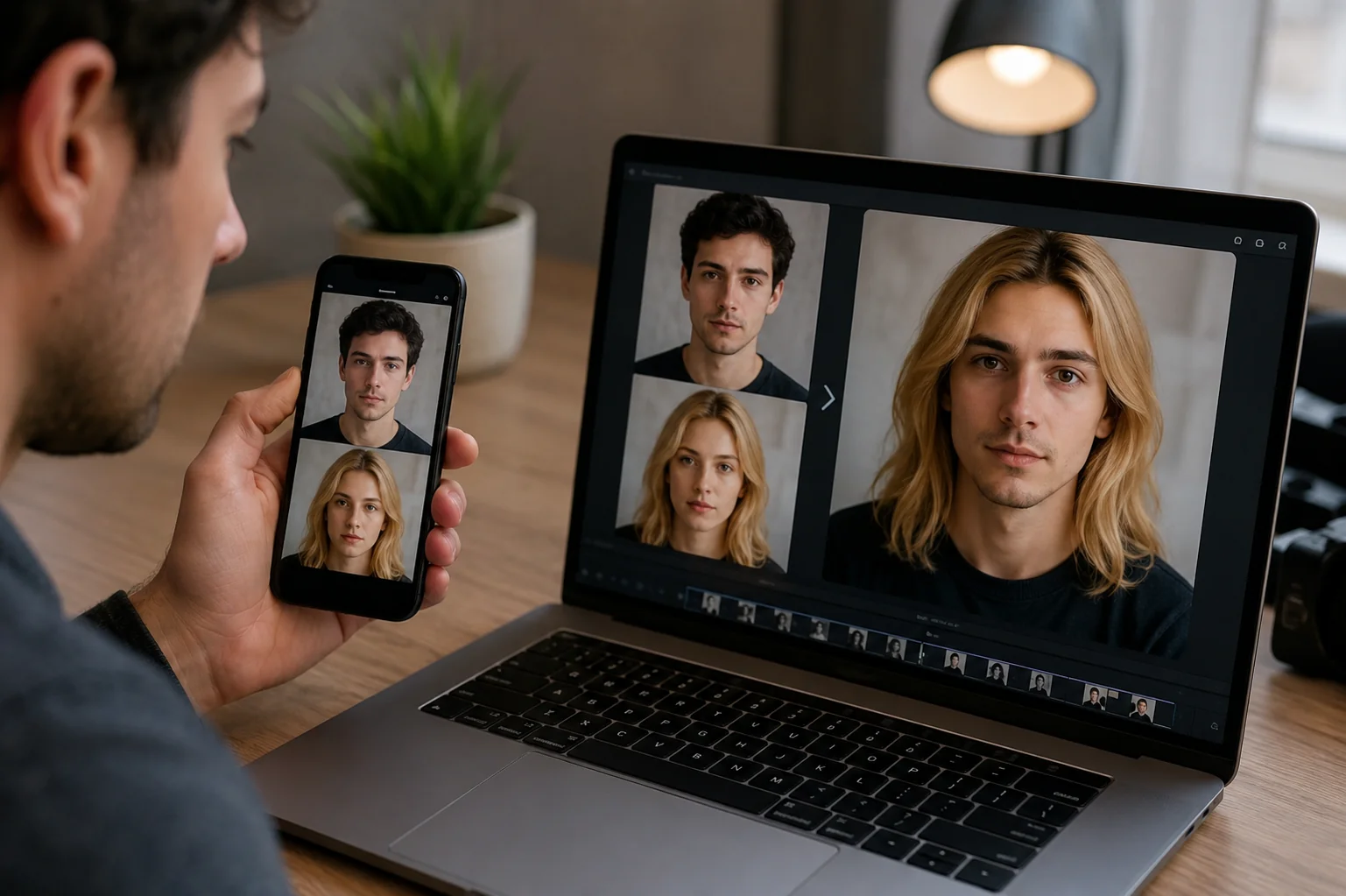
Here's the full walkthrough for how to face swap on iPhone, from camera roll to final share. I'll cover both methods so you can pick whichever fits your situation.
Method 1: iOS native prep (Lift Subject + Shortcuts)
This method uses your iPhone's built-in tools to isolate a face cleanly before swapping. It's the step most users skip, and honestly, it makes a bigger difference than you'd think.
- Open Photos and find your source face photo.
- Touch and hold the face for about a second. You'll feel a subtle haptic tap, and a glowing outline appears around the subject. That's Lift Subject at work.
- Tap "Copy" from the popup menu. The isolated face (no background) is now on your clipboard.
- Open Notes or Files, paste it, and save as a PNG. This becomes your clean source for the swap.
Why bother? A background-free source gives the AI a cleaner face reference, which improves output quality. Skip this step and you'll often get weird edge artifacts.
Method 2: Browser-based face swap in Safari
Now for the actual swap. This part takes six taps and runs entirely in Safari.
- Open Safari and go to imideo.net. Tap the face swap tool from the homepage.
- Upload your target photo, the image where you want the new face to appear. Tap the upload box, choose "Photo Library," and select.
- Upload your source face: the PNG you saved from Method 1, or any clear face photo from your library.
- Tap "Generate" (or the equivalent action button). Processing usually takes 10 to 30 seconds.
- Preview the result. Pinch to zoom in and check the eyes, mouth, and jawline for natural blending.
- Tap and hold the result image, then choose "Save to Photos". Done. It's now in your Camera Roll.
Share to iMessage or Instagram
From Photos, tap the share icon and pick iMessage, Instagram Stories, or any app you want. The saved file is a standard JPG, so it works everywhere. No format conversion needed.
That's the entire workflow. First time through takes about 2 minutes. After you've done it once, you'll be under 60 seconds.
AI Face Swap
Swap faces in photos with AI. Upload two images and keep natural expressions, lighting, and image quality in seconds, no Photoshop needed.
Free to start • No credit card required • Professional quality

Pro tips for best results
Once you've nailed the basics of how to face swap on iPhone, these tips will take your results from "fun" to "actually believable."
- Match the lighting direction. If your target photo has light coming from the left, pick a source face also lit from the left. Mismatched lighting is the #1 reason swaps look fake.
- Match the face angle. A straight-on source face won't blend cleanly onto a 3/4 profile target. Pick source photos with similar head tilt and rotation.
- Use high-resolution sources. Avoid compressed screenshots from social media. Original camera roll photos give the AI more detail to work with.
- Avoid heavy filters on the source. Beauty filters, Snapchat lenses, and aggressive smoothing strip the facial features the AI needs to read.
- Automate with Shortcuts. Build a custom Shortcut that opens Safari directly to the face swap page and pre-fills your most-used source face. Tap once, swap forever. Open the Shortcuts app, tap +, search "Open URLs," and point it at the imideo.net face swap page. Add it to your Home Screen for instant access.
- Try Head Swap for full hair changes. If you also want to swap hairstyles, not just facial features, check our comparison of when to use head swap vs face swap.
Common issues & troubleshooting
Most face swap problems on iPhone come down to three culprits. Here's how to fix them fast.
- HEIC format errors. iPhones save photos as HEIC by default, and some web tools choke on it. Fix: go to Settings → Camera → Formats → Most Compatible. New photos save as JPG. For existing HEICs, AirDrop them to yourself and they auto-convert.
- Live Photos uploading as videos. The face swap tool needs a still image. Fix: in Photos, open the Live Photo, tap Edit → Live icon → Live Off, then save. Or use the Key Photo as a still export.
- Portrait Mode blur confusing the AI. Heavy background blur sometimes makes the AI misread depth. Fix: open the Portrait photo, tap Edit, drag Depth to 0 (no blur), and save a copy.
- Result looks blurry. Your source face was too small or low-res. Re-crop tighter on the face before uploading.
Conclusion
That's the complete playbook for how to face swap on iPhone without Photoshop. By combining iOS 17's Lift Subject with a browser-based image face swap tool, you can go from camera roll to share-ready result in under a minute, with zero app downloads.
Try it once with a fun group photo, then explore the tips above to refine your output. When you're ready to go deeper, whether that's comparing tools, learning the tech behind the swap, or picking a dedicated mobile app, start with our complete guide to AI face swap in 2026 or see which app won our hands-on test in the best face swap app for iPhone roundup.
FAQ
Does iPhone have a built-in face swap feature?
Not a full face swap, but iOS 17+ includes Lift Subject in Photos, which isolates faces cleanly. Pair it with a browser-based AI tool to complete the swap natively.
Can I face swap on iPhone without downloading an app?
Yes. Open Safari, go to a web-based face swap tool like imideo.net, upload two photos, and save the result to Photos. No App Store install required.
Which iPhone face swap method gives the best quality?
The browser-based AI method delivers the most realistic results because it runs cloud-based models. Native iOS tools only handle isolation, not blending.
Will face swap drain my iPhone battery?
Barely. The heavy AI processing happens in the cloud, so your iPhone only handles the upload and download. Typically under 1% battery per swap.
Can I face swap a Live Photo on iPhone?
Convert it to a still first. Open the Live Photo, tap Edit, turn Live off, and save. Then upload the resulting JPG to your face swap tool.