

Introduction
If you've ever scrolled through TikTok or Instagram and seen a hilariously realistic face swap video, you've probably wondered: which app did they use? Finding the best face swap app for iPhone in 2026 isn't just about picking the flashiest tool. It's about choosing one that respects your privacy, takes advantage of your iPhone's hardware, and delivers results that actually look convincing.
This year, things have changed. Apple's Neural Engine is faster than ever, iOS privacy frameworks have matured, and a new generation of AI-powered apps can process face swaps with remarkable realism. But not every app takes advantage of these upgrades, and some still rely on sketchy cloud-only pipelines that leave your photos sitting on unknown servers.
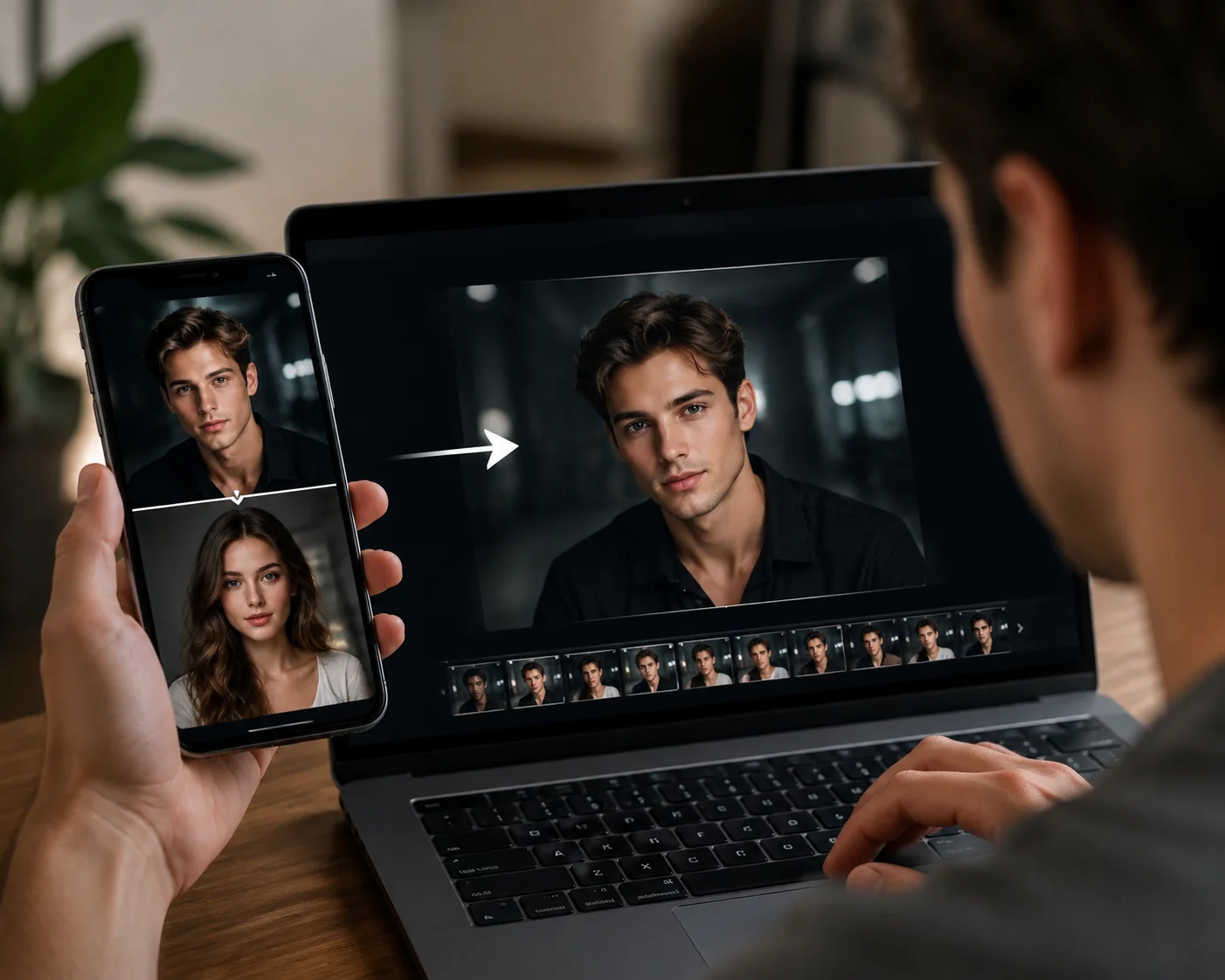
This guide walks you through everything you need to know: how iPhone face swapping actually works in 2026, which apps deserve your trust, and a step-by-step tutorial for getting cinema-quality results right from your pocket. Whether you're creating content for Reels, pranking a friend, or exploring creative projects, you'll leave this article knowing exactly which face swap app on iPhone to download and how to use it like a pro. If you're also curious about bringing face swaps into full video projects, check out AI Video Face Swap for frame-by-frame capabilities.
Key takeaways
- iPhone hardware matters: A16 Bionic and newer chips with dedicated Neural Engine cores dramatically speed up on-device face swap processing.
- Privacy-first apps exist: Look for apps that process locally or clearly disclose server-side data retention policies before uploading your face.
- Source photo quality is everything: Using your iPhone's Portrait Mode and proper lighting yields far more realistic swaps than random selfies.
- iMideo stands out for mobile users: It offers both face swap and head swap on iOS with straightforward processing and no intrusive ad walls.
- Export format matters: Choosing HEVC for iMessage and H.264 for cross-platform sharing preserves quality without bloating file size.
What is face swapping on iPhone?
Face swapping is an AI-driven technique that detects facial landmarks (eyes, nose, mouth, jawline) in a source image and maps them onto a target face in another photo or video. The result is a composite where the target person appears to have the source person's facial features, while their original hair, head shape, and body remain intact.
Why iPhone face swapping is different in 2026
On iPhone, this process benefits from hardware you won't find on most Android devices. Apple's Neural Engine, now packing 16+ cores on A17 Pro and M-series chips, can run machine learning inference locally at speeds that rival cloud processing for single-image tasks. A well-optimized app can swap faces without ever sending your photo to a remote server.
iOS 19 also introduced stricter on-device privacy APIs. Apps must now declare whether face data leaves the device, and the App Privacy Report shows you exactly when camera or photo library access occurs. For privacy-conscious users searching for the best face swap app for iPhone in 2026, these system-level protections add a safety net that no Android equivalent currently matches.
It's also worth understanding the difference between face swap and head swap. Face swap replaces only the inner facial features (eyes, nose, mouth) while preserving the target's hair and head shape. Head swap replaces the entire head, including hair, which is ideal for cosplay-style transformations or creative projects where hairstyle changes matter. For a deeper look at both techniques, read our ultimate guide to AI face swap in 2026.
ProRes video support on iPhone 15 Pro and later also means you can feed face swap apps higher-quality source footage with less compression artifacting. That gives the AI cleaner data to work with and produces noticeably smoother results.
Why choosing the right face swap app matters
Not all face swap apps are created equal, and picking the wrong one can cost you more than just a bad result. Here's why your choice matters:
Privacy risks are real
Some apps upload every photo you select to remote servers with vague data-retention policies. Your face is biometric data. Once it's on someone else's server, you lose control. A trustworthy face swap app for iPhone either processes on-device or provides transparent, time-limited server storage with clear deletion policies.
Quality varies wildly
Budget apps often produce swaps with visible seam lines, mismatched skin tones, or distorted expressions. The best tools in 2026 use advanced blending algorithms that account for lighting direction, skin texture, and even micro-expressions. The results hold up on a 6.7-inch Super Retina display, which is honestly the toughest test.
iPhone-specific optimization
An app built for iOS can tap into Core ML, the Neural Engine, and Metal GPU acceleration. Generic cross-platform ports often ignore these frameworks entirely, which means slower processing and higher battery drain. When you're evaluating the best face swap app for iPhone in 2026, check whether the developer mentions Core ML or on-device processing. It's a reliable quality signal. You can also compare how different apps handle the face-versus-head distinction in our head swap vs face swap comparison.
How iPhone face swap apps work
Understanding the pipeline helps you troubleshoot bad results and choose better source photos. Here's the simplified flow most quality apps follow in 2026:
Step 1: Face detection
The app uses Apple's Vision framework or a custom neural network to locate faces in both your source and target images. It identifies 68+ facial landmark points (corners of the eyes, tip of the nose, edges of the lips) and creates a precise mesh of each face.
Step 2: Alignment and warping
The source face mesh is geometrically transformed to match the target face's pose, angle, and proportions. This is where iPhone hardware shines: the Neural Engine handles matrix transformations in real time, so apps optimized for iOS can preview the alignment before you even tap "generate."
Step 3: Blending and color matching
Raw face replacement looks obviously fake because lighting and skin tone differ between photos. Advanced apps perform histogram matching and Poisson blending to merge the source face into the target's lighting environment. The best face swap apps on iPhone in 2026 also adjust for shadow direction using depth data from Portrait Mode photos.
Step 4: Refinement
A final AI pass smooths edge artifacts, corrects any expression mismatches, and sharpens details. For video face swaps, this step runs per-frame with temporal consistency checks so the face doesn't "flicker" between frames.
This entire pipeline can execute in under three seconds for a still image on an A16 chip or newer. Video processing takes longer, typically 10–30 seconds per clip, but the quality ceiling has risen dramatically compared to even a year ago.
If you want to take your face swaps beyond single clips into full video projects with frame-by-frame precision, explore iMideo's video face swap tools on the web for extended-length processing.
AI Video Face Swap
Transform videos with AI face swap technology. Upload images to create realistic face replacements. Fast processing and HD output.
Free to start • No credit card required • Professional quality

How to get started: step-by-step tutorial
Ready to create your first face swap on iPhone? Follow this walkthrough to go from download to share-worthy result in minutes.
Prerequisites
- iPhone model: A16 Bionic or newer recommended (iPhone 14 Pro and later). Older models work but process slower and may experience thermal throttling on video swaps.
- iOS version: iOS 18 or later for full privacy API support.
- Storage: At least 500 MB free. AI models are cached locally after first run.
Step 1: Install a trusted app
Download iMideo from the App Store. It supports both face swap and head swap on iOS, with no ad walls gating core features. On first launch, the app will request camera and photo library access. Grant "Selected Photos" rather than full library access if you prefer maximum control.
Step 2: Choose your source photo
Your source photo is the face you want to transplant. For the most realistic face swap on iPhone, follow these tips:
- Use a front-facing, well-lit photo. Natural window light works best.
- Avoid sunglasses, heavy shadows across the face, or extreme angles.
- Shoot at your iPhone's native resolution (don't crop beforehand).
- Portrait Mode shots give the AI additional depth data for better blending.
Step 3: Choose your target
The target is the photo or video where the swapped face will appear. For still images, any clear face shot works. For video targets, shorter clips (under 15 seconds) process faster and maintain higher quality.
Step 4: Generate and adjust
Tap the swap button and let the Neural Engine do its work. On an iPhone 15 Pro, a still-image swap typically completes in 2–3 seconds. Once generated, review the result at full zoom. Check the jawline blend, eye alignment, and skin tone match. Most apps let you regenerate if the first attempt isn't ideal.
Step 5: Export for sharing
Choose your export format based on where you're sharing:
- iMessage / AirDrop: HEVC (H.265) preserves quality at smaller file sizes, ideal for Apple-to-Apple sharing.
- Instagram Reels / TikTok: H.264 at 1080p ensures maximum compatibility across platforms.
- iCloud Photos: Save at original resolution; iCloud handles format optimization automatically.
Live Photos can also serve as interesting source material. The slight movement captured in a Live Photo can help the AI better understand your facial expressions from multiple micro-angles. I've found this sometimes produces more natural-looking swaps than a single still.
Best practices and troubleshooting
Even with the best face swap app on your iPhone, results depend heavily on your inputs. Here are proven tips for 2026:
Lighting consistency
Match the lighting direction between source and target whenever possible. If your target has light coming from the left, choose a source photo with similar lighting, or shoot a new one. This single step eliminates most "uncanny valley" artifacts.
Avoid batch processing on older models
Running multiple video swaps back-to-back can trigger thermal throttling on A15 and older chips. If your iPhone feels warm, let it cool for a few minutes before the next render. Taking your case off during heavy processing also helps.
Face ID won't conflict
A common worry: will using face swap apps confuse Face ID? No. Face ID uses infrared depth mapping stored in the Secure Enclave, completely separate from any third-party app's photo access. Your unlock biometrics remain untouched.
App crashes on older iPhones
If an app crashes mid-swap on an iPhone 12 or 13, the likely culprit is insufficient RAM for the AI model. Close background apps, restart your device, and try again with a lower-resolution target image. For a broader look at available tools and how they compare, see our tested review of 12 face swap apps in 2026.
Consent and legal considerations
Face swap consent laws vary by jurisdiction. As a general rule, don't publish face-swapped content of someone without their permission, especially in commercial or potentially misleading contexts. Responsible use keeps the creative community healthy.
Wrapping up
Finding the best face swap app for iPhone in 2026 comes down to three priorities: privacy-respecting processing, genuine iOS optimization, and output quality that holds up at full resolution. This guide covered how modern apps use the Neural Engine for on-device inference, why your source photo quality matters more than any filter, and how to export results properly formatted for iMessage, Reels, or TikTok.
iMideo checks these boxes with dedicated face swap and head swap features built for iOS. No ad walls, no ambiguous data policies. If you've been hesitant to try face swapping because of privacy concerns, now is a good time to give it a shot. Download iMideo, use the step-by-step tutorial above, and see how far the technology has come. Your first convincing swap is genuinely minutes away.
2026 iPhone update: privacy settings are part of the workflow
The best iPhone face swap app in 2026 should work with Apple's Selected Photos permission instead of asking for full library access. That single detail tells you a lot about how seriously an app treats privacy, especially when you are uploading identifiable faces.
Performance also matters. Apps that use modern iPhone hardware can preview still-image swaps quickly, but video face swap may still rely on cloud processing. Check whether the app is clear about uploads, retention, watermark rules, and export resolution before using it for real people or commercial content.
Frequently Asked Questions
Which face swap app is the most popular on iPhone in 2026?
iMideo has gained strong traction thanks to its dual face swap and head swap support, clean iOS interface, and transparent privacy approach. Other popular options include Reface and FaceApp, though feature sets and privacy policies differ significantly.
Do iPhone face swap apps work offline?
Some apps process entirely on-device using Core ML, which means basic swaps can work without an internet connection. However, most apps require a connection for their initial model download and for video-length processing that relies on server-side AI.
Are face swap apps optimized for the latest iPhones?
The best ones are. Apps that use Apple's Neural Engine and Metal framework run noticeably faster on A16, A17 Pro, and M-series chips, completing still-image swaps in under three seconds.
Which face swap app uses iPhone Neural Engine?
Any app built with Core ML can access the Neural Engine automatically. iMideo and several other top-tier apps use this pipeline, which keeps processing fast and battery-efficient compared to CPU-only alternatives.
Should I trust a face swap app that asks for full photo library access?
Proceed with caution. iOS lets you grant "Selected Photos" access instead, which gives you control over exactly which images an app can see. If an app requires full library access with no alternative, that's a red flag. The best face swap apps for iPhone respect the limited-access permission model.