
Introduction
If you searched for an imideo face swap review, you probably want one thing: proof it works, and a repeatable way to get clean results without the melted edges everyone posts about. That is exactly what this is.
I spent 30 days running photo and video swaps through iMideo, logging what broke and what held up. Week one was messy: misaligned eyes, visible skin seams, jittery frames on anything that moved. By the end I had a workflow that consistently produces sharp swaps.
Below is that exact process, step by step, so you can skip the trial and error I did not. You will get my 3-input rule, the upload-to-export settings I actually use, and how to fix the three failures that ruin most first attempts. For longer clips, I lean on the AI Video Face Swap Online tool, which I cover later.
Key Takeaways
After 30 days of trial and error, this imideo face swap review boils down to a simple truth: quality comes from your inputs, not luck. Get the source photo right and most problems disappear.
- The 3-input rule: a sharp, front-facing source photo, a target clip with steady motion, and matched lighting prevent the melted-edge look.
- Prep beats fixing: a neutral expression and high-resolution face are the biggest quality levers I found.
- Know the limits: for longer clips iMideo struggled with, I moved to a dedicated online tool for cleaner tracking.
- Learn the fundamentals: our AI face swap guide covers the theory behind these steps.
- Watermark-free options: compare tools in our roundup of the Best Free Face Swap Apps Without Watermarks (2026).
Main Concept Explained
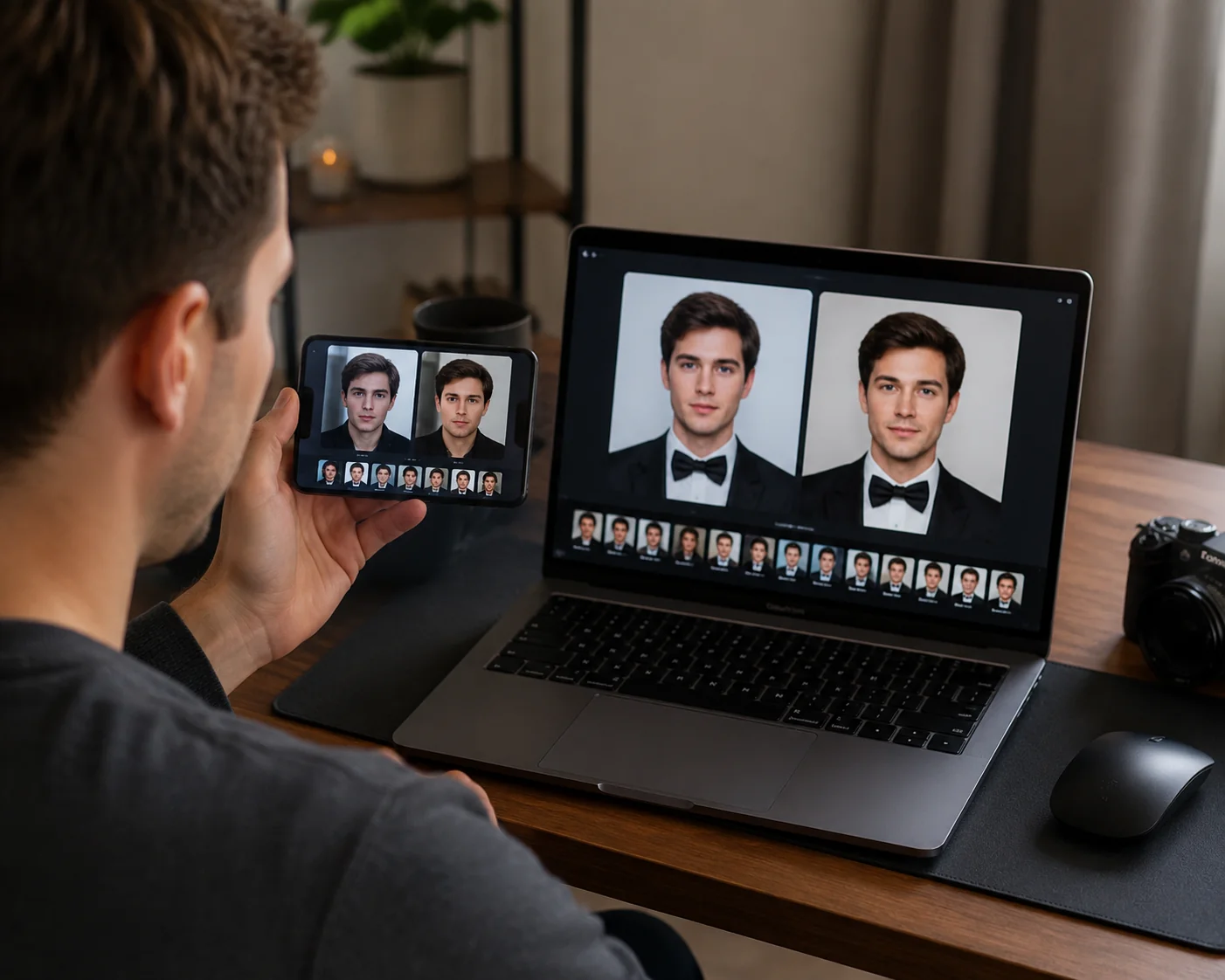
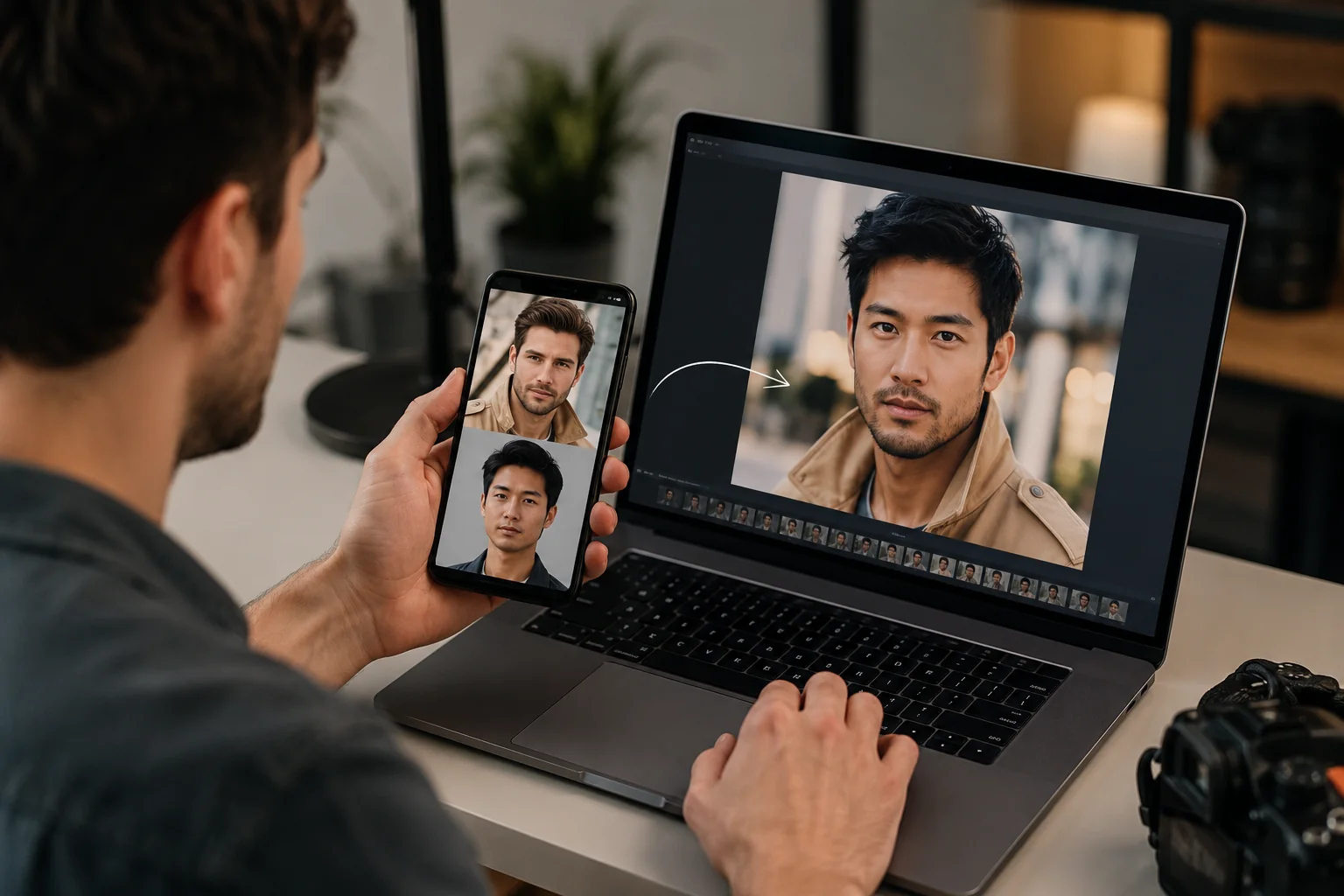
At its core, iMideo replaces a face in your target media with a face from your source photo. For photos it does a single swap; for video it tracks the face frame by frame, then blends the new features so they follow head movement, angle changes, and expression.
The reason results vary so much comes down to one idea: the tool matches what you give it, not what you imagine. If your source face is sharp, well-lit, and roughly the same angle as the target, the blend looks seamless. If the two mismatch, you get the melted-edge look people complain about.
So the practical concept behind a useful imideo face swap review is less about the button you press and more about the three inputs you control: the source photo, the target clip, and the lighting agreement between them. Nail those and the software mostly gets out of your way.
Photo swaps and video swaps behave differently in one key way. A photo swap only has to look right in a single frame, so you can be forgiving about motion. A video swap has to stay convincing across dozens of frames, which is why jitter and skin-tone seams show up in clips that would have passed as a still image.
That distinction shapes the whole workflow in the sections below. When a clip is long, fast, or shot in tricky light, I stop fighting the desktop flow and move to the online tool, which handles extended tracking more gracefully. If watermark-free output matters to you, it is worth comparing options first in this roundup of the Best Free Face Swap Apps Without Watermarks (2026) before you commit a full reel.
Keep that mental model in mind, and the step-by-step process that follows will feel less like guesswork and more like a repeatable recipe.
How to Apply It
Here is the exact upload-to-export workflow I settled on after 30 days. Start with the 3-input rule: a sharp source photo, a target clip under 30 seconds, and matched lighting between the two. Skip any one of these and you invite the melted-edge look.
First, prep your source face. Use a front-facing photo at 1080px or higher, neutral expression, and even lighting with no hard shadows across the nose or jaw. This single step moved my results from usable to clean more than any in-app setting did.
Next, upload both files. For photo swaps I keep blending at the default and export straight away. For short video swaps I enable frame-by-frame tracking, then preview the first two seconds before committing to a full render to catch eye misalignment early.
When output goes wrong, three fixes cover most cases. For eye misalignment, re-crop the source so both eyes sit level. For skin-tone seams, pick a source shot under similar lighting to the target. For jittery frames, trim fast head-turns or lower the clip length and re-run.
For longer or higher-motion clips where the app struggled, I switched to the browser-based imideo face swap review tool, which handles adaptive blending and 720p MP4 export more consistently. It became my go-to for turning one good source face into a full reel without re-prepping each time.
Before you post anywhere, run a quick checklist: confirm resolution matches your platform, check for watermarks, and scrub the full clip once at normal speed. If watermarks are a concern, compare options in this guide to the Best Free Face Swap Apps Without Watermarks (2026).
If you just want one good swap today, here is the 10-minute quick-start: grab a clean front-facing photo, pick a short clip with steady framing, upload both, preview two seconds, then export. That minimal path avoids nearly every week-one mistake I made.
AI Video Face Swap Online
Upload a face photo and MP4 or MOV video to replace faces online with frame-by-frame tracking, adaptive blending, and 720p MP4 output.
Free to start • No credit card required • Professional quality

Common Pitfalls
Three mistakes wrecked most of my early swaps. First, eye misalignment: it almost always traces back to a source photo shot at a different angle than the target clip. Match the head tilt within about 15 degrees and the problem mostly disappears.
Second, skin-tone seams along the jaw. These show up when the source lighting is warmer or cooler than the scene. I fix it by picking a source face lit as flatly as the target, not by cranking blend strength after the fact.
Third, jittery frames in motion. Low-resolution or heavily compressed source photos cause the tracker to lose the face between frames. A sharp, front-lit headshot at 1080p or higher steadied nearly every clip I tested for this imideo face swap review.
One last trap: chasing a watermark-free output with sketchy tools. If that is your goal, start with the Best Free Face Swap Apps Without Watermarks (2026) instead of gambling on random exporters.
Real-World Examples
Three swaps from my 30 days show what actually holds up. First, a passport-style headshot onto a talking-head clip: even, front-facing light on both, and the result needed zero cleanup. That single frame taught me more than any setting did.
Second, a group party photo where I swapped one friend's face onto a birthday reel. It worked until she turned past a three-quarter angle, and the jaw seam reappeared. Cropping the clip to the front-facing seconds fixed it faster than re-rendering.
Third, a longer 40-second dance video pushed the limits. Motion blur caused flicker, so I ran it through the imideo face swap review workflow for video with tracking enabled, and the jitter dropped noticeably on the second pass.
The pattern across all three: neutral expression and matched lighting decide the outcome before you touch export settings. If you also want a clean file to post, my roundup of Best Free Face Swap Apps Without Watermarks (2026) covers the output side.
Conclusion
After thirty days, my honest take is straightforward: iMideo handles clean, well-lit photo swaps and short clips with less fuss than I expected, though motion-heavy footage still needs careful source prep. This imideo face swap review isn't a story about magic; it's about a repeatable process that removes most week-one guesswork.
My practical recommendation is to start with a neutral, front-facing source photo, match the lighting to your target clip, and export at 720p before scaling up your ambitions. If watermark-free output matters for the platform you post to, compare your choices in our roundup of the Best Free Face Swap Apps Without Watermarks (2026) before you settle on one workflow.
When you're ready to try it, the fastest next step is uploading one face photo and a short clip to the AI Video Face Swap tool, then following the three-input rule from this guide. One good source face, one careful export, and this imideo face swap review turns into your own posted result today.
FAQ
How does iMideo compare to Reface and Faceapp?
iMideo focuses on frame-by-frame video swapping rather than quick meme templates. Reface is faster for casual social clips, while Faceapp leans toward photo edits and filters. iMideo gives you more control over source photos and export settings.
Is iMideo iOS app worth downloading?
If you swap faces regularly on the go, yes. The iOS app handles photo swaps smoothly, though longer video renders stay steadier on desktop or the web tool. Casual users may find the free tier is already enough.
Does iMideo face swap work on long videos?
It handles short clips reliably, but longer videos can jitter or lose tracking. For clips beyond a minute I split footage into segments or use the online AI Video Face Swap tool, which held tracking better.
How much does iMideo cost for serious users?
Pricing shifts with promotions, so check the current plans directly. Serious users typically need a paid tier for watermark-free exports, higher resolution, and batch processing. Budget for it monthly if you produce reels regularly rather than one-off swaps.
What is missing from iMideo face swap right now?
Consistent long-video tracking is the main gap, plus finer control over skin-tone blending. A true batch queue and 1080p export would help power users. For watermark-free options, see Best Free Face Swap Apps Without Watermarks (2026).