
Introduction
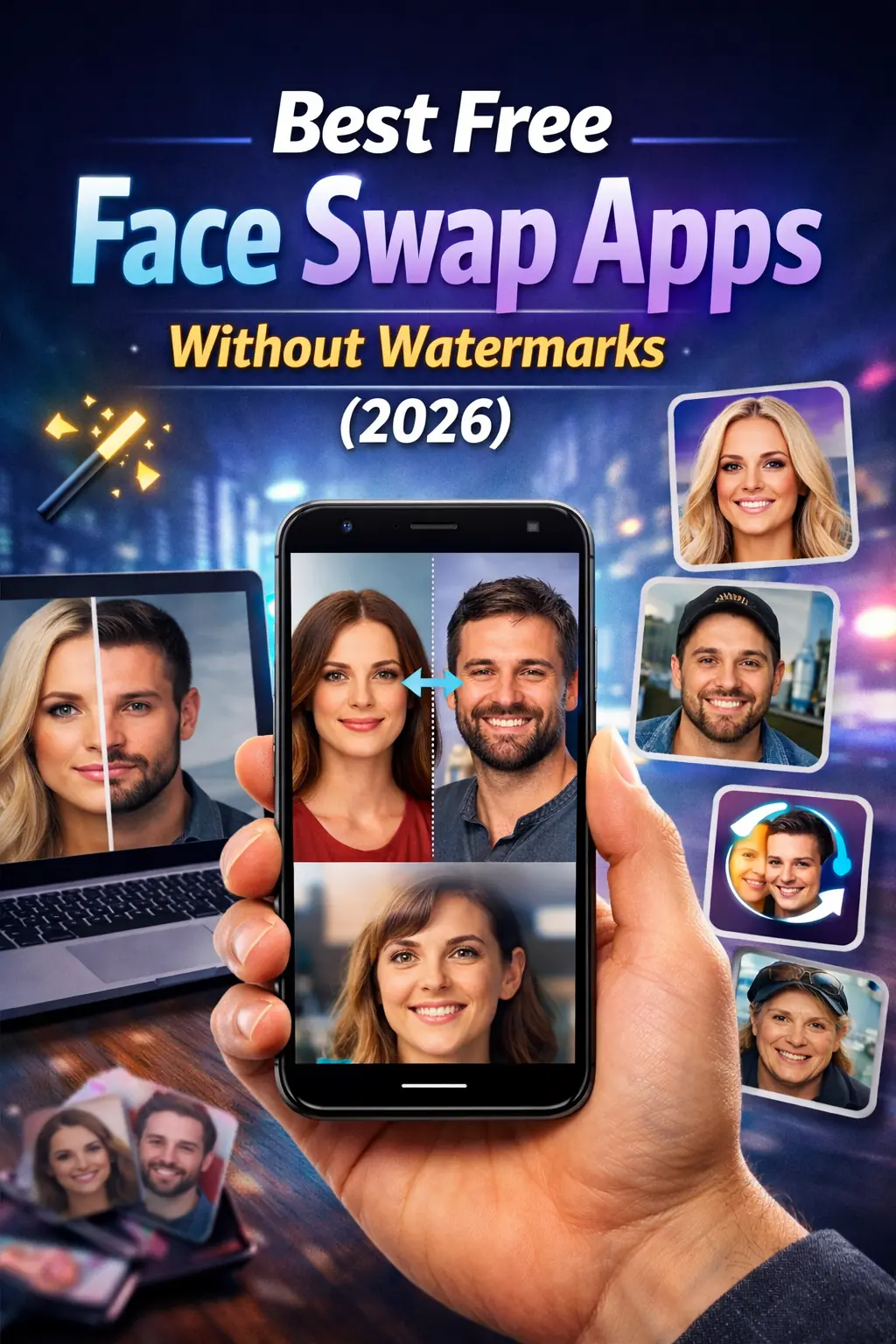
If you want a clean result that does not stamp a logo across your footage, you are searching for the right thing: a face swap no watermark workflow that stays free and works online. This guide covers the apps and tools that deliver exactly that in 2026.
Most free face swap tools quietly add a watermark, cap your export quality, or lock the good features behind a paywall. We sorted through them so you do not have to test each one yourself.
Below you will find practical picks for photos and video, plus a short note on what to check before you upload. If you are working with clips rather than stills, AI Video Face Swap Online handles frame-by-frame tracking and exports clean 720p MP4 files. Let's start with what actually matters in a watermark-free tool.
Key Takeaways
If you want a face swap no watermark result, the right tool matters more than fancy filters. Free apps often add a logo, cap your resolution, or limit how many swaps you can export each day.
For still photos, a clean still-photo face swap tool tool lets you replace a face and download without branding. For video, look for frame-by-frame tracking and adaptive blending so the swap stays consistent in motion.
Want movement from a single photo instead? A photo animation tool can animate stills. Below, we compare watermark-free options, output quality, and the trade-offs to expect from free tiers in 2026.
Main Concept Explained
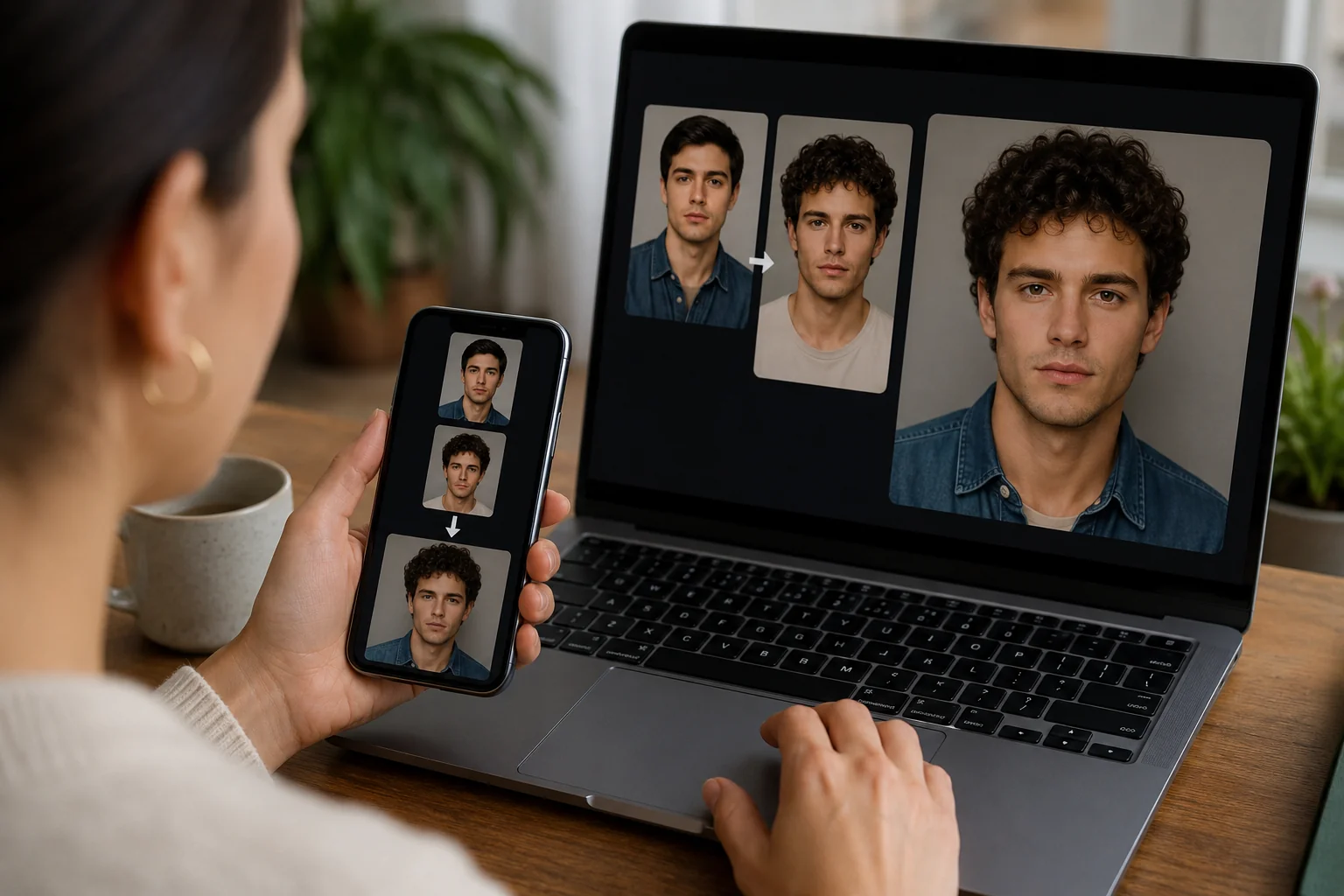
A face swap replaces the face in a photo or video with another face you provide. The tool detects facial landmarks, maps your source face onto the target, then blends skin tone, lighting, and edges so the result looks like one continuous image rather than a pasted cutout.
The phrase "face swap no watermark" points to a specific frustration: many free tools stamp a logo across your export or lock clean downloads behind a paywall. People searching for it want a finished file they can post or share immediately, without cropping around a brand mark or paying to remove one.
Two things matter here. First, output ownership: can you download the result at usable quality without a watermark? Second, format support: photo-only tools handle a single frame, while video swaps must track the face across every frame and stay stable as the head turns or the lighting shifts.
For still images, the process is quick. You upload a target photo and a source face, and the tool returns a swapped image in seconds. If you mainly work with pictures, a dedicated still-photo face swap tool tool keeps things simple and gives you a clean file to save.
Video is more demanding. Each frame needs consistent landmark detection, frame-by-frame tracking, and adaptive blending so the swapped face doesn't flicker or drift. A good video tool accepts common formats like MP4 or MOV and exports a standard MP4 you can upload anywhere.
Quality also depends on your inputs. A well-lit, front-facing source photo produces a cleaner swap than a blurry profile shot, and a target with steady lighting blends more naturally than harsh, mixed light.
If you want a deeper walkthrough of how the technology works and which settings affect realism, the AI face swap guide breaks down the full process in detail.
How to Apply It
Getting a clean swap is mostly about preparation. Start with a source photo where the face is well-lit, looking roughly forward, and free of heavy shadows or sunglasses. The clearer the reference, the less the tool has to guess.
Next, pick your target clip. Shorter videos with steady framing track better than fast, blurry action shots. Aim for footage where the subject's face stays visible most of the time, since gaps in visibility are where blending tends to slip.
From there, the workflow is simple. Open a tool like AI Video Face Swap Online, upload your face photo and an MP4 or MOV file, then let it process frame by frame. It tracks the face across each frame and adapts the blend so skin tone and lighting line up. The result downloads as a 720p MP4.
If you specifically want a face swap no watermark on the final file, check the export settings before you download. Free tools vary, so confirm the output is clean rather than assuming it. Re-running a short test clip first saves you from re-processing a long video later.
A few habits improve every result. Match the angle of your source photo to the angle of the target video when you can. Avoid extreme expressions in the reference image, since a neutral face blends into more situations. And keep the lighting direction similar between photo and clip so the seams stay invisible.
If your first attempt looks off around the jaw or hairline, the fix is usually upstream: swap in a sharper photo or trim the clip to its steadiest section. Small input changes often beat fiddling with settings after the fact.
Want the full breakdown of techniques and edge cases? Our AI face swap guide walks through advanced tips, and if you're curious where the line sits between playful edits and manipulation, Face Swap vs Deepfake: The Real Difference explains it plainly. Either way, the core process stays the same: good photo, steady clip, quick test, then export.
AI Video Face Swap Online
Upload a face photo and MP4 or MOV video to replace faces online with frame-by-frame tracking, adaptive blending, and 720p MP4 output.
Free to start • No credit card required • Professional quality

Common Pitfalls
The most frequent surprise is the hidden watermark. Some apps advertise free swaps, then stamp a logo across your export or lock clean output behind a paid tier. Always run a short test clip before committing to a full project.
Quality drops are another issue. Low-resolution source photos, harsh lighting, or extreme head angles cause blurry seams and flickering between frames. A clear, front-facing photo with even lighting gives blending algorithms far more to work with.
People also misjudge what the tool is for. A casual face swap for fun is not the same as a convincing fabrication, and the distinction matters both technically and ethically. If you are unsure where the line sits, read Face Swap vs Deepfake: The Real Difference before you publish anything.
Finally, check format support. Many free tools reject MOV files or cap length. A browser-based face swap no watermark tool that handles MP4 and MOV with frame-by-frame tracking avoids most of these headaches.
Real-World Examples
People reach for face swap tools in very different situations, and the watermark question matters more in some than others. A creator editing a short comedy skit needs clean output they can post without a logo stamped across someone's forehead.
Take a small podcast team making thumbnail variations. They swap a host's face onto a few reaction templates, export at 720p, and drop the clips straight into their channel art. Because the frames are clean, nothing screams "free trial."
Another common case is family video edits. Someone places a relative's face into an old holiday clip as a gift, then shares it privately. A visible watermark would cheapen the moment, so a true face swap no watermark workflow makes the result feel finished.
Marketers also test concepts quickly, swapping faces into mockup ads before committing to a full shoot. If you are weighing the ethics or the technical line between editing and fabrication, read Face Swap vs Deepfake: The Real Difference before publishing anything public.
Conclusion
Finding a reliable face swap no watermark tool comes down to a few things: clean output, no forced branding, and a resolution you can actually use. Several free options handle casual swaps, but many quietly stamp logos or cap exports until you pay.
For most people, the practical move is to test a tool on a short clip first. Check the exported file for hidden marks, confirm the resolution, and review how your uploads are handled before committing to a longer project.
If you want clean video results without that branding, iMideo's AI Video Face Swap Online replaces faces frame by frame with adaptive blending and 720p MP4 output. Upload a face photo and an MP4 or MOV, and you get a usable file back.
Before you start, it helps to understand what you're making. Our guide on Face Swap vs Deepfake: The Real Difference explains where the line sits and how to stay on the right side of it.
FAQ
Are there really watermark-free free face swap apps?
Yes. Several browser tools let you swap faces and download results without a stamp on the output. iMideo's AI Video Face Swap exports clean 720p MP4 files for free, so you don't pay to strip branding afterward.
Do these apps export at full resolution for free?
Most free tiers cap resolution. Photo swaps often reach decent quality, while free video usually tops out around 720p. That's fine for social clips, but you may need a paid plan for crisp 1080p or longer, higher-bitrate exports.
Do face swap apps add a watermark on free video exports?
Many do, since video is costlier to process than images. Always test a short clip first and check the corners. Tools like iMideo skip the watermark on free 720p video, which is rarer than watermark-free photos.
How do "free" face swap apps actually make money?
Common models include paid upgrades for higher resolution, ads, processing credits, and subscriptions for batch jobs or longer videos. Free tiers act as a trial, nudging frequent users toward plans rather than charging to remove watermarks.
Can I remove a watermark after the fact?
Editing out a watermark is messy, often leaves artifacts, and may breach the tool's terms. It's far easier to pick a service that exports clean from the start. For background, see Face Swap vs Deepfake: The Real Difference.